Local Video Upload
Upload videos straight from your device into Recapo.ai. MP4, MOV, MKV, WebM and GIF are supported, uploads resume after drops, and large files have a fast path.
Click to upload or drop a video
Live-preview and trim in your browser; cloud rendering continues after you leave the page
Up to 2 GB per file
Supported video formats
The uploader covers the containers most workflows produce, so conversion is the exception rather than the rule:
- 01
Pick your files
Drag and drop or browse from your device. MP4, MOV, MKV, WebM and GIF all go straight in without pre-conversion.
- 02
Let the transfer run
Watch progress as the file uploads. A dropped connection pauses the transfer rather than killing it — reconnect and it continues from the same point.
- 03
Edit the moment it lands
Send the uploaded footage into captions, recap scripting, voiceover, compression or vertical cropping without re-importing anything.
MP4
phones, cameras and most exports; the smoothest path end to end.
MOV
iPhone and macOS recordings, including screen captures.
MKV
OBS recordings and long captures with multiple tracks.
Uploading large source files without pain
Upload time scales with file size, not video length — a bloated bitrate costs you twice, once uploading and once storing. Before sending multi-gigabyte footage, compress it with the video compressor or trim to the segment you'll actually edit; transcription and AI analysis stay just as accurate on a leaner file.
A wired or stable connection helps, but resumable transfer is the real safety net: long uploads survive flaky Wi-Fi, sleep mode and brief outages without losing progress.
Built for these real workflows
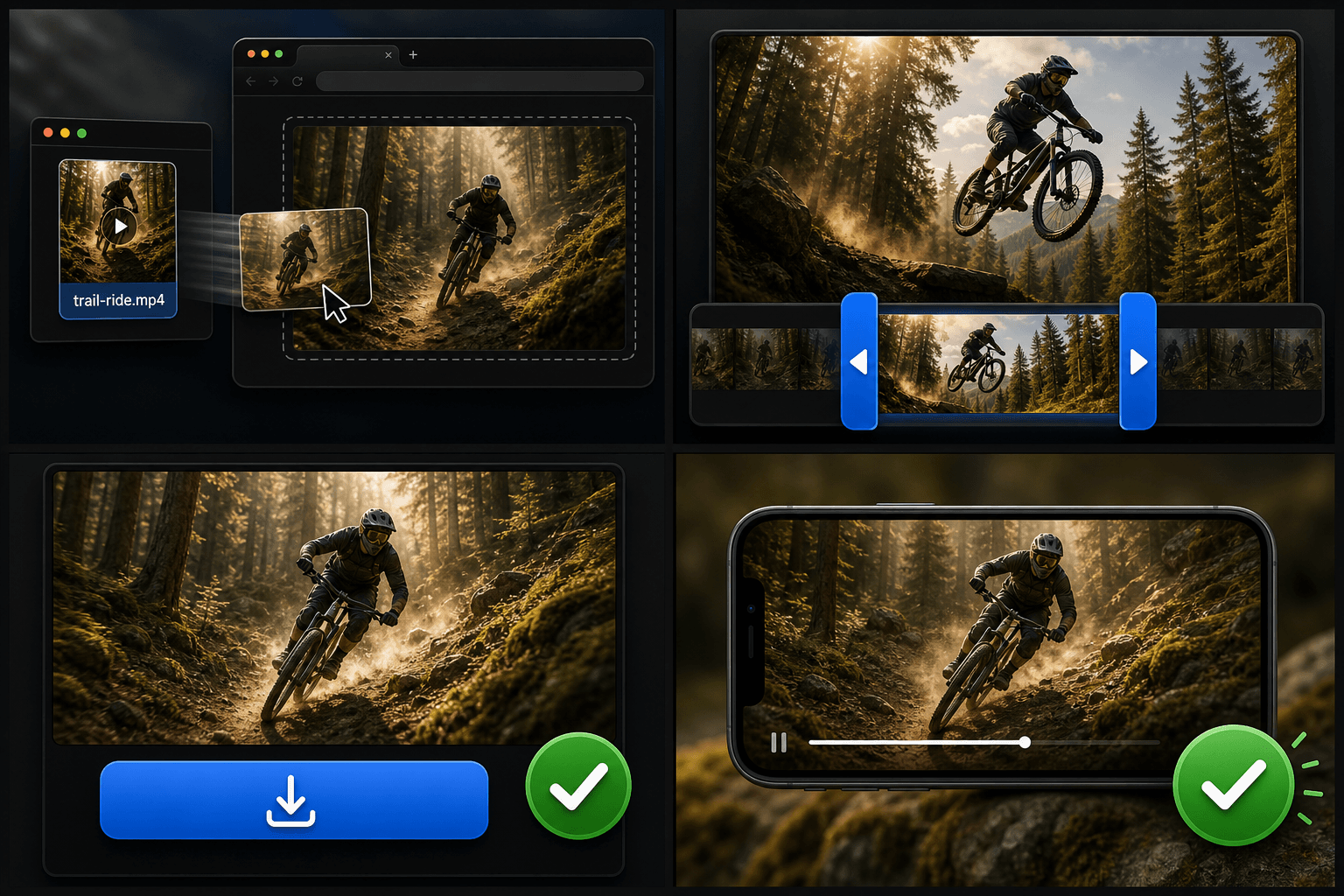
Preview local footage in-page
Choose the exact range to keep
Export the trimmed clip
Continue with the next step
Frequently asked questions
Which formats can I upload directly?
MP4, MOV, MKV, WebM and GIF upload without preparation. For unusual containers or codecs, convert to MP4 with the format converter first and the rest of the pipeline behaves normally.
My footage is huge — should I compress before uploading?
Usually yes. Compressing first shortens the upload dramatically while leaving captions, scripts and AI analysis unaffected, since they don't need a pristine bitrate. Keep the original locally as your master copy.
What happens if my connection drops mid-upload?
The transfer resumes from where it stopped once you're back online, instead of restarting from zero. For very long uploads, that's the difference between a hiccup and a lost hour.
How is this different from the Video Link Importer?
Local Video Upload pulls a file straight off your own computer or phone, while the Video Link Importer fetches footage from a URL. Use this tool when the recording already lives on your drive rather than online.
What happens to my clip after it finishes uploading?
The file is ingested as a source clip in your workspace and stays available to the rest of the Recapo workflow, so you can run transcription, recap scripting, captions, voiceover or clipping on it without uploading it again.
Start using Local Video Upload
Provide the input and essential settings above. Your result stays in the current tool workflow.
Back to tool