MOV to MP4 Converter
Convert iPhone and Mac MOV files to MP4 online. Turn HEVC footage into H.264 that plays anywhere, then add captions or edit — free to try on Recapo.ai.
Click to upload or drop a video file
Supports MP4, MOV, MKV, WebM, MPEG, MPG, 3GP, 3GPP
Up to 2 GB per file
Each video must be 180 minutes or shorter
Why iPhone MOV files won't play everywhere
Modern iPhones default to High Efficiency capture, which stores HEVC video inside a QuickTime (.mov) container. HEVC saves space on your phone, but support outside the Apple ecosystem is uneven — and the .mov wrapper adds a second compatibility hurdle on top. Typical failure points include:
- 01
Import iPhone or Mac footage
Upload .mov files from your camera roll or a synced drive link — no app installation required.
- 02
Convert HEVC to H.264 MP4
HEVC video is re-encoded to H.264 and packed into MP4; MOV files that already use H.264 are simply rewrapped, losslessly.
- 03
Edit, caption, publish
Open the MP4 in any editor, or stay in Recapo for ASR subtitles, AI recap scripts, voiceover and 9:16 export.
Windows editing software that imports the file but shows black frames or audio only.
Web players and HTML5 embeds that refuse HEVC streams outright.
Upload validators on platforms and CMSs that only whitelist MP4/H.264.
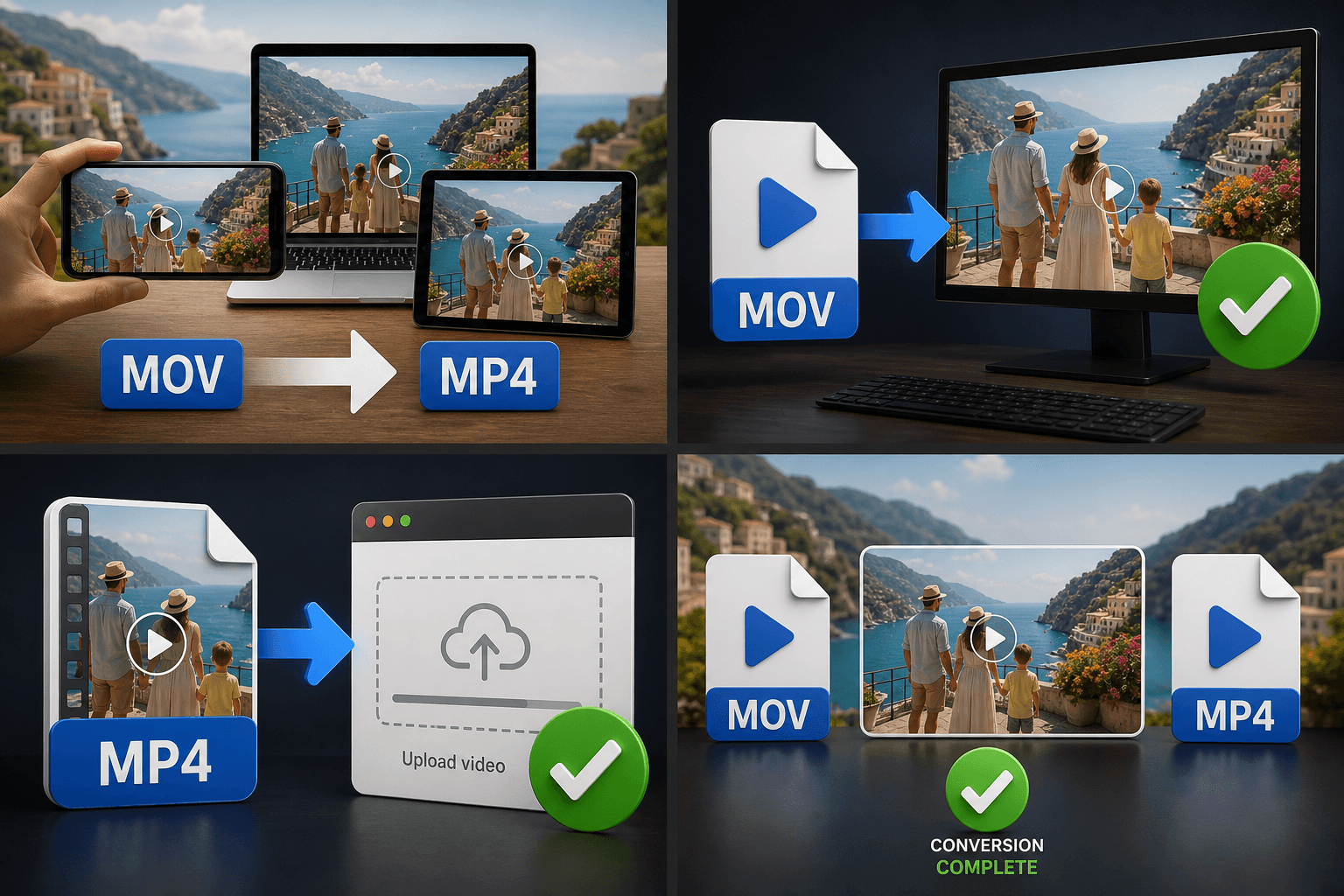
From camera roll to edit-ready MP4
Treat the original MOV as your master and the converted MP4 as your working copy. Upload the shoot, convert it once, and everything downstream gets easier: transcription is just as accurate, recap script generation reads the footage the same way, and the H.264 stream scrubs smoothly on editing timelines that struggle to decode HEVC in real time.
Built for these real workflows
Share iPhone footage across devices
Deliver Mac video to Windows
Upload MOV footage to web platforms
Frequently asked questions
Does converting MOV to MP4 reduce the quality of my iPhone footage?
If the MOV already contains H.264, the streams are rewrapped with zero loss. HEVC sources are re-encoded at a high quality target, so the difference is not visible in normal screen viewing — keep the original MOV as your archive master if you want a pristine copy.
Why does my MOV play on my Mac but fail in my editor?
Your Mac decodes HEVC in hardware, so playback works; many editors and web players don't, or only partially. Converting to H.264 MP4 removes both the codec and the container as variables.
I have a whole shoot of MOV clips — do I convert them one by one?
No. Use batch import to bring in several clips from the same shoot and convert them in one session, then caption or edit them together in Recapo.
What does this converter output, exactly?
It produces an MP4 file with H.264 video and AAC audio, which is the format that most social platforms, editors, and the rest of the Recapo recap workflow expect from a standard upload.
Will it handle ProRes or HEVC MOV files from my Mac or iPhone?
Yes. Heavy QuickTime sources like ProRes or HEVC MOV recordings are converted into a widely compatible H.264 MP4, which is usually far smaller and easier to upload than the original.
Start using MOV to MP4 Converter
Provide the input and essential settings above. Your result stays in the current tool workflow.
Back to tool