How to Remove Background Music From a Video
Learn how to remove background music from a video while keeping the voice, using AI stem separation — plus when to just mute audio, and honest artifact limits.
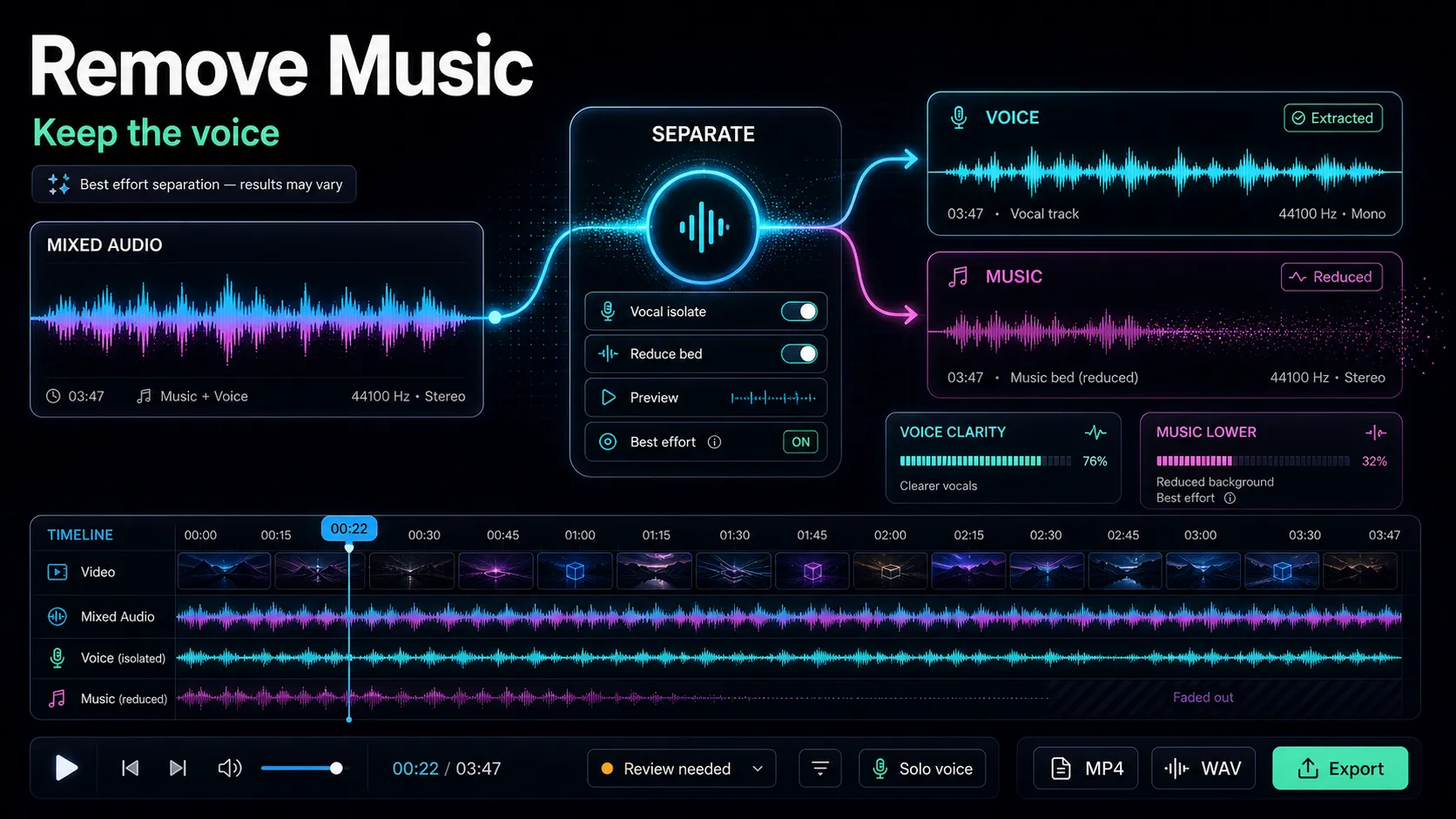
Removing background music from a video splits into two completely different jobs, and choosing the wrong one costs you an afternoon. If you only need the clip silent, you mute or detach the audio track and you're done in seconds. If you need to strip the music but keep someone talking, that's AI stem separation — the process that pulls vocals apart from the instrumental so you can throw one away and keep the other. This guide covers both paths, walks the keep-the-voice workflow step by step, explains the reason most creators actually do this (killing the copyright claims that hit repurposed clips), and tells you honestly what a background music remover can and can't recover.
Key Takeaways
Two jobs hiding behind one search
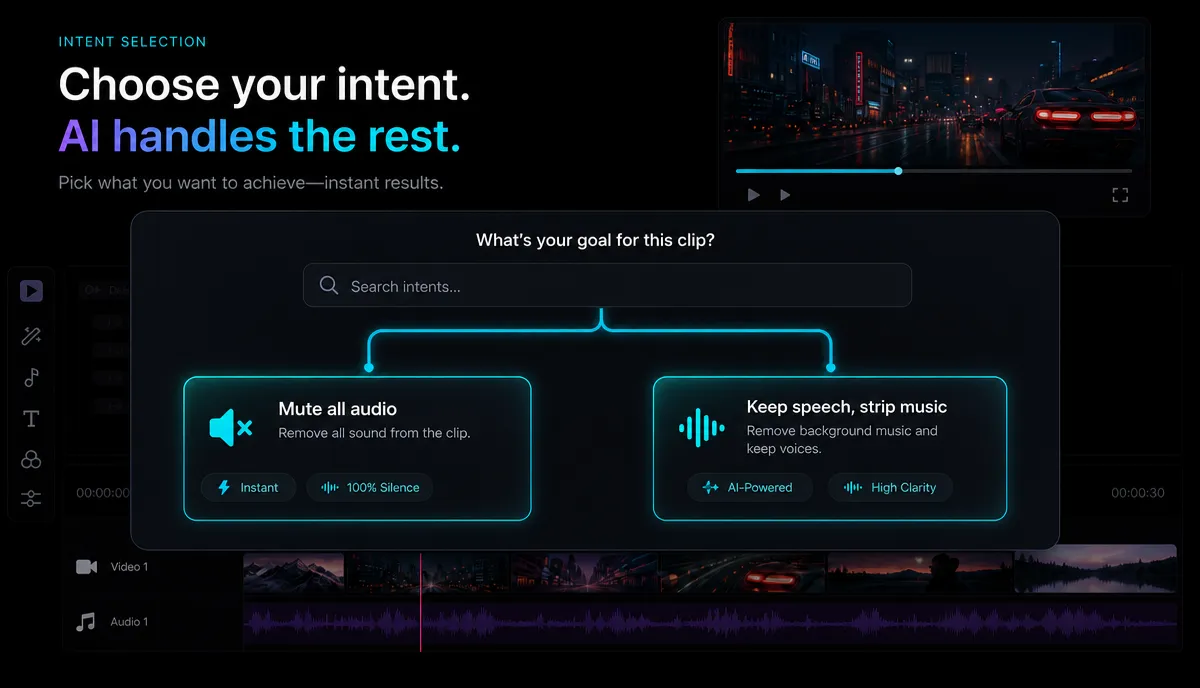
Type remove background music from video into any tool and you'll get a single button. But your intent decides everything, and there are really three different tasks people mean by that phrase:
| Your real goal | What you actually want | The right method | Difficulty |
|---|---|---|---|
| Mute everything | Silent footage so you can add your own music or narration | Detach or delete the audio track | Trivial |
| Remove music from video but keep voice | Just the talking, with the music bed gone | AI stem separation | Moderate, never perfect |
| The music is just too loud | Keep both, but push the music under the voice | Volume / ducking, not removal | Easy — different job |
The middle row is the hard, interesting one, and it's what most people who want to separate vocals from background music are really after. The rest of this guide focuses there, with a short detour for the simple mute case.
How AI separates vocals from music, in plain language
Here's the thing that trips people up: there is no "music channel" to delete. When a video is recorded or a track is mixed, every sound — the voice, the guitar, the drums, the bass — is summed into a single waveform. It's like pouring coffee and milk into one cup: you can't just scoop the milk back out.
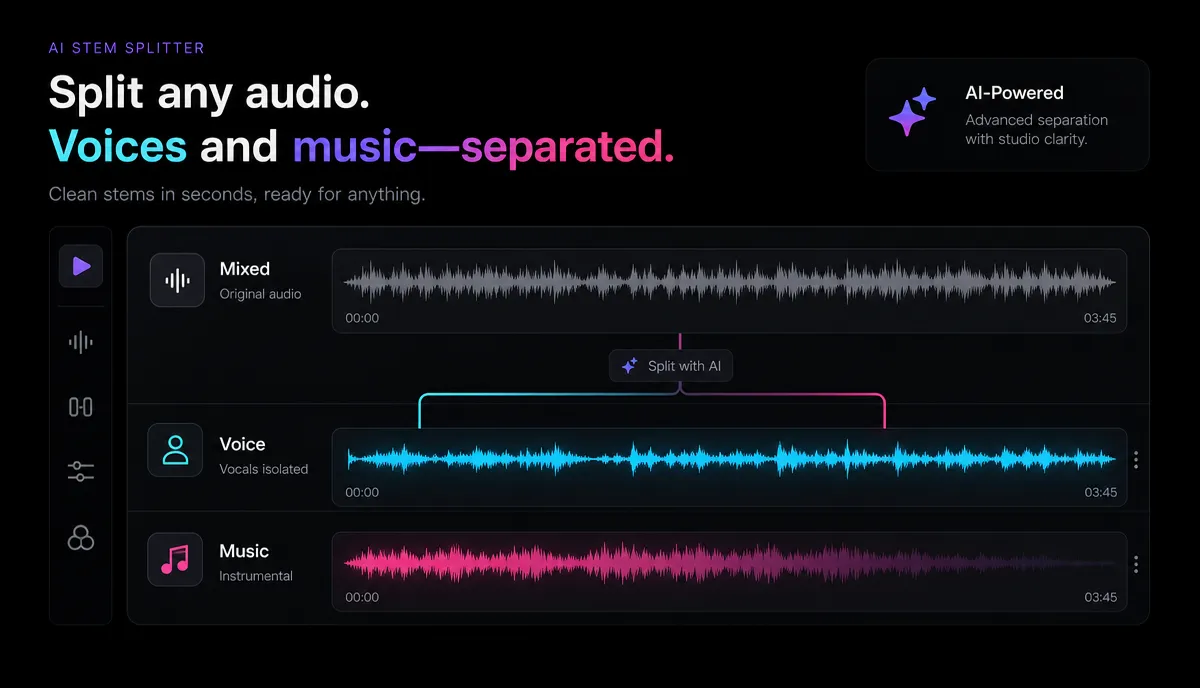
AI stem separation is what makes the un-pouring possible. The model is trained on huge libraries of music where the separate parts are already known, so it learns what a human voice looks like in a waveform versus what a snare hit or a synth pad looks like. Point it at your mixed audio and it reconstructs each part as its own track — a stem. Keep the vocal stem, discard the instrumental stems, and the music is gone while the voice stays.
One honest caveat is baked into how these models work: most were trained on sung vocals, not speech. Talking is close enough that it almost always rides along in the vocal stem, but when the music and the voice occupy the same frequencies at the same instant, the model has to guess — and that guess is where artifacts come from.
If you've ever tried the old karaoke trick of inverting one stereo channel to cancel a centered vocal, you know how badly the pre-AI methods failed on anything but a perfectly centered, stereo mix. Modern separation is why removing music from real-world video finally became practical.
Step by step: remove music but keep the voice
You can run this entire workflow in the browser — no install, on MP4, MOV, and other common formats, up to 6GB per task.
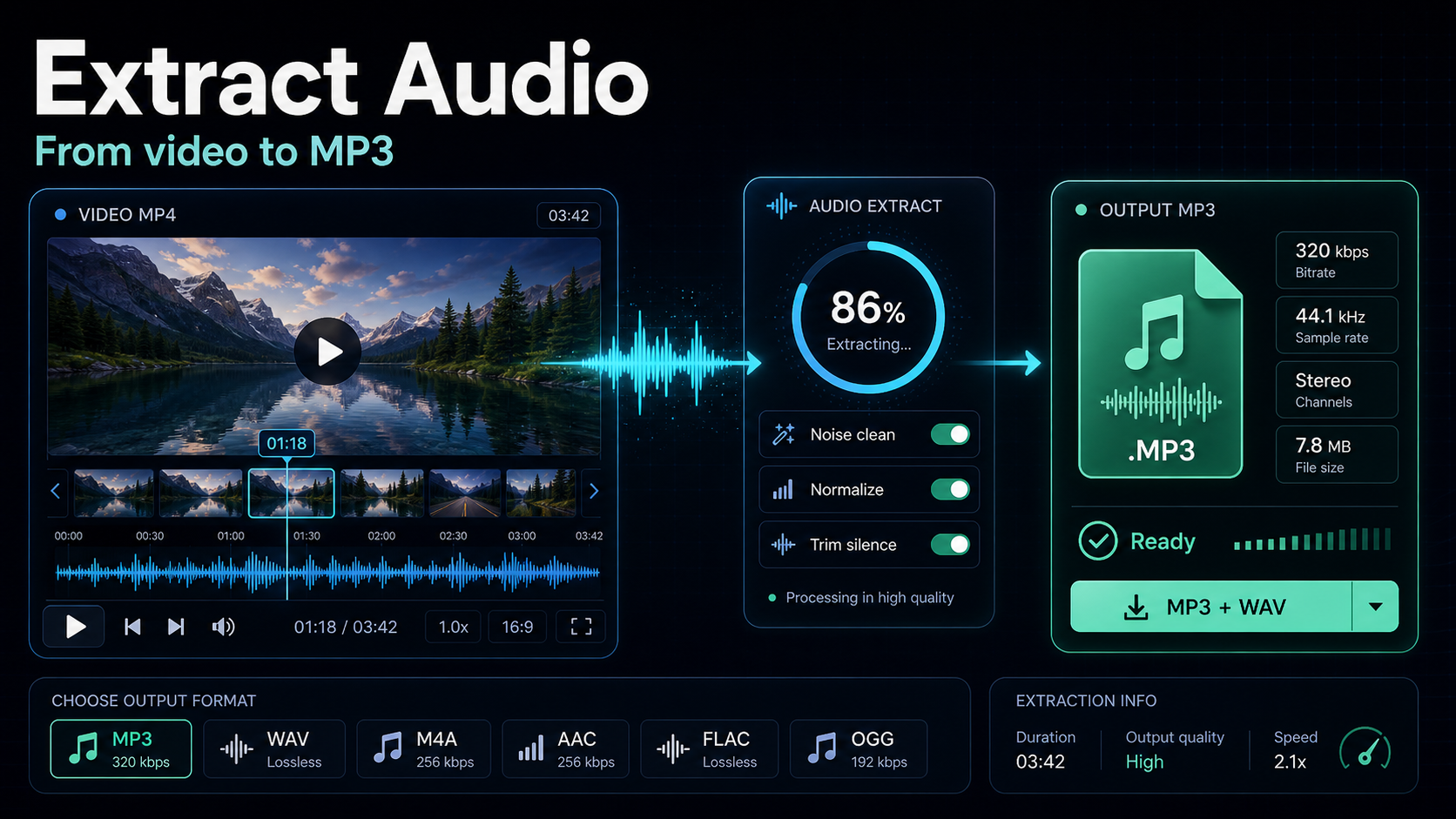
- Isolate the soundtrack first (recommended). Separation behaves best on a clean audio file. Run your clip through Recapo's extract audio from a video tool to pull the soundtrack out as its own file. You can feed video straight into separation too, but working on the audio alone makes it much easier to audition the result.
- Run stem separation. Load the audio into Recapo's stem splitter and let it break the mix into separate tracks. If you want finer control over which parts get isolated, the audio separator does the same core job with each stem exposed individually.
- Audition every stem on headphones. Play the vocal stem in isolation and listen for two things: how much music bled through, and whether the voice still sounds natural. Laptop speakers hide the exact artifacts that headphones expose.
- Keep the vocal stem, drop the rest. Discard the instrumental stems entirely. What's left is the speech, minus the music bed.
- Re-attach or re-score. Drop the cleaned voice back over your footage. If the clip feels empty without a bed, this is the moment to add licensed or royalty-free music (more on why below).
- Do a full-length listen, then export. Artifacts love to hide in one two-second stretch. Play the whole thing start to finish before you commit, then export.
The simple case: when you just want silence
If you don't actually need the voice — you're going to narrate over the clip or drop in a fresh track — skip separation entirely. It's slower, and it can introduce artifacts you have no reason to invite. Instead:
Muting is instant and lossless. Reach for separation only when keeping the original voice is the whole point.
Why creators strip music: copyright claims on repurposed clips
The single most common reason creators remove background music isn't aesthetic — it's copyright. When you repurpose footage (a podcast episode, a livestream, a talking-head clip) that has music playing in the background, automated content-matching systems on YouTube, TikTok, YouTube Shorts, and Instagram Reels can flag it. Depending on the platform and the rights holder, that can mean a copyright claim, demonetization, muted audio, or a blocked upload.
Stripping the music removes the element that trips the match. Keep the speech, delete the instrumental, and the recognizable song is no longer in your export. From there you can leave the clip clean or re-score it with music you actually have the rights to.
Two honest points, because this part matters:
What to realistically expect (and where it breaks)
No background music remover is perfect, and anyone promising flawless separation is setting you up to be disappointed. What you get depends almost entirely on how tangled the voice and music are in the original.
| Your source clip | Realistic result |
|---|---|
| Voice over a light, quiet instrumental bed | Clean removal, minor artifacts if any |
| Voice over loud, busy, full-band music | Clear improvement, but expect some bleed and a slightly processed voice |
| Speech over heavy bass and percussion | Tonal music strips well; percussion can leave faint ticks |
| Singing and speech in the same frequency range at once | Poor — the model can't reliably tell them apart |
| Already low-bitrate or heavily compressed audio | More artifacts, because detail was lost before you started |
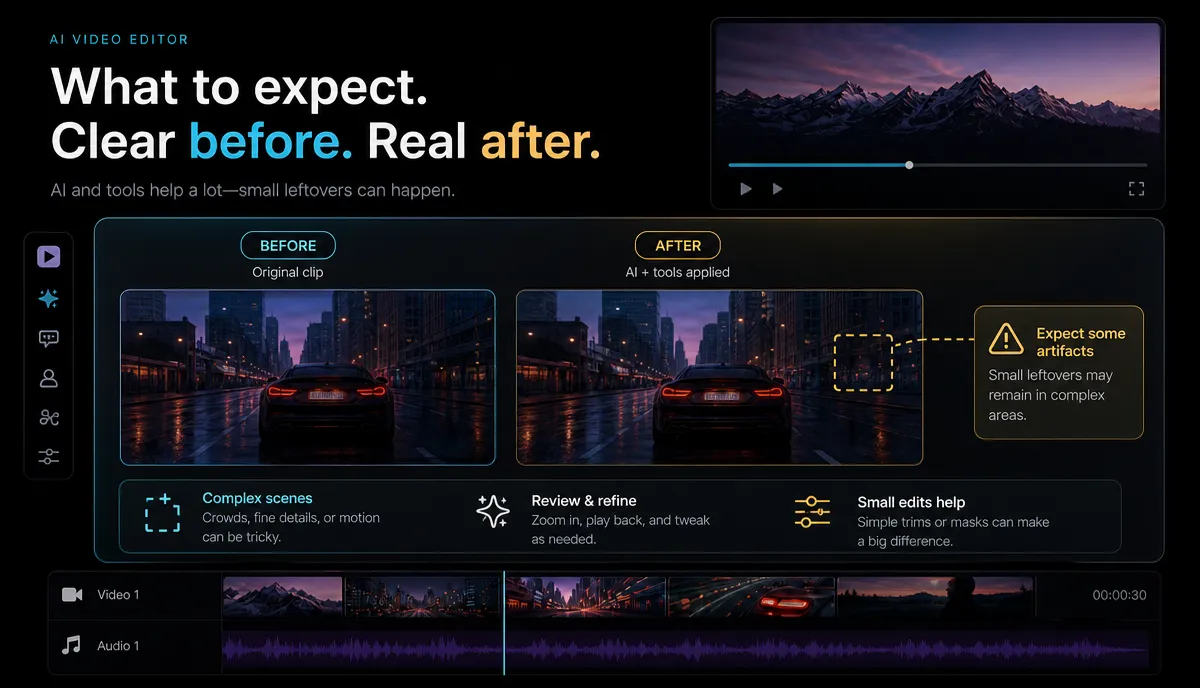
The signature artifact to listen for is a watery, "underwater" shimmer on the voice, sometimes with a faint musical ghost lingering underneath. That's the model filling in gaps where it had to guess. A useful rule: if the leftover music was quiet and simple, you'll be delighted; if it was loud and dense, treat separation as a big improvement rather than a magic erase, and set your expectations before you start editing around it.
How to evaluate any background music remover
Because separation quality depends on your specific footage, spec sheets and feature checklists don't tell you much — and free-tier limits, watermarks, and caps change often enough that they're not worth memorizing. Test on your own hardest clip instead. There are broadly four categories of tools, each built for a different job:
| Tool category | Built for | Best when |
|---|---|---|
| AI stem-separation tools | Splitting a mix into vocals and instruments | You need to keep the voice and remove the music |
| Vocal removers made for karaoke/music | Pulling sung vocals out of songs | You're working with music, not spoken dialogue |
| General video editors with detach-audio | Muting or replacing the whole track | You just want silence, not the voice kept |
| Denoisers / noise reducers | Removing hiss, hum, and ambient noise | Your problem is noise, not music — a different job |
Then run this five-point self-test on any tool before you trust it:
- Upload your worst case, not a clean sample. Feed it a 30–60 second stretch where the music is loudest under the voice. If it survives that, it'll handle the easy parts.
- Judge on headphones. Listen specifically for music bleed and for that watery vocal artifact.
- Check it handles your files. Confirm it accepts your format and file size before you build a workflow around it — a tool that chokes on a 4GB MOV is useless to you no matter how good its results look.
- Preview before you export. See and hear the result — including any watermark or quality change — before you spend an hour editing around it.
- Compare against the mute-and-replace alternative. If separation leaves too much bleed, muting the audio and adding a voiceover or fresh music is sometimes the better creative call.
Note that last category: if what's actually bothering you is hiss or room noise rather than music, that's a different fix — see how to remove background noise from a video.
FAQ
Can I remove background music from a video but keep the person talking? Yes, with AI stem separation. It splits the mixed audio into a vocal stem and instrumental stems; you keep the vocals and discard the music. It works best when the music sits quietly behind a clear voice, and struggles when the two overlap loudly — expect a great result in easy cases and a solid improvement (not a perfect erase) in hard ones.
Will removing the music get rid of a YouTube copyright claim? It can, if the music was what triggered the match — no recognizable song in your export means nothing for the system to flag. But two caveats: any fragment of music surviving in the vocal stem can still be caught, so aim for clean removal; and stripping the soundtrack doesn't grant you rights to footage that wasn't yours in the first place.
Why does the voice sound watery or strange after I remove the music? That's the classic separation artifact. Where the voice and music shared the same frequencies, the model had to guess how to fill the gap, leaving a watery shimmer or a faint musical ghost. It's most audible when the original music was loud and dense; lighter beds separate far more cleanly.
Can I remove music from a video for free? You can run separation in the browser without installing anything, on MP4, MOV, and other common formats up to 6GB per task. Pricing for heavier use lives on the pricing page — but since results depend so much on your specific clip, the smart move is to test one file first rather than commit based on a spec sheet.
What's the difference between muting the audio and removing the music? Muting kills everything — voice, music, ambience — leaving silent video you'd narrate or score yourself. Removing the music with stem separation keeps the voice and strips only the instrumental. If you don't need the original talking, mute; it's instant and artifact-free. If the voice is the point, separate.
Remove the music in your browser
Removing background music comes down to knowing which job you're doing: mute the track when you only want silence, or reach for AI stem separation when the voice has to stay. Separation isn't magic — a light bed cleans up beautifully, a loud one leaves traces — but for dodging copyright claims on repurposed clips, it's often exactly the right tool. You can run all of it in your browser: pull the audio out, split it into stems, and keep just the voice, on the formats you already shoot, with no install. Create a free Recapo account and try it on your trickiest clip before you publish.