Video Cover Maker
Make video covers online: pull the best keyframe from your footage, add a bold title layout, and export platform-ready sizes for YouTube, TikTok and more.
Tip: drag to reposition; click to select, then drag the corner handles to resize
Make a video thumbnail from your own footage, not stock art
Covers built on a real frame consistently feel more honest than generic graphics, because they promise exactly what the video delivers. The cover maker pairs with keyframe extraction, so you get clean stills at source resolution — no player controls, no progress bar baked into the image — and turn one of them into the cover in a couple of clicks.
- 01
Import a video
Upload a local file or paste a link. The cover maker reads the footage directly, so you design on real frames instead of blurry screenshots.
- 02
Pick a frame, add a title
Scrub the timeline or browse extracted keyframes, then apply a title layout and tweak the text until it stays readable at thumbnail size.
- 03
Export in platform sizes
Download the cover in the template size for YouTube, TikTok, Reels or Xiaohongshu, and attach it when you publish or export the video.
Browse detected keyframes instead of pausing and screenshotting.
Layer a short, high-contrast title over the frame with preset layouts.
Keep faces and key action clear of the text block.
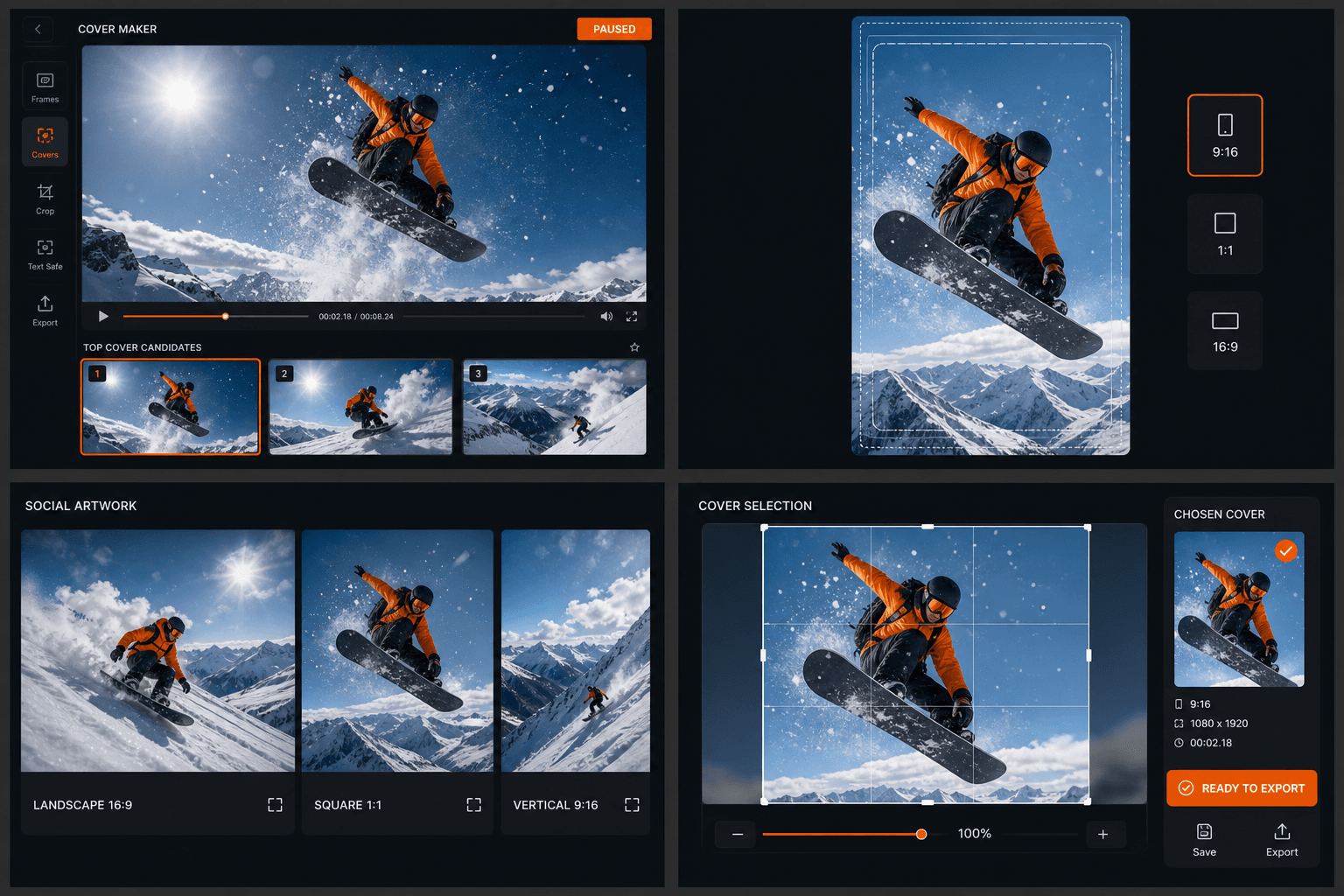
One cover, every platform cover size
Each platform frames covers differently: YouTube wants 16:9 landscape, TikTok and Reels display vertical, Xiaohongshu feeds favor 3:4 cards, and Bilibili keeps a horizontal thumbnail. The cover maker ships size templates for each, so the same key frame and title can be re-framed per platform instead of redesigned from scratch — and the dedicated Xiaohongshu cover maker handles the RedNote-specific conventions.
Built for these real workflows
Create video thumbnails
Design short-video cover frames
Prepare social media artwork
Continue with the next step
Frequently asked questions
Can I use a frame from my own video as the cover?
Yes — that is the core workflow. Scrub to any moment or pick from extracted keyframes, and the frame is exported at source resolution before the title layout is applied.
What makes a cover readable at thumbnail size?
A short title of a few large words, strong contrast against the background frame, and one clear focal point. The built-in layouts are sized for small-screen feeds, so text that fits the template will still read in a crowded list.
Do I need a separate design tool for each platform's cover size?
No. Choose a size template per platform and re-frame the same composition — the crop and safe margins adjust automatically, so you only design the cover once.
What image can I use as the cover background?
Any still you have on hand: a keyframe pulled from your recap with the Keyframe Screenshot tool, a movie poster, or your own uploaded picture. Cover Maker works on a single image plus text, not on a video file.
Start using Cover Maker
Provide the input and essential settings above. Your result stays in the current tool workflow.
Back to tool