MKV to MP4 Converter
Convert MKV to MP4 online and keep your chosen audio track and subtitles. Remux compatible files in seconds, no quality loss — free to try on Recapo.ai.
Click to upload or drop a video file
Supports MP4, MOV, MKV, WebM, MPEG, MPG, 3GP, 3GPP
Up to 2 GB per file
Each video must be 180 minutes or shorter
What happens to MKV audio tracks and subtitles?
MP4 playback is most predictable with one audio track, so you choose which language or commentary track to carry over before converting. Soft subtitles are trickier: MKV players render them happily, but many MP4 players ignore embedded text tracks entirely. You have two reliable options in Recapo:
- 01
Upload the MKV
Drag in a local MKV file or import it from a link — long, multi-track files are fine.
- 02
Pick tracks and convert
Keep the audio track you actually need. If the video is already H.264, the converter remuxes in seconds instead of re-encoding.
- 03
Use the MP4 anywhere
Download the result, or push it straight into AI captions, recap script generation or 9:16 cropping for Shorts.
Burn subtitles into the picture so they display on every player and platform, with styling you control.
Regenerate subtitles with ASR after conversion, edit them, and export clean SRT or VTT files alongside the video.
Remux vs. re-encode: why MKV to MP4 is usually instant
Remuxing copies the existing video and audio streams into a new container — no decoding, no quality loss, and speed limited only by file I/O. Re-encoding decompresses and recompresses every frame, which takes far longer and always costs some fidelity. The converter remuxes whenever the MKV's codecs are MP4-compatible, and only falls back to re-encoding H.264 when the source uses a codec MP4 players can't handle.
Built for these real workflows
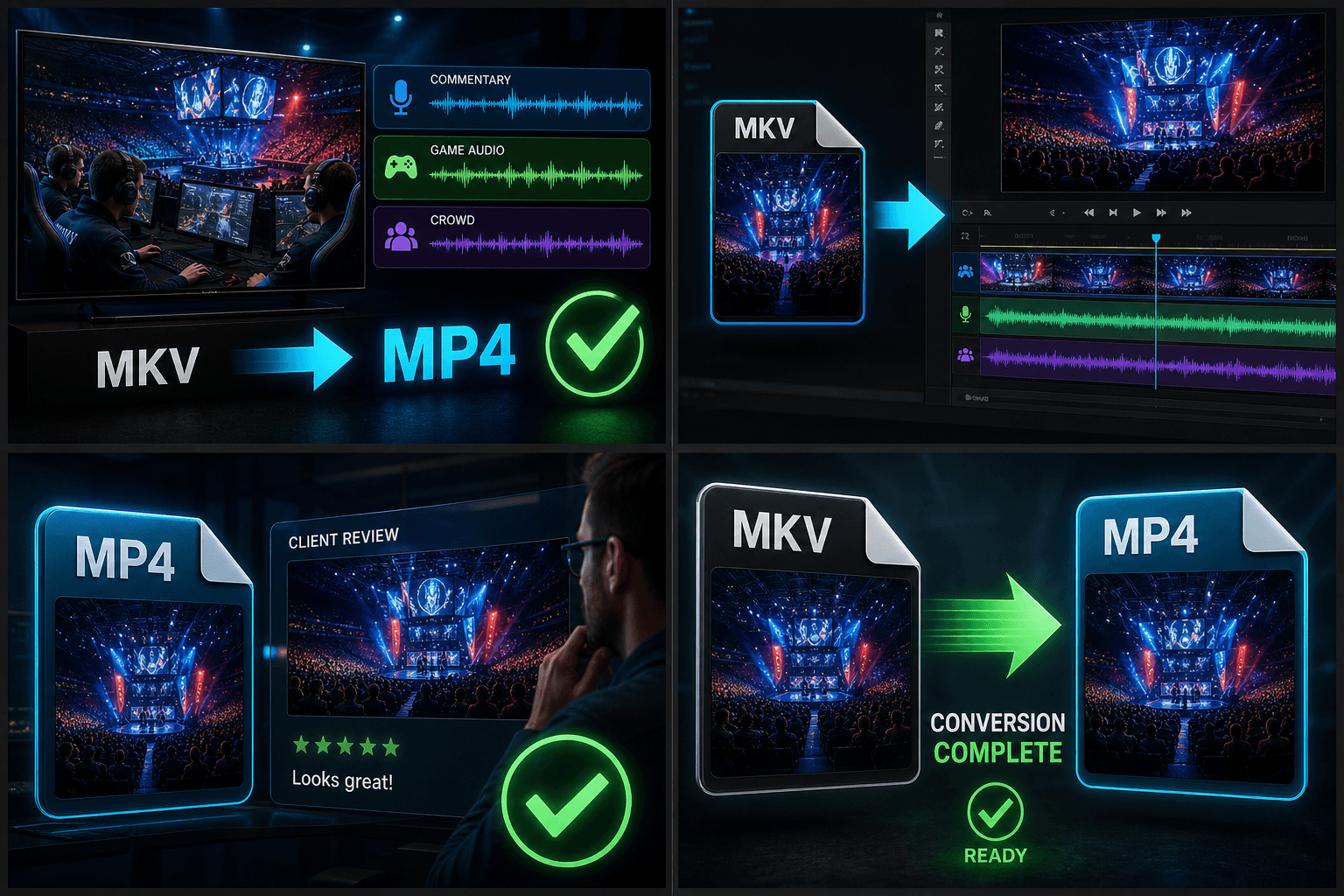
Play multi-track recordings broadly
Import MKV footage into editors
Deliver client-ready MP4
Frequently asked questions
My MKV has several audio tracks — which one ends up in the MP4?
You pick the track before converting. Carrying a single track keeps playback behavior predictable across players; if you need another language, run the conversion again with a different track selected.
Will the subtitles inside my MKV show up after conversion?
Not reliably — many MP4 players ignore embedded text tracks. For guaranteed display, burn the subtitles into the video; or generate fresh ASR subtitles in Recapo and export them as SRT/VTT.
The conversion finished in seconds — did it actually work?
Yes. When the MKV already contains MP4-compatible streams, only the container is rewritten, so near-instant completion is expected — and it means the conversion was lossless.
Why convert MKV to MP4 before editing a recap?
Many editors, web players, and platforms like YouTube and TikTok handle MP4 more reliably than MKV. Converting first means your footage imports without missing audio tracks or playback errors, which keeps the rest of your recap workflow moving.
Start using MKV to MP4 Converter
Provide the input and essential settings above. Your result stays in the current tool workflow.
Back to tool