Video Compressor
Compress MP4, MOV, MKV and WebM online without visible quality loss. Shrink large footage before uploading or publishing. Free on Recapo.ai.
Click to upload or drop a video file
Supports MP4, MOV, MKV, WebM, MPEG, MPG, 3GP, 3GPP
Up to 2 GB per file
Each video must be 180 minutes or shorter
When should you compress a video?
Compress before uploading long source footage for recap editing — smaller files upload faster and transcribe just as accurately. Compress again after exporting if a platform enforces upload limits, or when you archive finished cuts.
- 01
Import source
Upload a local video or import from a link. MP4, MOV, MKV, WebM and GIF are supported.
- 02
Pick a preset
Choose balanced, high-compression, or custom bitrate/resolution. A size estimate is shown before processing.
- 03
Download or continue
Save the compressed file, or send it straight into captions, recap script, voiceover, or Shorts cropping.
Source footage over the upload limit
shrink it first, then import.
Finished recap videos for platforms with strict size caps.
Batches of clips you want to store or share without filling your drive.
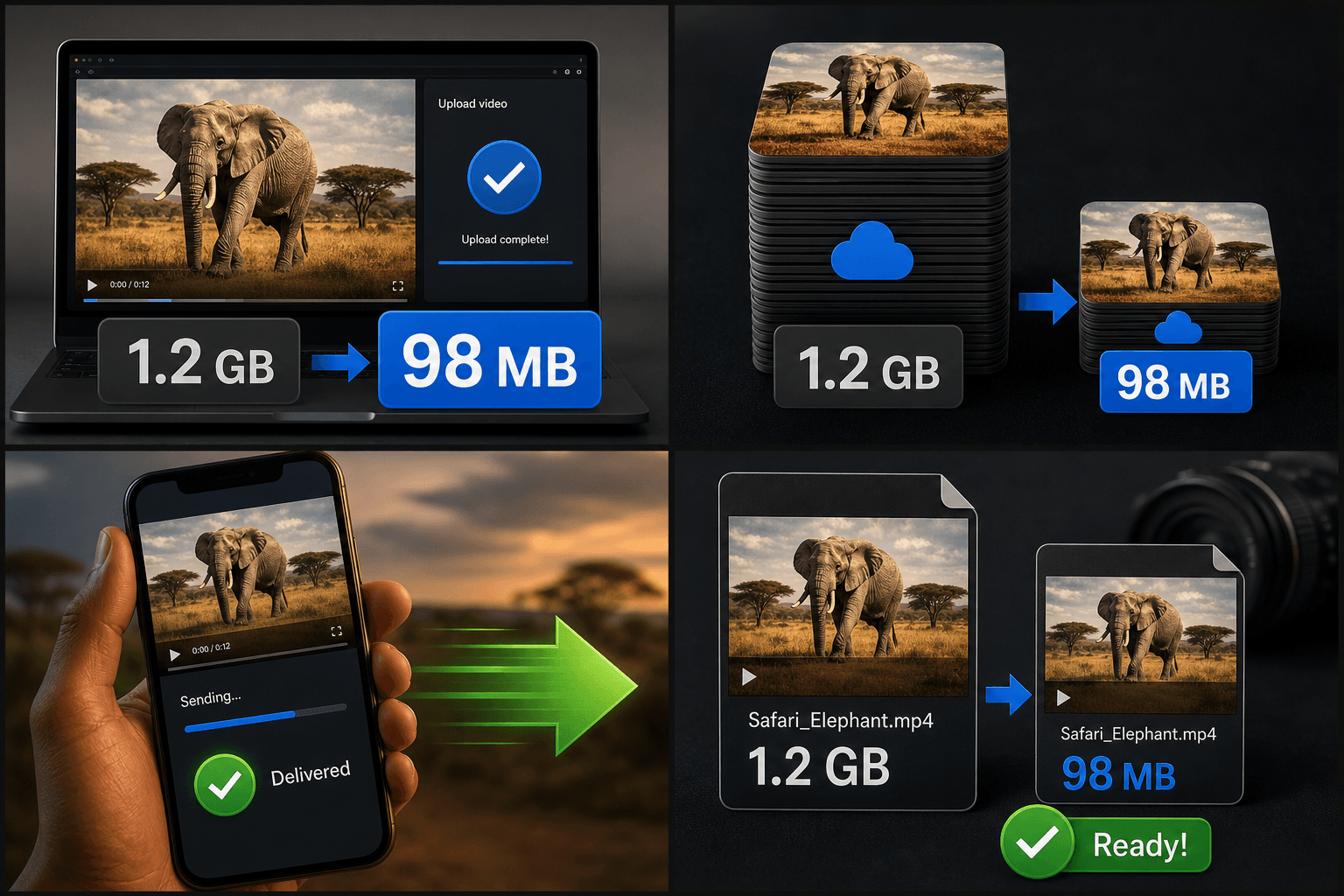
How compression keeps quality watchable
The compressor re-encodes with H.264 at a constant quality factor instead of blindly cutting bitrate. Static scenes spend fewer bits while fast action keeps more, which is why a recap video with talking-head segments can often shrink 60–80% with no visible difference on mobile screens.
Built for these real workflows
Meet platform upload limits
Save cloud storage space
Send video quickly on mobile
Frequently asked questions
Will compression reduce my video quality?
Some information is always discarded, but the presets target visually lossless results for screen viewing. If you need pixel-perfect output, use the custom preset and set a higher quality level.
What is the maximum file size I can compress?
Upload limits are shown before processing starts. For files over the limit, trim the footage first or compress locally once, then re-upload.
Is the video compressor free?
You can try it on the free quota. Heavy or batch compression consumes credits — see the pricing page for details.
How small can I get the file?
It depends on the source resolution, length, and how much motion is in the footage. A long, high-bitrate recap can often drop by half or more, which is usually enough to clear common upload limits while staying watchable.
Does it change my video's format or resolution?
The compressor focuses on reducing bitrate to cut file size rather than changing the container or frame size. If you also need a different format, use the Video Format Converter, and for aspect-ratio changes use a dedicated resizing or cropping tool in the Recapo workflow.
Start using Video Compressor
Provide the input and essential settings above. Your result stays in the current tool workflow.
Back to tool