Instagram Reels Editor
Turn any footage into Instagram Reels: crop to 9:16, cut the moments that hold attention, add styled captions and AI voiceover, then export a Reels-ready MP4.
Click to upload or drop a video
Live-preview and trim in your browser; cloud rendering continues after you leave the page
Up to 2 GB per file
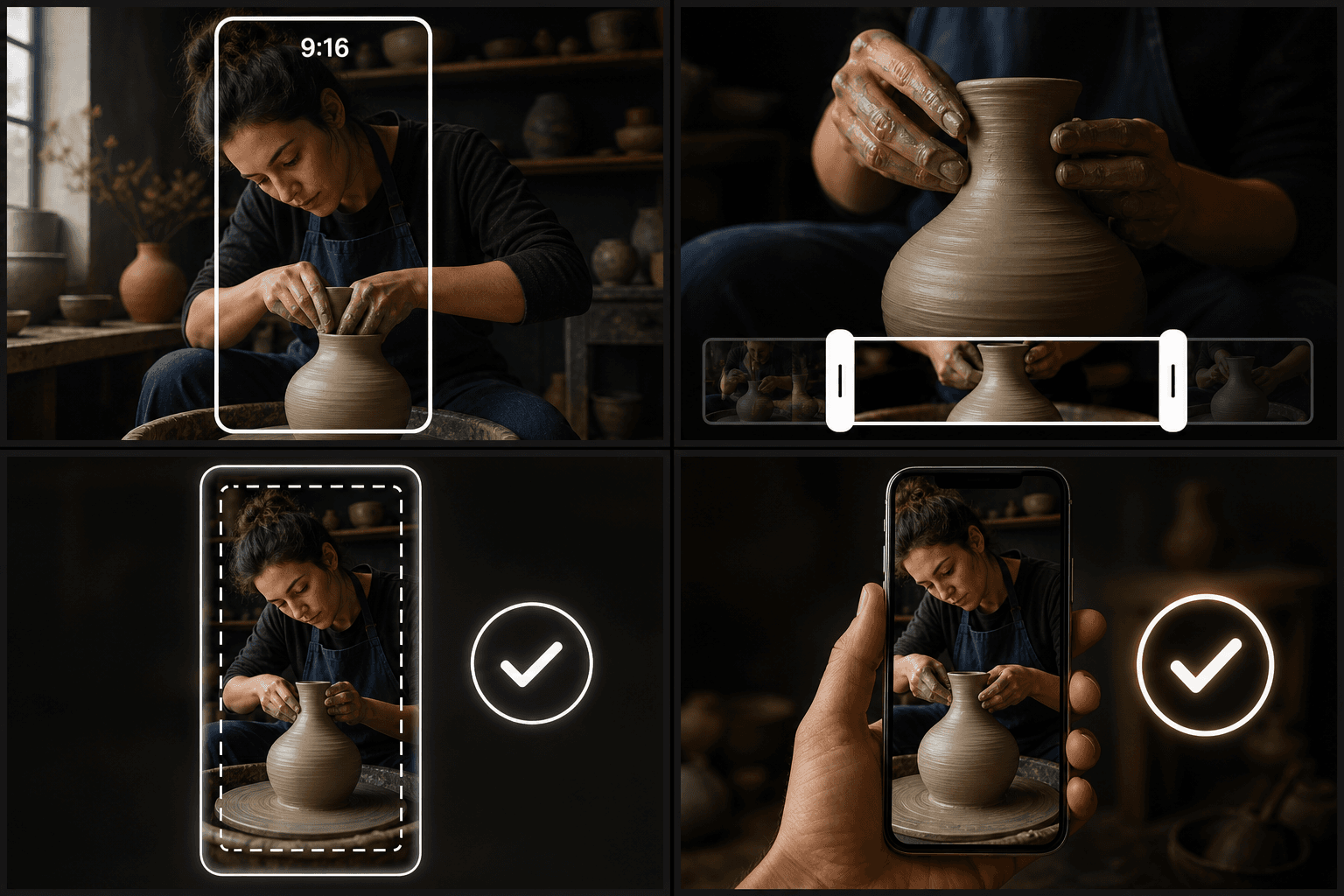
Built for the 9:16 vertical frame
Posting a letterboxed horizontal video as a Reel wastes most of the screen. The editor reframes footage into true 9:16, letting you decide what stays in the shot — the speaker, the action, the product — instead of settling for a centered crop with black bars.
- 01
Bring in any footage
Upload from your device or import a link — horizontal, square or already vertical. Long-form source works too; you'll carve the Reel out of it.
- 02
Shape it for Reels
Crop to 9:16 and choose the framing, cut highlight moments to keep the rhythm tight, then add captions styled to stay readable over busy footage.
- 03
Export Reels-ready
Render a vertical MP4 with burned-in captions and pick a cover frame, then upload straight to Instagram.
Reels captions that work with the sound off
A large share of Reels viewing happens muted, so captions decide whether your hook lands. Recapo transcribes speech automatically, lets you fix wording line by line, then styles and burns the captions in:
- Adjust font, color and position so text survives bright or busy backgrounds.
- Keep lines short — phone-width captions read faster than full sentences.
- Burn captions into the video so styling is identical on every viewer's device.
One long video, a week of Reels
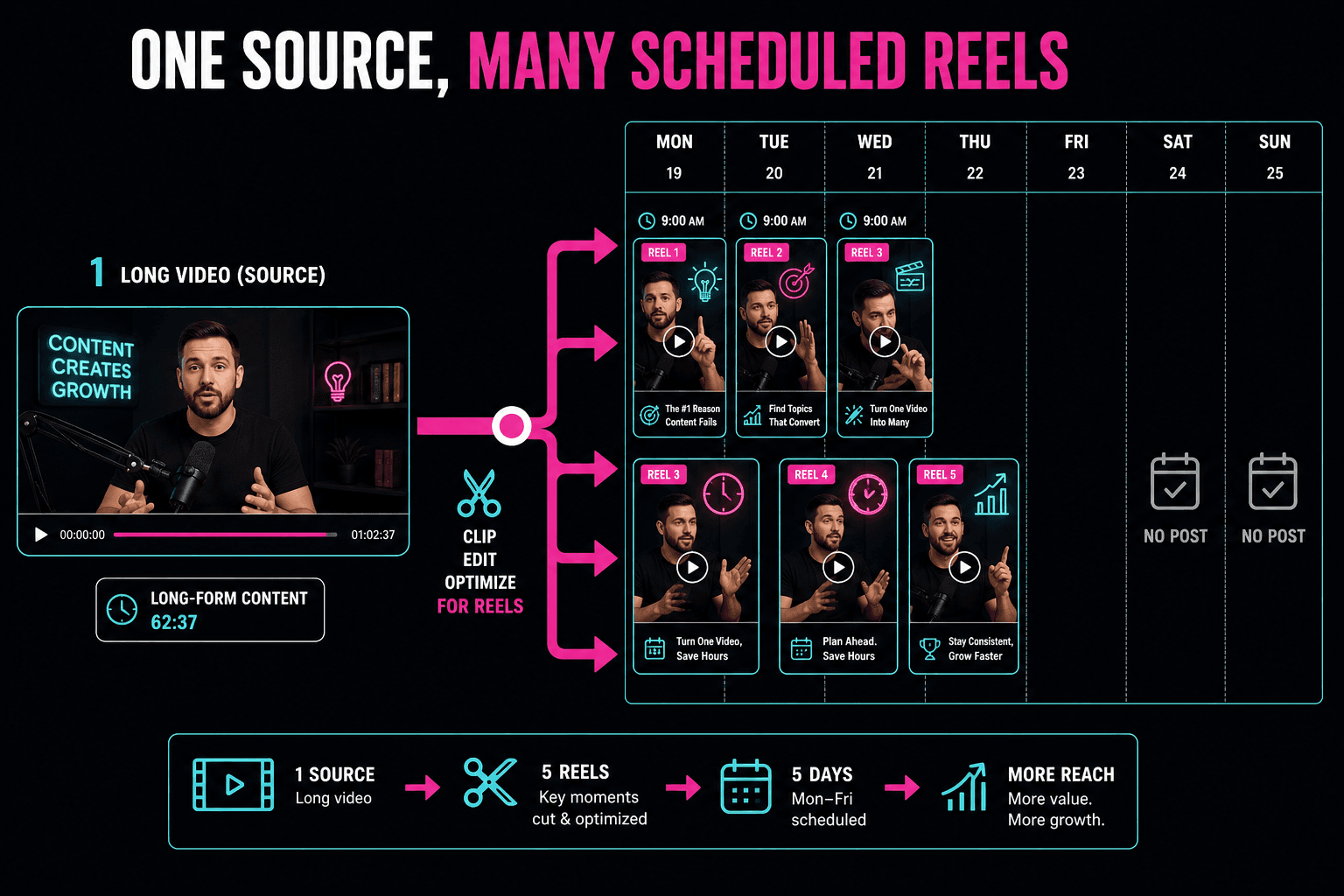
Reels reward consistency more than polish. Import one long video — a stream, a tutorial, an episode — and cut several highlight Reels from it in a single session, each with its own caption pass and cover. That turns existing footage into a posting schedule instead of a one-off.
Built for these real workflows
Turn landscape footage into Reels
Manually select one continuous segment
Export one vertical MP4
Continue with the next step
Frequently asked questions
Can I make a Reel from a horizontal video?
Yes. Import the horizontal source, crop it to 9:16 and choose the framing yourself, so the subject fills the vertical screen instead of floating between black bars.
Can I style the captions to match my account's look?
Yes. After the AI transcribes your audio, edit the text, then set font, color and position before burning the captions in — the style ships inside the video file.
What specs does the export use for Instagram?
Exports are vertical 9:16 MP4 files that Instagram accepts directly. Length and content rules change on Instagram's side, so check the app's current Reels guidelines before posting.
Can I trim a long recap down to Reel length?
Yes. You can cut the video down to just the segment you want to post, which is how most commentary creators turn a multi-minute recap into a single tight Reel.
Start using Instagram Reels Editor
Provide the input and essential settings above. Your result stays in the current tool workflow.
Back to tool