Extract Audio from Video
Extract audio from video online and export MP3, AAC, M4A, or WAV. Upload your file, choose the format, and download the audio securely.
Click to upload or drop a video file
Supports MP4, MOV, MKV, WebM, MPEG, MPG, 3GP, 3GPP
Up to 2 GB per file
Source video up to 180 minutes
Processing continues in the background, even if you leave this page or switch languages.
How to extract audio from video
Upload a video file and pick the output format. The tool separates the existing audio track — no need to replay the video in an editor just to grab the sound.
- 01
Upload a video
Add MP4, MOV, MKV, WebM, or similar from your device or a link.
- 02
Choose an audio format
Select MP3, AAC, M4A, or WAV and set the bitrate or quality you need.
- 03
Download the audio
Save the extracted file or continue in Recapo with transcription or editing.
Choose MP3, AAC, M4A, or WAV
MP3 is the smallest and works everywhere. AAC and M4A suit Apple devices. WAV keeps the most detail but produces larger files — pick based on how you will use the audio next.
- MP3 — compact, universal playback.
- AAC / M4A — efficient quality for phones and tablets.
- WAV — uncompressed for further editing.
- Upload a video
- Choose an audio format
- Download the audio
Audio quality and file size
Higher bitrates sound fuller but create larger files. For speech and podcasts, a moderate MP3 setting is usually enough; for music beds, choose a higher rate.
- Upload a video
- Choose an audio format
- Download the audio
Supported video formats and limits
Common containers such as MP4, MOV, MKV, and WebM are supported. Maximum file size and length are shown before processing starts.
- Upload a video
- Choose an audio format
- Download the audio
File privacy and security
Uploads are processed in Recapo's cloud and are not published. Only you access the result in your workspace session.
Built for these real workflows
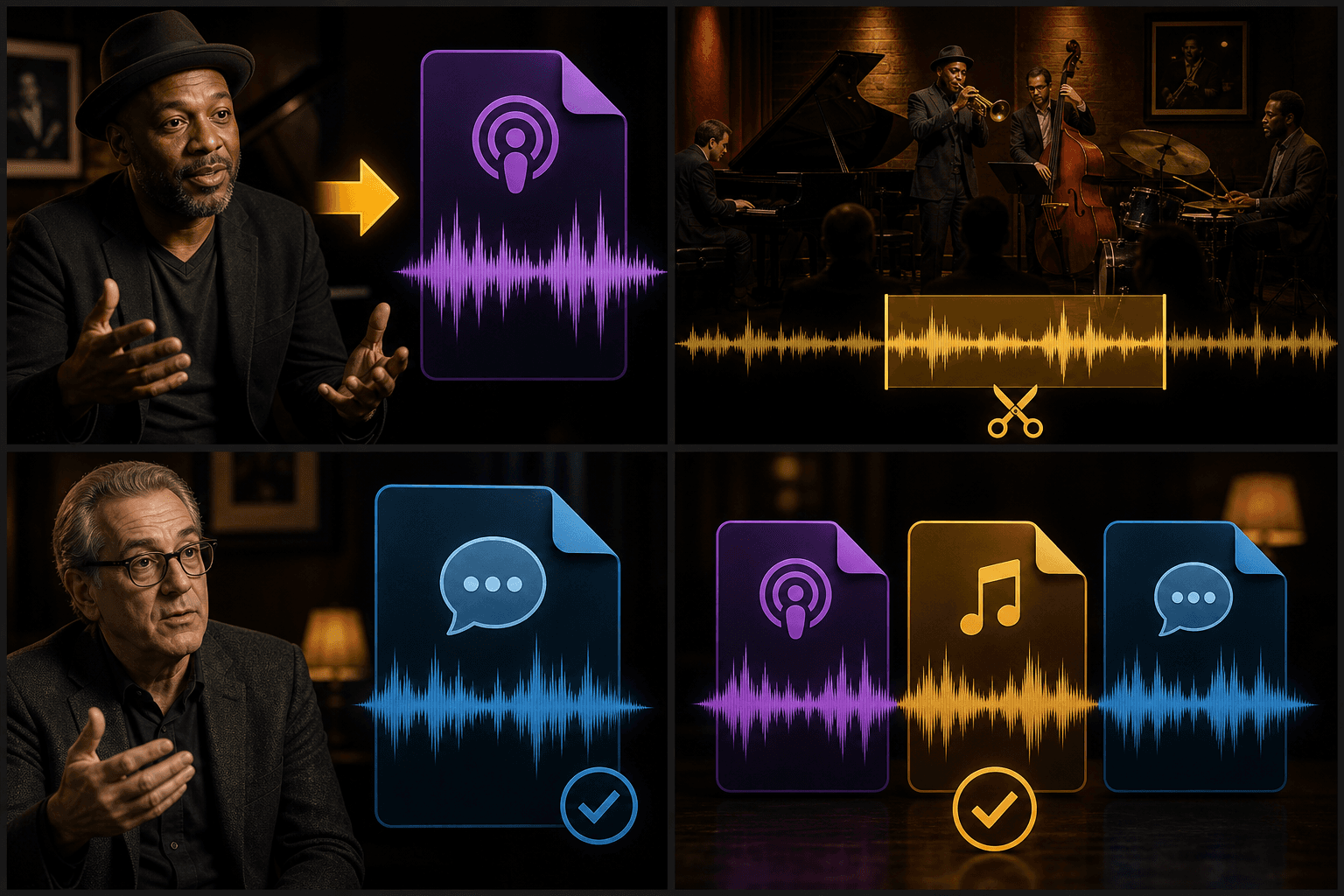
Turn interview video into podcast audio
Extract music from video
Archive a standalone dialogue track
Continue with the next step
Frequently asked questions
Can I extract audio for free?
You can try within the free quota. Longer files or batch extraction may use credits — see pricing for limits.
Which format should I choose?
MP3 for sharing and small size, AAC/M4A for Apple workflows, WAV when you need maximum fidelity for further editing.
Are uploaded files private?
Yes — files are processed for your session and are not made public.
Start using Extract Audio from Video
Provide the input and essential settings above. Your result stays in the current tool workflow.
Extract Audio