TikTok Video Resizer
Crop landscape video to 9:16 for TikTok and keep subject and subtitles clear of the UI overlay. Frame the safe zone, add captions, export full-screen vertical.
Click to upload or drop a video file
Supports MP4, MOV, MKV, WebM, MPEG, MPG, 3GP, 3GPP
Up to 2 GB per file
Processing continues in the background, even if you leave this page or switch languages.
TikTok safe zones: where the UI covers your video
TikTok renders its interface directly on top of the video, and the covered regions are predictable. Compose for them and your vertical cut looks native; ignore them and viewers watch your captions disappear under buttons.
- 01
Import the landscape cut
Upload your 16:9 or square video, or pull it in from a link. This is typically the master you already published elsewhere.
- 02
Position the 9:16 crop
Slide the vertical crop window across the frame so faces and key action stay centered — what falls outside the window is trimmed away.
- 03
Caption it and export
Generate subtitles, keep them inside the safe area, burn them in if you want them locked, and export the vertical cut for upload.
Right edge
the icon rail — profile, like, comment, share — stacks down the right side.
Bottom
the caption text, sound title and progress area sit over the lowest band of the frame.
Top
system status and search affordances brush the upper edge.
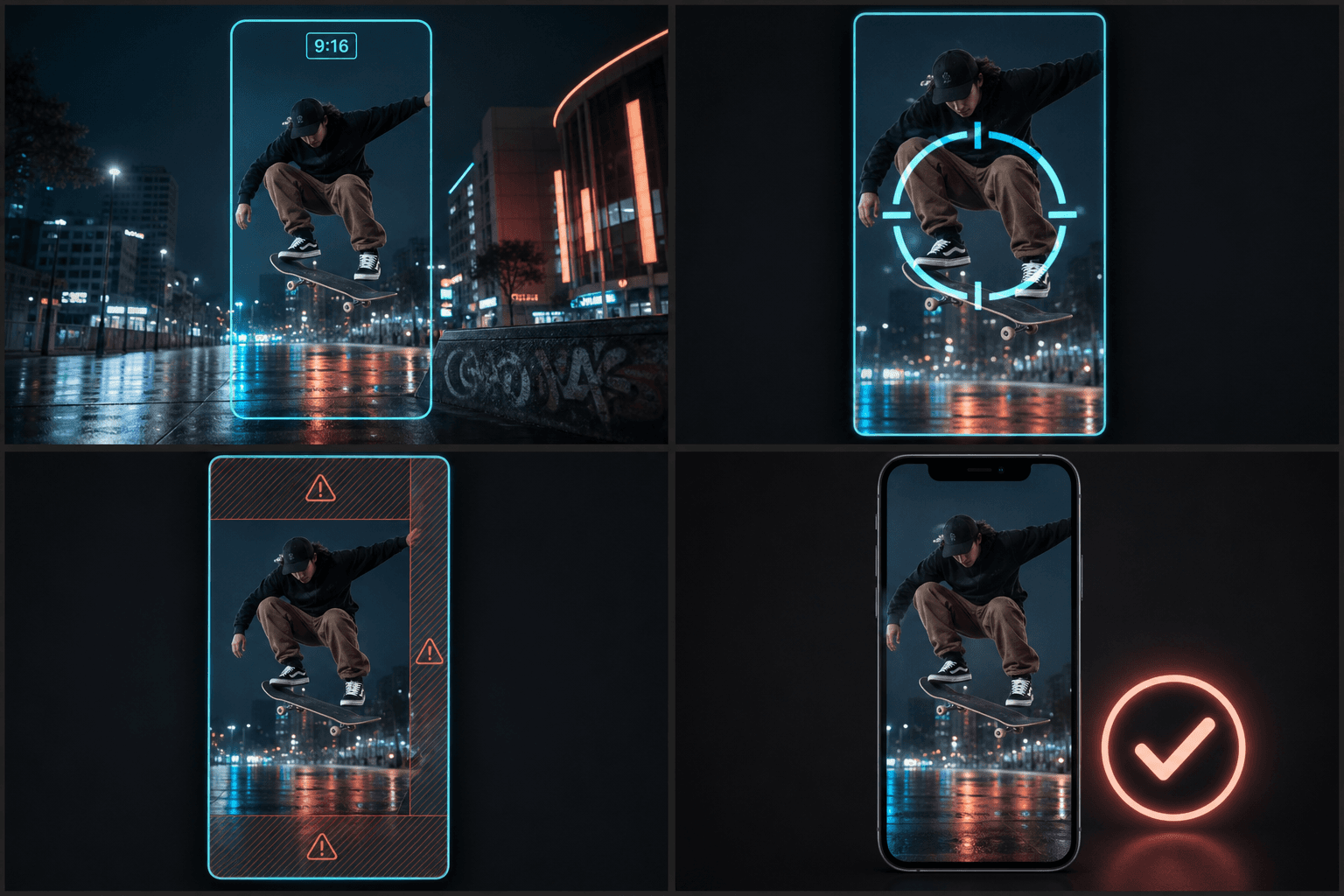
From 16:9 to 9:16 without losing the subject
A 9:16 window over a 16:9 frame keeps roughly the middle third of the picture, so blind center-cropping fails whenever the action sits off-center — interviews framed to one side, gameplay HUDs in corners, two-person shots. Positioning the crop per clip is what separates a deliberate vertical edit from an automated repost. After cropping, the same workspace handles subtitles, voiceover and a matching vertical cover, so the TikTok version ships as a finished edit rather than a squeezed copy.
Built for these real workflows
Resize landscape footage for TikTok
Choose crop, padding, or blurred background
Download a 9:16 MP4
Continue with the next step
Frequently asked questions
What aspect ratio does TikTok use?
9:16 vertical, displayed full-screen — 1080×1920 is the common target. Other ratios upload fine but get letterboxed, which costs screen area and makes the post look repurposed.
Where should subtitles sit so TikTok's buttons don't cover them?
Keep them in the central band of the frame, clearly above the bottom caption area and off the right icon rail. Centered captions in the lower-middle third — but not the very bottom — are the safest default.
Can I reuse the same 9:16 cut for Shorts and Reels?
Mostly yes — all three are 9:16. The UI overlays differ slightly per platform, so check the cover and caption placement; the Reels resizer covers Instagram's quirks, including the grid-cropped cover.
Will resizing crop parts of my video out of frame?
It depends on the fit you pick. Crop to fill keeps the frame edge to edge but trims the sides of wider footage, while padding keeps the entire original frame and adds bars to reach 9:16. You choose which trade-off fits the clip.
Can I resize a landscape recap that was filmed in 16:9?
Yes. Reframing 16:9 landscape into 9:16 vertical is the main job of this tool, so a horizontal movie-recap or commentary clip can be turned into a TikTok-ready portrait file.
Start using TikTok Video Resizer
Provide the input and essential settings above. Your result stays in the current tool workflow.
Back to tool