Auto Captions
Add auto captions to your video: upload a clip, let AI transcribe the speech and burn phone-readable text into the frame, then preview and download a captioned MP4.
Click to upload or drop a video file
Supports MP4, MOV, MKV, WebM, MPEG, MPG, 3GP, 3GPP
Up to 2 GB per file
Source video up to 60 minutes
Very long videos may fail when extracted ASR audio exceeds 100MB — trim first if needed
Upload a video first to adjust settings and preview the result
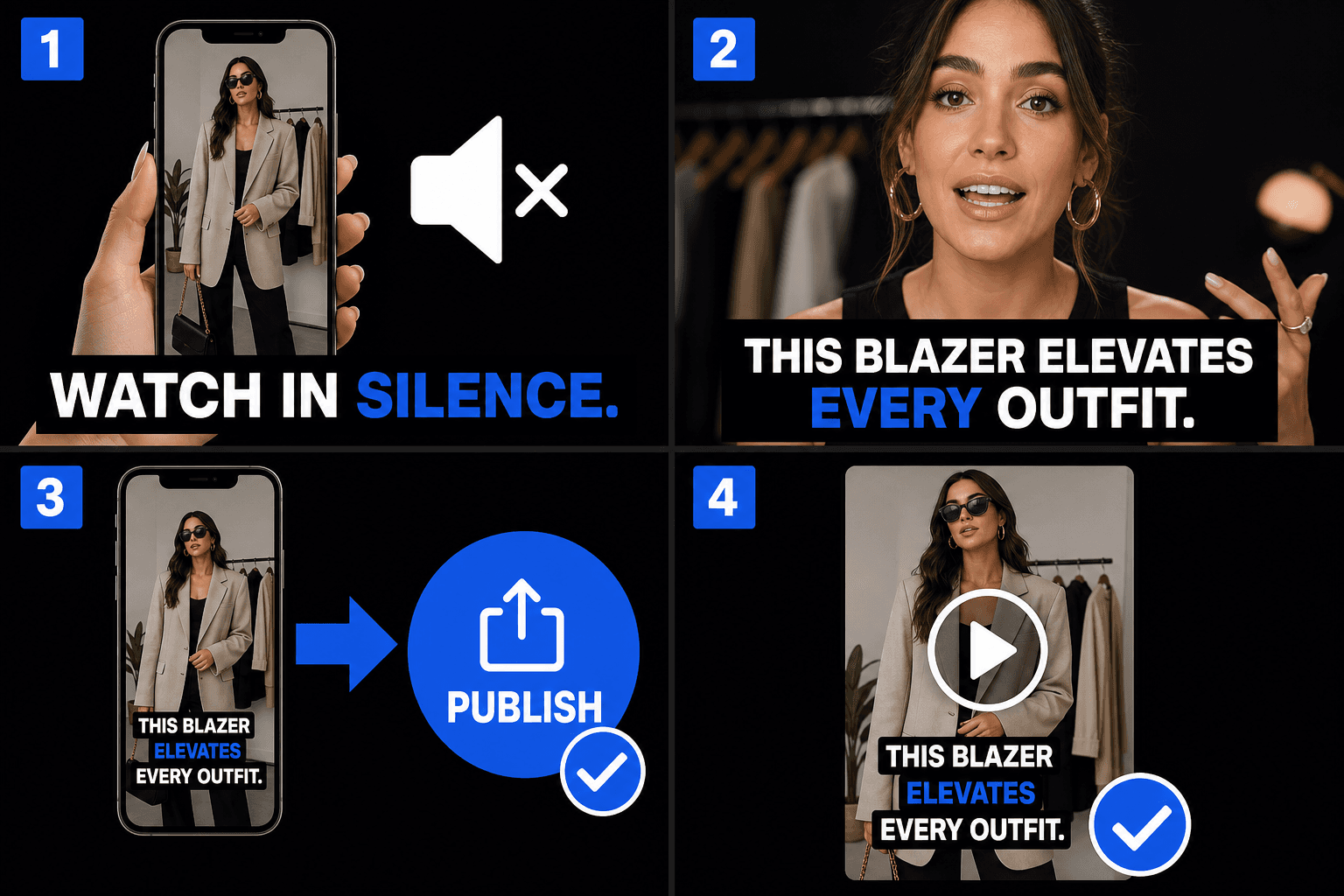
Captions built for sound-off feeds
Feeds autoplay muted, so the first seconds of your clip have to communicate visually. Captions burned into the video carry the hook even at volume zero, and because they're part of the footage itself, they look identical whether the clip lands on TikTok, Instagram, or YouTube Shorts — no dependence on each platform's own captioning.
- 01
Upload your video
Drop in a short clip. AI listens to the spoken dialogue and turns it into captions automatically — no separate subtitle file needed.
- 02
Auto-caption and style
Speech becomes on-screen captions instantly. Pick a bold, phone-readable style and position the text inside the mobile safe area.
- 03
Preview and download
Watch the captioned video in the preview, then download a finished MP4 with the captions rendered into the frame, ready to post to TikTok, Reels, and Shorts.
Keep text inside the mobile safe area
Every short-form platform overlays interface elements on the video. Captions placed too low or too far right get covered. The preview shows where your text sits relative to those zones, so you can fix placement before you download instead of discovering the problem after posting.
- Bottom strip: descriptions, audio labels, and progress UI live here.
- Right edge: like, comment, and share buttons stack vertically.
- Keep captions in the central band — the preview makes the zone obvious.
Built for these real workflows
Burn captions in for silent viewing
Style captions on talking-head video
Download a captioned MP4
Frequently asked questions
Why burn captions in instead of relying on the platform's auto-captions?
Platform captions vary in accuracy, style, and availability, and you can't see them before posting. Burning your captions into the video gives you control over wording and look, identical on every platform — and you preview the finished result before you download it.
Will TikTok or Reels buttons cover my captions?
Not if the text stays in the safe area. The preview shows caption placement against typical UI zones, so you can move text up or center it before you download the video.
What do I get at the end?
A finished MP4 with the captions rendered into the frame — you preview it on the page and download the video directly. Vertical 9:16 clips are the main use case, and you don't need to upload or export any separate subtitle file.
What subtitle file formats can I export?
Auto Captions is built to export standard SRT and VTT files, so the timed lines drop straight into YouTube, editors, or the Recapo burn-in step. As the product is still in development the exact format list may grow.
Does my video need spoken audio for this to work?
Yes. Auto Captions transcribes the voice track, so it needs a clip with clear speech such as a recap narration or commentary. A silent clip or music-only video gives it nothing to caption.
Can I fix the wording and timing before exporting?
Yes. The synced transcript is editable, so you can correct names, tighten long lines, and nudge the in and out times before you download the SRT or VTT or pass it to the burn-in tool.
Start using Auto Captions
Provide the input and essential settings above. Your result stays in the current tool workflow.
Back to tool