H.264 Transcoder
Transcode HEVC, VP9 and other codecs to H.264 online. Control bitrate and resolution for maximum playback compatibility — free to try on Recapo.ai.
Click to upload or drop a video file
Supports MP4, MOV, MKV, WebM, MPEG, MPG, 3GP, 3GPP
Up to 2 GB per file
Each video must be 180 minutes or shorter
Why H.264 is still the compatibility king
Newer codecs beat H.264 on compression efficiency, but efficiency only matters if the file plays. H.264 decoding is baked into virtually every chip shipped since the late 2000s, every browser, every platform ingest pipeline and every editor — which makes it the codec of last resort when something, somewhere, refuses your file. Transcoding to H.264 trades a little file size for the guarantee that the compatibility conversation is over.
- 01
Load any source video
Upload MP4, MOV, MKV or WebM files locally or by link — whatever codec is inside, the transcoder reads it.
- 02
Set the encoding targets
Pick constant quality for everyday use, or dial in bitrate and resolution when a delivery spec demands exact numbers.
- 03
Export and move on
Get a universally playable H.264 MP4, then continue to captions, compression or platform-ready export inside Recapo.
Bitrate control: constant quality vs. target bitrate
Constant-quality encoding holds the visual quality steady and lets file size float — quiet scenes spend few bits, action spends more. It is the right default when no one has handed you a number. Target-bitrate encoding does the opposite: predictable file size and bandwidth at a fixed cost in quality consistency, which is what you want when an upload spec, a streaming budget or a client requirement names an exact figure.
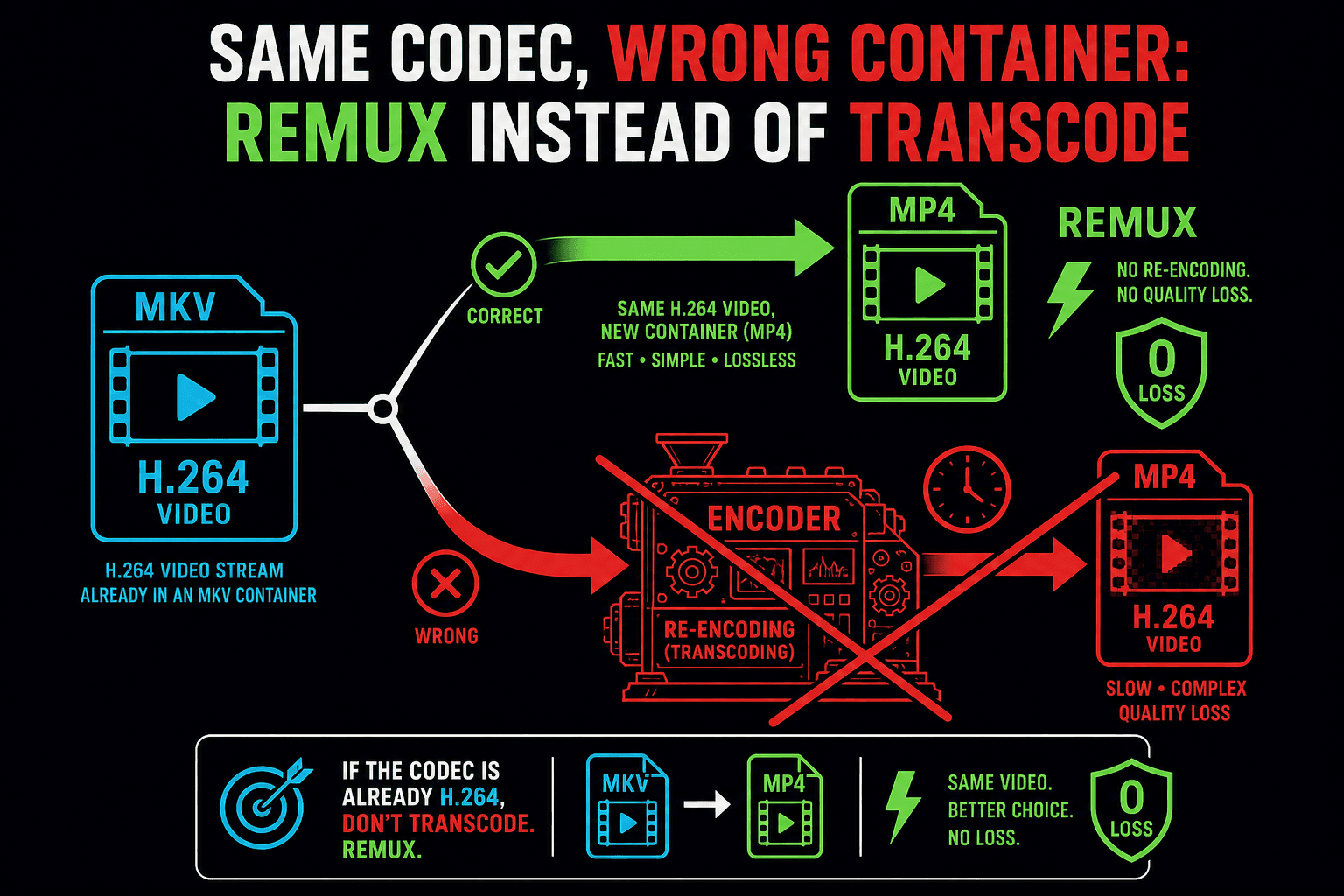
When you should not transcode
If your source is already H.264 and only the container is wrong, use the video format converter instead — a remux is instant and lossless, while a needless transcode costs time and a generation of quality. Transcode once, from the best source you have, and keep that output as your compatibility master.
Built for these real workflows
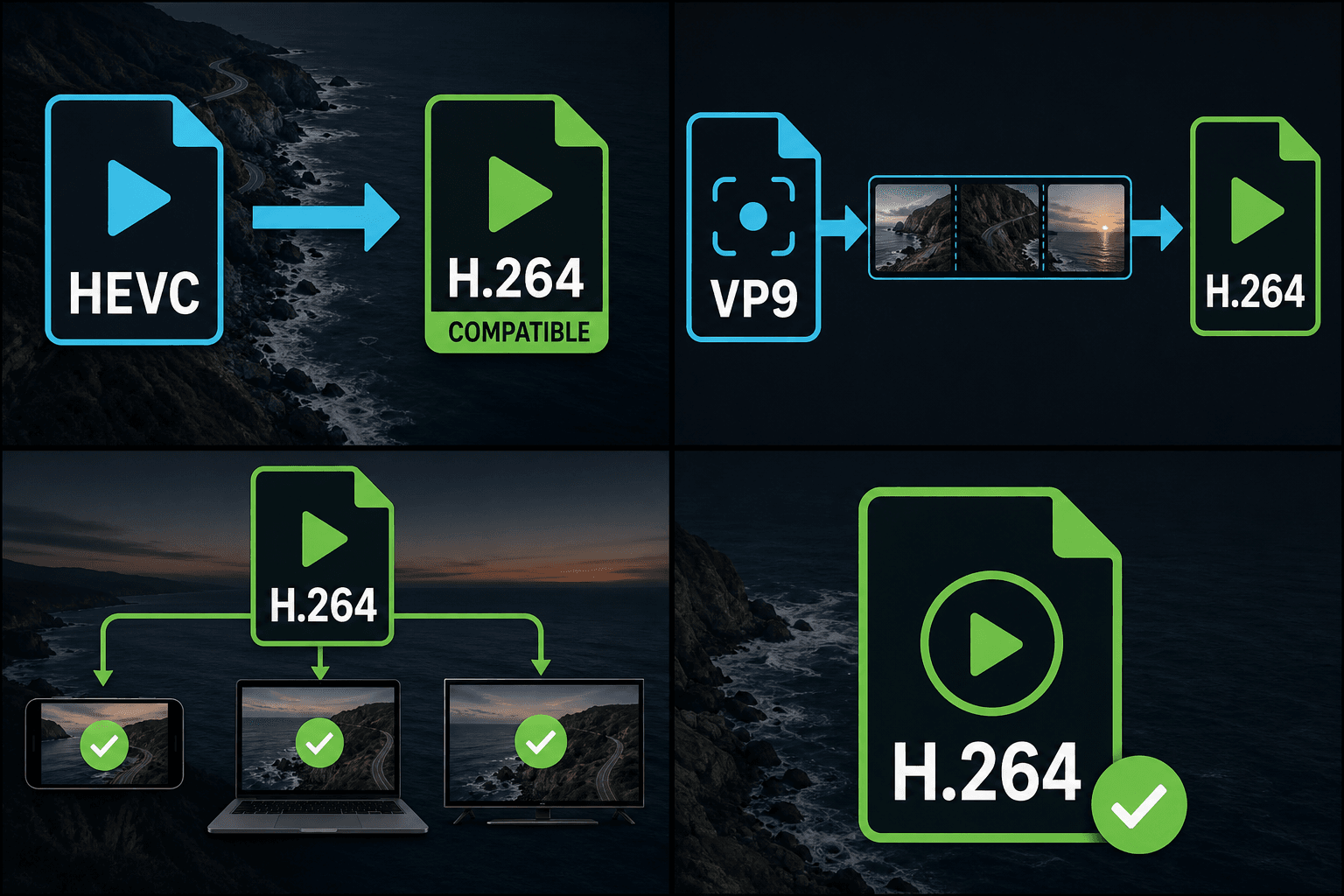
Make HEVC phone footage compatible
Bring VP9 recordings into editors
Deliver H.264 across platforms
Continue with the next step
Frequently asked questions
Should I pick constant quality or a fixed bitrate?
Constant quality, unless a spec says otherwise. Fixed bitrate exists for the cases where file size or bandwidth is contractual — platform upload rules, streaming budgets, client delivery sheets.
Will transcoding HEVC to H.264 make my file bigger?
Often, yes — H.264 needs more bits than HEVC for the same quality. That is the price of universal playback. If size matters, run the result through the video compressor or lower the quality target slightly.
How is this different from the video format converter?
The format converter changes containers and remuxes whenever it can, leaving the codec untouched. The H.264 transcoder always re-encodes the video stream, giving you explicit control over codec, quality, bitrate and resolution.
What codecs can the transcoder convert from?
It is built to take common video codecs that cause editor and upload trouble, such as HEVC (H.265), VP9, AV1, MPEG-2, and ProRes, and re-encode them to H.264 (AVC), the codec editors and upload pages accept most reliably.
Why transcode to H.264 instead of a newer codec?
H.264 (AVC) is the most widely supported video codec across editors, browsers, phones, and upload pages, so an H.264 MP4 is the safest format for a clip that needs to play and ingest everywhere without warnings.
Does this also compress my video or change the resolution?
The transcoder focuses on swapping the codec to H.264, not on shrinking the file or resizing it. For a smaller file use the video compressor, and keep this step for fixing codec compatibility.
Start using H.264 Transcoder
Provide the input and essential settings above. Your result stays in the current tool workflow.
Back to tool