Bilibili Video Resizer
Prepare video for Bilibili: keep 16:9 masters for main uploads, crop a 9:16 vertical for Story Mode, and plan the landscape cover — one workspace, both formats.
Click to upload or drop a video file
Supports MP4, MOV, MKV, WebM, MPEG, MPG, 3GP, 3GPP
Up to 2 GB per file
Processing continues in the background, even if you leave this page or switch languages.
Bilibili video dimensions: 16:9 mainstream, 9:16 for Story Mode
Long-form commentary, anime breakdowns and recap videos on Bilibili overwhelmingly ship in 16:9 — the player, the feed cards and viewer habits all assume horizontal. Story Mode is the platform's vertical surface: short 9:16 clips swiped through on mobile, often used as teasers that funnel viewers to the full horizontal video. A common workflow is exactly that pairing — publish the 16:9 main cut, then push a one-minute vertical highlight into Story Mode pointing back to it.
- 01
Load your master cut
Upload the finished 16:9 video or import it by link — this stays your primary Bilibili upload, unchanged.
- 02
Cut the vertical companion
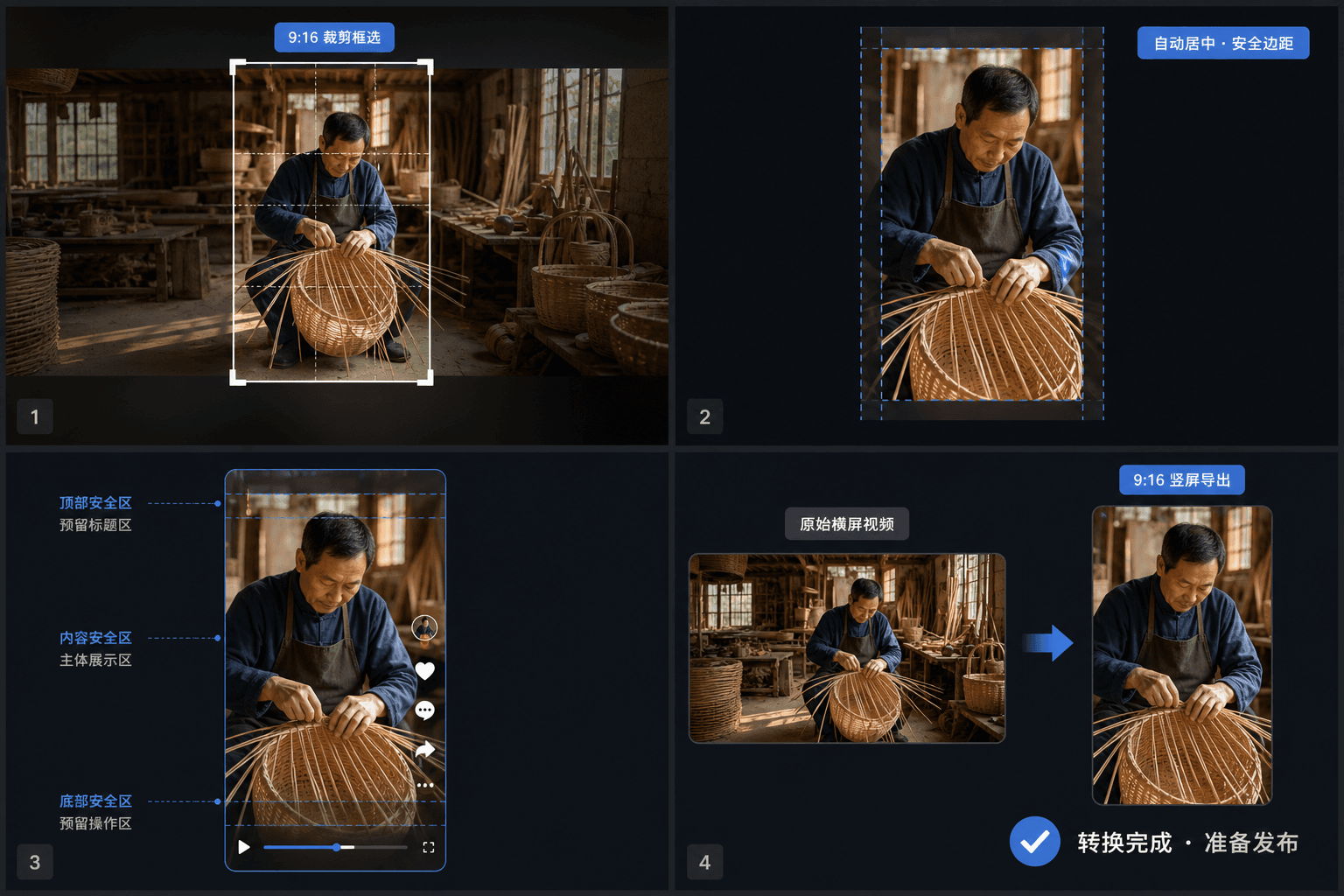
Crop a 9:16 version for Story Mode, placing the window over the subject scene by scene rather than trusting a blind center crop.
- 03
Pair covers and export
Build the landscape cover from a keyframe, export both cuts, and publish the horizontal main video alongside its vertical teaser.
Main uploads
16:9 horizontal, the format the feed and player are designed for.
Story Mode / mobile swipe feed
9:16 vertical, short and hook-driven.
Don't letterbox a vertical phone clip into 16
9 for the main feed — post it to Story Mode instead.
Bilibili covers are landscape — plan them separately
Unlike Douyin or TikTok, where the first frame often serves as the cover, Bilibili expects a designed horizontal thumbnail — close to a 16:10 card in the feed. Text-heavy covers are normal on the platform, so pulling a strong keyframe and laying a title over it in the cover maker fits local convention. The vertical Story Mode clip needs no separate cover, which means one designed landscape thumbnail covers your whole Bilibili presence.
Publishing to Bilibili from outside China
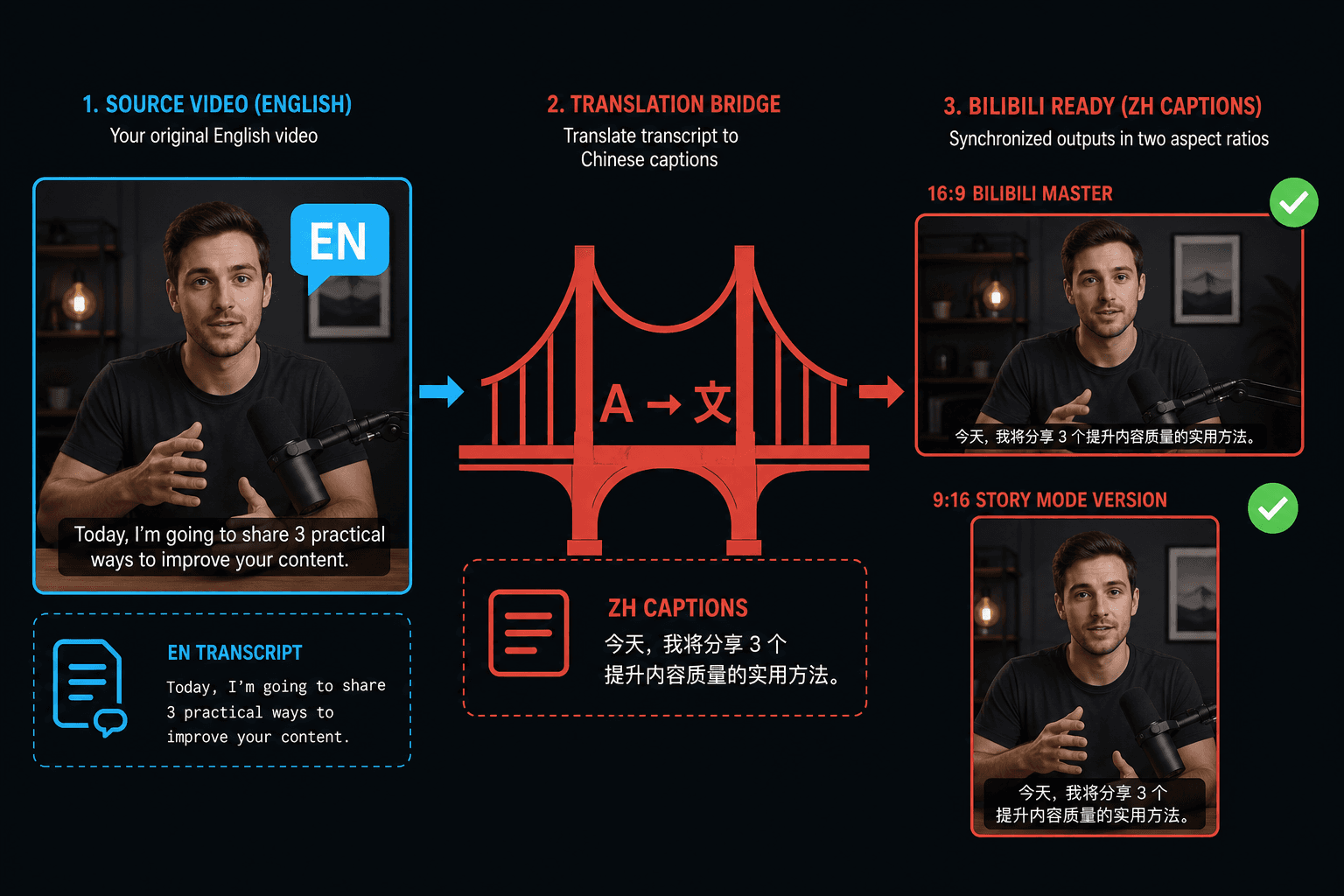
If your source content is in English, the resize is the easy part — the audience expects Chinese subtitles. The same workspace transcribes your audio, translates the subtitle track into Chinese, and burns it into both the 16:9 master and the 9:16 Story Mode cut, so the localized versions stay in sync with one edit.
Built for these real workflows
Convert landscape footage to 9:16
Choose crop, padding, or blurred background
Download a vertical MP4
Frequently asked questions
Should I upload horizontal or vertical video to Bilibili?
Horizontal 16:9 for the main feed — it remains the dominant format for commentary and recap content. Use vertical 9:16 only for Story Mode clips, typically as short teasers for the full horizontal video.
What ratio is a Bilibili cover?
A landscape card close to 16:10. Design it as its own asset rather than reusing a vertical cover from other platforms — horizontal framing with a bold title matches what the feed displays.
Can I localize my video for Bilibili viewers?
Yes. Generate subtitles from the audio, translate the track into Chinese, then burn it into the video before export. Both the main cut and the vertical Story Mode version can carry the translated subtitles.
Will resizing crop out part of my recap footage?
It depends on the fit mode. Cropping to a tighter ratio trims the edges, while padding adds bars to keep the full frame visible. For commentary videos with subtitles or a talking-head corner, padding usually keeps the important parts in view.
Does the resizer change anything besides the dimensions?
Its job is just the frame size and aspect ratio. It doesn't rewrite your captions or audio, so once the reframed file is exported you can still run it through the Recapo compression, captioning, or format steps before uploading to Bilibili.
Start using Bilibili Video Resizer
Provide the input and essential settings above. Your result stays in the current tool workflow.
Back to tool