Online Subtitle Editor
Style video subtitles online: font, size, color, outline, background, and position with live preview on your actual footage — then burn the styled captions in.
Click to upload or drop a video file
Supports MP4, MOV, MKV, WebM, MPEG, MPG, 3GP, 3GPP
Up to 2 GB per file
Upload a video first to adjust settings and preview the result
Every property that affects readability
Subtitle legibility is the sum of small decisions. The editor exposes each one directly instead of hiding them behind a single 'theme' switch:
- 01
Open a captioned video
Import a video and generate captions, or continue from a subtitle track you've already edited in Recapo.
- 02
Tune the look
Pick a preset, then adjust font, size, fill and outline colors, background, and screen position with a live preview.
- 03
Export with the style applied
Burn the styled subtitles into the video for publishing, or keep the track for translation and later renders.
Font and size
sized for the screen the video will actually play on.
Fill and outline colors
contrast that survives both bright and dark scenes.
Background box
an option for footage too busy for outlines alone.
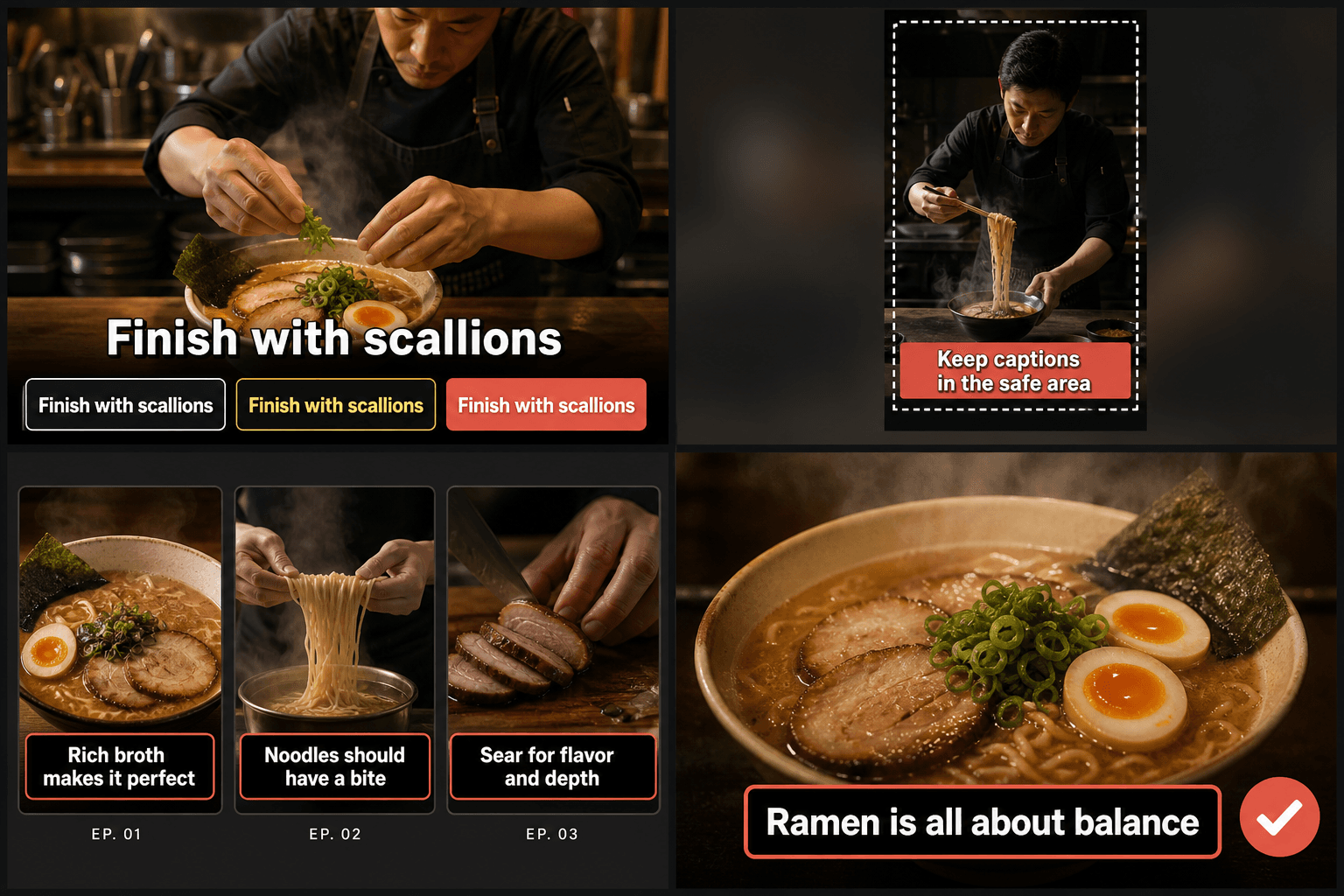
Preview on your real footage, not a mockup
A style that looks clean on a gray test card can fail on your actual video — white text over a sky, thin strokes over motion. The live preview renders your style on real frames, so you can scrub to the brightest and busiest moments and confirm the text holds up before committing to a render. When the lower third carries on-screen graphics or hardcoded text, move the subtitles to the top and check again.
Built for these real workflows
Adjust caption font and color
Set size, position, and caption box
Download a burned-in caption video
Continue with the next step
Frequently asked questions
Are my styles saved into the SRT file?
No — SRT is a plain-text format that carries no styling. Your style is applied when subtitles are burned into the video. Export SRT alongside the render if you also need a plain subtitle file.
Can I move subtitles to the top of the frame?
Yes. Repositioning is built in, and it's the standard fix when the bottom of the frame is occupied by on-screen text, graphics, or another language's hardcoded subtitles.
What style settings work best for phone screens?
Larger sizes, a strong outline, and short lines. Start from the short-form preset, then check the preview at the busiest moment of your clip — if it reads there, it reads everywhere.
Does the Subtitle Style Editor change the wording or timing of my captions?
No. It only changes how captions look — font, size, color, outline, background, and position. The text content and timecodes stay exactly as they came in, so you can restyle without re-checking the transcript.
What styling options can I adjust?
You can set font size and color, add an outline or shadow for contrast, place a solid or semi-transparent background box behind the lines, adjust line spacing, and move the captions higher or lower in the frame. These controls are aimed at keeping captions legible on small phone screens.
Can I use this on captions I generated elsewhere in Recapo?
Yes. It's built to take a caption track or subtitle file from your workflow — such as one produced by the caption generator — and restyle it before you burn it in or export. It's part of the Recapo pipeline rather than a standalone transcriber.
Start using Subtitle Style Editor
Provide the input and essential settings above. Your result stays in the current tool workflow.
Back to tool