Video Format Converter
Convert videos between MP4, MOV, MKV, WebM and GIF online. Fix codec and container issues before captioning or editing — try the free converter on Recapo.ai.
Click to upload or drop a video file
Supports MP4, MOV, MKV, WebM, MPEG, MPG, 3GP, 3GPP
Up to 2 GB per file
Each video must be 180 minutes or shorter
Which video format should you convert to?
MP4 with H.264 is the safe default — every platform, editor, browser and phone accepts it. Convert to MOV when a QuickTime-native workflow asks for it, and use the dedicated converter pages when you already know your source format:
- 01
Add your file
Upload a local video or paste a link. MP4, MOV, MKV, WebM and GIF inputs are supported.
- 02
Choose the target format
Select the output container and codec — or jump to a dedicated page like MKV to MP4 for a one-click preset.
- 03
Convert and keep editing
Download the converted file, or send it on to subtitles, translation, voiceover or 9:16 cropping without leaving Recapo.
MKV to MP4
flatten multi-track downloads into one playable file.
MOV to MP4
make iPhone and Mac footage open everywhere.
WebM to MP4
turn browser screen recordings into editor-friendly files.
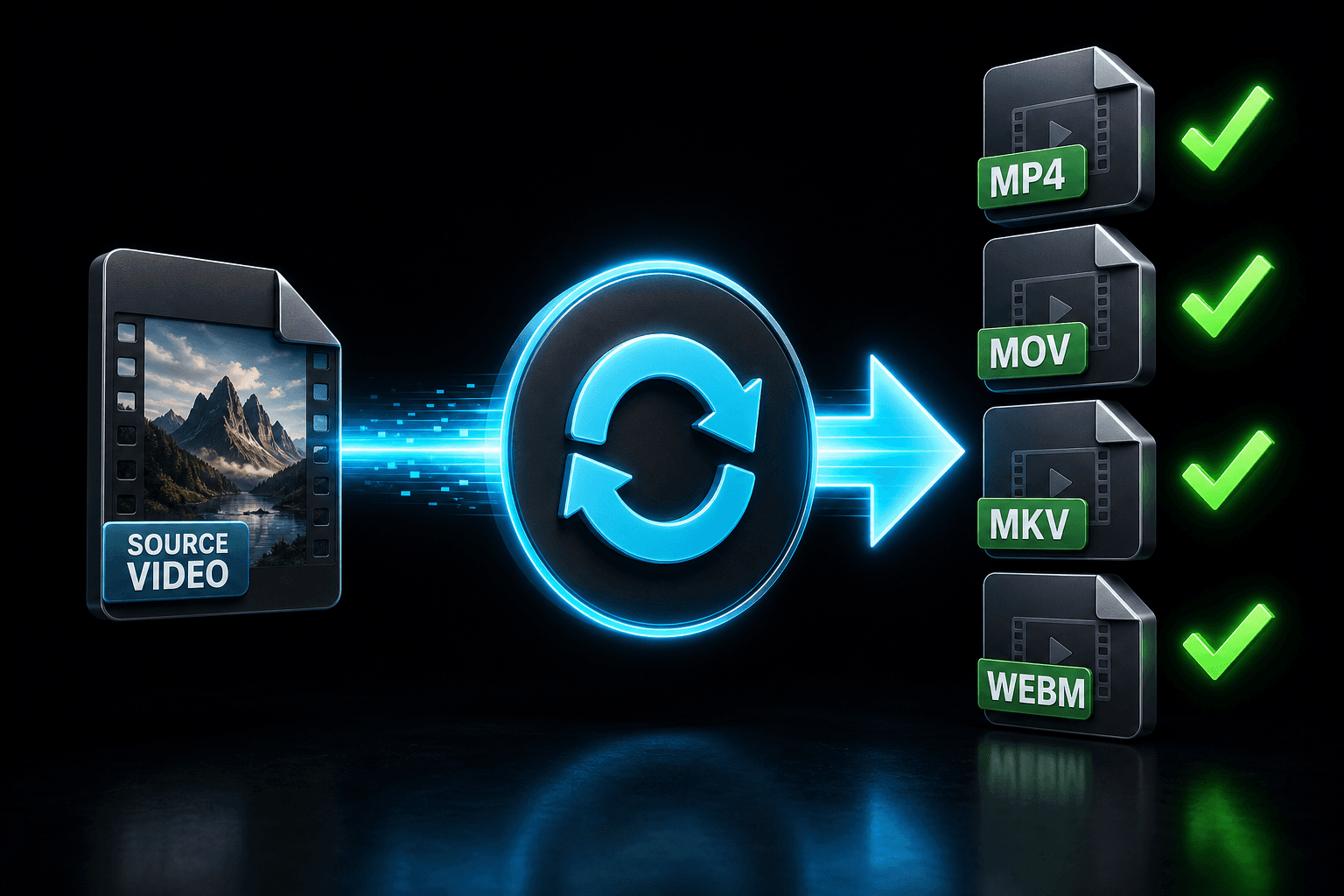
Container vs. codec: why some files won't import
A container (MP4, MOV, MKV, WebM) is the box; the codec (H.264, HEVC, VP9) is what's inside it. Editors and platforms can reject a file because of either one — which is why a "video that plays fine" still fails at import. Conversion fixes both layers: the container is rewritten, and the codec is re-encoded only when it actually has to change.
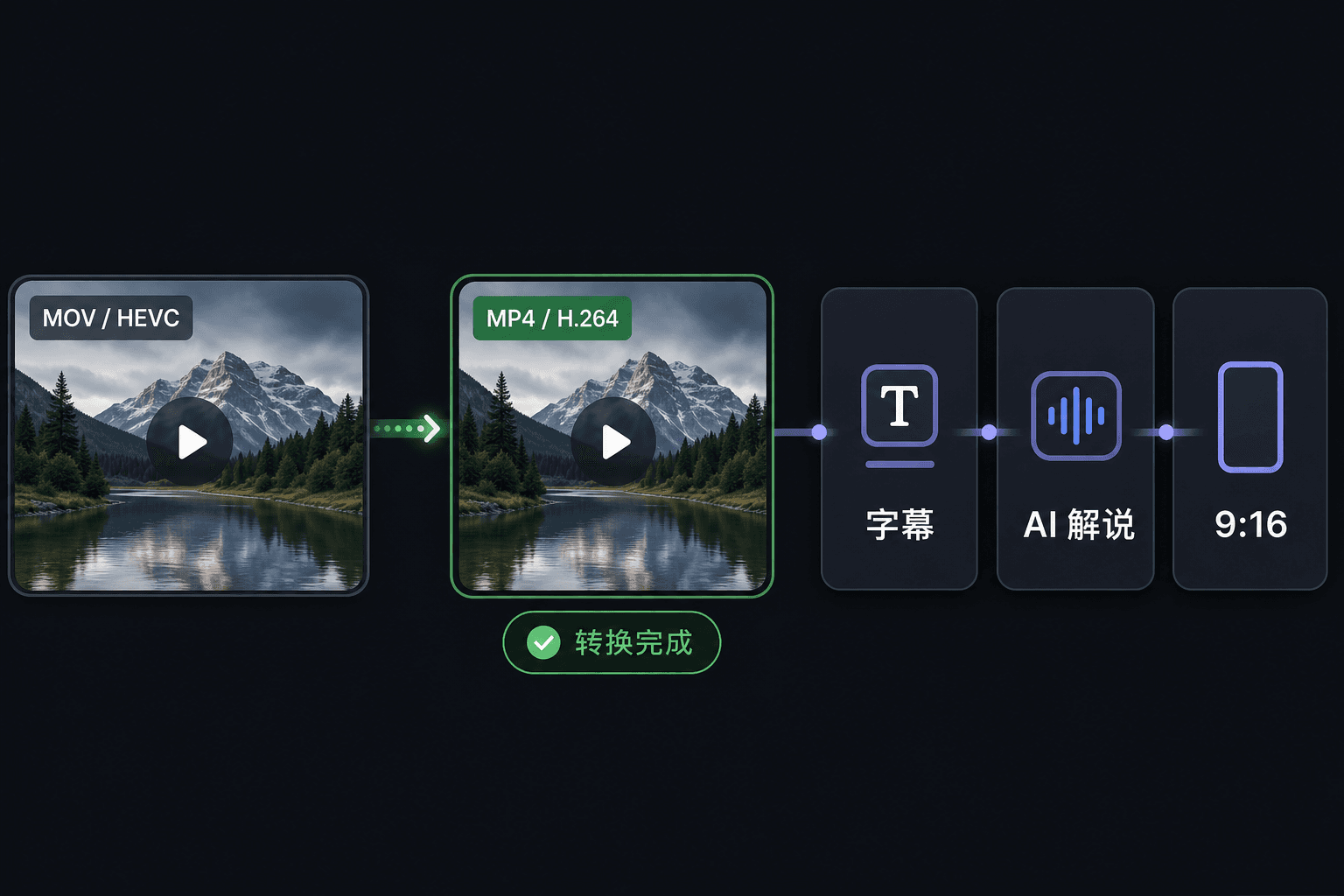
Convert formats without breaking your editing workflow
Format conversion in Recapo isn't a dead end that hands you a file and waves goodbye. The converted video stays in your workspace, where you can run ASR captions, translate subtitles, generate a recap script from AI video understanding, add a TTS voiceover, clip highlights, or crop to 9:16 — then export for the platform you're publishing to.
Built for these real workflows
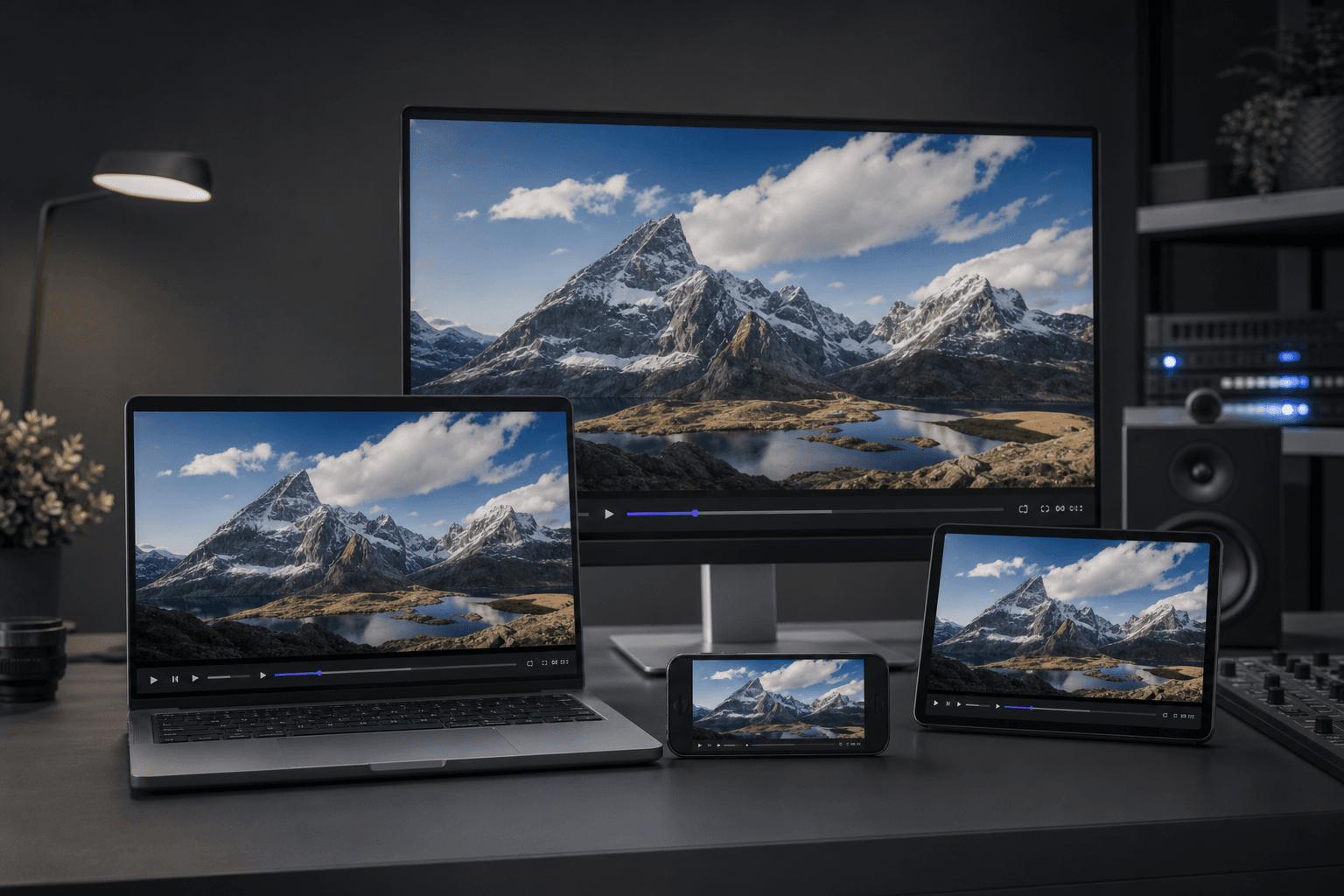
Play reliably across devices
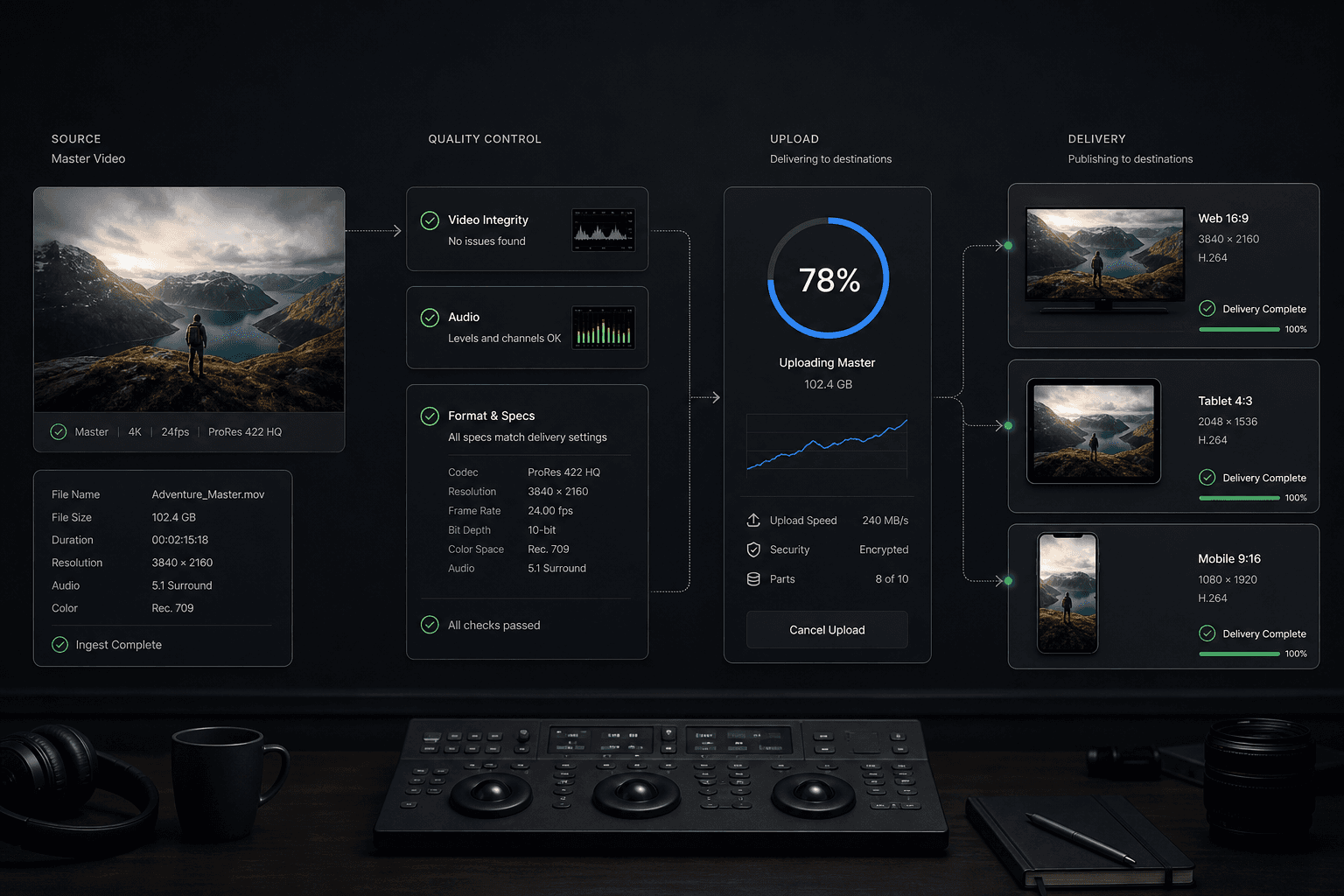
Meet platform delivery formats
Archive and exchange with a team
Frequently asked questions
Do I lose quality when converting video formats?
If only the container changes — say MKV to MP4 with H.264 already inside — the video stream is copied bit-for-bit and nothing is lost. When the codec must change, the converter re-encodes at a high quality setting tuned for screen viewing.
Which input formats does the converter accept?
MP4, MOV, MKV, WebM and GIF, via local upload or link import. Each dedicated page (MKV to MP4, MOV to MP4, WebM to MP4 and so on) lists the presets for that specific pair.
Is the video format converter free?
You can convert within the free quota; larger files and batch jobs consume credits. See the pricing page for current details.
Will the audio and subtitles survive the conversion?
The goal is to carry your audio track through to the new MP4 so it stays in sync with the video. This tool focuses on the video file itself, so if you need standalone subtitle files reformatted you would use a dedicated subtitle converter rather than this one.
Start using Video Format Converter
Provide the input and essential settings above. Your result stays in the current tool workflow.
Back to tool