InVideo Alternatives for Text-to-Video (2026)
Looking for InVideo alternatives in 2026? Compare text-to-video tools honestly, run a 15-minute self-test, and pick the right fit for editing your own footage.
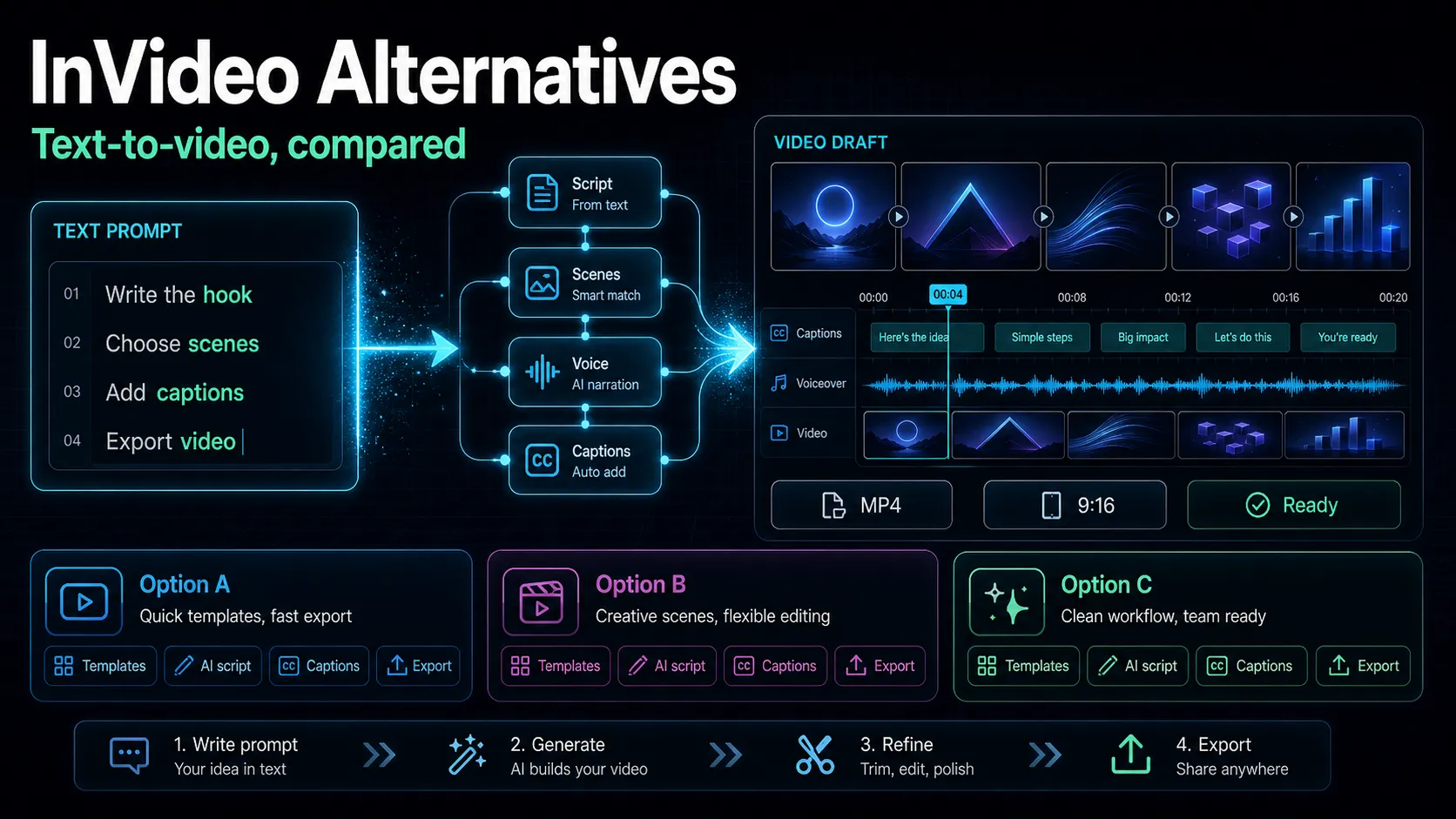
If you're comparing InVideo alternatives, the first decision isn't which tool has the most templates — it's which job you actually need done. InVideo is known for text-to-video: you type a prompt or paste a script, and it assembles stock footage, captions, and a voiceover into a finished clip. That's excellent for one kind of content and frustrating for another. This guide breaks down the real reasons creators leave, sorts the alternatives by the job they're built for, and hands you a 15-minute self-test so you can judge any InVideo AI alternative on your own footage instead of on a marketing feature list.
Key Takeaways
Why creators start hunting for InVideo alternatives
InVideo earned its audience as a template and text-to-video tool: it's genuinely useful when you have no footage and need a video fast. But three friction points push people to look elsewhere, and it's worth being honest about them before you switch — because two of the three are about pricing mechanics that change over time, so confirm the current terms yourself rather than trust any blog (including this one).
- AI-generation limits that reset. Tools in this category usually meter AI generation by time or credits tied to your billing cycle, and unused allowance often doesn't roll over to the next month. If you batch a month of videos in one weekend, that model can pinch. Check the current rollover policy on the vendor's pricing page before you commit.
- Free-tier and licensing fine print. Free plans on prompt-to-video tools tend to cap how much you can export and can restrict commercial use of the output. If you monetize, read the license terms line by line — an "InVideo alternatives free" search only pays off if the free output is actually cleared for the platforms you post to.
- Generic stock look. Prompt-to-video assembles from shared stock libraries, so a lot of output ends up resembling everyone else's. For faceless explainer content that can be perfectly fine; for a personal brand it can feel off-brand fast.
None of this makes InVideo a bad tool. It just means the product is optimized for one job — and if your job is different, you'll spend your energy fighting the workflow instead of shipping videos.
First, decide which "text-to-video" you actually mean
"Text-to-video" hides two very different workflows. Naming yours saves hours of tool-hopping.
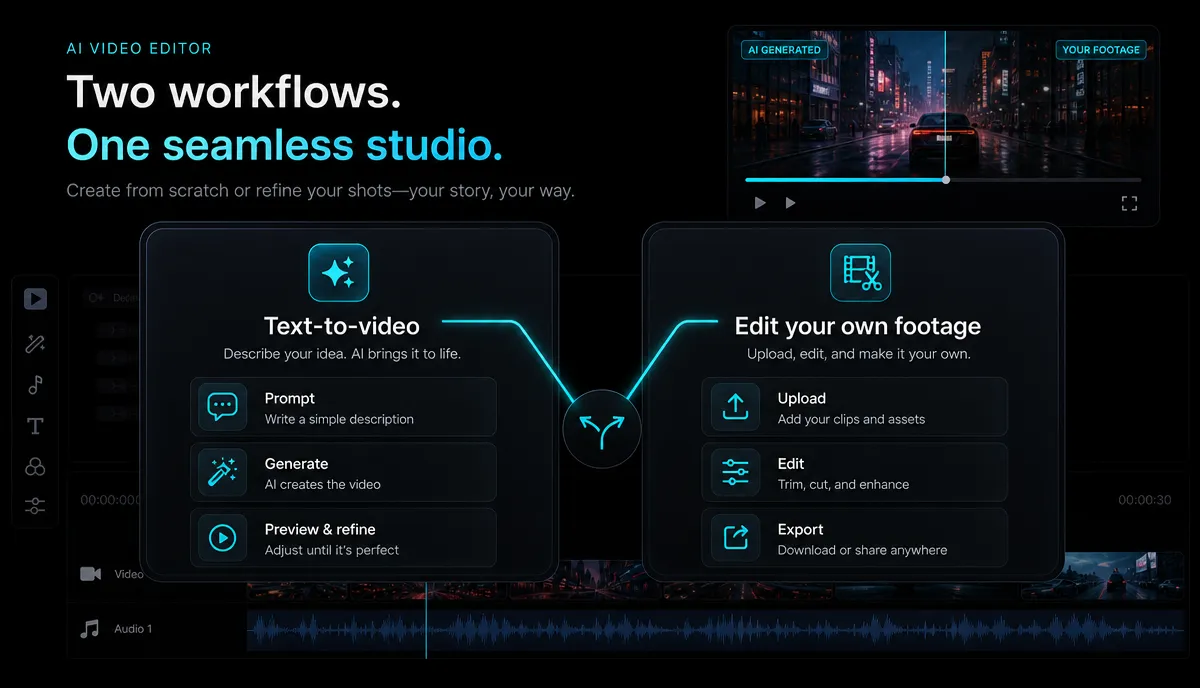
A large share of people searching for InVideo competitors are actually in Lane B and don't realize the category mismatch is why the tool feels clumsy. If that describes you, skip ahead to "Where Recapo fits."
| You start with | A prompt or a script | A file you recorded | The tool's job | Source visuals + assemble | Transcribe, cut, caption, reframe | Output source | Stock / AI-generated media | Your real footage | Best category | Prompt/script generators | Browser editors for uploads | InVideo fits here? | Yes | No |
The dimensions that actually matter when comparing
Skip the feature-checklist wars. When you weigh any InVideo AI alternative, score it on the handful of dimensions that decide whether it survives contact with a real deadline — not on the length of the feature grid.
| Input type | Prompt, script, or my own file? | It defines the entire workflow | Output ownership | Is the output cleared for monetized use? | Decides whether you can post it | Footage source | Stock library vs my uploads | Decides how generic it looks | Editing control | Can I fix one specific line, caption, or cut? | Generators often can't | Caption accuracy | Does it get my niche vocabulary right? | Captions drive watch time | Export & format | Vertical + horizontal, common codecs, file-size ceiling | Cross-posting reality | Pricing model | Do credits reset or roll over? | Batch workflows break here |
Notice that "number of templates" isn't on the list. Templates are easy to demo and rarely the thing that slows you down at 11pm before a posting deadline.
InVideo alternatives, by category
Group the options by the job they're built for so you can shortlist by need rather than hype. Everything below is described at the stable, publicly-known positioning level — verify current features and pricing on each vendor's own site, because those details move.
Prompt/script-to-video generators (closest to InVideo). Tools known for turning a script or article into a stock-backed video. Pictory is the well-known reference point for article-and-script-to-video, and several template-first generators sit in the same lane. Choose from this group only if you're firmly in Lane A. If you're weighing these, our Pictory alternatives breakdown applies the same self-test lens to that specific category.
Generative AI video. Tools known for generating footage from a text or image prompt (Runway is the common reference point for generative AI video). Powerful for original B-roll and shots you couldn't film — not built for captioning a two-hour livestream.
AI avatar / talking-head. Tools known for AI presenter avatars that read your script aloud (Synthesia and HeyGen are the usual reference points). A fit for training material and faceless corporate explainers where you want a "person" on screen without filming one.
Transcript-based editors. Tools known for editing video by editing its transcript (Descript is the reference point). Strong when your content is dialogue-heavy and you'd rather cut by deleting words than by scrubbing a timeline.
Browser editors for your own footage. Tools that transcribe, caption, clip, voiceover, and reframe footage you already have. This is where Recapo sits, alongside browser caption editors such as Veed. This is Lane B.
Desktop suites. Full editors like CapCut or Filmora for frame-level control when you don't mind installing software and doing more of the work by hand.
A 15-minute self-test for any InVideo alternative
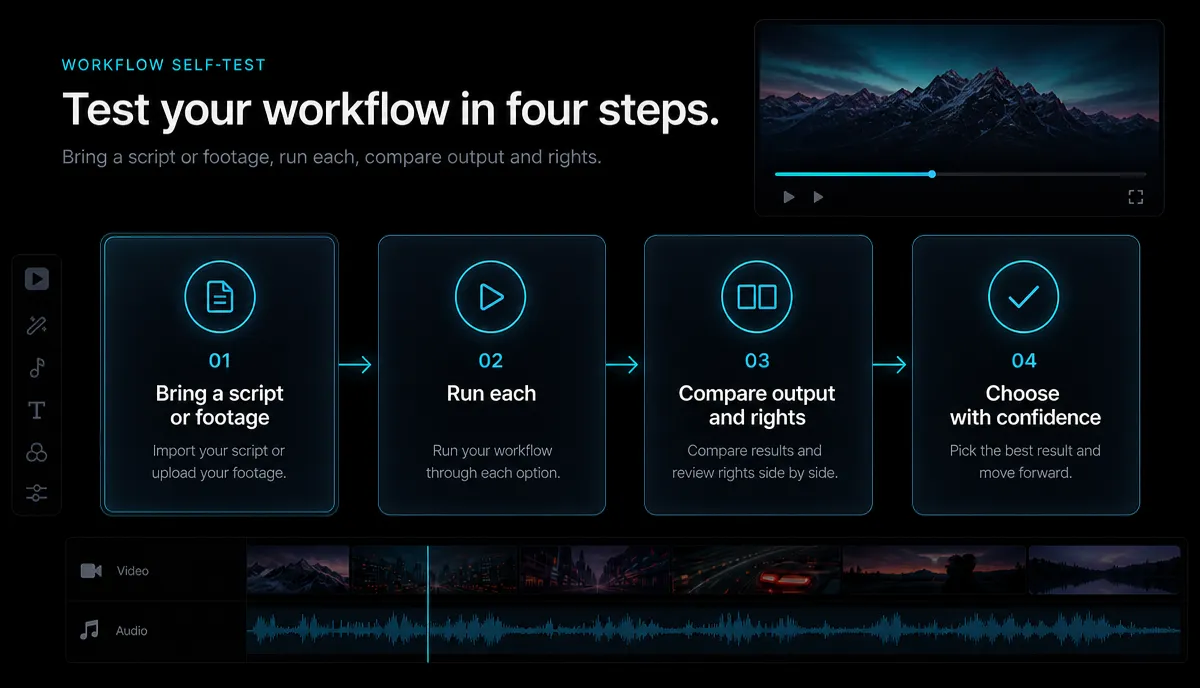
Don't trust screenshots — including the ones on vendor comparison pages. Run this on the exact content you make. It works for a generator or an editor, and it surfaces the two things marketing pages hide: usage rights and real output quality.

- Pick one real asset. Upload a 10-minute clip you actually shot, or paste a script you genuinely plan to publish. No sample files.
- Time the first usable draft. Start a stopwatch. How long until you have a rough cut you'd be willing to fix, not restart? Anything past a few minutes for a short is a red flag.
- Stress-test the captions. Include your niche jargon, a brand name, and one number. Count the errors. Captioning errors compound across every video you'll ever make.
- Try to change one specific thing. Fix a single mispronounced word, swap one clip, or restyle one caption. If the tool forces a full re-generate to change one line, that's your future editing tax.
- Export in two formats. Pull a 9:16 vertical and a 16:9 horizontal from the same project. Cross-posting to Shorts, Reels, TikTok, and YouTube depends on this being painless.
- Read the license on the export screen. Before you post anything monetized, confirm in writing that the output — including any stock or AI media inside it — is cleared for commercial use on your platforms.
Score each tool out of six. Whatever wins your self-test beats whatever wins a comparison table, because the table wasn't built around your footage.
Where Recapo fits (and where it doesn't)
Let's be honest about the category first. Recapo is browser-based AI video editing for footage you already have — it runs in the browser with no install, accepts MP4, MOV and other common formats, and handles up to 6GB per task. It is not a prompt-to-video generator. If you need a tool to invent a video from a single sentence with stock media, a Lane A generator is the better call, and you should use one.
But if you're in Lane B — editing real footage into publishable clips — here's the workflow InVideo isn't shaped for:
- Upload and transcribe. Drop your recording in and get an accurate transcript and burned-in or styled captions, so your niche vocabulary reads correctly instead of being invented.
- Turn the long video into clips. Cut a webinar, stream, or long upload into short, self-contained moments sized for Shorts, Reels, and TikTok. For choosing which moments and how long to cut them, our guide on making faceless videos pairs well with this step.
- Draft the summaries and scripts. Generate a summary or a script from the transcript to speed up titles, descriptions, and voiceover copy.
- Add an AI voiceover. If you want narration over your footage without recording your own audio, the text-to-speech video tool turns a script into a clean voice track. Deepen this with our walkthrough on adding a voiceover to any video.
- Build faceless cuts when you want them. For narration-plus-visuals videos where you never appear on camera, the faceless AI video generator helps you assemble a faceless edit around your own material rather than pure stock.
- Reframe and export. Reframe horizontal footage to vertical, add a cover, and export in the format each platform wants.
The difference is ownership: your footage stays your footage. You're not swapping a personal take for generic stock — you're speeding up the edit of the thing you actually recorded. Pricing for Recapo lives on the pricing page; check it there rather than trusting a number in any article.
"InVideo is fine if…" — a fair verdict
Switching tools is a cost, so here's the honest test for whether you should bother.
InVideo is fine — keep it — if:
Look at InVideo competitors if:
Most creators who leave aren't leaving because InVideo is bad. They're leaving because they were in Lane B all along and reached for a Lane A tool. Match the category first, then run the self-test, and the right pick becomes obvious.
FAQ
Is there a genuinely free InVideo alternative? Several tools in every category advertise a free tier, but "free" and "usable for monetized content" are different questions. Before you rely on any InVideo alternatives free plan, export a real project and read the license on the output — free visuals that can't be used commercially will cost you more than a subscription when a video gets pulled.
What's the best InVideo AI alternative for editing my own footage? There's no single winner, but the category you want is browser editors built for uploads, not prompt-to-video generators. Run the 15-minute self-test on your real footage and score each tool on caption accuracy, editing control, and vertical export. Whatever survives that test on your content is your answer.
Can I use InVideo alternatives for monetized YouTube and TikTok videos? Only if the output license says so. Any tool that uses stock or AI-generated media inside the export can carry usage restrictions. Confirm commercial clearance in writing on the export screen before you post to a monetized channel — this applies to InVideo and every competitor equally.
Is Recapo a text-to-video tool like InVideo? No, and that's the point. Recapo is a browser-based editor for footage you already have — transcribe, caption, clip, voiceover, reframe, and export. If you need to generate a video from a text prompt with stock footage, use a Lane A generator instead. If you're editing real footage, Recapo is built for that job.
How is InVideo different from generative AI video tools? InVideo is known for text-to-video from templates and scripts, assembling existing stock media into a video. Generative AI video tools (Runway is the usual reference point) create new footage from a prompt. They overlap on "type text, get video," but the output source — curated stock versus freshly generated shots — is a fundamentally different look, so pick based on the visual style you need.
Ready to edit your own footage instead of fighting a generator? Create a free Recapo account, upload one real recording, and run it through the transcribe-clip-caption-export flow. You'll know within a single video whether editing your own footage in the browser beats generating generic stock — no feature list required.