Social Media Video Aspect Ratio Guide (Every Platform)
Social media video aspect ratios explained — 9:16 vs 16:9 vs 1:1, a per-platform table for YouTube, Shorts, TikTok and Reels, plus safe-zone and reframing tips.
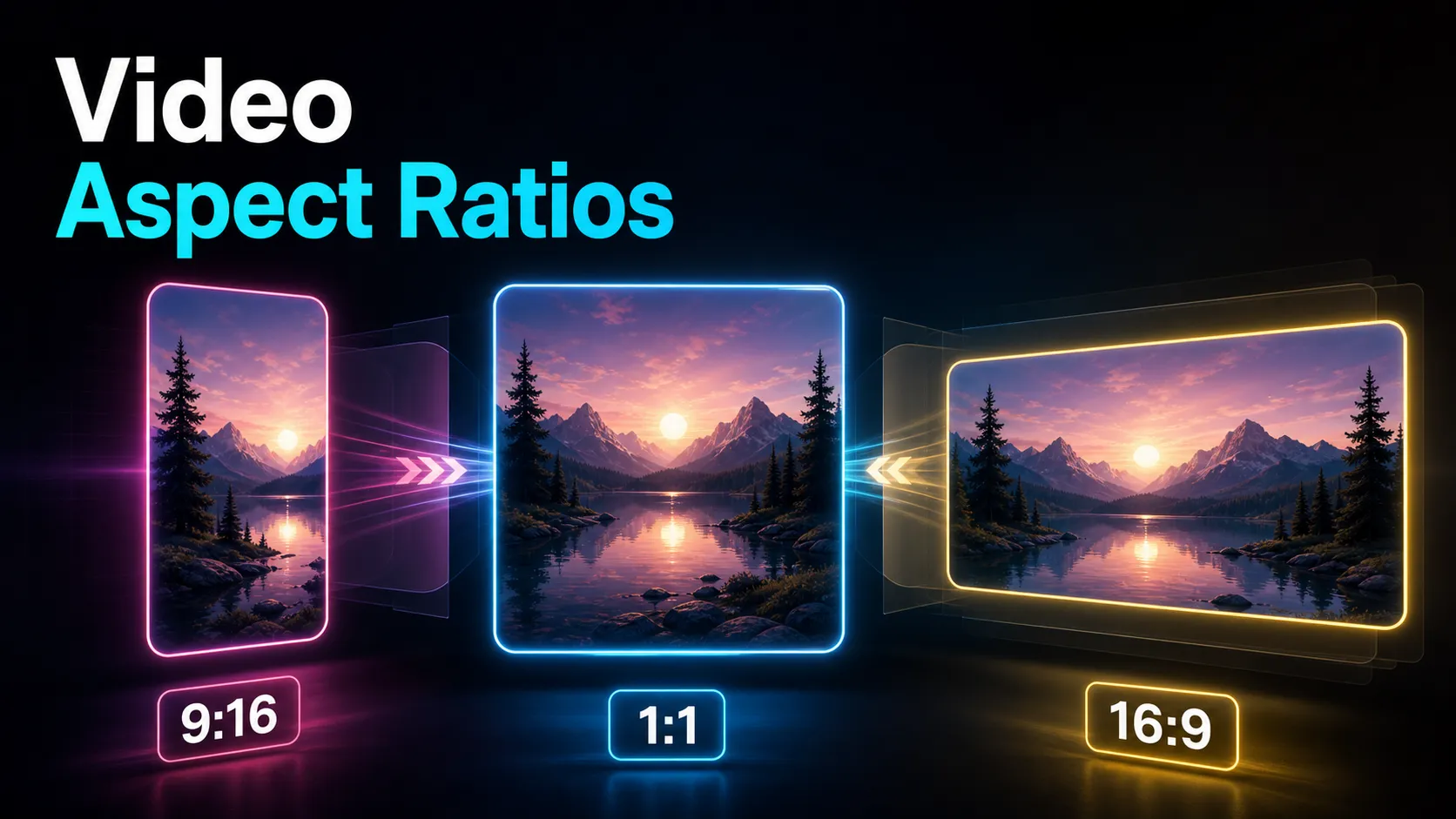
Social media video aspect ratios come down to three shapes: 9:16 vertical for phone-first feeds, 16:9 widescreen for desktop and long-form, and 1:1 square for the in-feed grid post. Learn which one each platform actually rewards, keep your key content out of the on-screen interface, and you can cut a video once and reframe it for every platform instead of re-editing per app. This is the cross-platform reference: the three core ratios explained, a per-platform table covering YouTube, YouTube Shorts, TikTok, and Instagram Reels, a "film wide, reframe later" workflow, and safe-zone guidance so your subject never lands under a button.
If you cross-post the same footage to several feeds, this page is meant to be the single lookup you keep open while you export. It's written for creators repurposing one video across multiple platforms, not for someone shooting a bespoke edit for a single feed.
Fact-check note: Platform rules and product limits were checked against official sources on July 10, 2026. They can change, so verify the linked source before acting on a threshold or specification.
Key takeaways
- Three ratios cover almost all social video: 9:16 vertical (phone feeds), 16:9 widescreen (desktop and long-form), and 1:1 square (in-feed grid posts). 4:5 portrait is a useful middle ground for in-feed browsing.
- 9:16 is the dominant short-form ratio: YouTube Shorts, TikTok, and Instagram Reels all target it, so one correct vertical export covers all three.
- 16:9 still owns the YouTube watch page, TVs, and desktop viewing — don't drop a vertical clip into a long-form slot, and don't drop a 16:9 clip into a full-screen feed.
- "Film wide, reframe later": capture or export a high-resolution 16:9 master, then reframe it into 9:16, 1:1, and 4:5 rather than reshooting for each platform.
- Aspect ratio is only half the job — keep faces, captions, and calls-to-action inside each platform's safe zone so the interface never covers them.
- Platform pixel maximums, durations, and file specs change over time; aspect ratios are stable, so build your workflow on the ratio and verify current specs on each platform's official help pages.
The three aspect ratios that cover social media
An aspect ratio is just the shape of your frame — width to height — independent of how many pixels fill it. A 9:16 clip is nine units wide for every sixteen tall whether it's 720p or 4K. Nearly all social video lives in one of three shapes, plus one honorable mention.
- 9:16 (vertical). The tall rectangle that fills a phone screen top to bottom. This is the shape of every full-screen mobile feed — Shorts, TikTok, Reels — and it's the default you should design for if your video is going anywhere short-form. At 1080p it's 1080 × 1920 pixels.
- 16:9 (widescreen / landscape). The classic TV and monitor shape. It's what the YouTube watch page, desktop players, and smart TVs are built around, and it's still the right ratio for long-form, tutorials, and anything watched leaning back rather than scrolling. At 1080p it's 1920 × 1080 pixels.
- 1:1 (square). A perfect square that reads the same whether a feed favors portrait or landscape. It's the traditional in-feed post shape and a safe neutral choice when you don't know how a surface will crop you. At 1080p it's 1080 × 1080 pixels.
- 4:5 (portrait, the honorable mention). Taller than square but not full-screen. It takes up more vertical space than 1:1 in a scrolling feed without hijacking the whole screen, which makes it a strong ratio for in-feed posts that aren't full-screen Reels. At 1080p it's 1080 × 1350 pixels.
The mental model: 9:16 for full-screen feeds, 16:9 for lean-back watching, 1:1 or 4:5 for in-feed browsing. Once you internalize those three buckets, every platform question below is really just "which bucket does this surface fall into?"
Video aspect ratios by platform
Here's the cross-platform lookup — the reason this page exists. Every cell is the public aspect ratio each surface is built around. Read the resolutions as the common 1080p export size for that ratio, not as a platform-imposed cap; exact maximum resolutions, lengths, and file specs shift over time, so confirm those on the platform's own help pages. The ratios themselves are stable.
| Platform / surface | Primary ratio | Common resolution (1080p) | Also accepted | Best for |
|---|---|---|---|---|
| YouTube (long-form) | 16:9 | 1920 × 1080 | 9:16, 4:3 (shown with bars) | Desktop, TV, and lean-back watching |
| YouTube Shorts | 9:16 | 1080 × 1920 | — | Full-screen vertical Shorts feed |
| TikTok | 9:16 | 1080 × 1920 | 1:1, 16:9 (letterboxed or cropped) | Full-screen For You feed |
| Instagram Reels | 9:16 | 1080 × 1920 | — | Full-screen vertical Reels feed |
| Instagram feed post | 4:5 or 1:1 | 1080 × 1350 / 1080 × 1080 | 16:9 (shown small) | In-feed scrolling and the profile grid |
Two honest reads of this table. First, notice how much of it is 9:16 — YouTube Shorts, TikTok, and Instagram Reels all point at the same vertical target, which is the single biggest reason cross-posting is realistic: one clean 9:16 export drops into all three full-screen feeds. Second, notice the two exceptions that trip people up. The YouTube watch page is still 16:9, so a vertical clip uploaded as a regular long-form video shows with pillar bars on either side. And in-feed Instagram posts favor 4:5 or 1:1, not full 9:16 — a full-height Reel can get center-cropped when it appears as a feed post. When you plan a video's ratios, plan for the surface, not the platform's name.
9:16 vs 16:9 vs 1:1: how to choose
The fastest way to pick is to stop thinking about platforms and think about how the video will be watched. Here's the decision in one pass:
- Is it going to a full-screen mobile feed (Shorts, TikTok, Reels)? Use 9:16. Full stop. Anything else leaves bars or gets cropped.
- Is it long-form, a tutorial, or something people watch on a desktop or TV? Use 16:9. Vertical wastes most of a widescreen player.
- Is it an in-feed post that scrolls past (not full-screen)? Use 4:5 for maximum vertical presence, or 1:1 if you want one file that reads cleanly no matter how a feed crops it.
- Do you genuinely not know where it's going yet? Master in 16:9 at the highest resolution you can, because a wide, high-res source can be reframed down into every other ratio later. Going the other way — stretching a 9:16 clip into 16:9 — always means either bars or a destructive crop.
The "best aspect ratio for video" question has no single answer because it depends entirely on the surface. What is universal: pick the ratio that fills the space where it will actually be watched, and never let the feed make the cropping decision for you by uploading the wrong shape. If most of your posting is short-form, treat 9:16 as home base and everything else as a derivative — our guide on how to make a video vertical walks through getting there cleanly.
Film wide, reframe later
If there's one workflow principle that makes cross-platform posting painless, it's this: shoot and master in 16:9 at high resolution, then reframe down. A wide, high-resolution source gives you room to crop into 9:16, 1:1, and 4:5 without softening the image, because you're carving a smaller window out of a bigger picture. Start narrow — say, a 9:16 phone recording — and you've thrown away the sides you'd need to build a proper widescreen or square version. You can only ever crop in, not add picture back.
Practically, that means:
- Capture with headroom. Leave a little space around your subject so a vertical crop has somewhere to breathe. If you frame a talking head dead-center with tight edges, a 9:16 crop has no margin to keep them off the frame line.
- Keep the subject centered-ish. The more your subject hugs the middle of the wide frame, the more ratios you can derive from one take without the subject sliding out of the crop.
- Master once, export many. Do your color, captions, and cuts on the 16:9 master, then produce the ratio variants as the final step. Editing four separate files is how versions drift out of sync.
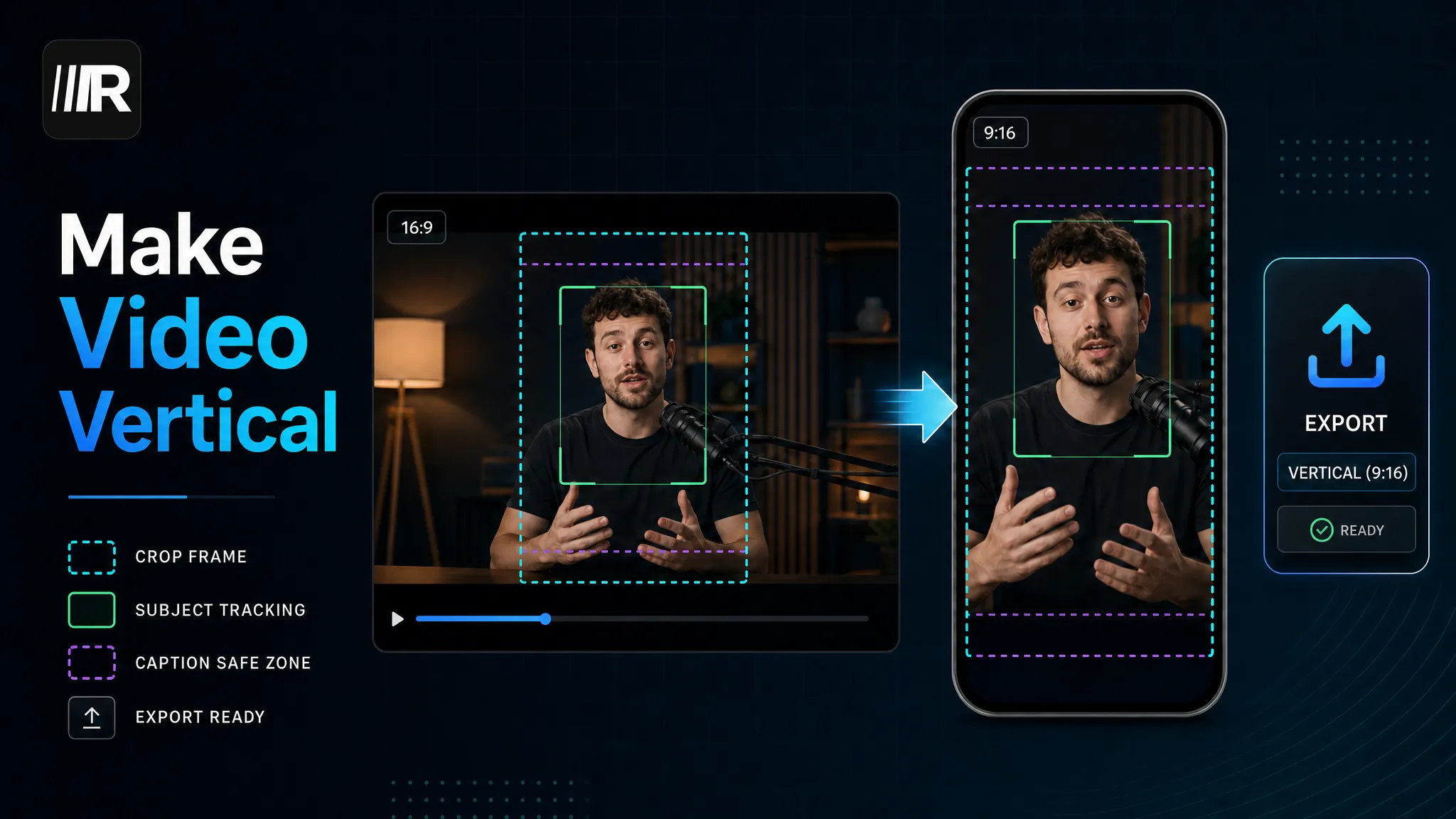
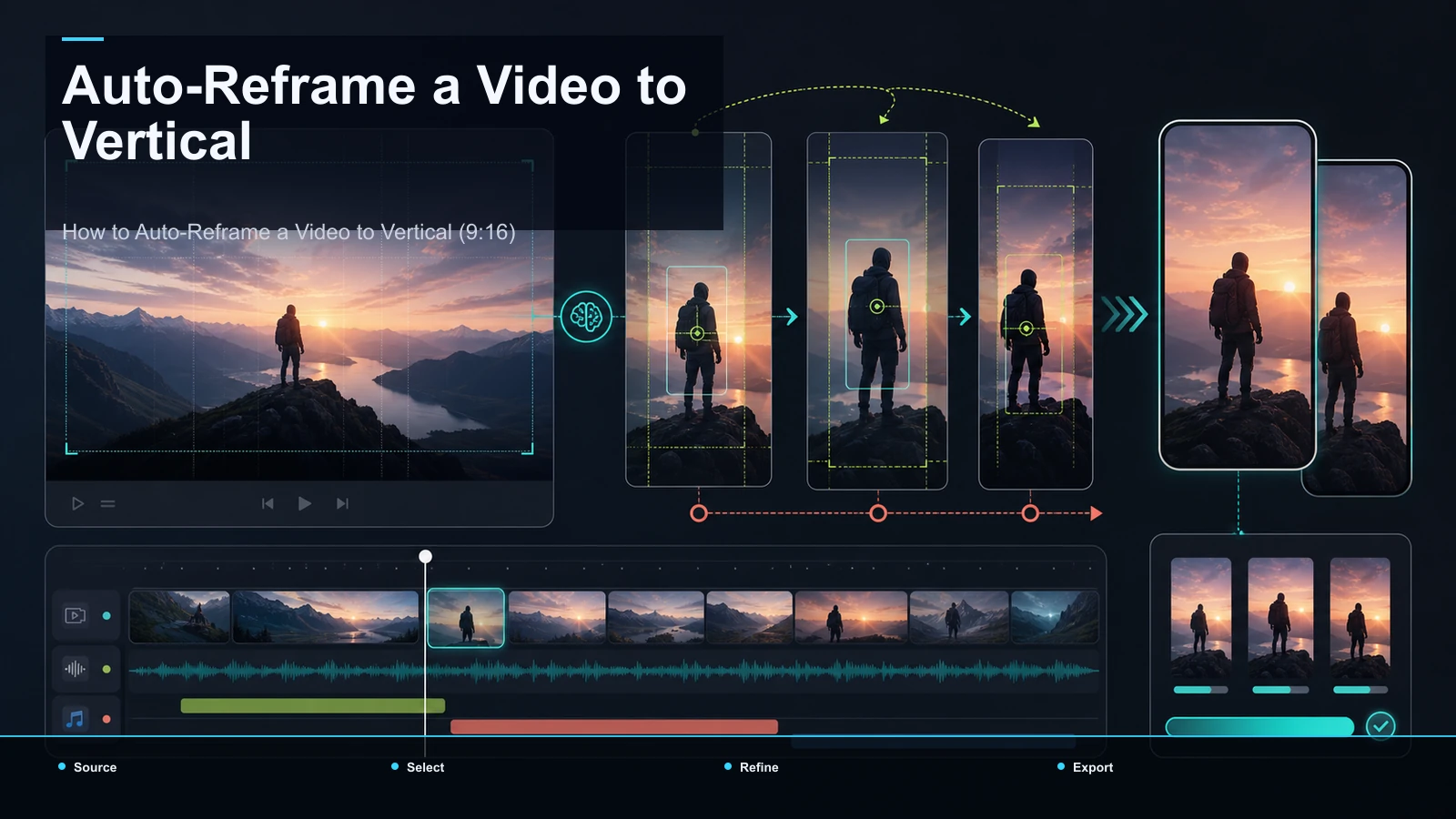
- Reframe intelligently, not with a hard center crop. A dead-center crop lops the sides off and frequently cuts a person in half. Subject-aware reframing keeps the person in frame as they move — see how to auto-reframe a video to vertical for the difference between a lazy crop and a tracked one.
This is the opposite of reshooting per platform. One good wide master becomes a vertical Short, a square feed post, and a widescreen long-form upload — same footage, three shapes, no new filming.
Safe zones: keep content out of the interface
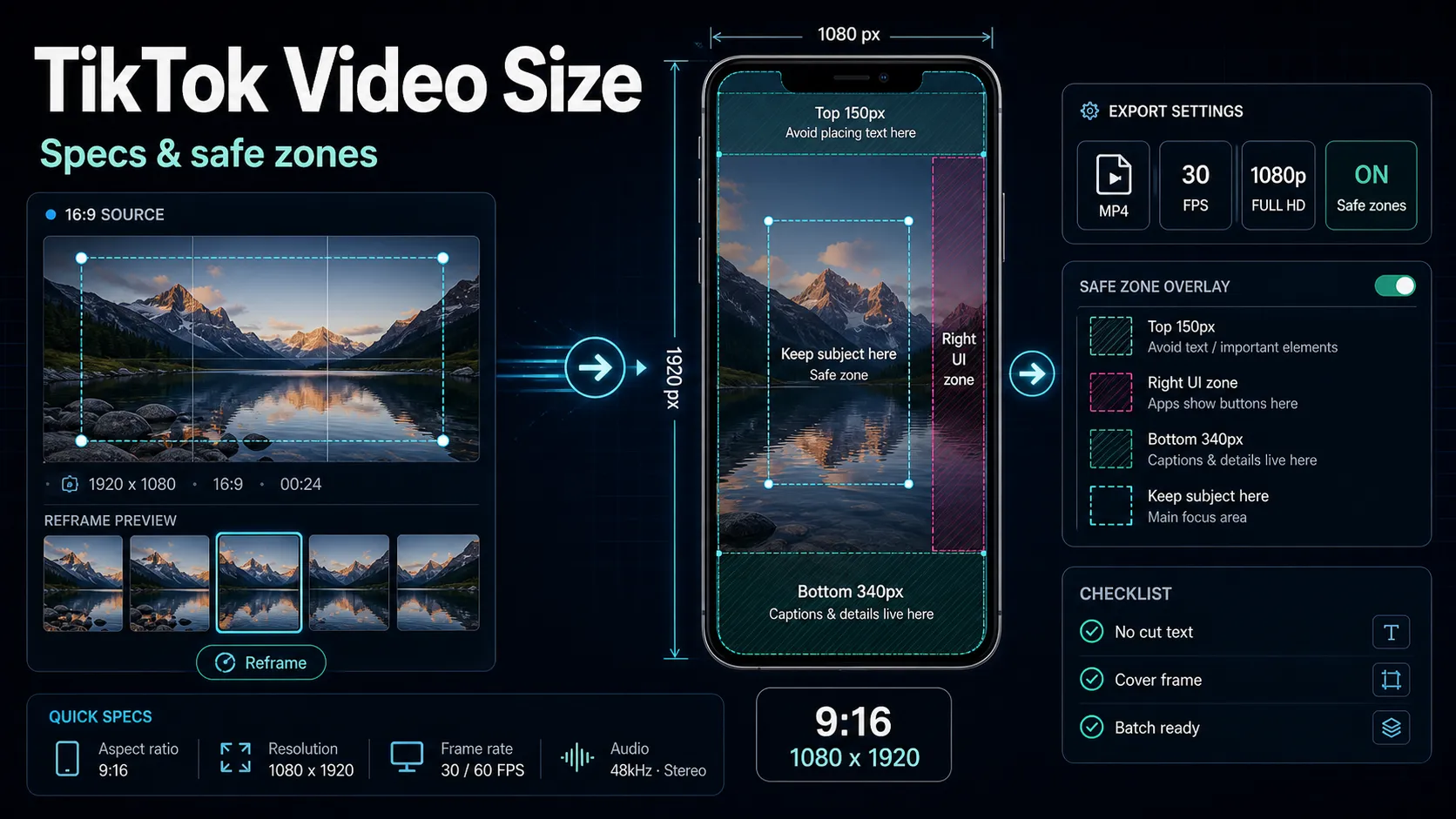
Getting the ratio right is necessary but not sufficient, because every full-screen feed layers its own buttons and text on top of your video. Your 9:16 frame is the full canvas, but the platform reserves parts of it — typically a right-side button column (like, comment, share) and a bottom band (username, caption, sound, progress bar). Anything important placed there gets partially or fully covered.
The safe-zone rules that hold across TikTok, Shorts, and Reels:
- Keep the bottom clear. The lower band of a vertical frame is where captions and interface controls stack up. Don't put your subtitles or key text at the very bottom — raise them into the middle of the frame.
- Keep the right edge clear. The action buttons live down the right side. Persistent logos, CTAs, or important faces shouldn't sit under that column.
- Center your critical content. Faces, burned-in captions, product shots, and calls-to-action belong in the central area of the frame, roughly the middle band, where no UI covers them.
- Let the background bleed to the edges. The picture should fill all four edges so you never get bars — just don't put anything you need the viewer to read out near those edges.
Exact reserved pixel amounts differ by platform and change with app updates, so treat the middle area as a preview starting point rather than a permanent safe-zone rule and confirm the current layout by previewing on a real phone. For a platform-specific safe-zone breakdown with measurements, the TikTok video size guide maps out where each interface element sits.
Reframe one clip into every ratio
Here's the repeatable production flow for turning a single master into all the shapes you need. You can do the whole thing in the browser with Recapo, no install, and it accepts MP4, MOV, and other common formats up to 6GB total per task.
- Start from your highest-resolution 16:9 master. The more pixels you begin with, the more room every crop has to stay sharp.
- Finish the master first. Do your cuts, color, and captions on the wide version before you make ratio variants, so every export stays in sync.
- Reframe to 9:16 for the full-screen feeds. Open the TikTok video resizer and set the 9:16 vertical preset; the same 1080 × 1920 export drops cleanly into Shorts and Reels too. For Reels specifically, the Instagram Reels resizer targets the same vertical frame.
- Keep the subject inside the safe zone. Nudge the framing so faces and key elements land in the central band — left of the right-side button column, above the bottom caption bar.
- Make a 1:1 or 4:5 version for in-feed posts. In the AI video editor, reframe the same master to square or 4:5 portrait so it reads well as a scrolling feed post rather than a full-screen clip.
- Add captions inside the safe area. Auto-transcribe and caption each variant, then check the text sits in the middle band on the vertical cuts, clear of the bottom UI.
- Export each ratio at 1080p and preview on a phone. Confirm each file reads as its intended ratio, then watch the vertical ones full-screen on an actual device with the platform UI in mind — that catches placement problems no desktop preview will.
Do this once and you have a vertical clip for three feeds and a square or 4:5 post for the grid, all from one edit.
Common aspect ratio mistakes (and the fix)
- Uploading a 16:9 clip to a full-screen feed. It shows as a small strip with big bars, or gets cropped when expanded. Fix: reframe to 9:16 before uploading — don't let the feed crop it for you.
- Posting a vertical clip as a regular YouTube long-form video. The watch page is 16:9, so a 9:16 upload gets pillar bars on both sides. Fix: use vertical only for Shorts; keep long-form in 16:9.
- Mastering in 9:16 and needing 16:9 later. You can't add back the sides you cropped away. Fix: master wide, reframe down.
- Putting captions at the very bottom of a vertical frame. They collide with the username and interface row. Fix: raise subtitles into the central safe zone.
- Exporting below 1080p and letting the platform upscale. The result looks soft. Fix: export at the full 1080p size for your chosen ratio, from a high-resolution source.
Notice that most of these aren't about the ratio number at all — they're about matching the ratio to the surface and respecting the safe zone. Getting 9:16 or 16:9 correct is table stakes; putting the right shape on the right feed with content clear of the UI is what makes the upload look intentional.
FAQ
What is the best aspect ratio for social media video? There isn't one universal answer — it depends on the surface. Use 9:16 vertical for full-screen mobile feeds (YouTube Shorts, TikTok, Instagram Reels), 16:9 widescreen for long-form and desktop or TV viewing, and 1:1 or 4:5 for in-feed posts that scroll past rather than fill the screen. Pick the ratio that fills the space where the video will actually be watched.
Is 9:16 the same on TikTok, YouTube Shorts, and Instagram Reels? Yes — all three full-screen vertical feeds are built around 9:16, commonly exported at 1080 × 1920. That's why one clean vertical export can be posted to all three. The differences between them are mostly in the safe-zone layout (where each app's buttons and captions sit), not the aspect ratio itself.
Should I use 16:9 or 9:16 for YouTube? Both, for different things. Regular long-form YouTube videos on the watch page are 16:9 — a vertical upload there shows with bars on the sides. YouTube Shorts are 9:16 full-screen. So if it's a Short, go vertical; if it's a standard video watched on desktop or TV, go widescreen.
What is the difference between 1:1 and 4:5? Both are in-feed post shapes, but 4:5 is taller. A 1:1 square reads the same regardless of how a feed crops it, which makes it a safe neutral choice; a 4:5 portrait takes up more vertical space in a scrolling feed, giving your post more screen presence without going full-screen like a Reel. Neither is meant for full-screen vertical feeds — use 9:16 for those.
Can I convert a horizontal 16:9 video to vertical 9:16? Yes, and it's the most common repurposing task there is. The clean way isn't a hard center crop — that lops off the sides and can cut your subject in half. Instead, reframe so your subject stays inside the narrower vertical frame, ideally with subject-aware tracking if the person moves. Master in high-resolution 16:9 first so the crop stays sharp.
Reframe one video into every ratio, in your browser
Social media video aspect ratios come down to three shapes and one discipline: pick 9:16 for full-screen feeds, 16:9 for lean-back watching, and 1:1 or 4:5 for in-feed posts — then keep your content clear of each platform's interface. The efficient way to serve all of them is to master once in wide, high-resolution 16:9 and reframe down. Recapo runs entirely in your browser, so you can reframe the same clip into 9:16 for Shorts, TikTok, and Reels, a square or 4:5 version for the feed, add captions inside the safe zone, and export each ratio at full resolution without installing anything. Create a free account and turn one video into every shape your platforms ask for.
References and official sources
- YouTube: Recommended upload encoding settings
- Instagram Help Center: Reel size and aspect ratios
- TikTok Ads Manager: In-feed video specifications and safe zones
- Recapo.ai: Product overview and current upload limits
- Recapo.ai: AI Video Editor
- FFmpeg: Official documentation