How to Make YouTube Thumbnails That Get Clicks
Three high-CTR YouTube thumbnail layouts with copy-ready templates, plus a one-click workflow from video keyframes.
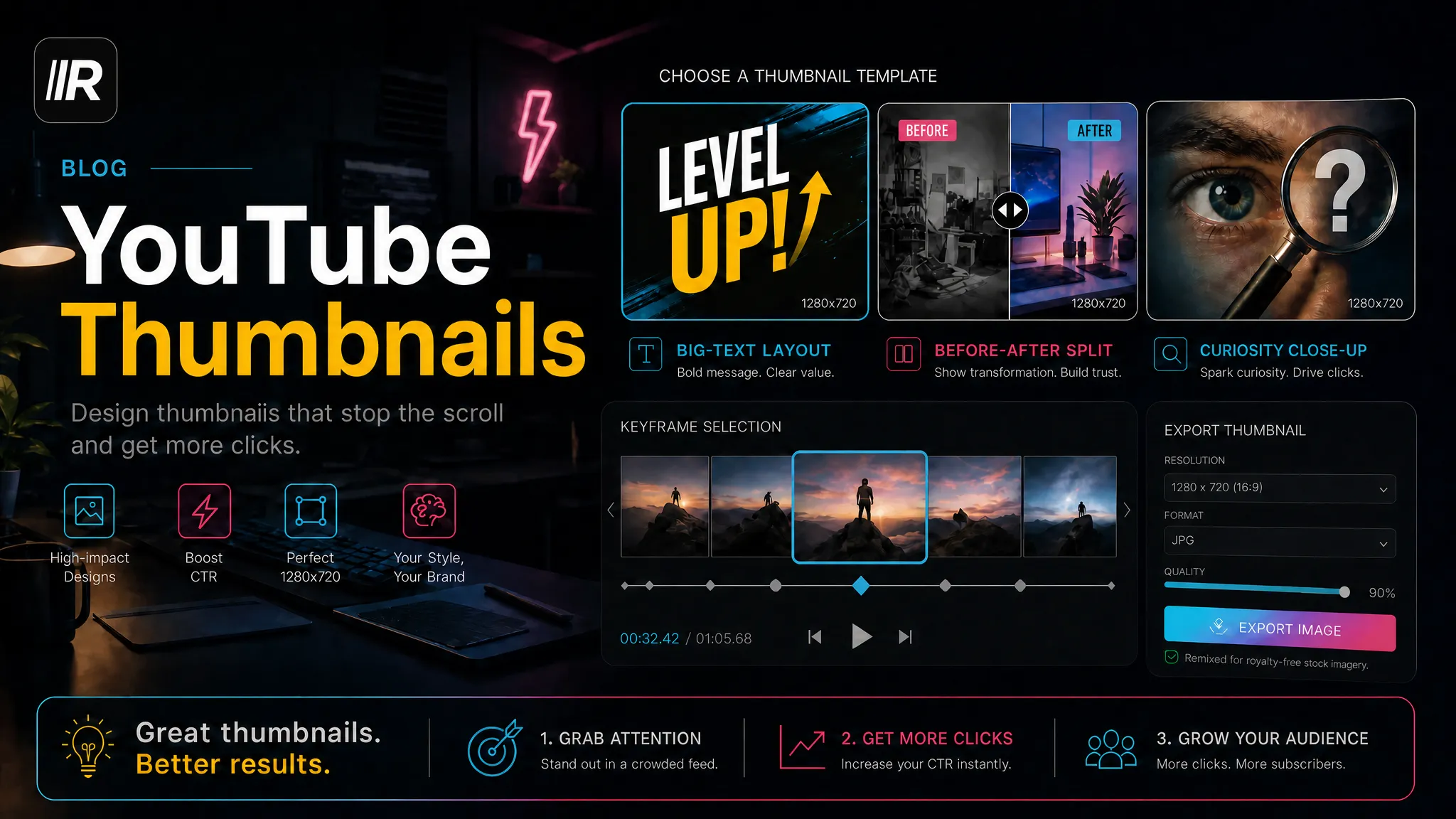
Making a YouTube thumbnail comes down to three steps: export at 1280×720, pick one of three high-CTR layouts, and build it from a keyframe grabbed out of your own video, plus text. Viewers see the thumbnail before they read the title, and the same video with a different thumbnail can pull noticeably different clicks — which is why it deserves to be its own production step.
Lock In the Specs First
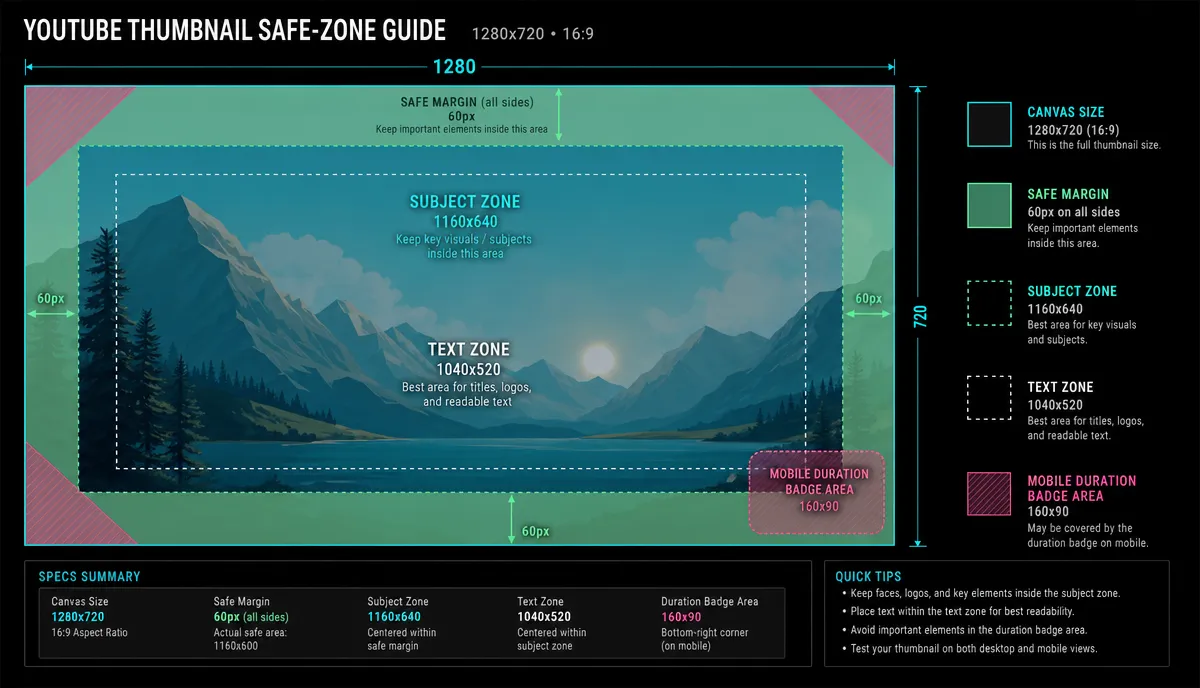
- Size: 1280×720, 16:9 — YouTube's official spec.
- Format: JPG or PNG both work.
- The overlay zone: the duration badge sits over the bottom-right corner of the thumbnail — keep important text and faces out of it.
Thumbnails usually show up at thumb size on a phone. Every design has to survive being shrunk, and every rule that follows comes back to that.
Three High-CTR Layouts
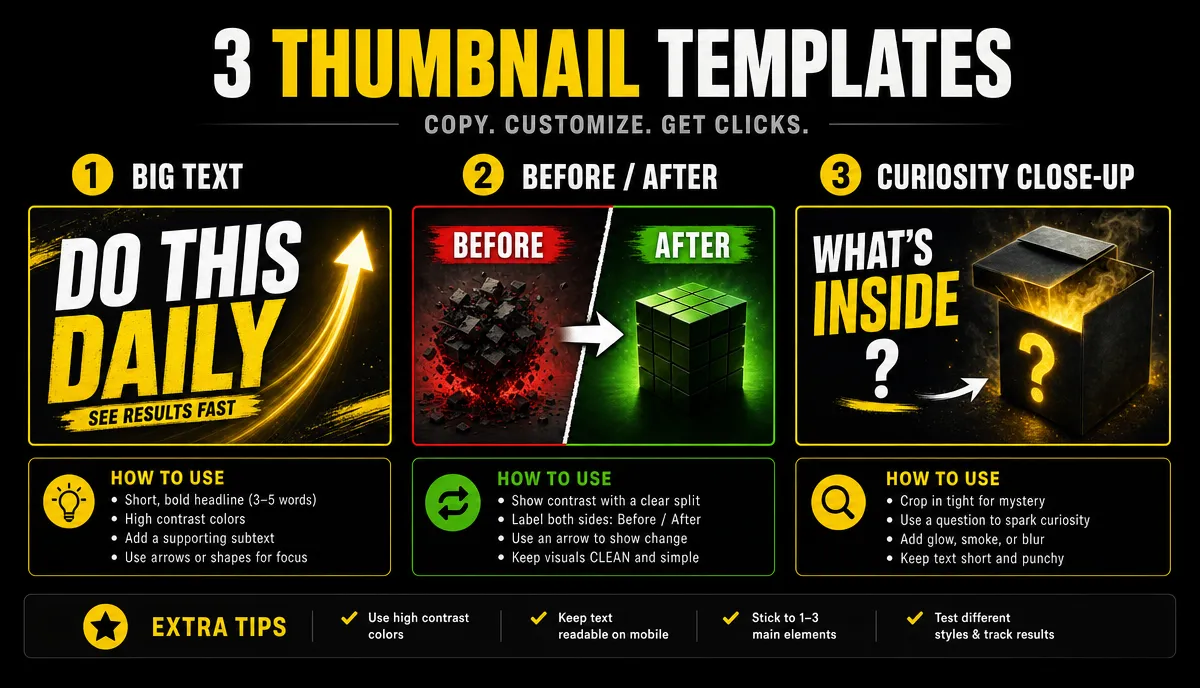
These three layouts cover most content types. All examples are self-made scenarios and don't point to any real channel.
Big-Text
The formula: three to five big words covering more than half the frame, strong contrast between text and background, and one visual anchor (a face or a prop) in the remaining space. Works for opinion, tutorial and list content. Example: a mustard-yellow background, heavy black type reading "3 MONTHS WASTED," and a frowning half-body figure on the right.
Before/After Split
The formula: a split screen, "before" on the left and "after" on the right, a divider line or arrow down the middle, and a clear brightness gap between the two sides. Works for makeovers, reviews and transformation content. Example: a dim, cluttered desk on the left, a clean and organized workstation on the right, a white arrow in the middle, and "3 HOURS" in the corner.
Curiosity Close-Up
The formula: a facial expression or tight detail shot filling most of the frame, paired with a single question word — the information deliberately left incomplete. Works for stories, recaps and vlogs. Example: a close-up of a hand gripping a boarding pass with a folded corner, captioned "REFUNDED?"
Talking-head channels mostly pull their thumbnails from expression frames; for how to record usable ones, see How to Make Talking Head Videos.
One-Click Thumbnails from Video Keyframes
You can make a thumbnail without knowing any design software — the idea is to pick a frame from the finished video, then add text:
Step 1: Grab the keyframes. Use keyframe screenshot to pull the frames where an expression or a motion peaks — a genuine peak frame looks more natural than a posed shot.
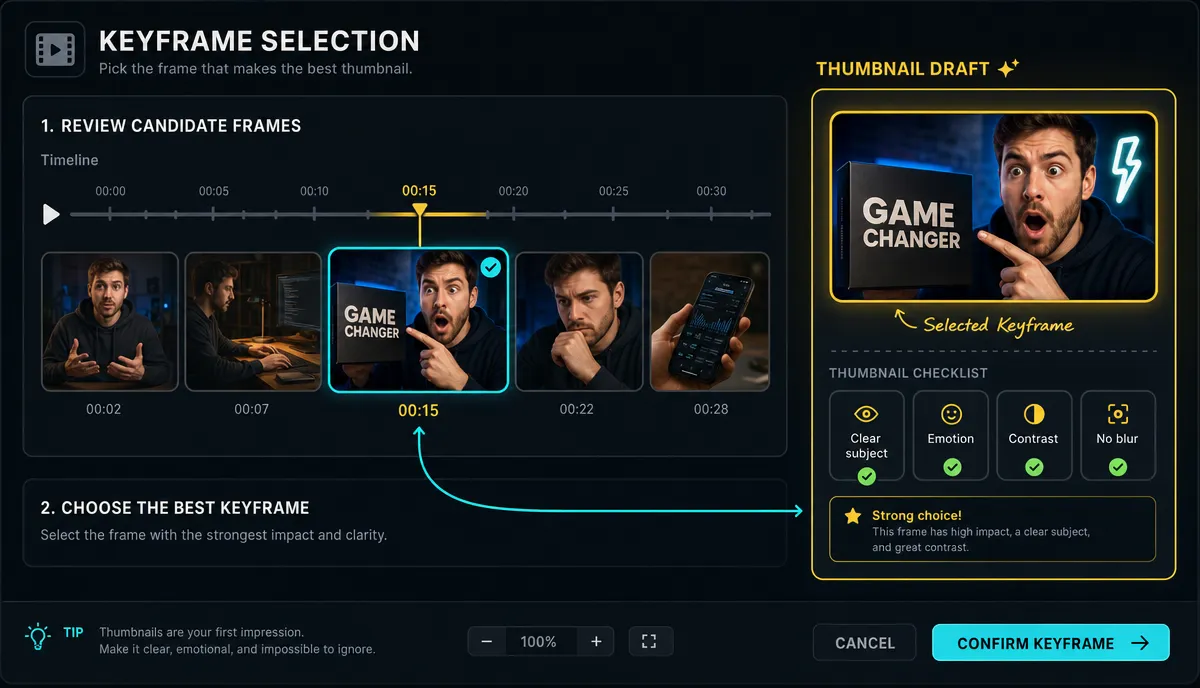
Step 2: Add text and lay it out. Drop the chosen frame into cover maker, apply one of the three layouts above, and export at 1280×720.
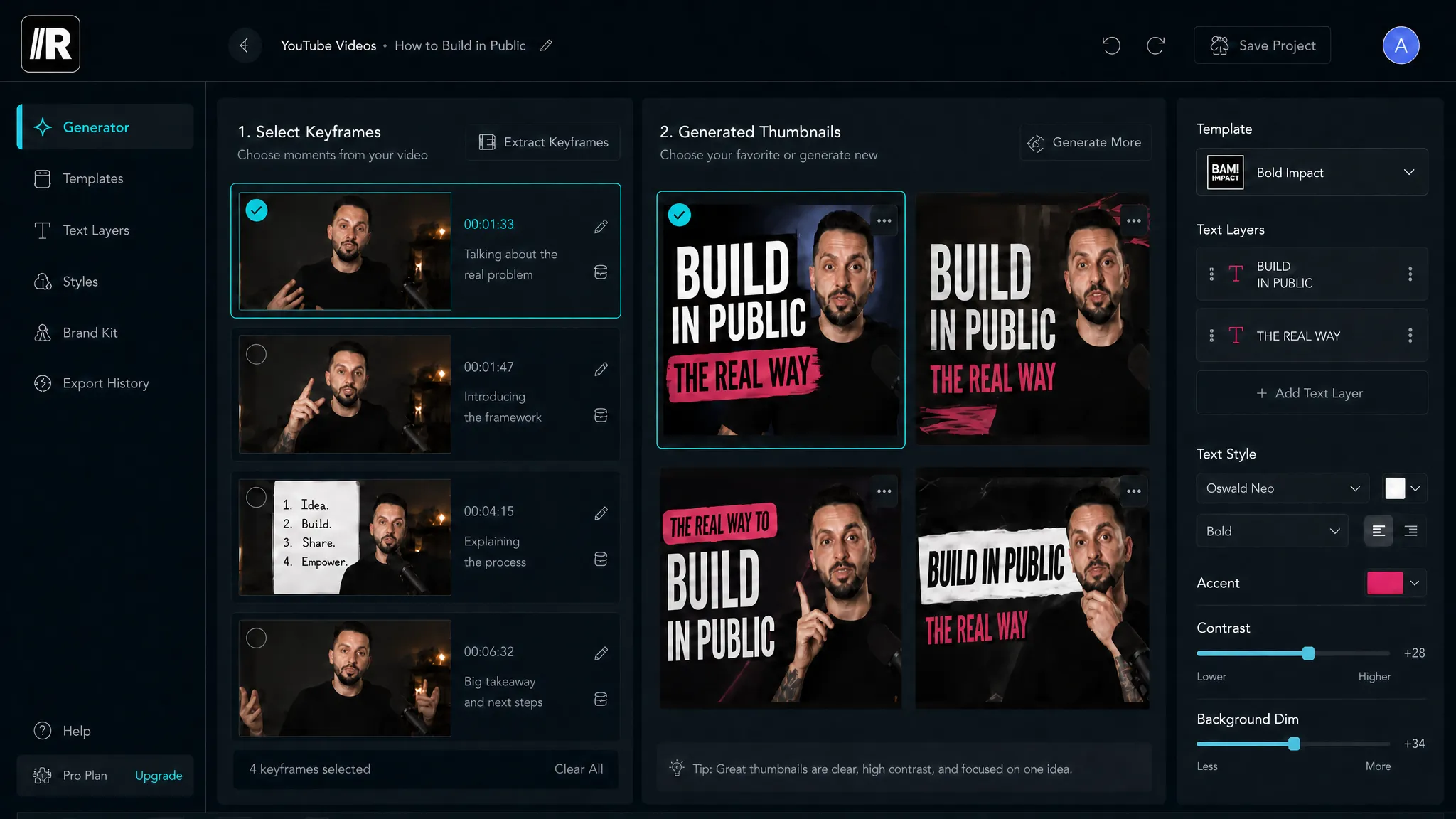
Step 3: Make the thumbnail and title complement each other. Use the title generator to draft a few candidates. The principle: the thumbnail tells half the story and the title tells the other half. If the thumbnail says "REFUNDED?", don't title the video "I Refunded My Ticket" — write the reason or the outcome instead. When the two repeat each other, you've wasted an exposure slot.
Vertical clips cut from long videos can use the same frame-picking method for their covers; for the clipping workflow, see How to Make YouTube Shorts from Long Videos.
Four Rules for Thumbnail Text
- No more than five words: anything longer becomes unreadable once shrunk.
- Outline or backing block: set the text on a color block or give it a heavy outline so it stays legible on any background.
- Phone-preview self-check: after exporting, shrink the image to thumb size — if the main line isn't readable, redo it.
- Keep one layout per channel: fixed font, fixed palette, so viewers spot you at a glance in the recommendation feed.
What Separates a Good Thumbnail from a Bad One
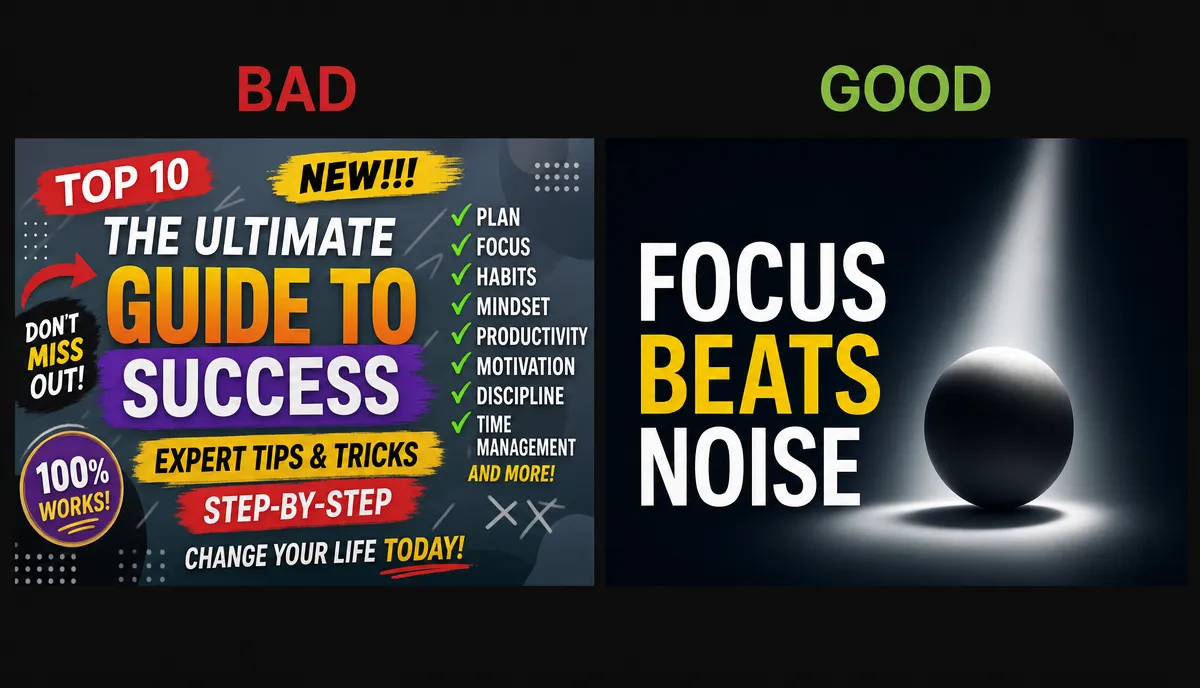
A self-made pair that shows the gap between "single focus" and "information overload":
The bad version: a randomly grabbed frame with three lines of small text crammed in — the date, the full title, the channel name — plus two arrows. All the information is there, and not one word of it survives being shrunk.
The good version: the same frame cropped to cut the clutter, just the person's upper body, three big words — "3 MONTHS WASTED" — and the bottom-right corner left clear for the duration badge. It carries one message, but that message reads.
You Can Swap It After Publishing: A/B Testing Done Right
YouTube lets you change the thumbnail at any time after publishing, so don't agonize over it before launch:
- Publish with the version you're most confident in;
- Once the numbers flatten out, swap in the second thumbnail — leave the title and every other variable untouched;
- Watch how click-through rate moves, then decide which version stays.
How much difference it makes isn't a number anyone should invent — your channel's data has the final say. And don't expect a thumbnail to rescue a video built on a weak topic: a thumbnail amplifies a topic's appeal, it can't create appeal out of nothing.
Before and after every swap, the spec self-check stays the same. Save this image and run through it before publishing:
FAQ
What is the standard size for a YouTube thumbnail?
1280×720, 16:9 ratio, usually JPG or PNG. Keep important information away from the bottom-right corner, where the duration badge covers it.
Can I change the thumbnail after the video is published?
Yes, at any time, without affecting the video itself. Change only the thumbnail as the single variable and watch click-through rate — that's the only way the conclusion holds up.
How many words should go on a thumbnail?
Five or fewer. Thumbnails often appear tiny on phones, and every extra word gets harder to read. After exporting, shrink the image to thumb size and check it yourself.
How do I make thumbnails for a faceless channel?
You don't need a face. A prop close-up, a zoomed-in slice of an interface, or a pure big-text layout all work — the key is still one focus and one layer of information. A frame with motion or detail as the base image beats a flat color background.
Don't leave the thumbnail to a last-minute scramble before publishing. Sign up for Recapo, upload your video in the browser, and run keyframe grab, cover and title as one line of work; there's a free allowance — see the pricing page for specifics.