How to Remove Hardcoded Subtitles from a Video
How to remove hardcoded subtitles from a video — the honest truth about burned-in captions, plus crop, FFmpeg, and AI methods, and how to re-caption cleanly.
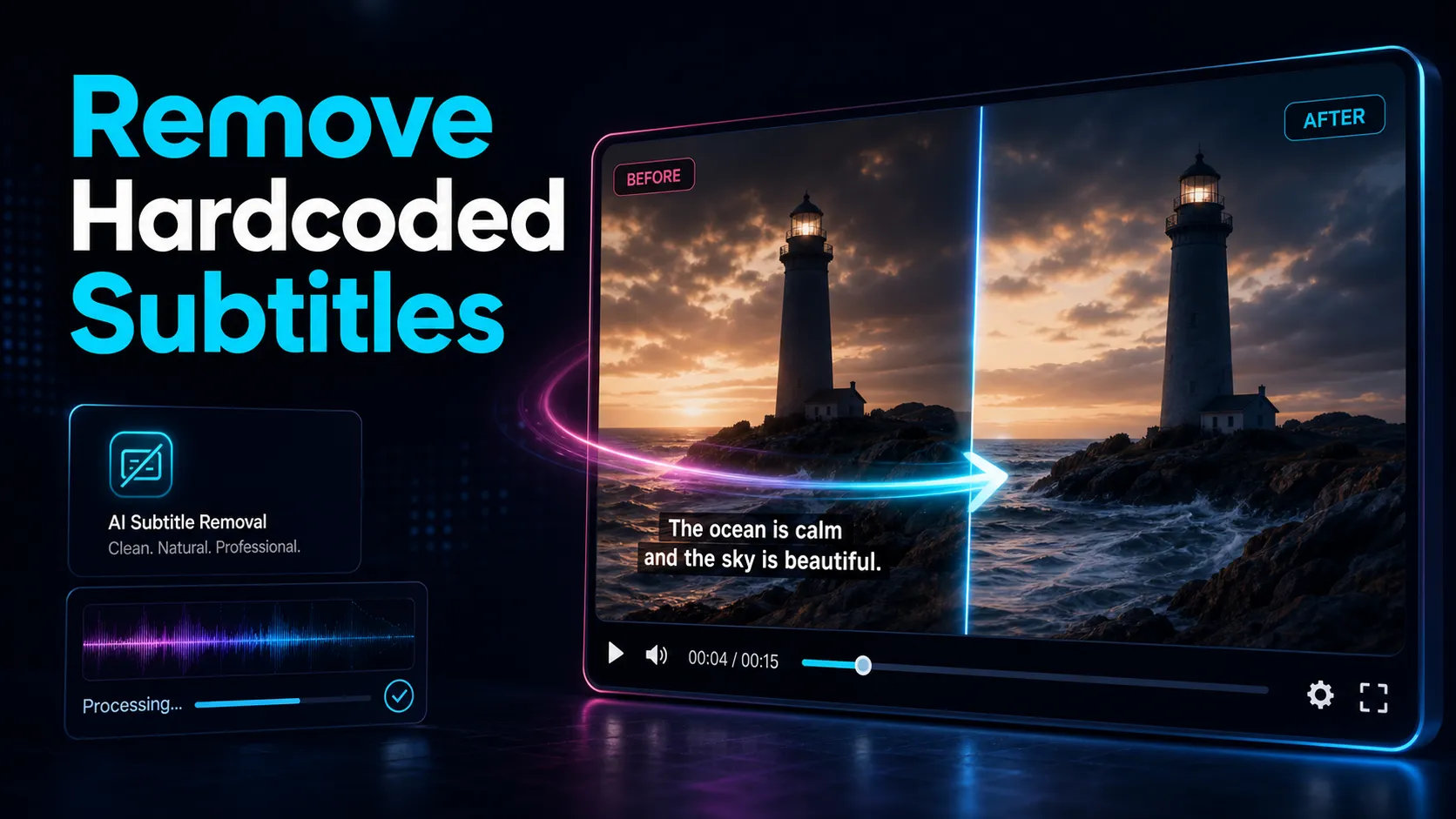
The practical answer to how to remove hardcoded subtitles from a video is one most tutorials bury near the end: once subtitles are burned into the pixels, there is no clean "delete." The text has become part of the picture, and no tool can rebuild footage that was never recorded behind it. What you can realistically do is crop the text away, blur or cover it, or AI-repaint the region — each with visible trade-offs. This guide walks through all three removal methods honestly, then covers the workflow most people actually need: stripping dated, foreign, or ugly captions so you can add clean new ones. If your real goal is a fresh, readable caption track rather than a perfect erase, the last two sections are the ones to read.
What "hardcoded subtitles" actually are
Hardcoded subtitles go by several names — burned-in subtitles, open captions, or baked-in text. Whatever you call them, they share one defining trait: the text is rendered directly into every video frame as image data. It is not carried in a separate track you can switch off.
That is the crucial contrast with soft subtitles. Understanding it tells you immediately whether your job is easy or nearly impossible.
| Soft subtitles / closed captions | Hardcoded / burned-in subtitles | |
|---|---|---|
| Where the text lives | A separate .srt/.vtt file or a toggleable track | Painted into the pixels of every frame |
| Can you turn it off | Yes, with one click | No — it is part of the image |
| How to "remove" it | Delete the file or disable the track | Reconstruct the covered pixels (imperfect) |
| Editable later | Fully — text, timing, style | Not without repainting the video |
If your subtitles are soft — a sidecar .srt, or a track you can toggle in a player like VLC — you do not have a removal problem at all. You delete the file, disable the track, or re-export without it. The rest of this guide is for the hard case: text that is genuinely baked into the picture.
The practical limitation: why burned-in subtitles can't be perfectly removed
Here is the physics of it. When software burns text onto a frame, the pixels that used to sit behind that text are overwritten and thrown away. The original background is gone. Any "removal" is therefore not undoing anything — it is guessing what might have been there and painting a replacement.
That guess ranges from crude to clever depending on the method, but it is always a guess. Expect one of these outcomes:
- Residue and ghosting. Faint outlines of the letters where the repaint didn't fully match the surrounding pixels.
- Smearing over motion. The area under the text moves — a face turns, the camera pans — and the patched region can't keep up, leaving a blur that trails the action.
- A visible box. Cover-based methods leave a rectangle that is smoother or darker than everything around it.
So set expectations before you start: on a busy or moving background, "invisible" is off the table. A realistic target is "clean enough that no one notices at a glance" — or, more usefully, "clean enough to place a new caption band over the old spot." That reframing matters, because it points at the workflow that actually solves most people's problem, which we get to below.
First, always check for a clean source
Before you fight the pixels, do the cheapest thing: try to get a version without the subtitles at all. It beats every removal method and takes minutes.
- You made the video. Re-export from your editor with the subtitle layer hidden — your master almost certainly still has a clean version, since you burned the text on export, not on the source.
- You licensed the footage. Ask the provider or check your download options for a clean or "textless" master; stock and archive libraries frequently offer both.
- It's a repost of your own upload. Pull the original file rather than a re-downloaded, already-captioned copy.
If a clean source exists anywhere, use it and skip the rest. Removal methods only make sense when a subtitle-free version is genuinely unavailable.
Method 1 — Crop the subtitles out
The most reliable way to remove burned-in subtitles is not to repair them at all — it's to cut them off the frame. Because open captions almost always sit in a band at the bottom (occasionally the top), you can crop that strip away entirely.
Steps:
- Note where the subtitle band starts. On a 1080-tall frame, bottom captions might occupy roughly the lowest 120–180 pixels.
- Crop that band off. In FFmpeg, a bottom crop looks like this:
- That keeps a 1080×1600 window anchored at the top-left, dropping the bottom strip. Adjust the numbers to your resolution and the height of the caption band.
- Re-frame or scale the result to the aspect ratio you need.
When it works well: the text is confined to a clean band, and you can afford to lose that slice of image — which is often the case when you're repurposing a landscape video into vertical Shorts, Reels, or TikTok anyway. There, the crop and the reframe are the same operation. A browser-based tiktok-video-resizer does exactly this: reframes 16:9 footage to 9:16 and lets you pull the frame so the old caption band falls outside the crop.
The catch: cropping throws away real picture, and if the subtitles overlap important action, you can't cut them without cutting the shot. It's the cleanest method when the geometry cooperates and useless when it doesn't.
Method 2 — Blur or cover with FFmpeg's delogo filter
FFmpeg's delogo filter was built to hide static watermarks, but it works on a fixed subtitle band too. It samples the pixels around a rectangle and interpolates across it — essentially a smart blur of the region.
The x/y set the top-left corner of the box, w/h its size. Position it over the caption band and FFmpeg smears the text away using the surrounding image.
When it works well: the text sits in one consistent spot, the background behind it is fairly plain, and the letters are small. On a static, simple backdrop the interpolated patch can be genuinely hard to spot.
The catch: delogo has no idea what belongs under the text, so on a detailed or moving background it produces an obvious smudge. It also can't follow subtitles that change position, and it does nothing about the second the scene cuts to somewhere the box no longer fits. Treat it as a quick fix for simple, static cases — not a general solution.
Method 3 — AI subtitle removers (and how to self-test them)
AI-based subtitle removers are the category most people picture when they search for a "subtitle remover." They detect the text region automatically and inpaint it frame by frame, trying to reconstruct a plausible background. On the right clip they're the best-looking of the three methods; on the wrong clip they hallucinate.
I'm not going to quote any tool's quality, price, watermark policy, or export limits — those change constantly and vary by plan, and the marketing "before/after" clips are cherry-picked. Instead, judge any AI remover with the same short self-test:
- Feed it a hard 10-second clip, not the tool's demo — one with motion and a detailed background under the text.
- Scrub frame by frame through the output. Ghosting and flicker hide between frames, not in a still.
- Watch the faces and edges. Repaint artifacts show up worst where text overlapped a person or a hard line.
- Check what it does to the whole frame. Some tools re-encode and soften the entire video, not just the patched area.
- Verify the export yourself: resolution, any watermark, format — on your own file before you rely on it or pay. Don't take the landing page's word for it.
If a tool survives a genuinely difficult 10-second test, it will handle your easier footage. If it smears on the hard clip, no amount of settings will save the full video. That five-minute test is worth more than any review, because it's measured on your material.
Quick comparison of the three methods
| Method | How it works | Looks cleanest when | Main weakness |
|---|---|---|---|
| Crop it out | Cuts the caption band off the frame | You're reframing to vertical anyway | Loses real picture; can't crop over action |
FFmpeg delogo | Interpolates/blurs a fixed rectangle | Background is plain and static | Obvious smear on detail or motion |
| AI inpainting | Detects text, repaints frame by frame | Short clips, moderate backgrounds | Ghosting/hallucination on hard footage |
None of the three is a magic erase. Cropping is the most predictable, delogo the fastest for simple cases, and AI the most ambitious — and the most likely to disappoint on complex footage. Pick by how forgiving your background is, and by what you're going to do next.
The better workflow: strip old captions, then add clean ones
Step back and ask why you want the subtitles gone. In practice it's almost always one of these:
- The captions are outdated or wrong and you want to fix them.
- They're in the wrong language and you're localizing for a new audience.
- The styling is ugly — tiny, mistimed, or off-brand — and you want captions that match your channel.
- You're repurposing footage and the old text doesn't fit the new format.
In every one of those cases, a perfect erase was never the actual goal — a clean, correct caption track was. And that changes the plan entirely: you don't need the old text to vanish flawlessly, you need to get the old band out of the way (crop it, or place a new band over it) and then re-caption properly. The removal is just a means to a clean re-caption.
That's where a browser-based caption workflow fits, and it's worth being precise about the line. Recapo does not AI-erase burned-in subtitles — no tool does that flawlessly, and it would be dishonest to imply otherwise. What Recapo does is the other half: it's a no-install AI video workspace that transcribes your footage and generates a fresh, accurate caption track. Once you have a clean-ish base — cropped, from a clean source, or with the old band about to be covered — you can:
- Auto-transcribe and generate captions with a video-caption-generator, then correct any wording before export.
- Style them to match your channel with a subtitle-style-editor — size, position, and look — so the new band sits cleanly over where the old one was.
- Translate the track if the removal was really about swapping languages.
If you're localizing foreign footage, our guide on how to translate subtitles covers that path end to end, and how to add subtitles to a video walks through building a clean caption track from scratch. The honest summary: removing burned-in subtitles is a lossy, imperfect job best kept minimal — and the version most creators actually want is "old captions gone, better captions on," which is a re-captioning task, not an erasing one.
FAQ
Can you completely remove hardcoded subtitles from a video?
Not cleanly. Because burned-in subtitles are painted into the pixels, the original background behind the text no longer exists — any removal is a reconstruction, and it leaves some residue, blur, or ghosting, especially over motion or faces. The best result comes from avoiding removal entirely: get a clean, subtitle-free source if one exists. If it doesn't, expect "good enough at a glance," not invisible.
What's the difference between hardcoded and soft subtitles?
Hardcoded subtitles (also called burned-in subtitles or open captions) are rendered into every frame as part of the image, so they can't be switched off. Soft subtitles live in a separate .srt/.vtt file or a toggleable track, so you remove them by deleting the file or disabling the track. If you can turn your captions off in a player, they're soft and there's nothing to "remove" — just export without them.
Does FFmpeg's delogo filter remove burned-in subtitles?
It hides them rather than truly removing them. The delogo filter interpolates across a rectangle you define, smearing the text using the surrounding pixels. It works reasonably on a small, static caption over a plain background, but produces a visible smudge on detailed or moving footage, and it can't follow subtitles that change position or handle scenes where the box no longer fits.
Is cropping a good way to delete hardcoded subtitles?
Often it's the most reliable one. Since open captions usually sit in a band at the bottom of the frame, cropping that strip away removes them completely with no repaint artifacts. It works best when you can afford to lose that slice of image — which is common when you're reframing a landscape video to vertical for Shorts, Reels, or TikTok anyway. It fails when the subtitles overlap action you need to keep.
How do I remove old subtitles and add new ones?
Get the old caption band out of the way first — crop it off, use a clean source, or plan to cover it — then build a fresh track. Transcribe the video to generate accurate captions, edit the wording, style them to match your channel, and, if you're localizing, translate them. This is usually what people actually want when they search for subtitle removal: not a flawless erase, but clean, correct captions replacing dated or foreign ones.
Removing burned-in subtitles is a lossy job, and no tool does it flawlessly — so if your real goal is dated, foreign, or off-brand captions replaced with clean ones, don't spend the day fighting pixels. Create a free account and, once your footage has a clean-ish base — cropped, from a clean source, or ready for a new band — upload it (MP4, MOV, and other common formats, up to 6GB total per task) and let Recapo transcribe it, generate a fresh caption track, style it to match your channel, translate it if you're localizing, and reframe to 9:16 for Shorts, Reels, or TikTok — all in one browser tab, no install. Recapo won't erase the old text for you, but it will give you the better captions that were the point all along. See what's included on the pricing page.
References and official sources
- YouTube Help: Add subtitles and captions
- MDN Web Docs: WebVTT API
- Recapo.ai: Product overview and current upload limits
- Recapo.ai: AI Video Editor
- FFmpeg: Official documentation