TikTok Video Export Settings: A Reliable Starting Point
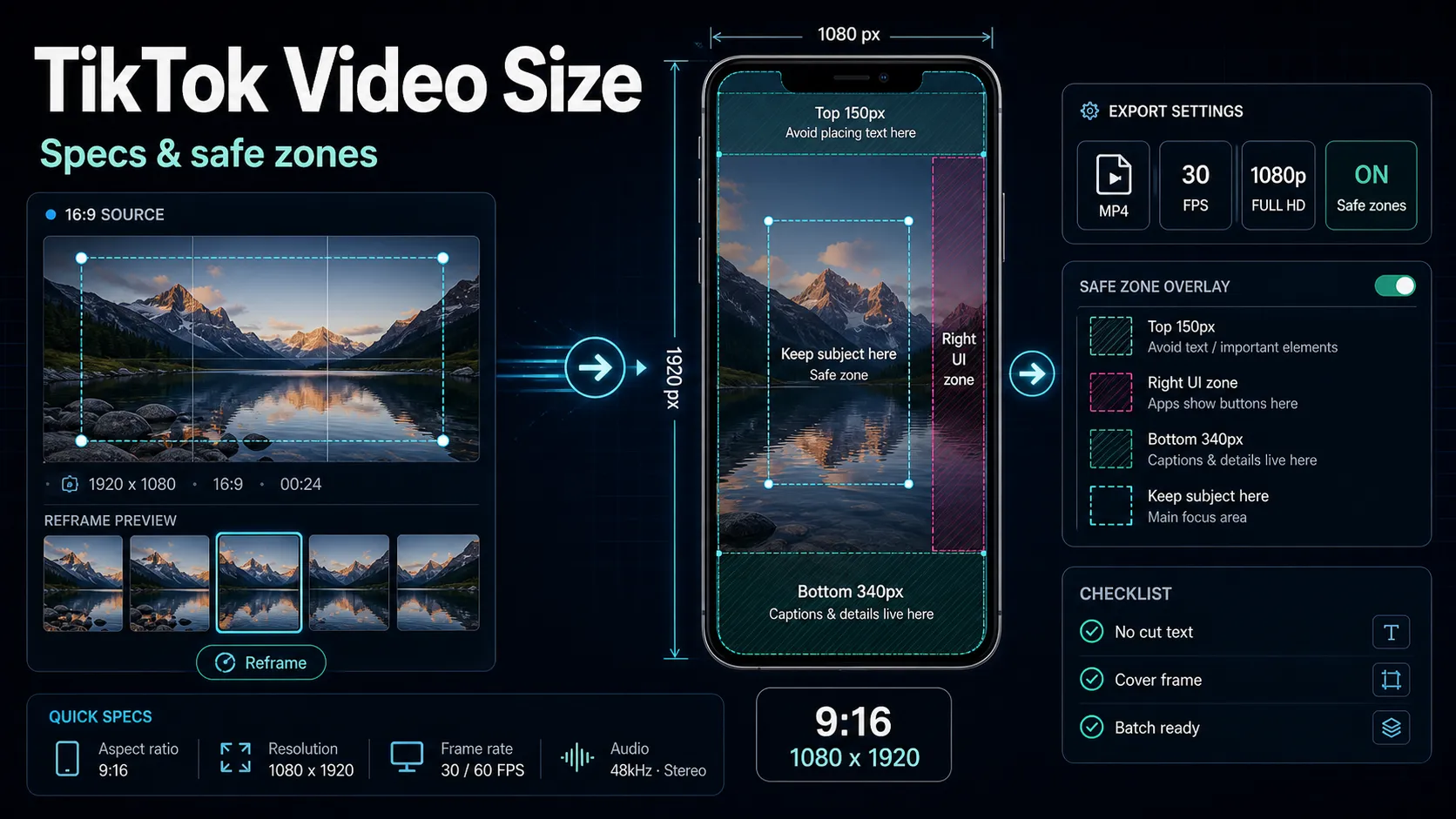
Use MP4, H.264, AAC, and 9:16 as a practical TikTok export baseline, then verify current support and test quality on your target device and account.
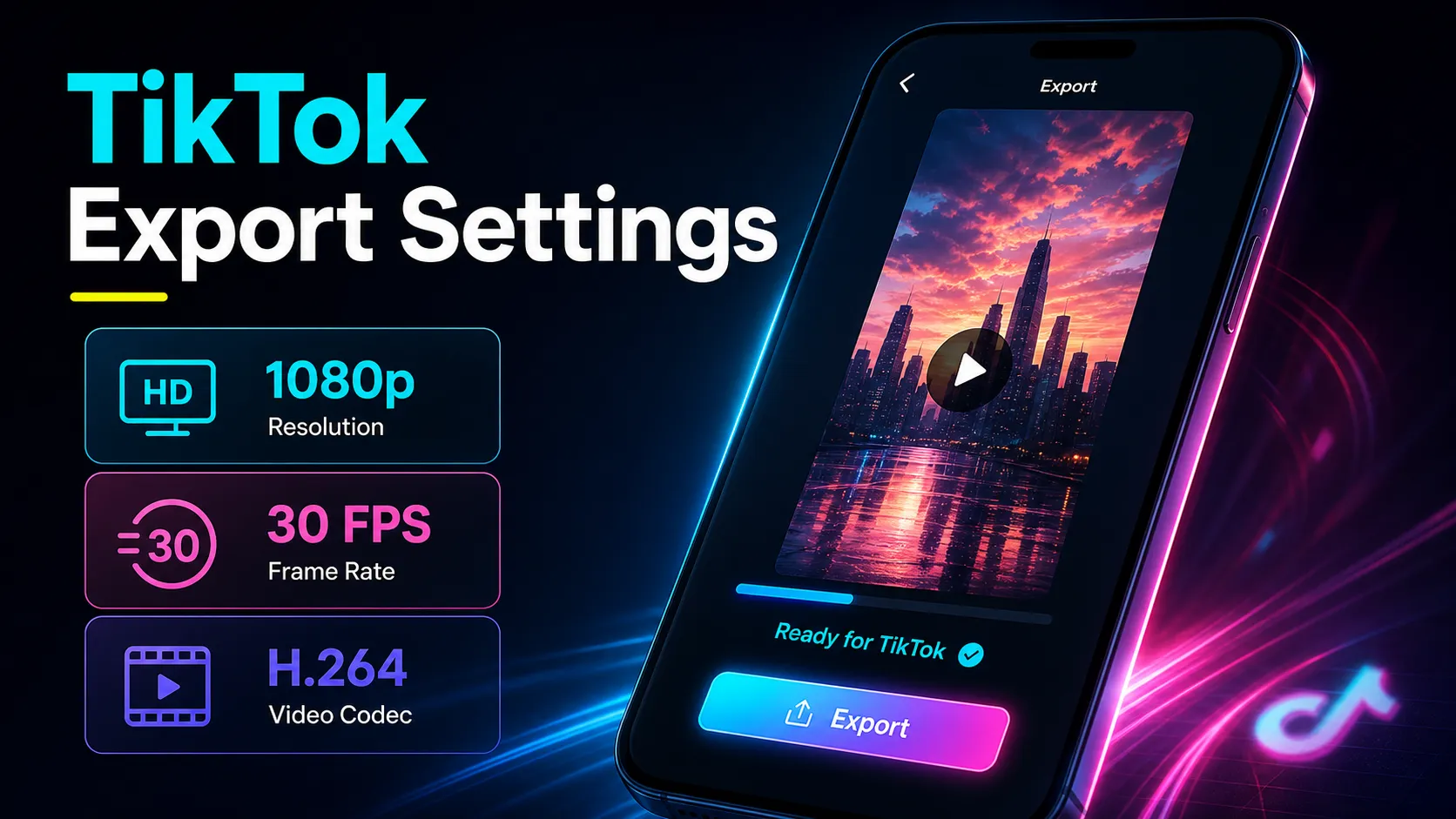
TikTok does not publish one complete, permanent export recipe for every organic upload surface. A vertical MP4 using H.264 video and AAC audio at 1080 x 1920 is a broadly compatible starting point, not a promise that every account, app version, device, or publishing path uses identical limits or produces identical quality.
This guide separates cited platform specifications from practical encoding defaults. Verify the current upload path in your own app, keep a high-quality source, and test the uploaded result on the target account before standardizing a preset.
Fact-check note: Platform rules and product limits were checked against official sources on July 10, 2026. They can change, so verify the linked source before acting on a threshold or specification.
A practical TikTok export baseline
| Setting | Starting point | What to verify |
|---|---|---|
| Container | MP4; keep MOV as a tested alternative | Current acceptance in the exact upload path you use |
| Video codec | H.264 / AVC | Playback and upload success on target devices |
| Audio codec | AAC | Audio sync, clarity, and channel layout |
| Aspect ratio | 9:16 for full-screen vertical | Current placement and interface overlays |
| Resolution | 1080 x 1920 when the source supports it | Uploaded detail and text readability |
| Frame rate | Match the source or timeline | Motion quality after upload |
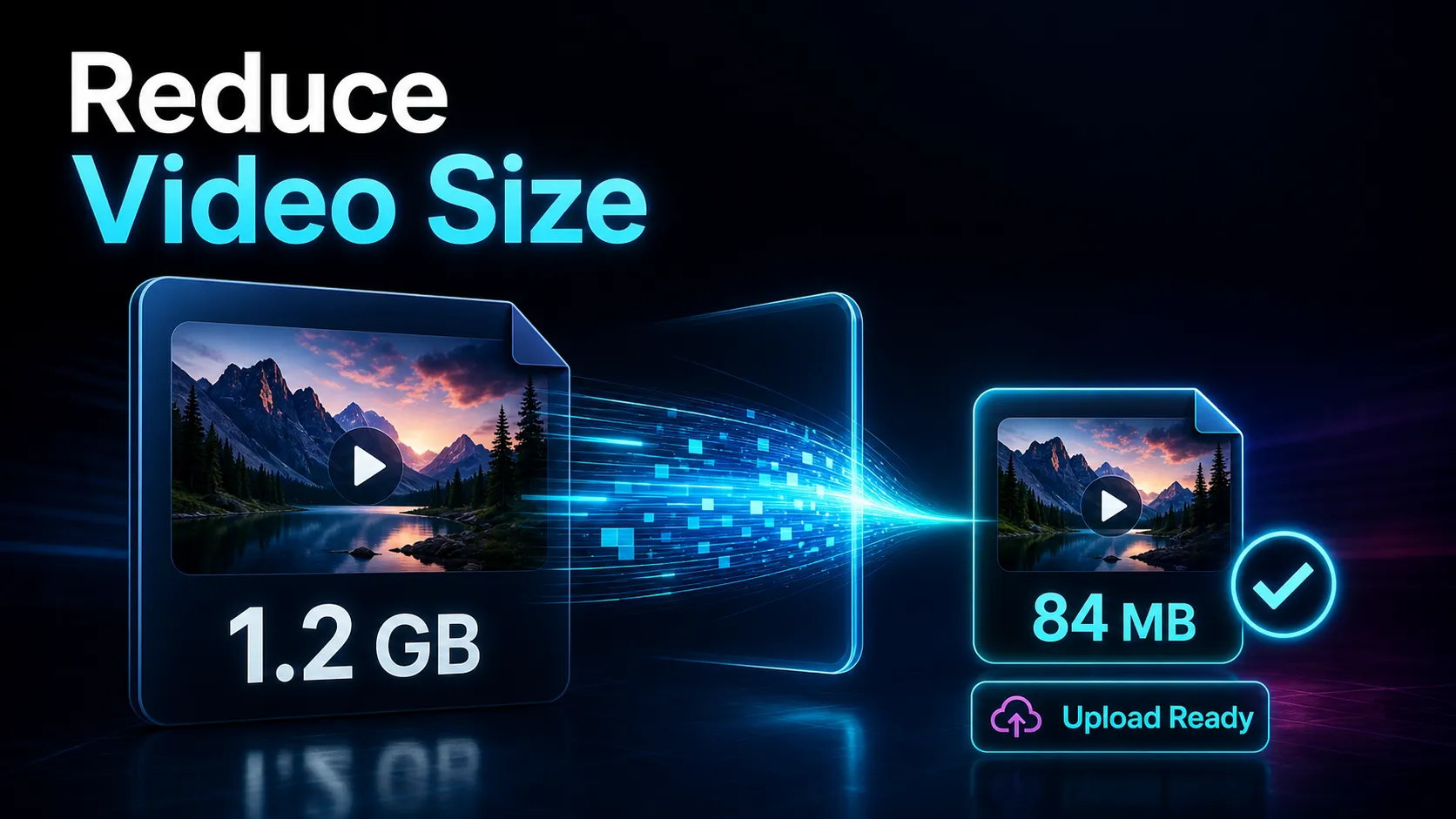
| Bitrate | Use a high-quality export preset; avoid unnecessary prior compression | Uploaded result and file-size practicality |
| Quality controls | Review the current app's upload and data settings | Availability varies by version, device, account, and region |
TikTok's Ads Manager specifications are useful primary evidence for ad placements, but they should not be presented as a complete organic-upload specification. Keep that scope visible when reusing the numbers.
Container and codec: use a compatible default
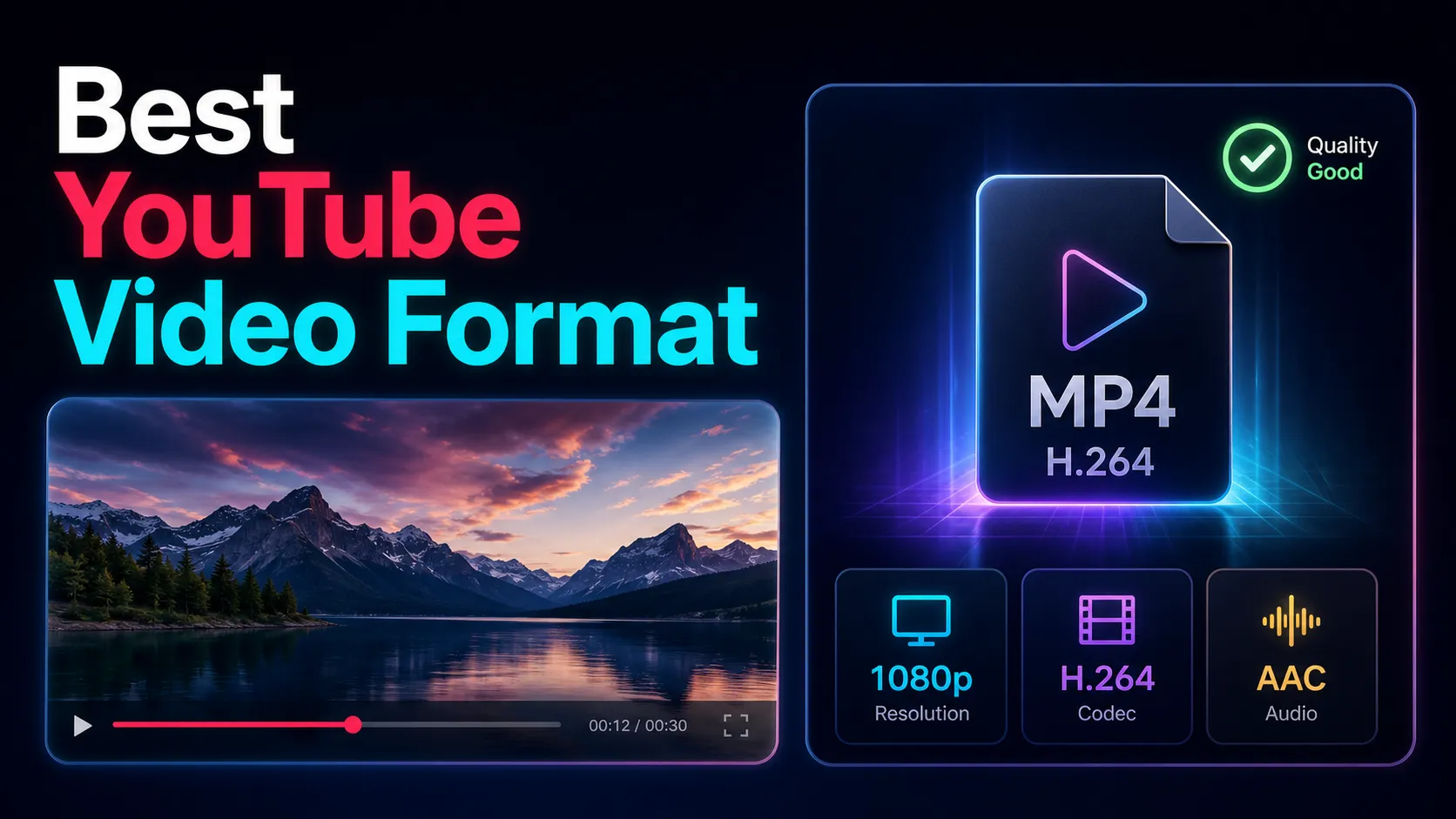
MP4 with H.264 video and AAC audio is a practical default because most editors and devices handle it well. MOV may also work, depending on the codec inside the container and the upload path. A container name alone does not determine quality or compatibility.
HEVC can reduce file size at similar visual quality, but support and conversion behavior can vary across devices and workflows. Test it before adopting it. If reliability matters more than file size, start with MP4/H.264/AAC and retain the original master so you can re-export without stacking compression.
Bitrate and frame rate: match the source and test the upload
TikTok does not provide a single mandatory organic-upload bitrate in the cited sources. Avoid presenting an 8-12 Mbps range as a platform requirement. Start with a high-quality variable-bitrate preset appropriate for the resolution and content, then compare the uploaded result with a smaller export if file size is a constraint.
Keep the frame rate aligned with the source or edit timeline unless the destination explicitly requires a conversion. Converting frame rate cannot create real motion detail and may introduce cadence problems. Check fast movement, text edges, gradients, and audio sync after upload on the target account.
Review the current app's quality controls
Upload-quality and data-saving controls can vary by app version, device, account, region, and publishing flow. Inspect the current posting screen and app settings rather than assuming a switch with a fixed label is always present or applies the same processing.
When a higher-quality upload option is available, test it with the same source and inspect the published result. Also check data-saving settings, connection stability, and whether the platform has finished processing before judging quality.
Preserve a clean source before platform processing
Platforms may transcode uploaded media for delivery. You cannot control the final encoding ladder, but you can avoid adding unnecessary damage beforehand:
- Frame for the destination. Build a deliberate 9:16 version instead of relying on an automatic crop that you have not previewed.
- Export from the best available source. Avoid repeated download, import, and re-export cycles.
- Use an appropriate quality preset. Inspect fine text, faces, gradients, and motion before and after upload.
- Wait for processing. A newly uploaded preview may not represent the final processed version.
If the source is horizontal, review the vertical crop yourself with a TikTok video resizer. If the source is long-form, create the vertical cut directly from the master where possible. These steps reduce avoidable recompression; they do not guarantee that TikTok will preserve a particular bitrate or sharpness.
Audio settings creators overlook
Video gets all the attention, but muddy audio reads as "low quality" just as fast. Keep it simple:
- Codec: AAC, inside your MP4.
- Sample rate: 44.1 kHz or 48 kHz — both are standard; match your project.
- Channels: Stereo is fine. If your voiceover is mono, that's fine too — don't upmix.
- Levels: Aim for consistent, non-clipping loudness. Platform processing cannot repair clipping, so remove distortion before export and verify the published audio.
If you're adding AI voiceover or music, do the mix and level check before export, not after upload.
Export and upload checklist
- Confirm the current requirements for the exact TikTok surface you will use.
- Start with MP4/H.264/AAC unless your tested workflow supports another combination better.
- Build a deliberate 9:16 frame and keep important text away from interface overlays.
- Match the source frame rate and use a high-quality export preset.
- Work from the master and avoid repeated re-exports.
- Check the current app's quality and data settings.
- Publish a test, wait for processing, and inspect it on the target device and account.
- Save the preset only after the result is acceptable.
Record the app version, device, date, export settings, and result. That makes the preset reproducible and easier to update when the platform changes.
FAQ
What video format should I try first for TikTok? Start with a vertical MP4 using H.264 video and AAC audio, commonly at 1080 x 1920 when the source supports it. Treat this as a compatibility baseline and verify it in your actual upload path.
Should I export at 30 or 60 fps? Match the source or timeline. Use 60 fps only when the source genuinely contains that motion detail and the tested upload path handles it well.
What bitrate should I use? The cited TikTok sources do not establish one mandatory organic-upload bitrate. Use a suitable high-quality preset, avoid prior recompression, and compare the published result against file-size constraints.
Does an HD upload option guarantee better quality? No. Controls vary, and the platform still processes uploads. Test the option when available, then inspect the published video after processing.
Why does an upload look blurry? Possible causes include a weak source, repeated encoding, an unreviewed crop, processing delay, app settings, connection issues, or platform transcoding. Change one variable at a time and retest.
Ready to test a clean TikTok export workflow? Create a free Recapo account, prepare a deliberate 9:16 version with reviewed captions from the best available source, and export it in one browser workflow. Then upload it to the target account, wait for processing, and compare the published result before saving the preset; current TikTok controls and requirements still need to be verified in the app.
References and official sources
- TikTok Ads Manager: In-feed video specifications and safe zones
- TikTok Support: TikTok Studio and auto captions
- TikTok Support: How TikTok recommends content
- Recapo.ai: Product overview and current upload limits
- Recapo.ai: AI Video Editor
- FFmpeg: Official documentation