SRT vs VTT: Differences and How to Convert
SRT vs VTT explained for creators: the real differences (comma vs period, the WEBVTT header, styling), which platform wants which, and how to convert both ways.
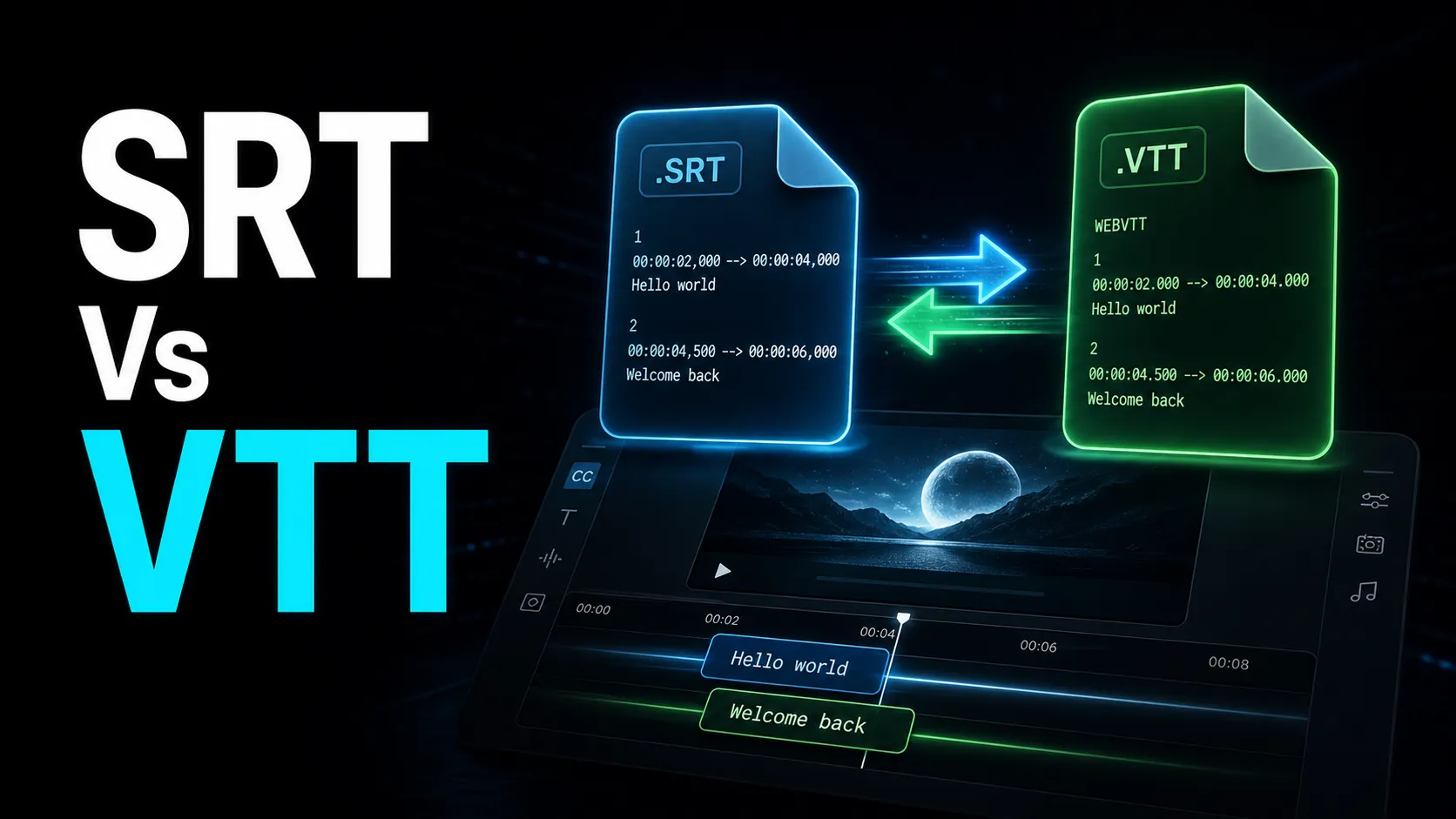
SRT vs VTT comes down to this: both are plain-text subtitle files that sit next to your video, but SRT (SubRip) is the universal format almost every platform accepts, while VTT (WebVTT) is the web-native format built for HTML5 video players. If you're deciding which to use — or you uploaded the wrong one and your captions never showed up — the difference between SRT and VTT is smaller than it looks: mainly a header line, comma-versus-period timestamps, and how much styling each format supports. This guide shows you real side-by-side file examples, a per-platform cheat sheet, and exactly how to convert SRT to VTT (and back) without breaking your captions.
If you just want the short version: use SRT when you need maximum compatibility and an easy upload, and use VTT when the target is a web page's own video player or a platform that specifically asks for WebVTT. Keep reading for the gotchas that quietly eat captions — the wrong decimal separator, a missing header, and mojibake from bad encoding.
Key Takeaways
- Treat the transcript or SRT as the master asset; captions, summaries, translations, and clips all depend on it.
- Proofread names, numbers, jargon, and timing before reusing text across platforms.
- Choose SRT, VTT, or burned-in captions by destination instead of habit.
- Keep captions readable on mobile: short lines, high contrast, and safe-zone placement matter more than decoration.
SRT vs VTT at a glance
Here's the whole comparison in one table. Everything below just explains these rows with real examples.
| Feature SRT (SubRip) VTT (WebVTT) |
| File extension | .srt | .vtt |
| Required first line | None | WEBVTT |
| Milliseconds separator | Comma — 00:00:01,000 | Period — 00:00:01.000 |
| Cue numbers | Conventionally sequential | Optional |
| Positioning / alignment | Not in the spec | Yes (line, position, align) |
| Inline styling | Unofficial, player-dependent | Yes (tags + a STYLE block) |
Comments (NOTE) | No | Yes |
| Native home | Offline players, most upload fields | HTML5 <track>, web players |
| Encoding | UTF-8 recommended | UTF-8 required |
The one-line takeaway: SRT is the plain, portable format; VTT is the richer, web-oriented format. Nine times out of ten you can convert between them in seconds, because the caption text is identical — only the wrapper changes.
What an SRT file actually looks like
Open any .srt in a text editor and you'll see repeating blocks of four lines: a number, a timestamp range, the caption text, and a blank line. Nothing else.
Three things to notice:
- Every block is numbered in order, starting at 1.
- The timestamp uses a comma before the milliseconds:
00:00:01,000. This is the single detail that most often breaks a conversion. - There's no header and no styling. SRT is just text and timing. Some desktop players honor unofficial tags like
<i>or<b>, but that behavior isn't part of the format, so never rely on it.
That plainness is SRT's superpower. Because there's almost nothing to misinterpret, it uploads cleanly to the widest range of destinations.
What a VTT (WebVTT) file actually looks like
WebVTT is SRT's web-native cousin. The same captions in .vtt look almost identical — with three deliberate additions.
Spot the differences from the SRT above:
- The first line is
WEBVTT, followed by a blank line. A VTT file is invalid without it, and a web player will silently ignore a file that's missing the header. - The milliseconds separator is a period, not a comma:
00:00:01.000. - Cues can carry settings. That
line:90% align:centeron the second cue positions and aligns the caption inside the video frame — something SRT simply can't express.
In the webvtt vs srt comparison, this is VTT's whole advantage: it was designed for the browser, so it can carry positioning, alignment, inline styling tags, a STYLE block with CSS, NOTE comments for your own reference, and even chapter or metadata tracks. If none of that matters to your upload, the extra capability is just unused overhead — which is why plenty of creators stick with SRT.
The exact differences that trip people up
Most "SRT vs VTT" mix-ups come down to four small things. Get these right and conversions stop failing.
| Gotcha SRT VTT What goes wrong |
| Decimal separator | Comma , | Period . | Paste an SRT timestamp into a VTT and the player rejects the cue |
| Header line | None | WEBVTT first | A VTT with no header shows no captions at all |
| Styling / position | Text only | Cue settings + CSS | Style survives SRT→VTT, but is stripped VTT→SRT |
| Encoding | UTF-8 recommended | UTF-8 required | Non-UTF-8 turns accents and non-Latin text into garbled symbols |
A few notes worth internalizing:
- The comma-vs-period swap is the number-one cause of "my VTT doesn't work." Every timestamp in the file has to match the format, not just the first one.
- VTT can hold styling that SRT can't represent. So converting VTT → SRT is lossy by nature: positions, alignment, and CSS get flattened to plain text. Going SRT → VTT is safe because you're only adding a wrapper.
- Encoding is invisible until it isn't. Both formats should be saved as UTF-8. A file saved in a legacy Windows encoding looks fine in English but mangles accented characters, emoji, and any non-Latin script.
Which format each platform wants
This is the part creators actually search for: given where I'm publishing, which file do I upload? Here's the practical map.
| Destination Preferred format Notes |
| YouTube (long-form) | SRT (VTT also accepted) | SRT is the simplest reliable upload; the player toggles it on/off |
Web player (HTML5 <track>) | VTT (required) | The <track> element only accepts WebVTT — an SRT will not load |
| LMS / course platform | Usually VTT | Most course players are built on HTML5, so they expect VTT |
| TikTok, Reels, YouTube Shorts | Neither — burn in | No sidecar upload field; render captions into the frame instead |
Two rules of thumb fall out of this table:
- If a browser is playing the video directly — your own website, a landing page, an LMS — you almost always need VTT, because the HTML5
<track>element only speaks WebVTT. - If you're uploading to a big platform's own player, SRT is the safe default, and YouTube happily takes both. On the short-form vertical feeds there's no caption file field at all, so you burn captions into the pixels — the same open-captions approach covered in our guide on how to add subtitles to a video.
Keep a clean SRT as your master file and you can generate whatever a destination needs from it. That's the workflow the rest of this guide sets up.
How to convert SRT to VTT (and back)
Converting is fast because the caption text never changes — you're only editing the wrapper. There are two honest routes: a browser converter for a clean, correct file in one step, or a manual edit if you want to understand exactly what changes.
The one-step browser route
If you don't want to touch a text editor, run the file through a converter that handles the header, the separators, and the encoding for you:
- SRT → VTT: drop your
.srtinto the SRT to VTT converter. It adds theWEBVTTheader, swaps every comma to a period, and saves as UTF-8. - Other format → SRT: if you're starting from a
.vtt,.ass, or another subtitle file and need the universal format, run it through the subtitle to SRT converter to flatten it to clean SRT. - Fix the look while you're there: if you'll be burning captions in or want consistent on-screen styling, open the subtitle style editor to set font, size, outline, and position before you export.
Because Recapo runs entirely in the browser — no install, accepting MP4, MOV and other common formats up to 6GB per task — you can go from raw video to captioned export and the matching subtitle file in the same place.
The manual route (so you know what's happening)
Converting SRT → VTT by hand is genuinely three steps:
- Add
WEBVTTas the first line, then a blank line, above everything else. - Replace every comma in the timestamps with a period (
00:00:01,000→00:00:01.000). Use find-and-replace, but only target the timestamp lines so you don't touch commas in the caption text. - Save the file as UTF-8 with a
.vttextension.
Converting VTT → SRT reverses it, with one caveat:
- Delete the
WEBVTTheader line and anyNOTE,STYLE, orREGIONblocks. - Replace periods in the timestamps with commas.
- Strip any cue settings (like
line:90% align:center) off the timestamp lines, since SRT can't use them. - Save as UTF-8 with a
.srtextension.
The caveat: step 3 is where VTT styling and positioning get lost. If that formatting matters, keep the VTT and don't downgrade it.
Common conversion gotchas (and how to dodge them)
Even a "successful" conversion can quietly fail on playback. These are the four that bite creators most often.
- Encoding mojibake. If accented letters or non-Latin characters turn into
éor boxes, your file wasn't saved as UTF-8. Re-save with UTF-8 encoding. If you're translating captions into other languages, this is doubly important — see our walkthrough on how to translate subtitles for the full flow. - The BOM problem. A byte-order mark at the very start of the file can push the
WEBVTTheader out of first position, and then no captions load. If a valid-looking VTT shows nothing, re-save it as "UTF-8 without BOM." - Half-converted timestamps. Find-and-replace that misses even one comma leaves a single broken cue. Skim the file after converting, or use a dedicated converter that guarantees every line is handled.
- Silent style loss. Going VTT → SRT drops positioning and styling with no error message — the file just looks plainer than expected. Decide up front whether you need that styling, and if you do, deliver the VTT rather than the SRT.
One habit prevents most of this: keep your accurate, corrected SRT as the single master file. Generate a VTT from it only when a web player or LMS demands one, restyle from it when you burn captions in, and re-use it for every translation. Losing that master means re-transcribing from scratch — so if you're generating captions automatically, start from a reliable transcript, which our roundup of the best auto caption generators can help you pick.
FAQ
What is the main difference between SRT and VTT? Two things. VTT files must start with a WEBVTT header and use a period before the milliseconds (00:00:01.000), while SRT has no header and uses a comma (00:00:01,000). VTT can also carry positioning and styling that SRT can't express. The caption text itself is identical in both.
Can I just rename a .srt file to .vtt? No. Renaming the extension doesn't add the required WEBVTT header or fix the comma-versus-period timestamps, so a web player will reject it. Run it through a converter or make those two edits by hand first.
Which format does YouTube use — SRT or VTT? YouTube accepts both for long-form uploads, and viewers can toggle the captions on or off. SRT is the simplest reliable choice. For Shorts and other vertical feeds there's no caption-file upload, so you burn captions directly into the video instead.
Is SRT or VTT better for a website video player? VTT, without question — the HTML5 <track> element only accepts WebVTT, so an SRT simply won't load in a browser's native player. Convert your SRT to VTT before embedding.
Does converting SRT to VTT reduce quality? No. Subtitles are plain text, so converting doesn't touch your video or audio at all. The only risk is a broken file from a missed comma or a wrong encoding — not any loss of video quality. Going the other way (VTT → SRT) can drop styling and positioning, but never affects the picture.
Convert your captions the clean way
SRT and VTT are the same captions in two wrappers — get the header, the separators, and the encoding right and either one just works. Keep an accurate SRT as your master, generate a VTT whenever a web player or course platform asks for it, and burn captions in for the vertical feeds. Create a free Recapo account to transcribe, convert, style, and export your subtitles in the browser, then reuse the same master file across every platform you publish to.
References and official sources
- YouTube Help: Add subtitles and captions
- MDN WebVTT API reference
- YouTube recommended upload encoding settings