How to Transcribe a Video to Text (Fast & Accurate)
Learn how to transcribe video to text fast and accurately. Compare free, AI, and human methods by time and cost, then export clean SRT or VTT captions.
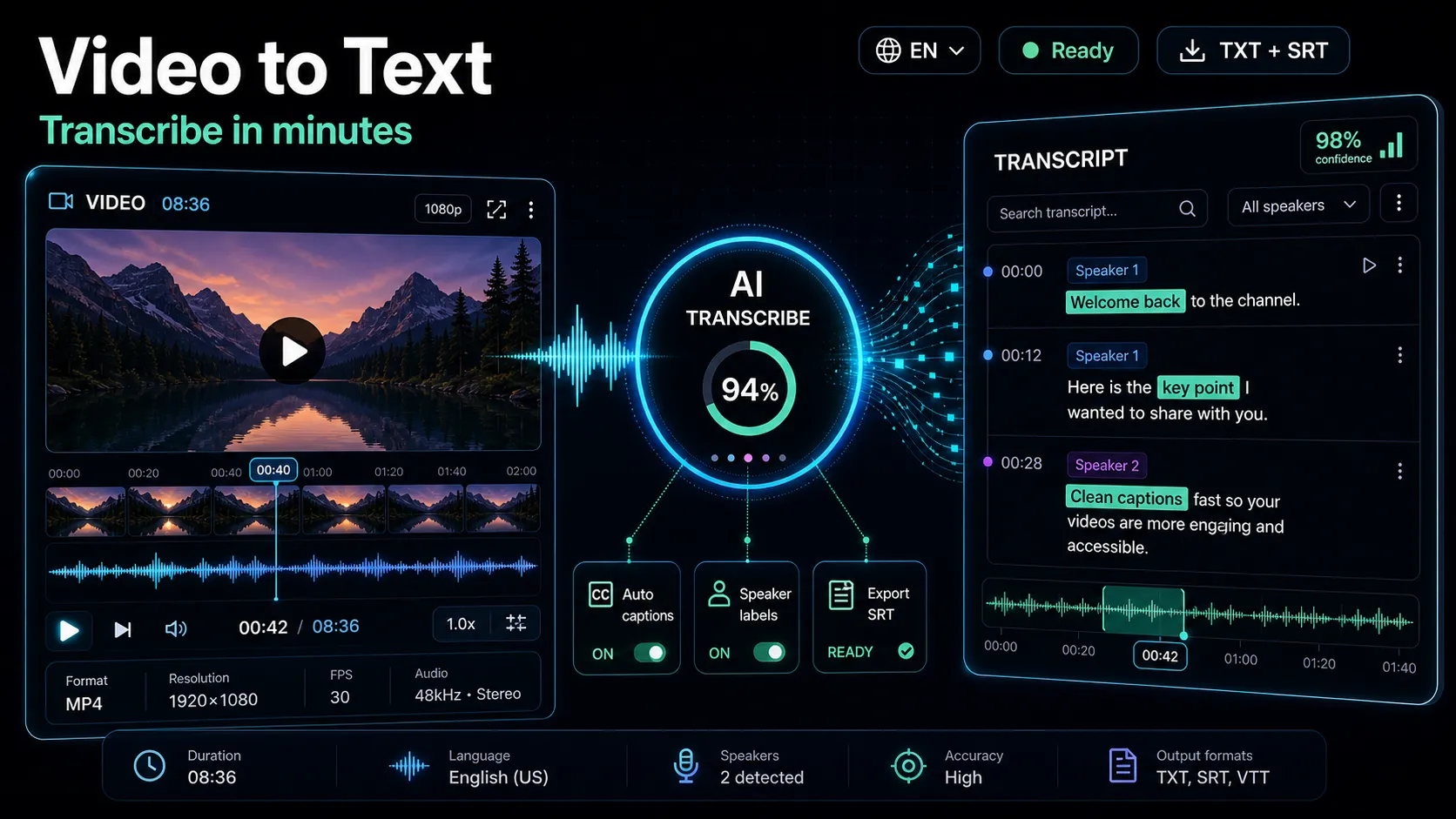
To transcribe a video to text, you upload the file to a speech-to-text tool, let it generate a time-coded transcript, correct any errors, then export the result as plain text or a caption file. With an AI transcription tool, a short clip takes only a few minutes; typing it by hand or hiring a human takes much longer. This guide walks through every method to transcribe video to text — free, AI, and human — with honest time and cost trade-offs, and then the part most tool pages skip: how to edit the transcript and export clean captions for YouTube, TikTok, Shorts, and Reels.
If you just want the short answer: for most creators, an AI video to text converter is the right default. It lands close enough to accurate on clean audio, it's fast, and it gives you a transcript you can immediately turn into captions, blog copy, summaries, and translation drafts. The rest of this article shows you how to do that well, and how to judge any tool honestly before you commit.
Key Takeaways
The three ways to transcribe a video
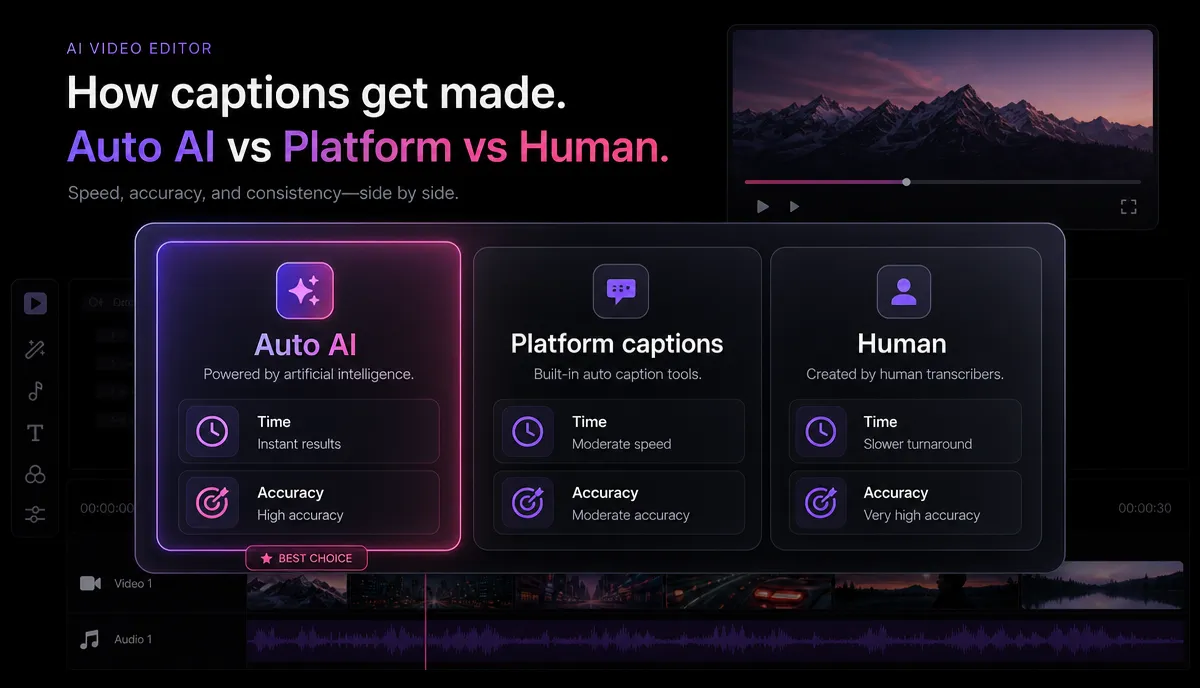
There is no single "best" way to convert video to text — there's the method that matches your accuracy needs, your deadline, and your budget. Here's an honest comparison for a typical 10-minute talking video with reasonably clean audio.
| Method | Time for a 10-min video | Cost | Typical accuracy | Best for |
|---|---|---|---|---|
| Manual typing | 40–90 minutes | Free (your time) | As good as your ears | One-off short clips, quotes |
| Built-in / platform auto-captions | Roughly real time | Free | Variable, needs cleanup | Rough drafts, personal notes |
| AI transcription tool | 2–5 minutes | Free or paid tier | ~85–95% on clean audio | Most creators, most videos |
| Human transcription service | Hours to days | Highest per minute | ~99% | Legal, publishing, contracts |
A few honest notes on this table. "Manual typing" is free only if your time is free — it rarely is. Platform auto-captions (like the automatic captions YouTube generates after upload) are genuinely useful for a first pass, but they arrive without punctuation control and often mangle names, so you'll spend real time cleaning them. AI tools hit the sweet spot for volume creators: fast, cheap enough to run on everything, and accurate enough that editing is a light touch rather than a rewrite. Human services are worth it only when a single wrong word has consequences.
The accuracy numbers above are realistic ranges, not guarantees. Your real result depends heavily on audio quality, which we break down later.
How to transcribe a video to text with AI, step by step
This is the workflow for the AI route, which is what most people mean when they search "transcribe video to text AI." The steps are the same whether your source is a webcam recording, a screen capture, a podcast video, or a downloaded interview.
- Upload your video. Open a browser-based speech-to-text tool and drop in your file. Because it runs in the browser with no install, you don't wait on desktop software; common formats like MP4 and MOV work, with up to 6GB per task, so even a long recording goes in as-is.
- Set the spoken language. Pick the language spoken in the video, or let the tool auto-detect it. Getting this right up front prevents the single biggest source of garbage output.
- Generate the transcript. Let the tool process the audio into a time-coded transcript. Each line is tied to a timestamp, which is what makes captions and clip-finding possible later.
- Read and correct. Skim the transcript against the audio. Fix the predictable misses first: proper nouns, brand and product names, acronyms, technical jargon, and homophones (their/there, to/too). This is where five minutes of attention turns 88% into 99%.
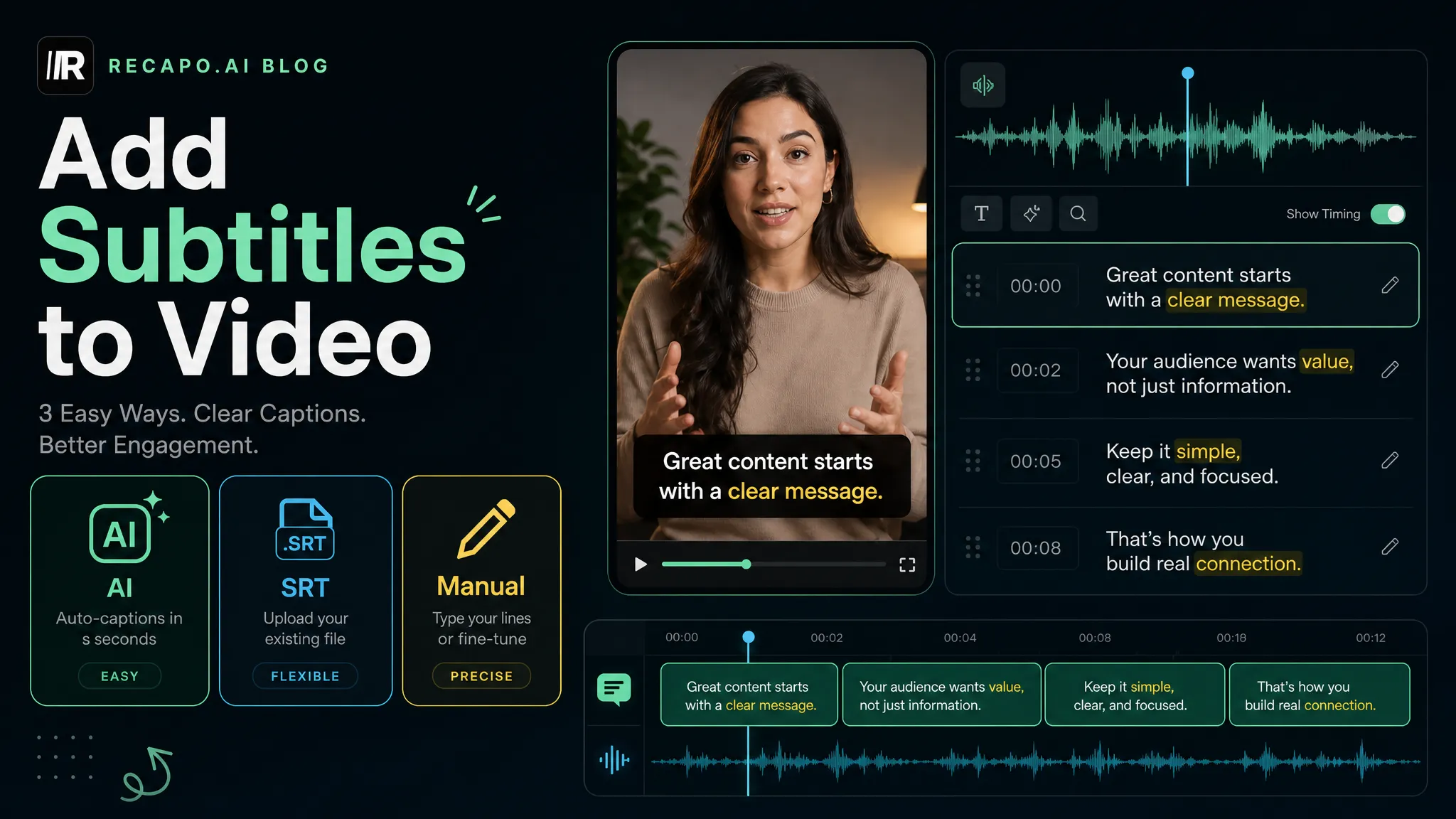
- Decide your output. If you want a written document, export plain text. If you want on-screen captions, move the transcript into an AI subtitle generator to split lines cleanly, adjust timing, and style them for vertical video.
- Export the file. Save as
.txtfor writing, or.srt/.vttfor captions. Keep the original transcript too — you'll reuse it more than you expect.
That's the full loop most "video to text converter" pages stop halfway through. They give you raw text and leave you there; the real value is in what you edit and export afterward.
Four ways to reuse one transcript
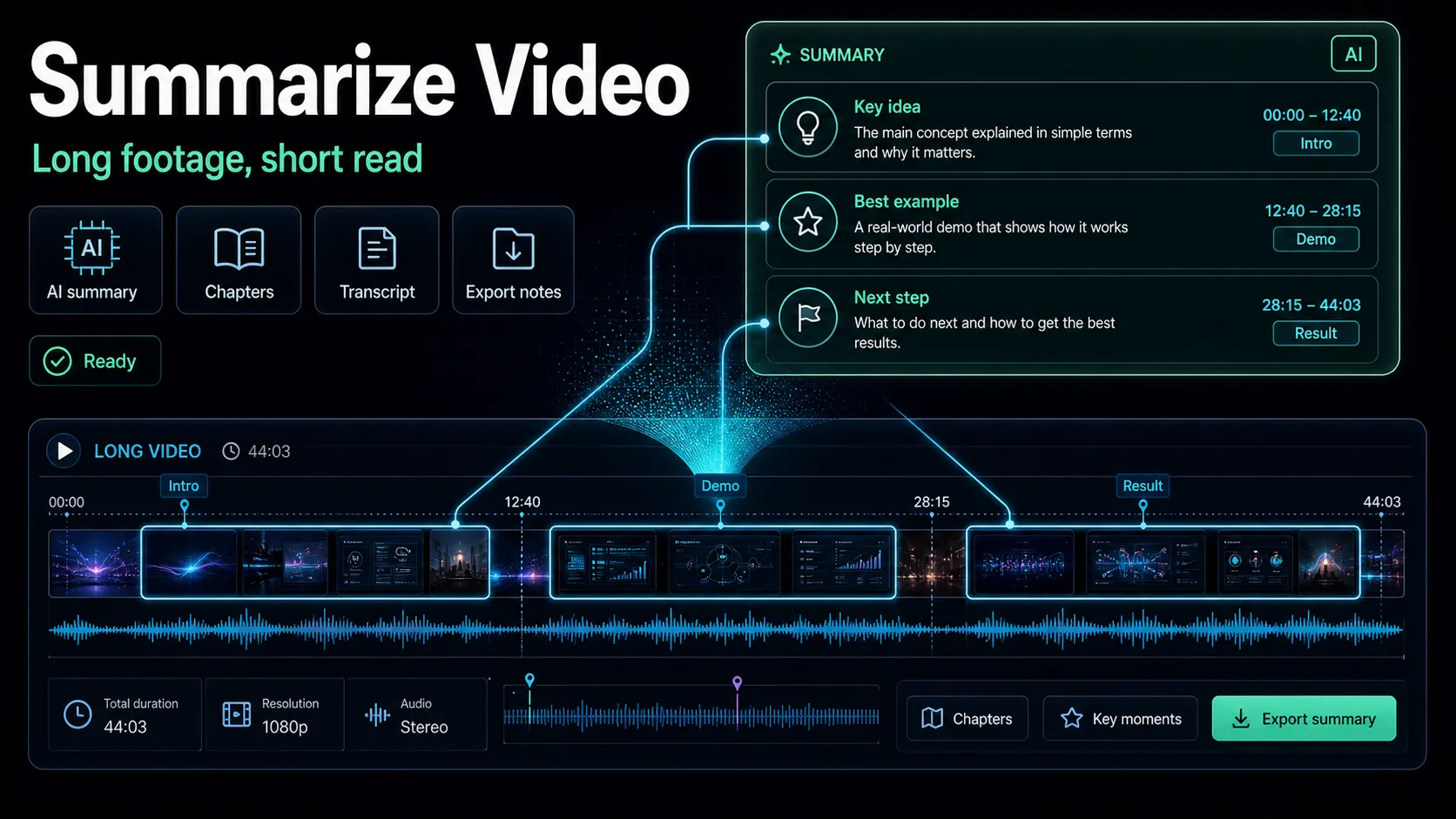
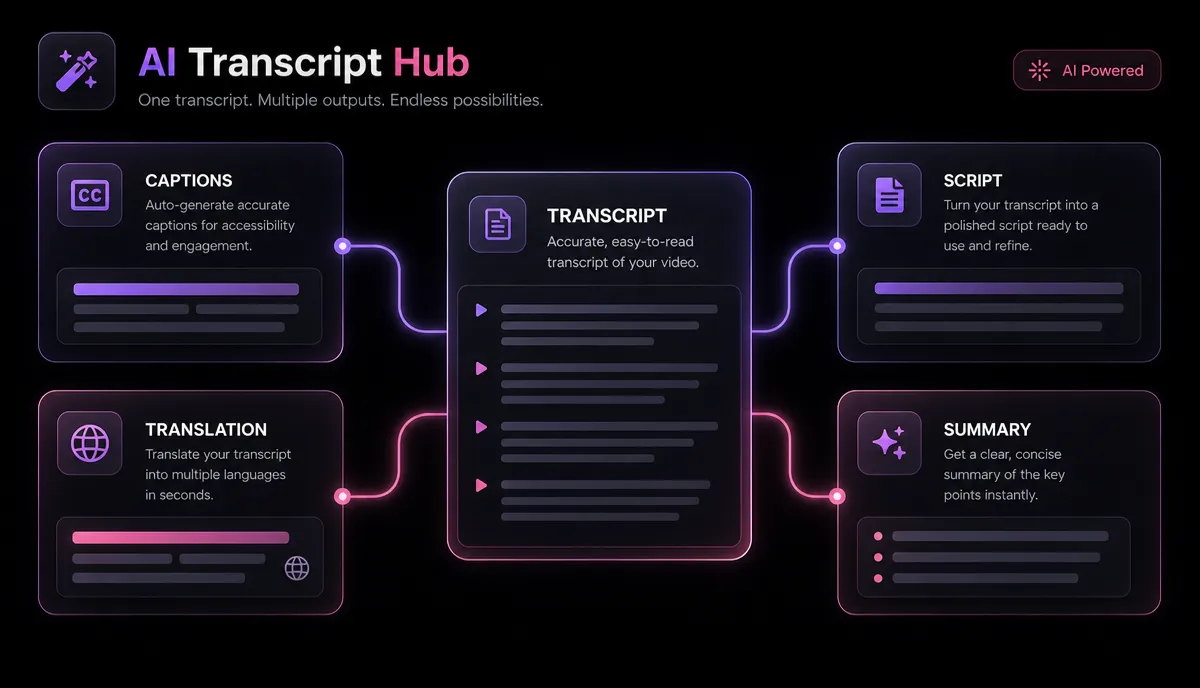
The reason transcription is worth building into your workflow is leverage. One transcript feeds at least four outputs, so the minutes you spend converting video to text pay back several times over.
Notice that every one of these depends on the transcript being edited, not raw. Correct once, reuse four times.
What actually affects transcription accuracy
When people complain that a video to text converter "isn't accurate," the culprit is almost always the input, not the engine. Here's what moves the number, ranked by how much it matters in practice.
| Factor | Effect on accuracy | What you can do |
|---|---|---|
| Background noise | Large | Record in a quiet room; clean audio before transcribing |
| Overlapping speech | Large | Avoid crosstalk; transcribe speakers separately when possible |
| Strong accents / dialects | Moderate | Choose the correct language variant; expect more editing |
| Music or SFX under voice | Moderate | Duck or remove background music before transcription |
| Jargon, names, acronyms | Moderate | Fix these manually — no engine knows your brand |
| Mic distance / low volume | Moderate | Get the mic close; normalize levels |
| Fast, mumbled delivery | Small–moderate | Slow, clear speech transcribes best |
The practical takeaway: the fastest way to improve any transcription is to improve the audio before you upload. If your source has heavy background noise or loud music under the dialogue, cleaning the audio first will do more for accuracy than switching tools. A recording with a close mic, no crosstalk, and clear speech will transcribe near the top of the accuracy range on almost any modern AI tool.
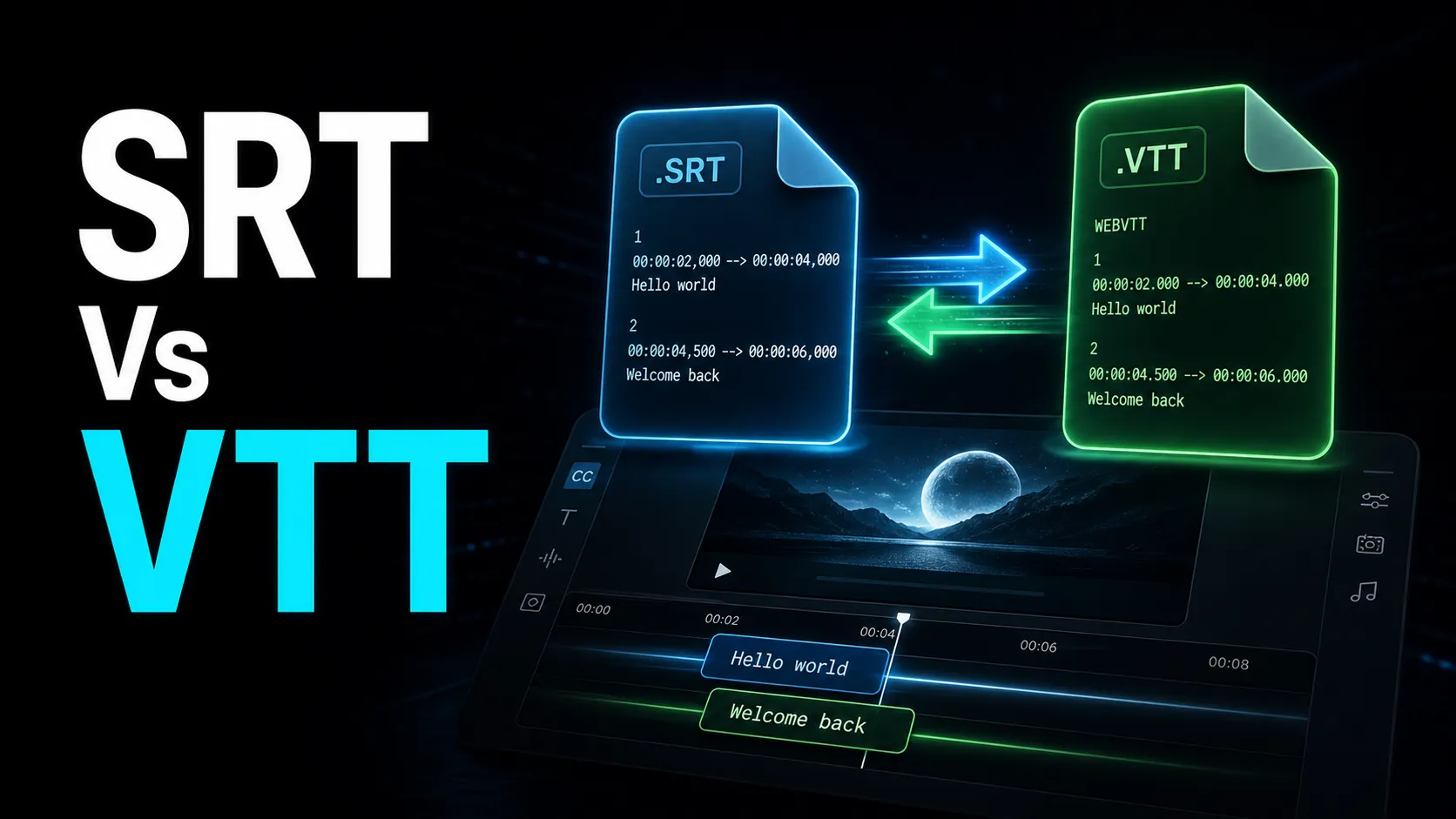
Choosing an export format: SRT vs VTT vs TXT
The format you export decides where the text can go. Pick based on the destination, not habit.
| Format | What it is | Use it for |
|---|---|---|
.txt | Plain text, no timestamps | Blog drafts, show notes, scripts, quotes |
.srt | Timed captions, widely supported | Uploading captions to most platforms and editors |
.vtt | Timed captions for the web | Web players, HTML5 video, some platform uploads |
For creators, the rule of thumb is simple: export .txt when you're writing, and .srt when you're captioning, unless a specific platform or web player asks for .vtt. Both SRT and VTT carry the timing your captions need; the differences are mostly in styling support and where they're accepted. If you want the exact breakdown of when to use each, read SRT vs VTT.
One workflow tip: keep your edited transcript as a plain-text master, and generate SRT or VTT from it as needed. That way you correct names and spelling once, in one place, and every caption file you export inherits those fixes.
How to test any video-to-text tool yourself
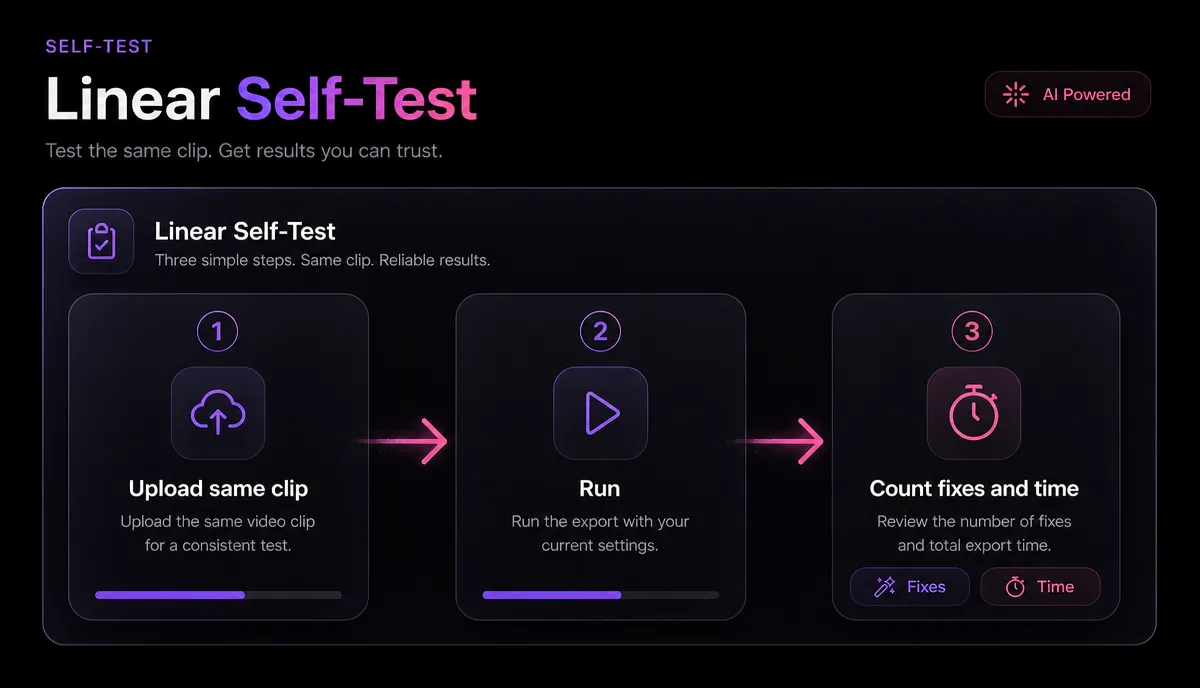
Tool landing pages all claim to be fast and accurate. Instead of trusting the marketing — or trusting this article — run a five-minute test that tells you the truth for your content. This works for any tool, free or paid.
- Pick one real, representative clip. Not a clean studio demo. Use a 2–3 minute sample of the videos you actually make, with your normal mic, accent, and any typical background noise.
- Transcribe it and time the process. Note how long from upload to finished transcript. Speed matters when you do this weekly.
- Count the errors. Read along with the audio and mark every wrong or missing word in the first 200 words. Divide to get a rough accuracy percentage. Anything above ~90% on your own messy audio is strong.
- Check the hard parts. Look specifically at how it handled proper nouns, numbers, and any overlapping speech — that's where tools separate.
- Test the export. Export an SRT and load it into wherever your captions will live. A transcript you can't cleanly export is only half a tool.
Score the same clip across two or three options and the winner is usually obvious. Run this once and you never have to wonder whether a "convert video to text free" claim holds up — you'll have your own numbers.
Where Recapo fits: it's a browser-based workspace built for exactly this creator loop — transcribe and caption, turn long videos into short clips, generate summaries and scripts, add AI voiceover, reframe to vertical, and export — so the transcript you make doesn't dead-end as a text file. It becomes the starting point for the captions and clips you actually publish.
FAQ
How do I transcribe a video to text for free? The two free routes are typing it yourself and using platform auto-captions, such as the automatic captions a service like YouTube generates after you upload. Both cost time instead of money: typing is slow, and auto-captions need cleanup for punctuation and names. Free AI tiers exist too — test one on your own clip to see if the accuracy is good enough before relying on it.
How accurate is AI video transcription? On clean audio with a clear speaker, modern AI transcription commonly lands around 85–95% accuracy, and a few minutes of manual correction pushes it near 99%. Accuracy drops with background noise, overlapping speakers, heavy accents, and music under the dialogue. The single biggest lever is audio quality, not the tool.
What's the difference between a transcript and captions? A transcript is the full text of what's said, usually as a plain document. Captions are that text split into short timed lines that appear on screen in sync with the audio. You typically create the transcript first, correct it, then turn it into an SRT or VTT caption file.
Can I transcribe a video in one language and get subtitles in another? Yes. Transcribe the original audio to text first, correct that master transcript, then translate it and re-time the lines for the second language. Working from an edited transcript gives you a far cleaner translation than translating raw, error-filled output.
What file formats and sizes can I upload? For the Recapo speech-to-text tool, common video formats like MP4 and MOV work, with up to 6GB per task, and everything runs in the browser with no install. That's enough headroom to upload long interviews or full recordings without compressing them first.
Get started
The fastest way to see whether AI transcription fits your workflow is to run one real clip through it and check the transcript against the steps above. Upload a video, generate the text, correct the names and numbers, then export captions or a clean document — and reuse that one transcript for subtitles, copy, summaries, and translations. Create a free Recapo account to transcribe your first video and take it all the way from spoken words to published captions in the browser.