Best Submagic Alternatives in 2026 (Animated Captions and Beyond)
Compare Submagic alternatives in 2026: an all-in-one that adds animated captions plus long-to-short clipping, reframing, and export in one pass.
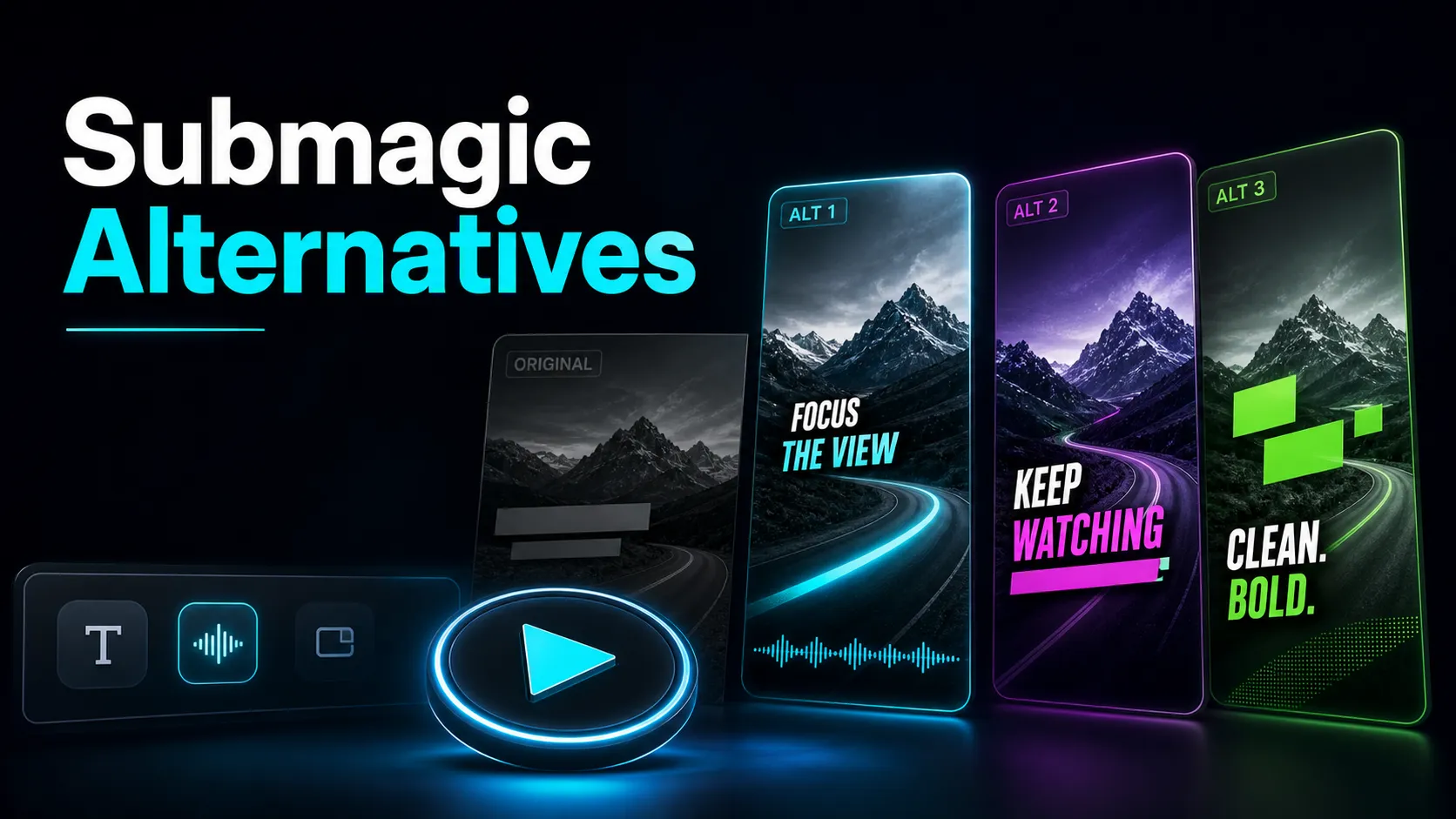
Submagic is publicly positioned around animated captions and short-form finishing. The useful comparison is not whether captions matter, but whether you need a focused caption step or a workflow that also starts from long footage, finds clips, reframes them, and exports variants. This guide compares those two tool shapes from official product information and uses a same-source test instead of unverified price or performance claims.
Disclosure and method: Recapo.ai publishes this guide and may appear among the tools discussed. We checked official product pages on July 10, 2026. We compare stated workflow fit rather than unverified hands-on scores and recommend testing the same source file in each finalist. Features, limits, and pricing can change.
When to compare Submagic with alternatives
Use a focused caption tool when your clips are already cut and your main job is styling, timing, and correcting on-screen text. Compare broader alternatives when the source is still a long podcast, interview, or stream and you also need clip selection, reframing, voiceover, or multiple exports.
For each finalist, verify the current plan, watermark, export, language, and file limits on the vendor's site. Then caption the same one-minute clip and count corrections, styling time, and export quality. If long-to-short is part of the job, add the same long source to the test rather than judging from a prepared demo.
What Submagic is built for — and when it's enough
Submagic's home turf is animated, word-by-word captions styled for short-form: the highlighted, moving subtitles that keep viewers watching a muted feed. If your clips are already cut and reframed, and all you need is a fast, good-looking caption pass, a focused captions tool does that one job well — and switching would be a lateral move.
The mismatch shows up when captioning is the last step of a longer job. Most short-form on YouTube, TikTok, Shorts, and Reels is repurposed from something longer — a livestream, a podcast, a talking-head upload. Getting from that source to a captioned vertical clip is four jobs, not one: find the moment, cut it, reframe it, caption it. A captions-only tool owns the fourth and hands you the first three. Naming which job you actually have is the first real step in choosing among Submagic competitors, so start there before you compare a single feature.
Captions-only vs. all-in-one: the real decision
Here's the framing that makes the choice obvious. Line up the full short-form workflow and mark which kind of tool owns which step.
| Step | Captions-only tool | All-in-one workspace |
|---|---|---|
| Find strong moments in a long video | You do this elsewhere | Long-to-short clipping |
| Cut the clip to length | Another app | In the same workspace |
| Reframe 16:9 → 9:16 | Another app | Built-in vertical reframing |
| Transcribe & caption | Yes | Yes |
| Style the captions | Yes | Yes (subtitle styling) |
| Voiceover for faceless cuts | Usually no | AI voiceover |
| Cover & export | Partial | Yes |
Read down the two columns. A captions-only tool is excellent at two rows and hands the rest to other apps and other subscriptions. An all-in-one covers the whole line in one pass — which is the point: you stop exporting a half-finished clip from one tool just to import it into another to add captions. For a daily posting cadence, removing those handoffs is usually a bigger time win than any single caption animation.
This is where Recapo fits, honestly. It runs in the browser with no install, and covers transcribe-and-caption, long-to-short clipping, summaries and scripts, AI voiceover, vertical reframing, and cover-and-export in one place, on MP4, MOV and other common formats up to 6GB total per task. It's not the pick if all you ever need is a caption pass on clips that are already finished — but that's exactly the case where you probably don't need to switch at all.
Submagic competitors, at a stable positioning level
The lists ranking "the best Submagic alternative" are often a tool's own marketing page — useful for discovery, biased by design. Here's the neutral version: each option described at the positioning level that stays true over time, plus what to verify yourself. I've deliberately skipped prices, free-tier quotas, and watermark rules, because those shift and you should confirm current terms directly.
| Tool / category | Known for | Best fit | Verify for yourself |
|---|---|---|---|
| CapCut | A widely used editor across web, desktop, and mobile | Creators who want templates and effects for short-form | Current export terms and any watermark on your tier |
| VEED | A browser-based video and subtitle editor | Quick browser edits and subtitle passes | Caption accuracy on your accents; export limits |
| OpusClip | Known for auto-clipping long videos into shorts | Long-form creators repurposing to Shorts and Reels | Clip-selection quality on your kind of content |
| ZapCap | Known for automated subtitles for short-form | Creators who mainly want a captioning pass | Style flexibility and cost at your volume |
| Klap | Known for turning long videos into short clips | Long-to-short repurposing | Whether the caption styling fits your channel |
| quso | Known for AI-assisted repurposing into social posts | Multi-platform output from long sources | Output control for your niche |
| Recapo | A browser-based all-in-one repurposing workspace | Clipping + captions + reframing + export in one pass | Whether one workspace covers your whole loop |
Two honest caveats. First, no tool above wins every row of the next table — a captions-first tool is great at styling and awkward at clipping a long source, and a clipping-first tool is the reverse. Second, the only ranking that matters is the one you produce on your own footage, which is what the self-test below is for.
The dimensions that actually decide your pick
Feature checklists don't tell you how a tool behaves on your footage. These six dimensions do. Score two or three candidates on each and the decision usually makes itself.
| Dimension | The question to ask | Why it matters |
|---|---|---|
| Workflow coverage | Does it clip and reframe, or only caption? | Decides how many separate tools you still need |
| Caption accuracy | How clean is the transcript on accents, fast speech, jargon? | Fixing bad captions is the biggest time sink |
| Caption styling | Can you match your channel's font, size, position, highlight? | Consistent captions are part of your brand |
| Vertical reframing | Does the subject stay centered 16:9 → 9:16? | Bad reframing cuts off faces |
| Cost at your cadence | What's the real monthly cost at your posting rate? | "Cheap" depends entirely on volume |
| Export cleanliness | Any watermark or resolution cap on your tier? | Confirm at export, not from a list |
Fill this in for two or three tools with current, verified numbers, and you're matching a tool's strengths to the one or two things you do most — not chasing a perfect editor.
A 20-minute self-test on your own footage
Reviews age; your footage doesn't lie. Run this with the same source file through any two or three candidates — including Submagic and one all-in-one — and you'll have a defensible answer fast.
- Pick a real source, not a clean demo. Use one 15–30 minute video you actually recorded — a stream, podcast, or talking-head upload with real accents and background noise. Easy audio makes every tool look good and tells you nothing.
- Get from long to one clip. If the tool can clip, let it find a strong 30–45 second moment. If it can't, you'll feel the missing step immediately — that's data.
- Reframe to vertical. Take that moment to 9:16 and check whether the subject stays centered and uncut.
- Transcribe and caption. Generate captions and count the errors you'd fix by hand in the first 30 seconds.
- Style the captions to your channel. Match font, size, position, and highlight color, and note how many clicks it takes.
- Export on the tier you'd actually pay for. This is where watermarks and resolution caps reveal themselves — look at the file, don't assume.
- Do the money math. Multiply the real per-clip effort and cost by your monthly output.
| What to measure | How to score it | Weight |
|---|---|---|
| Workflow coverage | Steps done in-tool vs. handed to another app | ×3 |
| Caption accuracy | Errors in the first 30 seconds; fewer is better | ×3 |
| Reframing quality | Subject centered and uncut? | ×2 |
| Caption styling | Clicks to match your channel look | ×2 |
| Time to first usable clip | Minutes from upload to export | ×2 |
| Export cleanliness | Watermark or resolution cap hit? | ×1 |
Add the weighted scores. The winner is rarely the flashiest caption animation — it's the tool that took real footage to a clean, captioned, correctly-framed vertical clip with the fewest handoffs. Keep the test file and reuse it every time a new tool launches, so your comparison stays apples-to-apples.
An all-in-one workflow: captions in the same pass as clipping
If your job is turning long recordings into captioned shorts, here's a concrete pipeline that keeps captioning inside the workflow instead of bolting it on at the end. Recapo runs in the browser, accepts MP4, MOV and other common formats, and handles up to 6GB total per task, so raw recordings go straight in.
- Upload the long source. Drop in the full 15–40 minute file — stream, podcast, or long upload. No pre-compression, no desktop install.
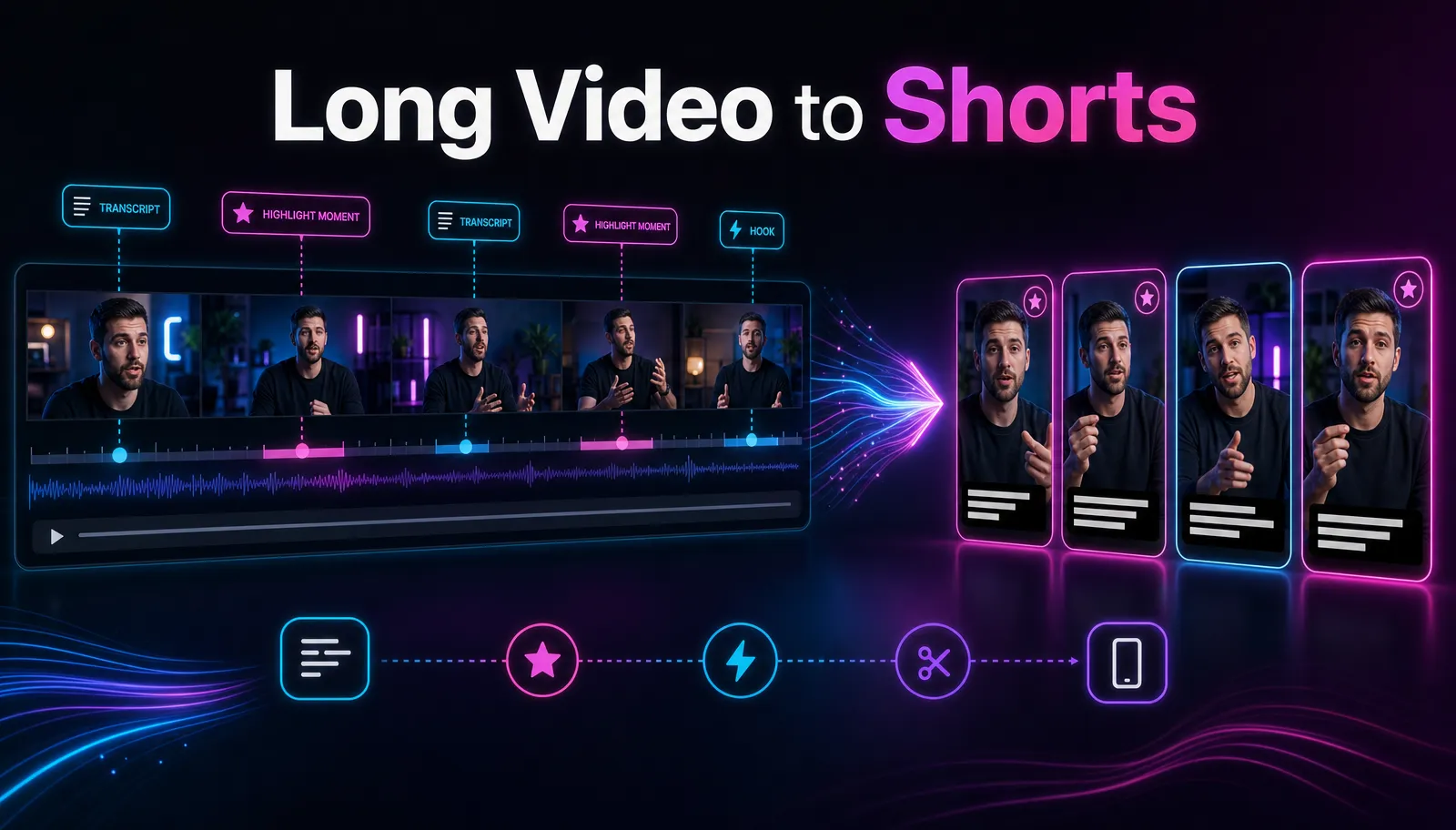
- Clip the long video into shorts. Let the long-to-short step surface strong moments, then trim to your target length. For the wider method, see how to make YouTube Shorts from long videos.
- Reframe vertical. Reframe 16:9 → 9:16 so the subject stays centered for Shorts, Reels, and TikTok.
- Transcribe and caption in the same tab. Generate captions with auto-captions, or start from a clean subtitle track with the AI subtitle generator — with no export-and-reimport round trip between tools.
- Style the captions to your brand. Use the subtitle style editor to set font, size, position, and highlight color so every clip looks like your channel. For style ideas, see how to add animated captions.
- Add voiceover if you're going faceless, then export. Generate an AI voiceover for narrated cuts, make a cover, and export ready to post.
The structural difference from a captions-only tool is simple: the caption step lives in the same pass as clipping and reframing, so there's no half-finished clip shuttled between apps and no second subscription doing one job.
When a captions-only tool is still the right call
A guide that only trashes the tool it's "replacing" is selling, not informing. So here's when not to switch:
- Your clips are already cut and reframed. If another part of your workflow already produces finished vertical clips and you only need captions, a focused tool does that one job cleanly. An all-in-one's clipping and reframing would go unused.
- You love a specific caption style. If a tool's animation presets are central to your brand and you're happy with them, that's real value that doesn't transfer to a competitor.
- Your current tier already covers you. If you're not hitting a cost, scope, or export wall, "alternatives to submagic" isn't your problem to solve. Don't fix what isn't broken.
The test is simple: list the one or two things pushing you to look, then confirm with the self-test that an alternative actually fixes them without breaking something you rely on. If it does, switch. If it doesn't, stay.
FAQ
What's the best free Submagic alternative? "Free" depends entirely on your output, so treat "submagic alternative free" as a question to test, not a label to trust. Run the self-test above on any tool with a free or lower tier, count how many usable exports you get before a wall, and weigh that against quality. A search that only filters for "free" and ignores output usually costs you more time than it saves. Recapo runs in the browser with no install and lists its plans on the pricing page.
Which alternatives to Submagic have no watermark? Watermark rules change by tool and by tier, so confirm at export rather than trusting a list — that's the reliable version of the "free submagic alternative no watermark" search. Export one clip at 1080p on the tier you'd actually pay for and inspect the file for a stamp. Do that for each candidate and you'll have a current, definitive answer instead of an out-of-date claim.
Do I still need a separate clipping tool? Only if your captioning tool can't clip. That's the core reason to consider an all-in-one: a captions-only tool starts after the clip exists, so you need something else to cut and reframe a long video first. A workspace that does long-to-short clipping, reframing, and captioning together removes that extra tool and the export-import handoff between them.
Can these tools do animated, word-by-word style captions? Caption styling varies by tool, which is exactly what the self-test checks. In an all-in-one like Recapo you transcribe, caption, and restyle subtitles — font, size, position, and highlight color — in the same workspace as clipping and export. Verify each candidate's style options against your channel's look before you commit.
Is switching worth it if I only post occasionally? Maybe not. Cost and friction both scale with volume, so an occasional poster feels fewer of Submagic's frictions than a daily one. Do the money math in the self-test against your real cadence before you move — and if nothing is actively blocking you, staying put is a valid answer.
Submagic earns its place for one job: fast, animated captions on clips that are already cut. But if your real work starts with a long recording and ends with a captioned vertical short, captioning is one step of four — and doing all four in one pass beats bolting a caption app onto the end. Run the 20-minute self-test on your own worst-case footage, then build one repurposing workflow end to end — clip, reframe, caption, export — in the browser at Recapo. Let your real content decide.
References and official sources
- YouTube Help: Add subtitles and captions
- YouTube Help: Create a Short
- YouTube: Getting your videos discovered
- Recapo.ai: Product overview and current upload limits
- Recapo.ai: AI Video Editor
- Submagic: Official product page
- Klap: Official product page
- OpusClip: Official product page
- CapCut: Official product page
- VEED: Official product page