
Compress a Screen Recording Without Losing Readable Text
Compress screen recordings with readable text. Compare resolution, motion, and file budgets, test the smallest labels, and preserve a clean master.

To compress a screen recording while keeping text readable, first identify the smallest labels the viewer genuinely needs to read. Preserve enough source resolution for those labels, remove unnecessary duration, and compare short representative exports at their intended viewing size. Reduce frame rate only when the task does not depend on smooth motion or precise timing. Measure the resulting file size and inspect the actual text before choosing a setting.
A preset that looks acceptable on a talking-head clip can fail on a software tutorial. Fine strokes, small icons, cursor motion, scrolling, and abrupt interface changes create different demands. The goal is not to preserve every desktop pixel at any cost. It is to preserve the information needed to follow the operation within the delivery constraint.
This guide provides a comparison procedure and fictional planning calculations. It does not report a measured compression ratio, a completed Recapo test, or a universal bitrate that keeps every screen legible.
Decide which information the recording must preserve
List the details required to complete the task. A viewer may need to distinguish “Draft” from “Sent,” read a numeric value, locate a menu command, or follow the cursor to a particular control. Those details deserve priority over decorative background texture.
Choose several inspection regions before exporting. Include the smallest necessary label, a number or punctuation mark, a moving cursor, a scrolling section, and a screen transition if those occur. A static opening slide is not a representative sample of a busy application.
Separate readability from visual neatness. A smooth-looking interface can contain a blurred digit that changes an instruction. Conversely, a minor artifact in a background gradient may not obstruct the task. Use the actual instructional purpose to rank defects.
If the source is already unreadable at the intended viewing size, compression settings cannot supply missing information. Consider rerecording with a larger supported interface scale, a tighter capture region, or a different shot order. This is a composition problem before it is an encoding problem.
Understand what resolution, frame rate, and compression each change
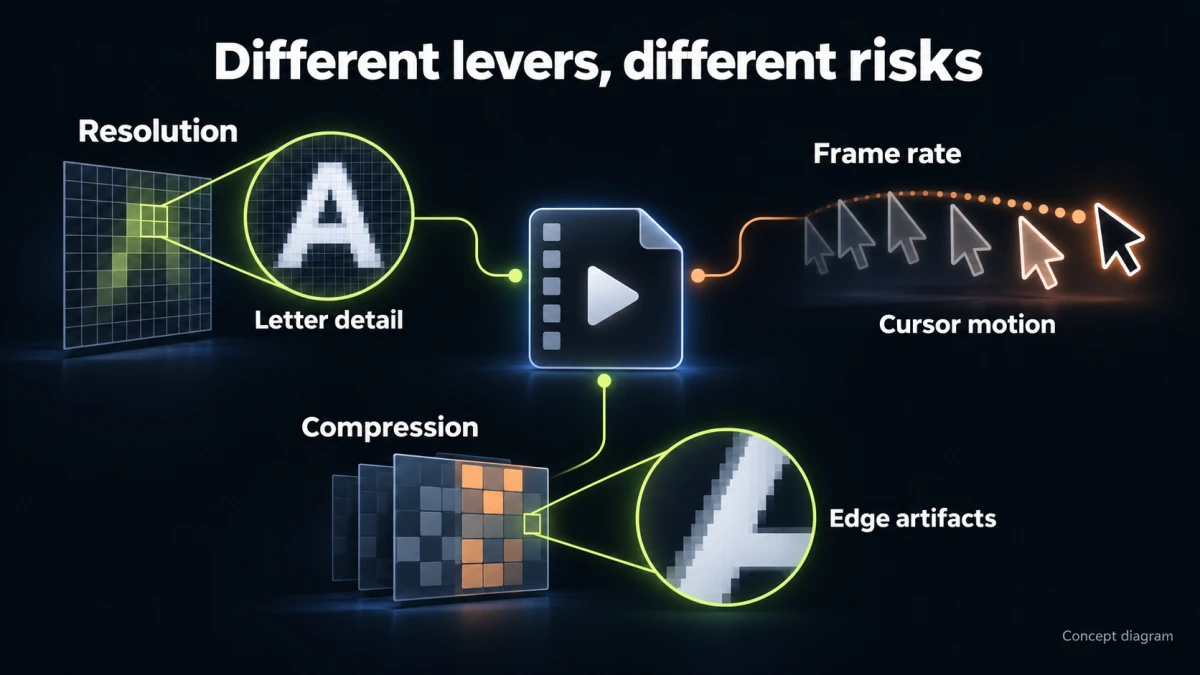
Concept diagram; not a product-interface screenshot.
Resolution controls the output's spatial sampling. Reducing the dimensions gives small text fewer pixels to represent its strokes. If a label becomes too small, increasing bitrate cannot restore the source detail that the resize removed.
Frame rate controls how often the output represents a moment in time. Lowering it can reduce the number of pictures that must be encoded, but it may make cursor movements, scrolling, animation, or demonstrations of timing harder to follow. It is not automatically the best first reduction.
Compression settings determine how the chosen pictures are represented within the output. More aggressive lossy compression can blur edges or create artifacts, especially around fine detail and changing regions. The practical effect depends on the material and encoder, not just the label on a preset.
Duration is a separate lever. Removing a genuinely unnecessary waiting section reduces the amount of material without reducing the pixel detail of the sections that remain. But keep enough context to show what happened. Do not remove a necessary delay while making an unsupported claim that the software acts instantly.
Audio also occupies space. Speech should remain intelligible, and its format must match the delivery requirements. Reducing picture quality while ignoring a needlessly large audio stream can be a poor allocation of the file budget.
Build the best source before creating delivery copies
Preserve a high-quality master of the accepted recording. Make compression trials from that source, not from a previously compressed trial. Repeated lossy encoding can accumulate damage and make comparisons difficult to interpret.
Use a deliberate capture region. A full desktop may include tiny application text surrounded by menus, dock icons, or unused panels. If the actual lesson concerns one panel, recording that panel at a useful scale can make the final video easier to read without inventing a simplified interface.
Where the real application supports it, adjust interface scale before recording and confirm that the layout still makes sense. Do not enlarge the interface so far that a necessary control disappears. Record a short test and view it at the expected playback size.
Sanitize the environment before capture. Account names, browser tabs, notifications, personal files, and secrets can appear outside the main application area. Compression is not a redaction method; blur introduced by an encoder must not be relied on to hide confidential text.
Capture enough context around actions to edit honestly. A close view can be useful, but the viewer should still understand where the control belongs and what changed after activation.
Use a short sample that contains the difficult moments
Choose a representative segment rather than compressing the entire recording for every experiment. Include a static reading moment and an active moment in the same test when possible. The segment should expose the failure you care about.
For example, a proposed sample might show a menu opening, a small number changing, a cursor moving to Save, and a confirmation appearing. If the full lesson includes scrolling through dense rows, include that too. A title card alone will not reveal what happens during those operations.
Keep the sample boundaries fixed across trials. Use the same source revision and audio treatment unless one of those is the variable being tested. Label every output with its actual settings or preset name, not only “small” and “good.”
Inspect both normal playback and selected paused frames. A paused frame helps identify the affected character, but the tutorial must also be understandable without stopping after every click. A file can pass a still-image inspection while its cursor path remains confusing.
Compare one decision at a time
Begin with the source dimensions and an available quality setting. Then test a change that addresses the actual constraint. If the file is too large but the text is comfortably readable, a more aggressive compression setting is a reasonable next candidate.
If the source contains generous resolution beyond what the delivery needs, test a lower resolution separately. Do not lower resolution, frame rate, and quality at once and then assume you know which change damaged the labels.
Use a comparison sheet like this:
| Candidate | Intended change | Main inspection question |
|---|---|---|
| Reference copy | Accepted source or high-quality reference | Is the lesson already readable at final size? |
| Trial A | More aggressive compression at the same dimensions | Do fine strokes and numbers remain distinct? |
| Trial B | Lower dimensions, comparable workflow otherwise | Does the smallest necessary label still carry enough detail? |
| Trial C | Lower frame rate where supported | Can the viewer still follow cursor and scrolling behavior? |
| Trial D | Shorter honest edit | Did removing time preserve every necessary action and condition? |
These are proposed experiments, not measured outcomes. Some tools expose only presets, so record exactly what you can observe. If a preset changes several properties, treat it as a bundled candidate rather than pretending it isolates bitrate alone.
Calculate the budget without mistaking it for a quality prediction
A file-size limit can help define an average data budget. It cannot tell you whether small text will remain readable.
For a rough decimal-unit calculation:
average total bitrate ≈ file size in bytes × 8 / duration in seconds
Total bitrate includes picture, audio, and overhead. Keep bytes and bits distinct, and state whether a limit uses decimal megabytes or binary mebibytes. A platform's displayed unit may require checking rather than guessing.
Here is a fictional planning example. A two-minute tutorial must fit a 30,000,000-byte limit. The rough total budget is:
30,000,000 × 8 / 120 = 2,000,000 bits per second
That is approximately 2 Mb/s for the whole file. If the plan allocates 128 kb/s to audio, about 1.872 Mb/s remains before container overhead and any practical margin. This is an arithmetic allocation, not a recommended setting or a promise that the final file fits.
Now imagine removing 20 seconds of genuinely unnecessary waiting. The same size cap across 100 seconds corresponds to approximately 2.4 Mb/s total. That gives the remaining material more average data capacity, but only if the shorter lesson is still accurate and the encoding workflow makes suitable use of the budget.
A constant-quality mode may produce a different size for every recording. A target-bitrate workflow can make the planning more predictable, but actual output and quality still require inspection. Do not infer a strict file-size guarantee from a generic quality preset.
A fictional dashboard tutorial decision
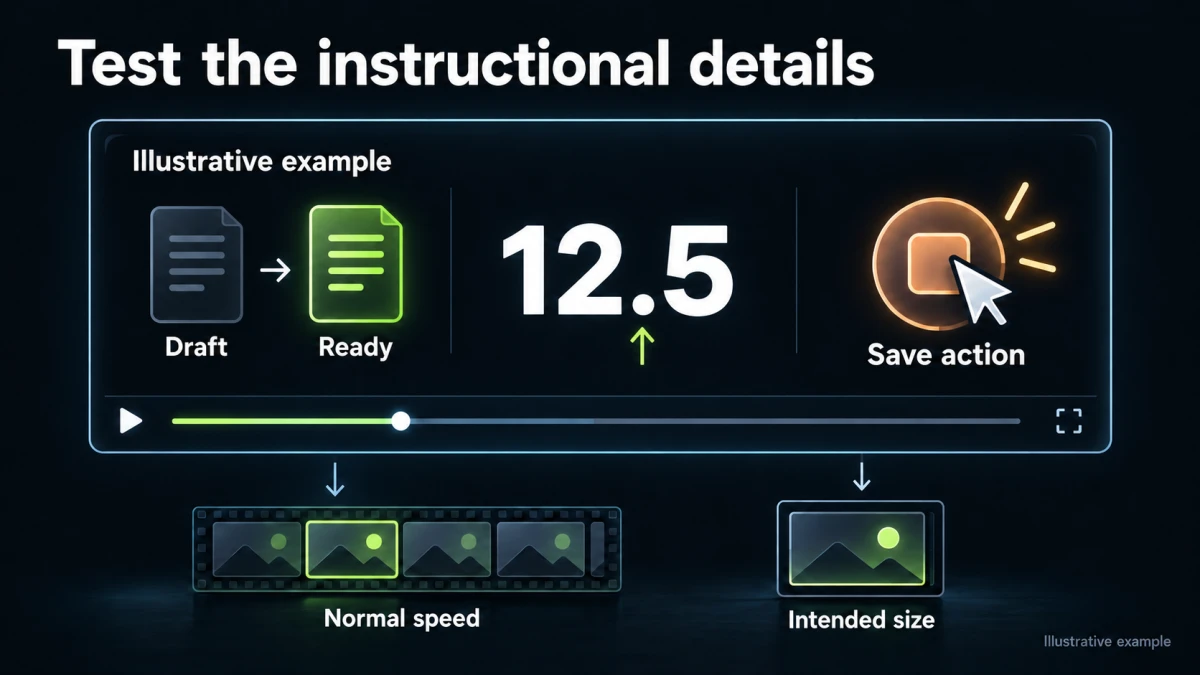
Illustrative example; not a measured product output.
Consider a constructed 120-second lesson for a fictional application called Harbor Board. It teaches a viewer to change a request from Draft to Ready, enter the value 12.5, and save it. The original is a wide desktop recording. No actual screenshots, generated outputs, or audience measurements are claimed.
The first design problem is that the status and numeric field occupy a small part of the picture. Compressing the whole desktop aggressively would spend part of the available image on irrelevant panels while making the important text more fragile.
The production plan therefore starts with a tighter, honest capture of the request panel, preceded by enough context to show where it sits. The team preserves the real control labels and does not recreate a fake interface to make it look simpler.
Three details become acceptance targets: the viewer can distinguish Draft from Ready; the decimal point in 12.5 is visible; and the saved state remains on screen long enough to recognize. The pointer must also lead clearly to the save action.
The team proposes a full-resolution compression trial and a lower-resolution trial from the same accepted source. If the lower-resolution trial obscures the decimal point even when paused, it fails the task regardless of its attractive file size.
If the full-resolution trial preserves the digits but produces artifacts only while scrolling through irrelevant history, the editor can ask whether that scrolling belongs in the lesson. Removing an unnecessary tour is a different and potentially better decision than degrading the required field.
If neither candidate meets the limit, the team revisits duration, capture scale, and delivery method. It does not report a successful compression simply because a smaller file exists. The smaller file must still teach the intended operation.
Match the controls to the tool you actually have
Recapo's video compressor publicly presents quality choices and an option to retain or reduce resolution. Its page describes H.264 constant-quality encoding. Those are useful starting points for a comparison, not evidence that a particular preset has passed a screen-text readability test.
Check the current interface before promising exact encoder parameters, frame-rate controls, chroma settings, or a precise output size. If your task requires settings that are not available in the workflow, use an appropriate external encoder or editor and document the resulting file.
Do not repeat promotional size-reduction percentages as though they describe your recording. A mostly static interface, a scrolling spreadsheet, and a screen recording with a face camera can produce different tradeoffs. Measure the actual selected output.
If a processing job has an uncertain status, inspect the existing task or saved result before submitting it again. Once you have the file, verify that it is the intended full output rather than a reduced preview. A completed task is not the same as a readable final lesson.
For a broader framework, the video compression quality test covers general comparison discipline. Here the decisive criterion is the smallest information-bearing text and the operation it supports.
Diagnose the visible failure before changing another setting
Text is already small and soft in the source. Rerecord or recompose when possible. Increasing the output dimensions later does not establish that the original characters have been recovered.
Text becomes unreadable only after reducing dimensions. Restore enough spatial resolution or change the capture scale. Raising bitrate at the same inadequate dimensions is unlikely to solve missing spatial detail.
Static text is acceptable, but moving rows break up. Inspect the motion-heavy segment and compare a less aggressive encoding treatment. Consider whether the scrolling is needed and whether a deliberate pause would help the reader.
The cursor skips too far between positions. Reconsider a frame-rate reduction and the recorded movement. A pointer highlight may help attention, but it does not recreate intermediate movement that was not retained.
Thin colored labels look worse than larger neutral text. Compare the original and output in the same player at the same scale. Color processing and encoding can affect fine edges. Prefer a supported readable interface theme or a clearer composition before adding undocumented codec assumptions.
The downloaded file looks sharp, but the online preview is soft. Confirm the selected playback quality, processing state, and viewing size where the platform exposes them. Keep the local result as a reference. Do not damage the master to compensate for one temporary preview condition.
The file is still over the limit. Measure actual bytes, confirm duration and audio properties, and revise one meaningful constraint. A guessed filename such as “under-30MB” is not evidence of its size.
Test readability as an action, not just a visual preference
Ask a reviewer to perform a concrete recognition task from the delivered video: identify the saved status, read the number with its unit, or name the selected command. Do not give away the answer before they watch.
Use normal speed and the intended display size first. Note where the reviewer pauses, rewinds, or guesses. Then inspect the relevant frames to separate visual degradation from a lesson that moves too quickly.
Compare with the reference to locate the cause. If both versions are confusing, compression may not be the main problem. The action might lack context, the cursor might move off screen, or the recording may show a different control from the narration.
For a multilingual lesson, inspect the actual scripts and diacritics used. A layout that preserves large English text does not prove that smaller accented characters or another script survive equally well. This is a specific delivery check, not a general judgment about a language.
If no independent reviewer is available, perform the check yourself and label that limitation in the production record. Do not convert one editor's judgment into a measured audience-comprehension claim.
Keep the evidence and the master together
Record the accepted source, trial settings, actual output dimensions, frame rate where known, duration, bytes, audio treatment, and observed failures. Keep a few diagnostic frames with their timestamps if they help explain why a candidate was rejected.
Retain the high-quality master separately from the delivery file. If the interface changes or a new destination needs a different size, you can make a new export without recompressing the old delivery copy.
Recheck the selected output after any caption, crop, or timing change. Burned-in text adds new fine detail; a revised sequence can change the demanding portions of the recording. An earlier passing test does not automatically cover the new version.
The right compression setting is the one that meets the actual constraint while preserving the viewer's ability to follow the task. If no candidate does both, change the lesson's framing, duration, or delivery arrangement openly. A smaller unreadable tutorial is not a successful optimization.
