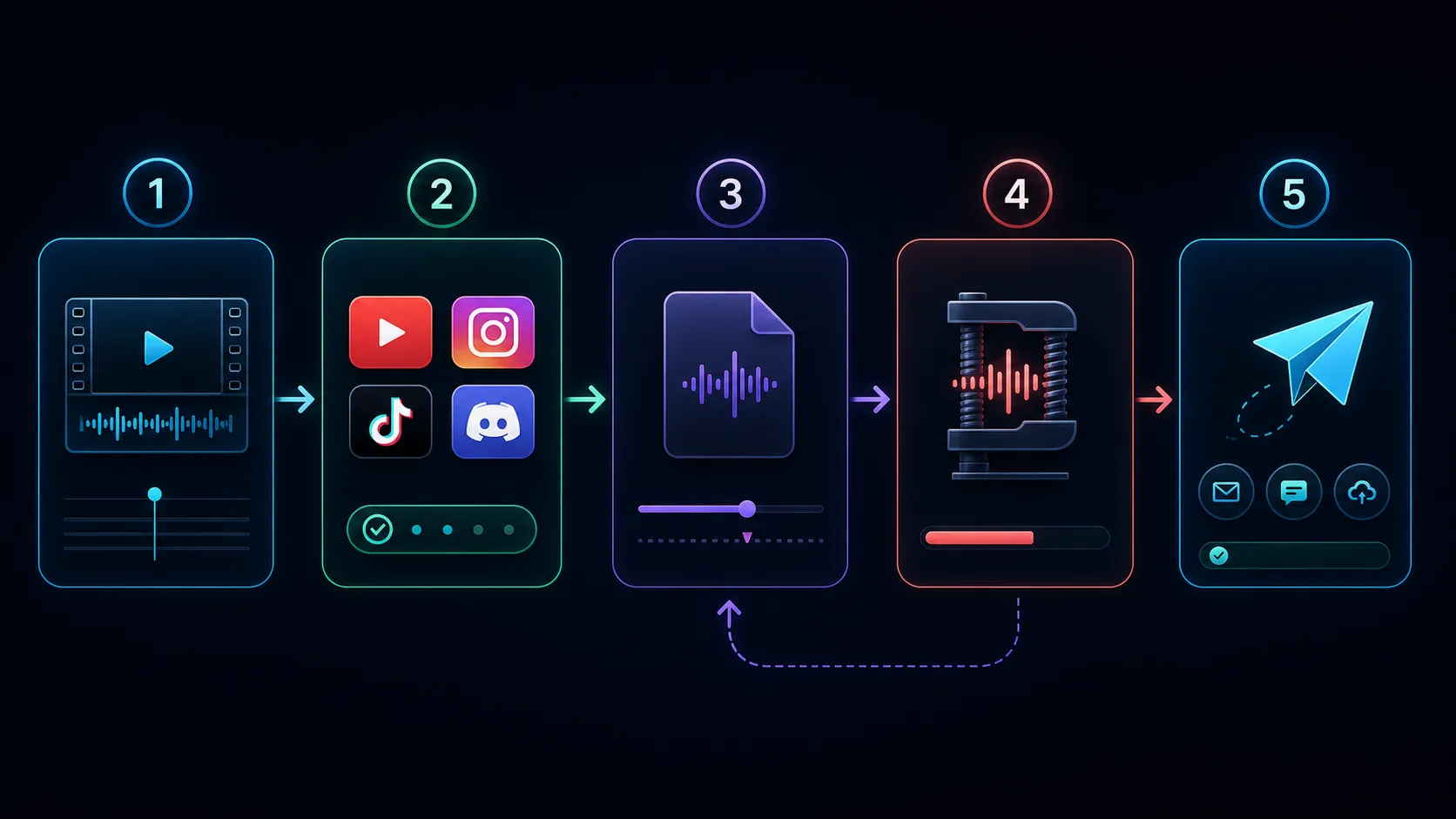
Guide to reduce video size
WhatsApp includes video size reduction methods for email and social media; Find out in terms of duration, resolution, bitrate, and format.

To make a video fit a messaging app, email attachment, or social upload, identify the destination's actual limit first. Then shorten unnecessary footage, choose a suitable resolution, and reduce the bitrate only as far as the picture and sound can tolerate.
Find the limit that is causing the problem
Check the current requirements for the app, account, device, and upload method you will use. An email provider may limit the total message, while a social platform may also restrict duration, dimensions, or codecs. Do not assume one number applies to every service or that a smaller file will resolve a format error.
Write down the maximum file size, required format, and intended viewing conditions. If the recipient will edit the footage, ask for their delivery requirements before replacing it with a heavily compressed preview.
Trim before reducing quality
Remove unwanted starts, repeated takes, and empty endings from a copy. Reducing duration lowers the amount of material that must fit the size limit. If the clip still needs every second, keep those seconds and adjust the encoding rather than deleting useful context.
Retain the original recording. Create each destination's delivery copy from that source instead of compressing yesterday's compressed export again.
Use a bitrate budget as a starting point
For a rough estimate, total bitrate in bits per second equals the target size in bytes multiplied by eight, divided by the duration in seconds. Audio and container overhead also take space.
For example, a 60-second video targeting a 20 MB decimal file has a total budget of about 2.67 megabits per second. Leave room for audio and overhead, and aim below the destination's limit. This is a planning estimate, not a guarantee that every encoder will produce exactly that size.
Compress and compare
- Open the Recapo video compressor and check the displayed input limits and controls.
- Start with a conservative preset or suitable bitrate and resolution settings where available.
- Export a short representative sample containing movement, faces, and any small text.
- Compare it with the source at the size the recipient will view it.
- If the sample is acceptable, process the full clip and check the downloaded file's size and playback.
- Test it in the destination's upload or attachment workflow. A completed compression job alone does not confirm acceptance there.
Know which tradeoff you are making
A lower resolution can be reasonable for a phone-sized review copy, but it can make presentation slides or product labels unreadable. A lower bitrate may create blocks, smearing, or banding, especially during motion or in gradients. Keep speech intelligible and inspect any text the viewer needs to read.
If the file cannot fit without losing essential detail, consider an approved share link. Check its access settings and the recipient's ability to open it. A link can solve an attachment-size problem, but it introduces its own access and privacy decisions.
Common questions
Why is the file still large after lowering resolution?
Duration and bitrate still matter. Some presets keep a generous bitrate at a smaller frame size. Inspect the output settings and actual download.
Why does the platform reject a small file?
Check codec, container, duration, account restrictions, and the error message. Size is only one possible cause.
Can compression preserve exactly the same quality?
Lossy re-encoding trades information for a smaller delivery file. The useful test is whether the changes are acceptable for this destination, not a universal promise of no quality loss.
Resources
Related Recapo guides
- Compress videos while keeping quality
- Factors Determining Video File Size Reduction
- Compress Video Online: What Happens to Quality