
Video Upload Says Unsupported Format? Diagnose the Failure
Diagnose unsupported video uploads by separating file size, container, codecs, and browser state, with a minimal test matrix and support template.

A video upload “unsupported format” error is not necessarily a file-size problem. Identify when the failure occurs, inspect the container and the actual video and audio streams, and test one small, representative copy against the destination's documented requirements. Change one factor at a time so a successful attempt tells you something useful.
Do not begin by repeatedly compressing the same file. A smaller file can still contain an unsupported codec, an incompatible audio stream, or damaged media. A perfectly valid file can also fail because of a browser, account, network, or processing-state problem. The error message is a starting point, not a complete diagnosis.
The workflow below uses a constructed upload case and proposed test matrix. No actual service-upload failures or successful Recapo controls were tested for that example.
Record the failure before changing the file
Write down the exact message, the stage where it appeared, and whether the service created a job or saved an upload. Preserve the original file and give every diagnostic copy a distinct name.
Three stages are worth separating. A browser may reject the selection before transfer. A transfer may stop before completion. Or the service may accept the bytes and fail during media processing. Those observations point to different checks, even when the displayed error uses similar wording.
Do not infer that a failed screen means no job exists. Check supported history or status views, if available, before submitting the same file again. If the state of a paid operation is unclear, resolve that state through the available status or support route rather than blind resubmission.
Capture enough context to reproduce the issue: destination feature, browser and operating-system versions, filename extension, approximate file size, and the time of the attempt. Do not include passwords, session tokens, private links, or unnecessary personal material in a support report.
A screenshot can preserve the wording, but also copy the text if possible. A vague note such as “it didn't work” loses the distinction between rejection, stalled transfer, and processing failure.
A video file has more than one compatibility layer
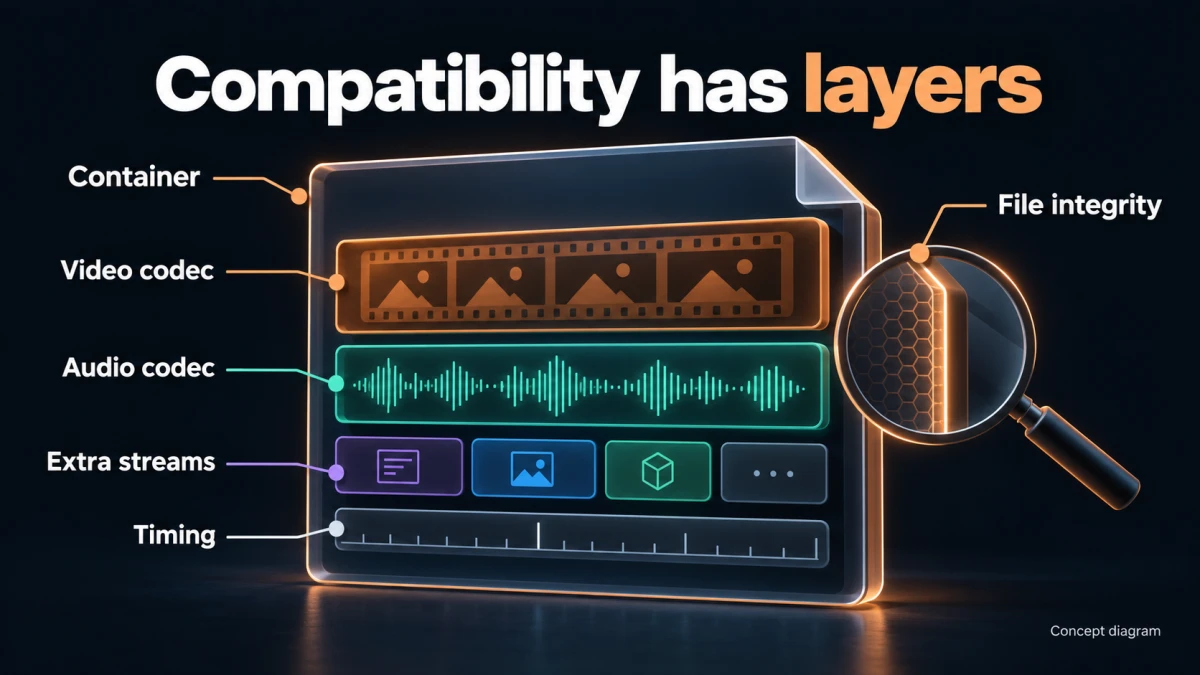
Concept diagram; not a product-interface screenshot.
The filename extension is not a complete specification. A container packages streams and metadata; codecs describe how the individual media streams are encoded. A destination may accept a container while rejecting something inside it.
For example, two files ending in .mp4 need not contain the same video codec, audio codec, profile, pixel format, or stream arrangement. Renaming an extension does not change those contents.
Inspect the layers relevant to the destination:
| Layer | What to record | Why it can matter |
|---|---|---|
| Container | Actual format, not only extension | Determines how streams and timing information are packaged |
| Video | Codec, profile where available, dimensions, pixel format/bit depth | A decoder may support only part of a codec's possible range |
| Audio | Codec, channel count/layout, sample rate, selected track | Accepted video does not imply every audio stream is accepted |
| Timing | Duration, start times, frame-rate behavior | Import or processing may fail on a particular timing structure |
| Extra streams | Subtitles, alternate audio, attachments, data | The destination may not expect or retain them |
| File integrity | Whether the full file can be read | A plausible header does not prove the media is complete |
Not every field will be available in a simple interface. Record what you can inspect and identify missing information. Do not fill unknown values with assumptions based on the device or extension.
Use the destination's current official requirements to determine what matters. A general recommendation such as “use MP4” is not a substitute for its actual accepted video and audio specifications.
Locate the failure with a small decision tree
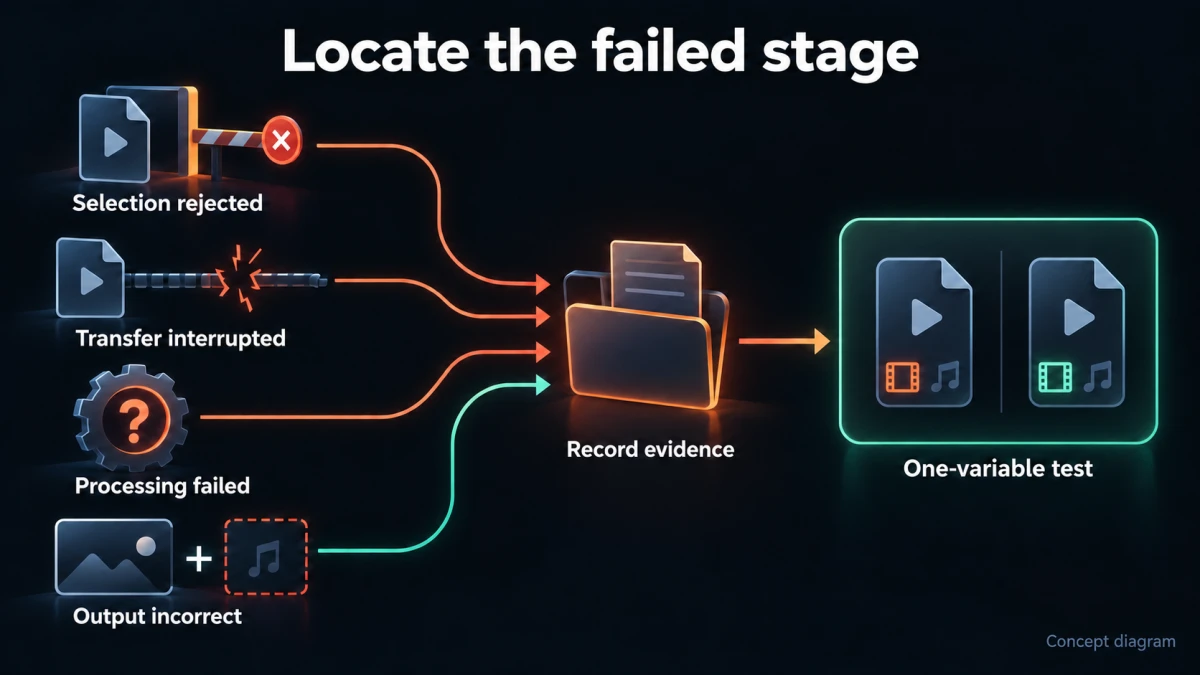
Concept diagram; not a product-interface screenshot.
If selection is rejected immediately, check the documented input type, extension, file-size and duration limits, and whether the chosen feature accepts that kind of source. Do not assume limits from another tool on the same website apply.
If transfer begins but stops, preserve the error and inspect the connection, browser state, and any service-provided upload status. A format conversion may not address a transport failure.
If the upload completes but processing fails, inspect the media streams and local readability. The service may be able to receive the container without being able to decode the selected streams.
If the file processes but has no sound, wrong orientation, missing tracks, or changed color, the problem is no longer simply “upload failure.” You need a content-preservation and interpretation check. A green success message does not prove the delivered video is acceptable.
Use these branches to choose one next observation. Do not clear browser data, transcode the file, switch networks, and create a new account at the same time. Even if the next attempt works, you will not know which factor mattered.
Check the original locally before creating variants
Open the full original in a suitable local player or editor and inspect the beginning, middle, and end. Confirm that the expected audio is present, the duration is plausible, and the file does not stop unexpectedly.
Local playback success narrows the problem but does not establish compatibility with the destination. A local application may support codecs or stream combinations that the service does not. Conversely, failure in one player may reflect that player's support rather than corruption.
If the media appears truncated, compare its size and transfer history with the best available source. A partially copied file should be recovered from the source where possible, not repeatedly transcoded in the hope that missing content will return.
Use a technical inspection tool if needed to identify the streams. Keep a copy of the report with the diagnostic record. Do not assume a single displayed “format” field covers both the container and all codecs.
Choose the least transformative test that answers the question
FFmpeg distinguishes stream copying from transcoding. Stream copying carries selected encoded streams into an output without re-encoding them; transcoding decodes and encodes. Its stream-selection documentation also makes clear that selection determines what reaches the output. FFmpeg documentation
That distinction helps choose a test. If the streams match the destination's requirements but the container does not, a compatible remux may be enough. If the video codec is unsupported, merely repackaging it will not create a supported codec.
Do not call a remux universally lossless in every sense. Avoiding re-encoding preserves the selected compressed media, but the output can still differ in metadata, timestamps, or included streams. Check what was retained.
If transcoding is necessary, start from the best source and choose settings appropriate to the destination. Avoid a chain of lossy copies made from earlier test outputs. Give each test a purpose and retain the original.
An external command illustrating a selective remux, only after confirming the chosen streams can be stored in MP4, is:
ffmpeg -n -i "sample.mov" -map 0:v:0 -map "0:a:0?" -c copy "sample-remux.mp4"
This selects the first video and, if present, the first audio stream. It does not preserve every extra stream. The no-overwrite option prevents replacing an existing destination. The command is not a universal repair and is not a Recapo interface instruction.
If the selected codec is incompatible with the container or destination, stop and choose an appropriate conversion rather than changing extensions or repeating the command unchanged.
Build a representative sample without hiding the defect
A small sample can reduce the cost of a diagnostic test, but how you create it matters. If making the sample re-encodes the video into a different codec, its success does not establish that the original codec was acceptable.
Document whether the sample preserves the original stream characteristics or intentionally changes them. If the failure is near the end, include that region. If it depends on a transition or a particular audio track, preserve that feature.
A beginning-only sample may miss damage or unusual timestamps later in the file. A sample is therefore a hypothesis test, not a guarantee that the complete file will pass. Once a candidate route is identified, validate a full output before delivery.
For sensitive material, use the minimum authorized content needed for diagnosis. A generic control file can test whether the upload path works at all, but it cannot reproduce every property of the source. Do not upload private footage to an unrelated service simply because it is convenient for testing.
Worked example: a small file that still fails
Consider a fictional consultant, Dana, whose screen recording is small enough for the destination's stated size limit but receives an unsupported-format message after transfer. The filename ends in .webm. Dana assumes the service needs a smaller file and prepares to compress it again.
Instead, Dana records the stage of failure and inspects the file. In this constructed scenario, suppose the video is VP9 and the audio is Opus. Those are hypothetical case details, not findings from an actual uploaded file.
The next question is whether the destination's documented requirements accept that combination. If they require a different video or audio codec, lowering the bitrate of the same streams would not answer the compatibility issue.
Dana creates a test plan:
| Test | Deliberate change | Observation to record | What a successful result would support |
|---|---|---|---|
| Authorized simple control | Different known-supported short file | Does selection, transfer, and processing complete? | The path works for that control, not necessarily the source |
| Source-representative sample | Duration reduced while properties are recorded | Does the same failure occur? | Whether a smaller representative unit reproduces the issue |
| Container-only candidate | Repackage compatible selected streams | Does processing behavior change? | Container/packaging may be relevant |
| Target-codec candidate | Encode to documented video/audio requirements | Does it process and preserve content? | The tested encoding route may suit this destination |
| Full candidate output | Apply the accepted route to the original | Full processing and content checks | The actual deliverable, not just a sample, passes review |
This table reports no completed outcomes. It shows how to interpret future observations without overclaiming.
If the target-codec sample succeeds but the full output fails, Dana should not declare the problem solved. Inspect differences such as duration, later damage, stream changes, or processing limits. If even the simple control fails, investigate the upload path before making more media variants.
Know what a transcoder can reasonably help with
Recapo's H.264 Transcoder publicly describes conversion from sources such as HEVC and VP9 to H.264, with bitrate and resolution choices. That can be relevant when H.264 is part of the destination's accepted specification.
The public description does not establish every advanced stream-selection, audio-encoding, profile, timestamp, HDR, or browser-upload diagnostic control. Use supported options if they meet the requirement; use a documented external editor or transcoder when the needed controls are not available.
Do not turn the product's general compatibility positioning into a promise that any source will work everywhere. The destination still determines what it accepts, and a file can have problems unrelated to its video codec.
After conversion, verify audio, duration, orientation, color, and required tracks. An H.264 label alone does not establish the complete delivery contract.
Distinguish a browser problem from a media problem
Use a clean comparison rather than a collection of guesses. Try the same authorized control in another supported browser or environment only when that is within the task's scope. Record the versions and outcome.
If one browser fails before transfer and another accepts the same file, that points toward the client path. It does not prove the file's final processing will succeed. If both upload but the service rejects processing, changing browsers may not address the media incompatibility.
Check whether a browser extension, expired session, or local restriction could affect the path, but do not disable protections indiscriminately. Prefer a minimally changed, approved environment. Do not share session cookies or authentication tokens with a support recipient.
If the destination reports an account or quota issue, treat it as that issue. Re-encoding the same file cannot establish missing account authority. Likewise, do not infer that a paid task failed harmlessly simply because a browser tab stopped responding.
Avoid false victories
A successful upload with missing audio is not a successful delivery. A converted sample that looks correct but drops subtitles may still fail the user's requirements. A file accepted after aggressive resizing may be unsuitable for the intended presentation.
Define the acceptance criteria before choosing the test. For a simple spoken tutorial, those might include the full picture, the intended narration track, readable interface text, and correct duration. A multilingual deliverable may require multiple tracks or a separate subtitle package that a basic conversion does not preserve.
Check the actual output, not just the source settings. Inspect what streams are present and play representative points. When important information is carried by on-screen text, review it at the delivery size.
If the route only works after removing a required feature, report the tradeoff rather than hiding it. The next decision may be a different delivery format or workflow, not further compression.
A support report that lets someone continue the diagnosis
UPLOAD FAILURE REPORT
Destination feature and intended task:
Exact error text:
Failure stage: selection / transfer / processing / delivered playback
Attempt time and any non-sensitive job identifier:
Current job state checked:
Original source provenance:
Container and filename extension:
Video codec/profile/pixel format/dimensions:
Audio codec/channels/sample rate:
Duration and file size:
Extra streams that must be retained:
Local playback findings:
Control/sample tests and one changed variable per test:
Expected result:
Actual result:
Sanitized screenshots or media reports:
What remains unknown:
Do not attach confidential source material unless it is necessary, authorized, and sent through an appropriate channel. A sanitized media report and a minimal reproducible sample may be enough to start.
Before closing the issue, confirm that the full deliverable processes, plays correctly, preserves required streams and duration, and meets the actual destination requirements. Retain the accepted route so the next file can be checked against it without assuming all future sources are identical.
For broader questions to ask before relying on a service, see the online video tools checklist. The narrow principle here is to diagnose the failing layer with the smallest useful experiment.
Start by writing the exact failure stage and inspecting the actual streams. Those two observations usually make the next test more informative than another smaller file with the same unknown contents.
