
Recapo Fine Editing: Refine Cuts and Add B-Roll After AI Generation
Preview your AI-generated Recapo video, refine cut points, and add B-roll. Follow a practical review-to-revision workflow with examples and FAQs.

Recapo is an AI video editing platform with an integrated fine-editing workspace. After generating a narrated video, you can preview the first version, adjust cut points, and add supporting B-roll footage in the workspace. This lets you make editorial decisions around a result you can already watch.
A draft may tell the right story overall while still needing a few changes. A shot might end before an action is complete, or a line of narration might need a clearer visual. Fine editing helps you focus on those details.
What can you do in the fine-editing workspace?
Adjust cut points to improve continuity
A cut point determines where a segment starts or ends. Starting too late can remove the context that identifies a person. Ending too early can interrupt an explanation or leave an action unfinished.
After Recapo generates the first version, you can refine those boundaries. Find the moment that needs attention, then watch it with the surrounding material. Decide whether the sequence needs an earlier setup, more of the action, or the reaction that follows it.
Use understanding as the test. If the narration explains why someone changed their mind, the visuals should preserve information relevant to that decision. The most visually dramatic moment is not always the most useful cut.
Add B-roll that supports the narration
B-roll is supplementary footage that helps explain the main narrative. A detail shot can show the object being discussed. A closer view of an action can make a process easier to follow.
Recapo’s fine-editing workflow includes adding B-roll. Before choosing a shot, identify the sentence it supports. A visually appealing clip that belongs to a different person, time, or event can make the story harder to understand.
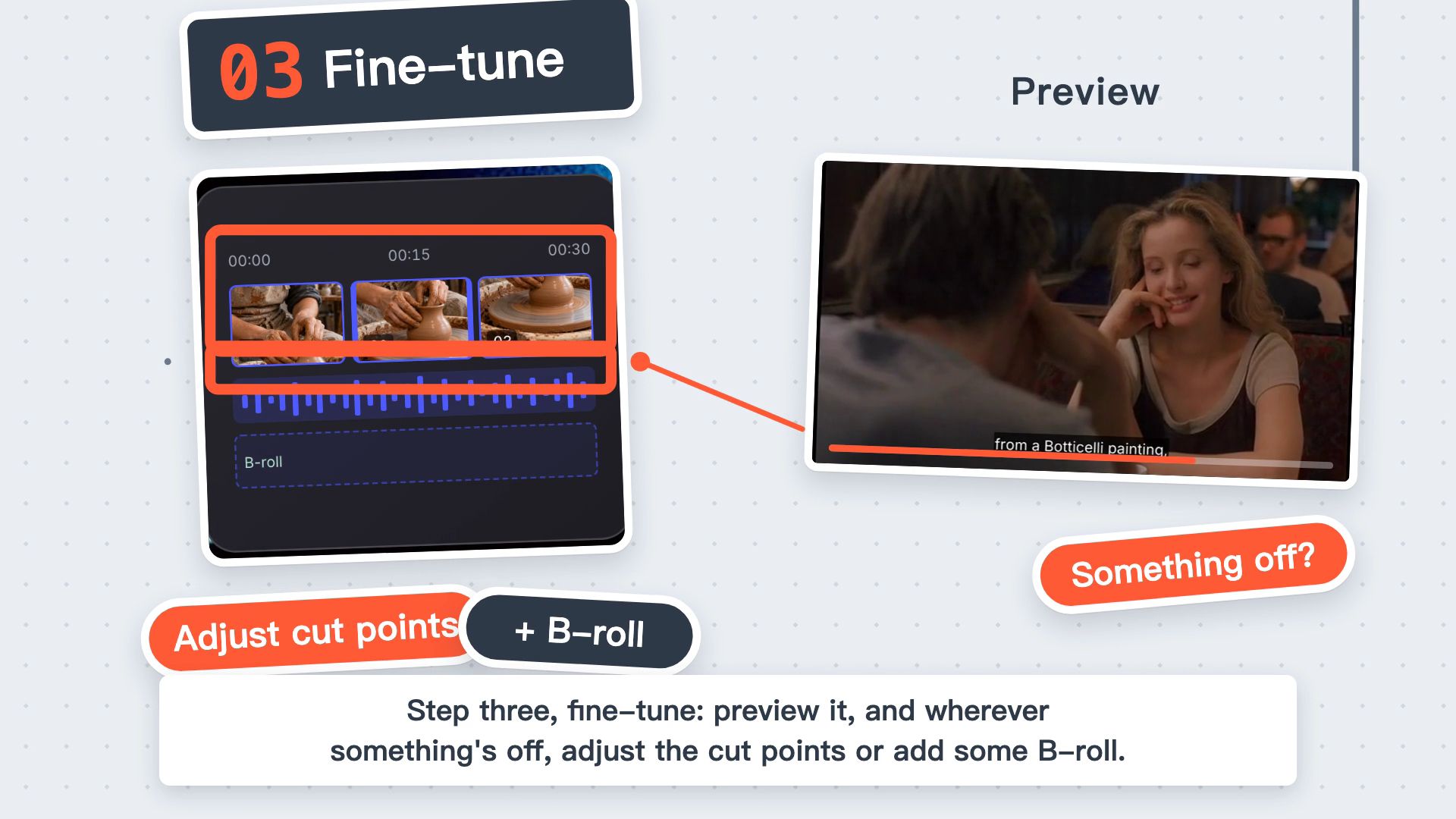
Adjust cut points and add footage that supports the narration. Original frame from the official demonstration.
How should you refine a generated draft?
1. Watch the complete first version
Wait for generation to finish, then play the draft in order. Check whether the story makes sense, the narration and captions are understandable, and the pictures support what is being said. Establish the overall direction before working on individual moments.
2. Make a short, timestamped revision list
A useful note identifies both a location and a problem. Instead of “Improve this section,” write something like “The person appears before the narration explains who they are” or “The shot cuts away before the action is complete.”
These notes give an editor a clear reason to examine a specific part of the draft.
3. Fix meaning before polishing pace
If a section loses important information at its beginning or end, review the cut points. If the narration describes a detail the viewer cannot see, consider relevant B-roll.
Deal with incomplete meaning first. Once the sequence is clear, decide whether its pace matches the tone of the video.
4. Review the surrounding sequence again
Play each revised section with the footage immediately before and after it. Check continuity, meaning, and whether the supporting footage fits the narration. Finish with a complete viewing of the revised video.
This process also helps teams: the reviewer identifies a timestamp and a problem, and the editor works against a shared reference instead of an open-ended request to make the video feel better.
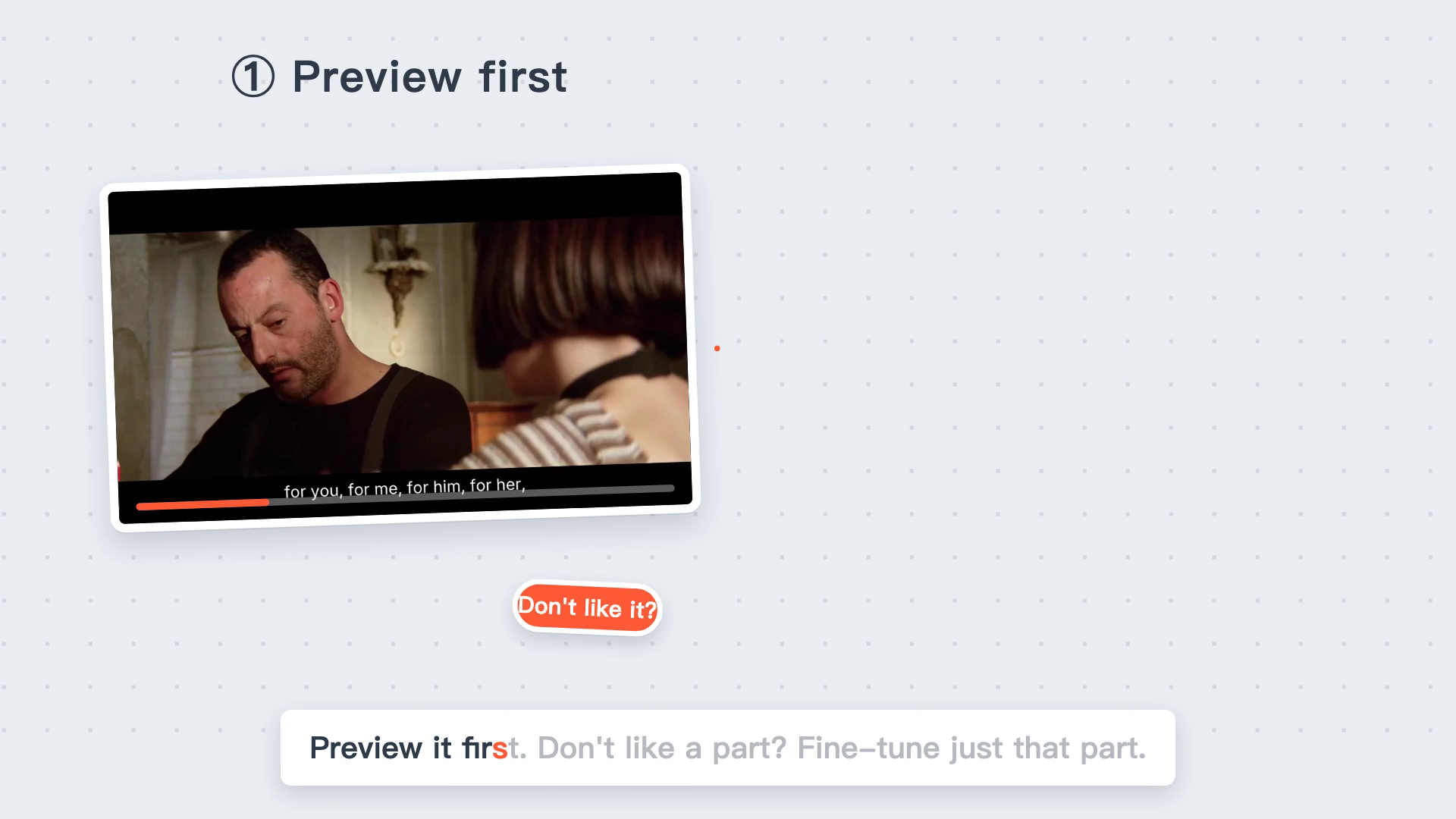
Preview the first version before choosing what to refine. Original frame from the official demonstration.
When is fine editing useful?
The story is clear, but a few shots end abruptly — Review cut points and preserve complete actions or ideas
The narration describes a detail that is not visible — Add relevant B-roll to support that detail
Most of the draft works, but some transitions need attention — List the timestamps and refine them one at a time
The viewpoint, chronology, or relationships are wrong throughout — Reconsider the narrative before making many small edits
For advanced compositing, specialized color work, or particular delivery specifications, check the current workspace against your requirements before planning the rest of production.
Frequently asked questions
When should I start fine editing?
Start after automatic generation is complete and a previewable first version is available. Reviewing the overall result first makes it easier to decide which sections need attention.
Do I need to move the video to another editor for these changes?
Adjusting cut points and adding B-roll are part of Recapo’s fine-editing workflow after generation. Whether you need another application depends on any additional post-production requirements your project has.
If I dislike one section, must I edit the entire video manually?
Begin with that section and its connections to the surrounding footage. If the problem affects the logic of the whole story, revisit the narrative rather than trying to disguise a structural issue with many small changes.
How do I know when to stop refining?
Return to the video’s purpose. Are the key points clear? Do the visuals support the narration? Are transitions understandable and captions placed so important information remains visible? Once those needs are met, further changes should have a specific reason.
Open Recapo and generate a first version from footage you have permission to use. Review it with a short list of concrete changes, then use fine editing to address them.
Feature source: Recapo’s official Chinese and English fine-editing and upload/workflow introduction videos, reviewed October 21, 2026.
By Recapo Team · Updated October 21, 2026
Further reading: Keep context when clipping long videos
