
How to Turn Long Videos into Shorts with Recapo
Learn how Recapo turns long videos into highlights or talking-head clips. Set source range, clip length, framing, captions, and audio, then review your shorts.

Recapo is an AI video editing platform that combines automatic editing with a fine-editing workspace. Its Long Video to Shorts feature turns existing videos into shorter, standalone clips in two ways: Highlights focuses on visual and emotional moments, while Talking-head clips focuses on complete ideas from podcasts, interviews, and spoken content. Choose the source range, target length, framing, captions, and audio before generation, then review the results and select the clips you want to use.
Should you choose Highlights or Talking-head clips?
Start with what the viewer needs to get from the short.
Choose Highlights when the moment is carried by the scene. Highlights focuses on moments with strong visuals and emotion. When reviewing these clips, ask whether a new viewer can understand what is happening, where the action begins, and how the moment ends.
Choose Talking-head clips when the value is in what someone says. This option selects complete ideas and quotable lines from podcasts, interviews, and voiceovers. A compelling sentence may still depend on a qualification or explanation immediately before it. Keep that context in mind when deciding whether a clip stands on its own.
Creating short clips is also a different task from producing a complete movie recap. Clipping selects portions of existing content. A full recap needs a coherent narrative across the story. If your goal is to explain an entire film, a collection of highlights alone may leave the viewer without the necessary connections.
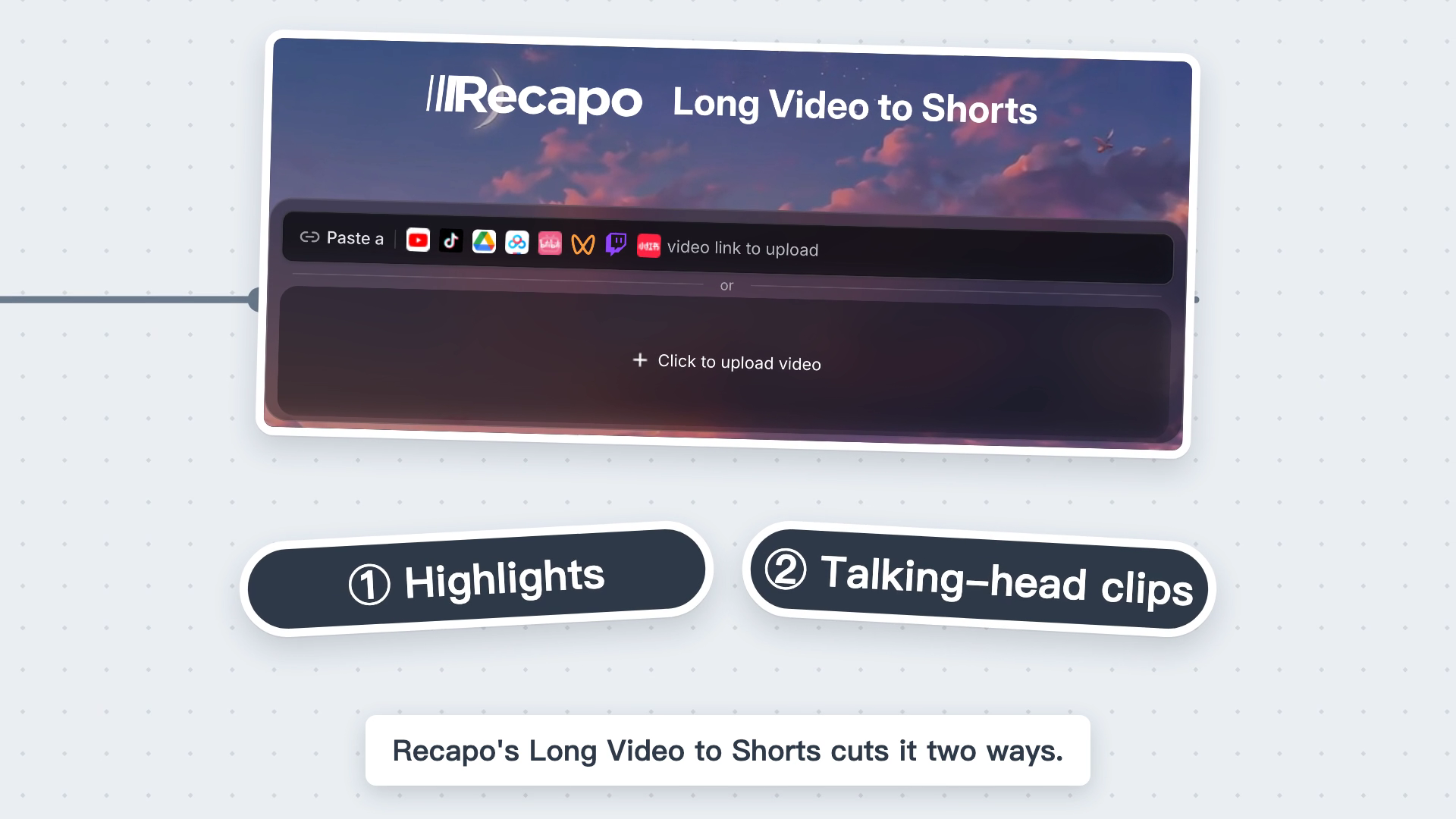
Choose Highlights or Talking-head clips to suit your content. Original frame from the official demonstration.
Where do you start, and what should you set?
Open Recapo’s Long Video to Shorts feature and import the video you want to work with. You can paste a video link or upload a video file. Prepare a source you have permission to use, then decide which part of it you want to analyze.
Set these four items before generation:
Source range. Choose the section of the long video to analyze. For example, if an interview covers several subjects, begin with the section about one topic rather than mixing unrelated material in your first task.
Clip length. Set the target duration for each short. Choose a length that can accommodate the idea or scene; a shorter clip is not automatically a clearer one.
Picture. Set 9:16 framing, filters, and motion. For a vertical output, check that the speaker, demonstration object, and important on-screen text remain visible.
Captions and audio. Decide how to handle dialogue text, original sound, and music. Spoken content should remain easy to follow, and added captions need to work alongside any text already present in the footage.

Confirm the source range and clip settings before generation. Original frame from the official demonstration.
How do you choose which generated clips to publish?
Watch each candidate from beginning to end as if you had never seen the original video. Use three checks before making your selection.
Does the clip make sense on its own? Listen for references such as “this method” or “what she just said.” If the explanation is missing, the viewer may not know what the speaker means. Check that a qualification or exception has not been separated from the claim it limits.
Are the picture and captions readable? Check the vertical framing, important visual details, subtitle placement, names, and specialized terms. A clip can have a useful idea but still need a visual or text correction.
Are the sound and ending complete? Listen for music covering speech and endings that cut a sentence or action in half. Select the clips that communicate clearly; return any that need changes for revision and another review.
There is no need to publish every candidate. For the selected clips, prepare a suitable title and cover, confirm the destination account, and check the requirements of the platform where you intend to publish.
Frequently asked questions
How many shorts can one long video produce?
Use the results of your own source and settings, then select the clips that work as standalone content. The number of candidates is not the number you need to publish; keep the clips that communicate a clear idea or moment.
Can I analyze only part of a long video?
Yes. The Source range setting lets you choose the section to analyze. This is useful when you want to work on a particular subject within an interview or a specific passage of a longer video.
Does Talking-head clips write a new, complete movie recap?
Talking-head clips selects ideas and quotable lines from existing spoken content. That is a different task from building a complete narrative recap of a film.
What content works well for talking-head clips?
Look for podcasts, interviews, or explanations with a clear subject and a complete point. If a conclusion depends on a lengthy earlier discussion, keep more context or reorganize it for a short video. A striking quote alone may not communicate the speaker’s actual meaning.
To begin, visit Recapo and choose Long Video to Shorts. Start with a source section that has a clear topic, choose the appropriate clipping mode, and review the generated candidates before publishing.
Updated October 21, 2026.
By Recapo Team · Updated October 21, 2026
Further reading: The complete workflow for YouTube Shorts from long videos
