
How Does Recapo Turn Footage into a Narrated Video?
Learn how Recapo turns uploaded footage or supported video links into a narrated first cut, with captions, manual refinements and YouTube scheduling.

Recapo is an AI video editing platform that combines an automatic first cut with a fine-editing workspace. Start with a local video or a supported video link, let AI select footage and add narration and captions, then preview and refine the result. The workflow also includes scheduled publishing to YouTube.
This guide explains the four stages: importing footage, creating a rough cut, making adjustments, and scheduling publication.
1. How do you import a video into Recapo?
The upload interface offers two ways to bring in existing footage: upload a local video or paste a video link. Supported link sources include YouTube, TikTok, Douyin, Bilibili, and Xiaohongshu.
Choose local upload when the source file is on your computer. For footage on a supported platform, use the link input and check the result of parsing and importing. Before continuing, confirm that the imported video is the one you intend to edit.
Importing a link brings source material into the editing workflow. It does not publish a new video to the source platform. Use footage you have permission to edit and publish, whichever import method you choose.
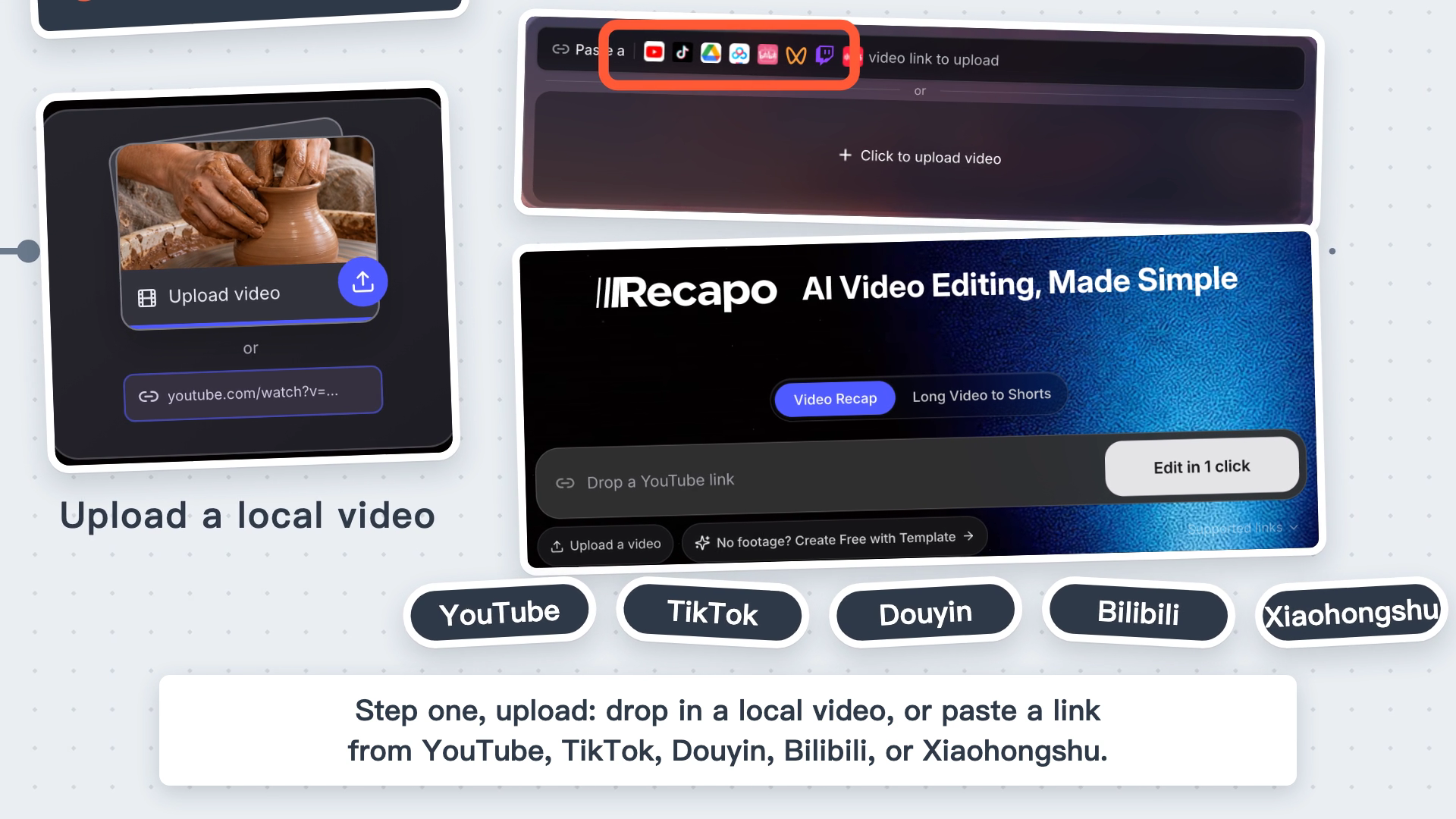
Import footage from a local file or video link. Original frame from the official demonstration.
2. Should you choose Video Recap or Long Video to Shorts?
The homepage has separate Video Recap and Long Video to Shorts options. Choose according to the output you want. Video Recap is the starting point for a narrated recap; Long Video to Shorts leads to the separate short-form workflow.
This article follows the narrated recap workflow. After choosing that task, review the options provided on its current configuration screen before starting generation. Use the settings shown for the selected task, rather than assuming that both workflows offer identical controls.
3. What does the AI rough cut include?
The recap workflow performs three actions: reading the footage, selecting useful moments, and adding narration and captions. These elements are assembled into a first cut that you can preview and refine.
The first cut gives you a concrete result to review. Watch it once from start to finish, then identify specific points to improve. Does the narration describe what is on screen? Does a cut interrupt an action? Is important context missing? These checks help you identify what needs a manual adjustment.
Keeping the initial review focused also helps distinguish a selection problem from a timing problem. A shot may belong in the video but need a different cut point; another moment may need additional visual context.

The AI rough cut combines selected footage with narration and captions for review. Original frame from the official demonstration.
4. Can you change the first cut inside Recapo?
Yes. The next stage is manual fine-tuning: preview the video, adjust cut points, or add B-roll. B-roll is supplementary footage used to support the main narration.
For example, if a shot ends before an action is clear, inspect its cut point. If the narration refers to a detail the current image does not show, consider adding relevant supporting footage.
Automatic editing and manual refinement form a continuous workflow. You can work from the generated first cut and make these adjustments within Recapo, then review how those changes affect the surrounding sequence.
5. What happens when the video is ready?
Once you have reviewed the video, you can schedule it for YouTube. Choose a time in the publishing calendar to arrange automatic posting.
When using this feature, follow the current setup instructions and check the destination account, scheduled time, and task status. This section covers YouTube publication. If you need to publish elsewhere, check the currently supported destinations separately. Check the actual publication result after scheduling.
Who is this workflow for?
This workflow fits creators who already have source footage, want an initial narrated edit with captions, and need room to refine that edit themselves. Deciding between a narrated recap and short-form clips before importing helps you start in the right workflow.
For projects requiring advanced effects, professional color work, or other specialized post-production features, check the exact tools you need first. Consult the current product interface for supported formats, file-size and duration limits, processing time, and generation charges.
Frequently asked questions
Do I need to upload a local file?
Not always. Recapo offers both local upload and link import. A link still needs to be successfully parsed and imported before you continue.
Can I edit the AI-generated version?
Yes. You can preview the first cut, adjust cut points, and add B-roll in the editing workspace.
Does an all-in-one workflow remove the need for review?
No. It connects the production stages. The creator should still check the content, captions, visual matches, and publishing settings before release.
Visit Recapo to start with your footage and the type of video you want to make.
Based on Recapo’s official English and Chinese upload and all-in-one workflow demonstrations, reviewed October 21, 2026. Article images are frames from those product demonstrations.
By Recapo Team · Updated October 21, 2026
Further reading: How Recapo handles uploaded footage
