Differences between video cropping, splitting, and cropping
Learn the differences between cropping, splitting, and cropping videos, and learn how to edit video length and screen composition to your intended purpose.

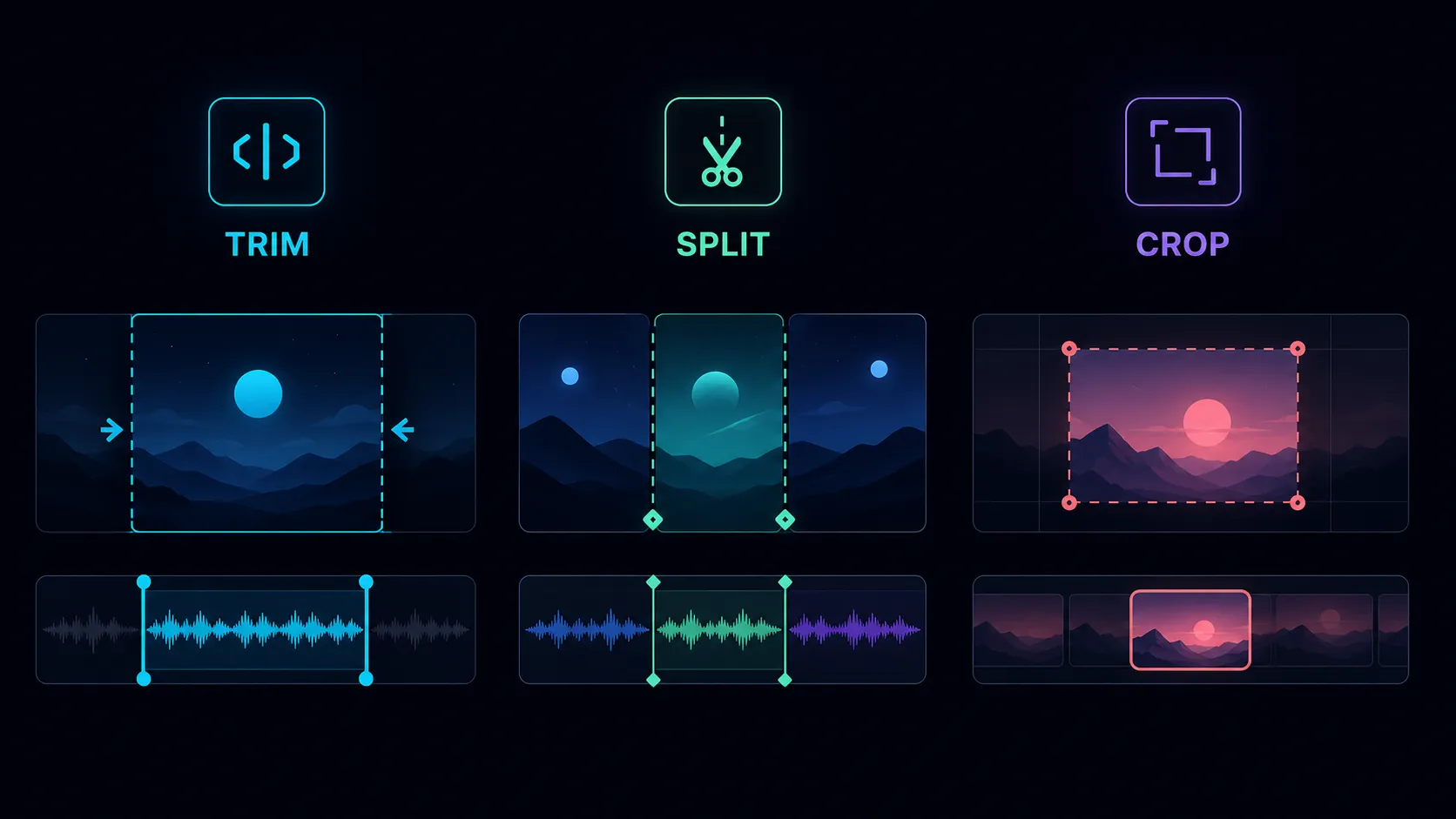
Trimming changes when a clip starts or ends. Splitting divides it at a chosen point. Cropping changes which part of the picture is visible. Choose the operation that matches the problem before changing export settings or discarding footage.
Trim unwanted time at the edges
Use trimming when the useful section is continuous and the unwanted material is before or after it. Typical examples include removing the camera setup, a long pause before the speaker begins, or an ending after the demonstration is finished.
Listen around both new boundaries. A cut that looks tidy on a timeline can remove the first consonant of a sentence or end an action too soon. Leave enough context for the opening to make sense and for the result to register.
Split when you need separate sections
A split creates a boundary within a clip. You can then remove, rearrange, or independently edit the resulting sections. To remove a mistake in the middle, split before and after it, remove that section, and review the join.
Splitting alone does not necessarily shorten the timeline or create separate downloaded files. Export behavior depends on the editor. Name the segments and verify the final deliverables instead of assuming each cut becomes its own export.
Crop to change the visible frame
Cropping removes picture area rather than time. It can make a landscape recording fit a vertical canvas, remove unused space, or emphasize a subject. It can also hide hands, captions, a second speaker, or the result of a demonstration.
Review the crop across the whole clip. A centered person may move toward an edge, while an important control or product detail may appear somewhere else. Change the framing by scene when a single crop cannot preserve the evidence.
Example: turn a landscape demo into a short vertical clip
- Trim: remove the setup before the product enters the frame and the empty ending after the result.
- Split: isolate a repeated attempt in the middle and remove it, while preserving the action that explains the result.
- Crop: choose a vertical composition that keeps the product, the operator's hands, and the result visible.
- Review: watch the opening, each join, and the final result with sound. Check that the shorter edit has not changed the meaning.
- Export: make a delivery copy and inspect the downloaded file on the intended device.
The Recapo AI video editor is a starting point for an authorized video edit. Confirm the controls available for your task and inspect the result; a tool label does not replace the framing and continuity review.
Protect quality and reversibility
Keep the original and save an editable project when the workflow supports one. A crop can reduce the pixels available for a later landscape version. A compressed delivery file may be unsuitable as the source for another edit.
Trimming does not automatically mean lossless output. Some workflows can copy compatible streams under specific constraints, while others re-encode. Export codec, resolution, bitrate, and the tool's behavior determine what changes. Compare the actual output rather than relying on the operation's name.
Common questions
Is cutting the same as trimming?
People use "cut" broadly. Ask whether they mean removing time at the edges, dividing the clip, or removing a section from the middle.
Does cropping make a clip shorter?
No. It changes the visible picture. Use trimming or section removal to reduce duration.
Which operation should I do first?
Usually select the useful time range, arrange the retained sections, then refine framing. Recheck the crop after a timeline change because different moments may now be visible.
Can one crop work everywhere?
Sometimes, but check each destination's layout and overlays. Keep an uncropped source so you can create another version without trying to recover discarded edges.
References
Related Recapo guides