
From Trends to One-Click Upload: Create YouTube and TikTok Videos with Recapo
Follow a complete Recapo workflow: find relevant YouTube and TikTok trends, develop your idea, create and review a video, then upload it and verify the result.

Once you spot a trending topic, the work that follows is often what takes the most time: deciding whether it fits your account, finding footage you can use, developing your own perspective, finishing the video, and switching accounts to upload it. If you have saved plenty of trends but actually posted very little, the problem is often that these steps are not connected.
In Recapo, this workflow can begin with finding trends: explore content leads from YouTube and TikTok, decide on your own video idea, use a suitable creation workflow to make the video, review the final cut, and then upload it to the target platform through the publishing calendar. On your first use, you also need to connect and authorize the target social account. On subsequent uses, you still need to check the publishing settings and the result on the platform.
Below, we will walk through the process in the order you would actually create a video. You can start by opening Recapo's trend discovery page, preparing footage you have the right to use, and following along to develop your own idea and publishing task.
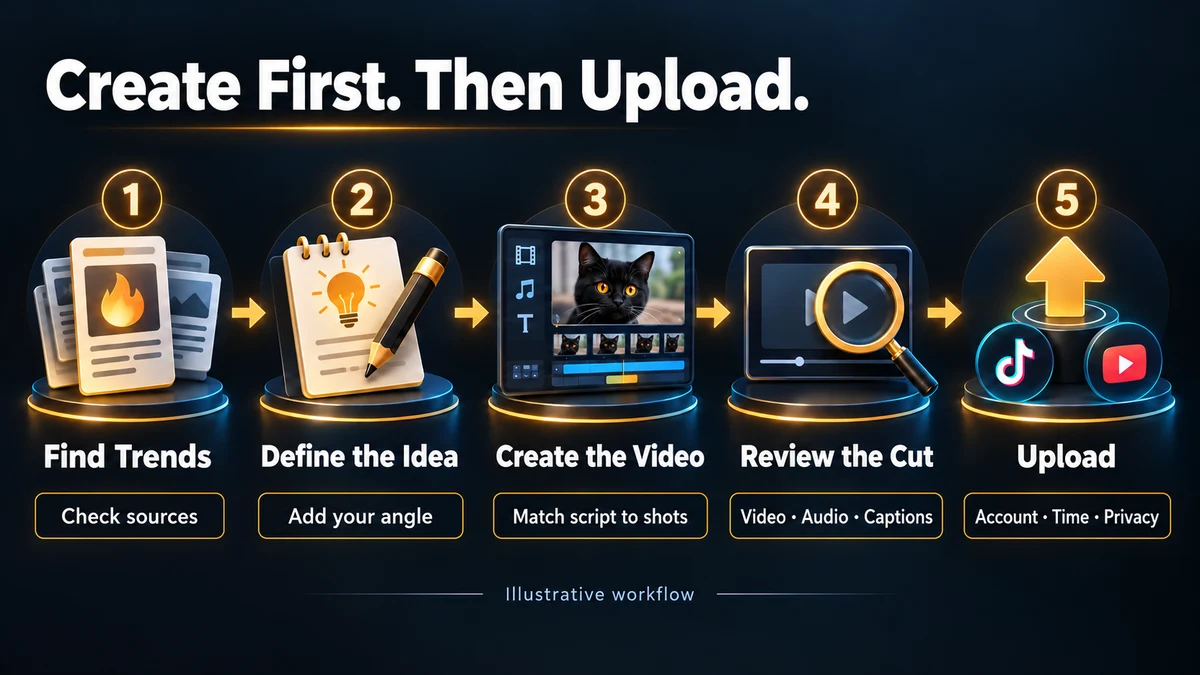
Before you begin, decide who this video is for
The same trending topic can have very different value for different accounts. An account that teaches people how to film pets does not necessarily need to chase the movie trailer with the most views. An account teaching beginner editing does not need to change direction just because a piece of music is popular.
First, write down three answers:
- Who will watch? Be specific about the audience. For example, “beginners who want to get clear footage of their pets with a phone” is easier to build a video idea around than “everyone who has a pet.”
- What will they get out of watching? A practical step, an explanation, a comparison result, or a method they can try.
- What can you use to demonstrate your point? Footage you filmed yourself, clips you have permission to use, screen recordings, or original source material that can be verified.
Next, check that you can log in to the target YouTube and TikTok accounts and that you have permission to upload. Sorting out account issues early helps you avoid finishing a video only to discover that an authorization problem is blocking the next step.
We will use one creative planning example throughout this article: an account about filming pets is planning a short video on “What to check before filming when your phone makes a black cat look like a dark blob.” This example illustrates how the idea, footage, and publishing steps connect. It does not mean the topic has appeared on a trending list or that we have tested its view performance.
Step 1: Look for a question in trending content instead of copying a popular video
Recapo's trending topics page provides entry points for YouTube and TikTok and displays leads for topics or videos. On the YouTube page, you can browse categories such as film, cars, music, pets and animals, sports, and gaming. The page also displays time information. First, switch to the platform and content category that match what you plan to publish, then look at individual entries.
When something interests you, open the original source and consider its title, creator, publication time, and actual content together. A high view count on a list can help you identify something worth researching. A single cumulative number cannot tell you how quickly it is growing now or predict how many views your own video will receive.
As you narrow down the options, ask yourself:
- Do my viewers face the problem shown in this video?
- What can I add: a clearer explanation, my own demonstration, or a comparison under different conditions?
- Do I have enough footage or other material to support this angle?
- Is the information, version, or event that the original content relies on still relevant?
If a topic is popular but has no connection to your account and you have nothing new to contribute, move on to the next one. Narrowing your choices makes the script and editing easier to carry through.
For the pet-filming account in our example, watching pet videos can help you notice whether viewers care about the animal itself or the filming process. If you decide to explain “why black fur is hard to see on camera,” your next step should be to prepare your own filming demonstration, not download someone else's pet video and add a new voiceover.
At this point, the trend has done its job: it has helped you find a question worth answering. The explanation, material, and presentation in your video are still yours to develop.
Step 2: Turn a broad topic into an actionable video brief
“Make a pet video” is not enough to start production. It does not tell you what to show first, what to explain, or what a satisfactory final video should look like.
You can condense the idea into a task brief like this:
Target audience: Beginners filming black cats with a phone.
Specific question: When fur detail is hard to see, what should you check before filming?
Angle for this video: Demonstrate changes in the positions of the subject and light source, and observe how the image differs within the same scene.
Available footage: Original clips you filmed yourself, footage showing you changing the filming position, and comparison clips after the adjustment.
Content sequence: Show the problem footage → explain the one thing being adjusted in this demonstration → show the action → compare the clips side by side or one after the other.
Final-video criteria: Viewers can understand what changed; the comparison conditions are clearly stated; subtitles do not cover the fur detail.
Publishing targets: YouTube Shorts and TikTok, with a title or description prepared for each.
This brief sets boundaries for both the script and the footage. If you have not filmed the comparison result, record it first. If the footage cannot support a claim that “this method always works,” describe the change observed in this particular demonstration instead.
For news, technology updates, or product changes, add the original source and the date you checked it to the brief. Confirming the facts in the script at this stage is easier than redoing the voiceover and assembled video later.
Step 3: Choose a creation workflow based on the material you have
Once the idea is clear, decide how to turn it into a video. Different types of material need different treatment. Use the following table to help choose a starting point.
| What you have now | What you need to do | Recapo workflow you can choose |
| Video footage that needs a new narrative structure | Add your own explanations and voiceover to build a complete narrative | Video commentary |
| An existing long video containing segments that make sense on their own | Extract the content and organize it into short videos | Long video to Shorts |
| A podcast, interview, or your own recorded spoken presentation | Create clips built around a complete point | Talking-head clips |
| A main product presentation and supporting footage | Organize the product explanation and demonstration footage | Marketing video |
You can find these workflows and their material, voice, subtitle, and output settings in the Recapo user guide. Specific options vary by workflow, so use the current workspace as your reference when choosing settings.
If the filming process in our example has already been recorded as a complete tutorial, you can start in the long video to Shorts workspace and select the portion containing the problem, adjustment, and result. If you only have separate demonstration shots and need to write a new voiceover, first match the script to the shots, then enter a workflow suited to commentary.
When importing, use your own files or video links that you have the right to use and that the current workspace supports. A trending source helps you research an idea; it does not automatically grant you the right to download, adapt, or republish the original video. Check the scope of permission before using third-party footage or music.
After importing, check for missing segments, confirm that the picture orientation is correct, and make sure any audio you need has been retained. Seeing a filename does not mean the material is complete and ready to use. At a minimum, preview the opening, key action, and ending before you start generating the video.
Step 4: Make sure every line in the script has a visual to match
You can first divide a short-video script into three parts: the viewer's problem, what you do, and the result you observe. Then decide how much background information to keep.
Continuing our example, an initial demonstration script could read:
“If your black cat looks like a dark blob on your phone, first check where the light is coming from. For this demonstration, I'll use the same phone in the same room, change my filming position, and record another clip. Then we'll put the two clips together and see how the fur detail changes. Try it in your own setting before deciding whether you also need to adjust the exposure.”
This is sample copy to guide filming. Before recording the actual voiceover, revise the wording to match what you captured. Do not let the script draw a conclusion before the footage supports it.
When checking the script, find the corresponding shot for every key line:
- If you say “the detail was hard to see before,” show the original footage.
- If you say “I changed position,” show the adjustment or clearly explain the before-and-after conditions.
- If you say “something changed,” let viewers see enough of the result to make a comparison.
For a line without footage or source material to support it, either add the necessary material or narrow the claim. This check can also reveal another common issue: a shot looks great but has nothing to do with what you are saying. Keeping it may distract viewers, so remove it or move it somewhere more appropriate.
Handle the voiceover and subtitles after confirming the script. Check proper names, numbers, negatives, and references such as “this,” “there,” and “just now,” which may be unclear without the picture. Subtitles should help viewers understand. Adjust any line that is too long, changes too quickly, or covers an important action. For more detailed guidance, see the tutorial on adding subtitles to a video.
Step 5: Check the final video, not just the task-completed message
Once generation is complete, play the entire version you intend to upload. Check it from at least these five perspectives:
Does the opening deliver on the title? If the title promises to solve a filming problem, the opening should show that problem or the demonstration you are about to give. Do not let a lengthy intro take up time viewers need to understand the content.
Does the edit preserve the necessary conditions? Advice may apply only in a particular setting. Cutting the context while keeping the conclusion changes its meaning. For clips that retain the original speech, pay particular attention to how questions and answers connect, negative statements, and changes in direction such as “but.”
Is the picture clear on a phone? Reduce the video to roughly phone-viewing size and check the subject, subtitles, and action details. After a vertical crop, important information at the edges of landscape footage may no longer be in the frame.
Do the audio and subtitles agree? Watch once with sound playing through speakers at a normal volume, then once with the sound muted. The first pass checks whether the narration, original audio, and music drown one another out. The second checks whether the main process is understandable without sound.
Is this the correct final file? If the task produces multiple versions, record this version's filename or task identifier so you do not upload a preview, an old subtitle version, or the wrong language version. If you make further adjustments after exporting, check the revised version again.
For a more detailed editing review, use the YouTube Shorts pre-publishing checklist. Confirm that this final cut is ready before moving into the publishing workflow.
Step 6: Upload the finished video to YouTube or TikTok through the publishing calendar
Open the Recapo publishing calendar and use the option to schedule a post to enter the publishing task. The video you bring into this step should already have passed your final review.
Check the target account first
On your first use, follow the on-screen instructions to connect and authorize the social account you want to use. After connecting, confirm that the account or channel shown is the intended destination. If you manage a personal account, a brand account, or multiple channels, do not rely on the avatar alone.
If you see a message that the login session or authorization has expired, restore the connection before continuing with the current publishing task. If the target account does not appear in the available list, resolve the account connection issue first. Do not switch to another account just to submit the task.
Then check the final video and publishing details
After selecting the final video, check the title or description, cover image, visibility, and any other fields the page requires. For platform-specific settings, confirm the options actually available for that platform and the current account.
You can package the same content differently for each platform. For example, for the demonstration above, you could prepare:
- Sample YouTube title: Can't see the details when filming a black cat with your phone? Compare these two filming positions first.
- Sample TikTok description: Same room, different position—how does the picture change? Let's compare the before-and-after clips.
These examples change only the emphasis of the wording. The video itself still needs to show the comparison described. The title, description, and cover image should all match the final video, and there is no need to add unrelated topics just to include popular terms.
The convenience of “one-click upload” comes after the final video, account, and details have all been confirmed. YouTube's official guidance distinguishes uploading a file from publishing a video: after the file reaches the platform, visibility and publishing settings still determine who can watch it. YouTube upload guidance
Confirm the timing before submitting
Choose from the sending options currently offered on the page according to this task's needs. If you need to schedule the upload, check the date, time, and time zone. When targeting viewers overseas, take particular care to confirm which time zone the calendar displays so you do not mistake your own evening for your audience's evening.
Before submitting, take one last look: which account, which version of the final video, when it will be sent, and who can watch it. After submission, keep the task record and continue checking the platform result.
TikTok's official posting documentation also distinguishes the upload process, subsequent processing, and completion status. You therefore need to check the final status even after the upload action has ended. Depending on the submission method, you may also need to complete further steps within TikTok. TikTok posting status documentation
Step 7: Respond to the publishing status and avoid duplicate uploads
Recapo's publishing calendar includes statuses such as scheduled, submitted for review, partial success, and failed. Once a status appears, let that result guide your next action.
| Current status | What to do next |
| Scheduled | Check the target account, time, and time zone, then check the actual result once the scheduled time has passed |
| Submitted for review | Continue checking platform feedback and visibility; do not immediately repost just because a public video is not yet visible |
| Partial success | Check each destination separately, keep the successful records, and address only the parts that have not completed |
| Failed | Read the specific reason and check account authorization, the file, or the publishing details; correct the issue before deciding whether to retry |
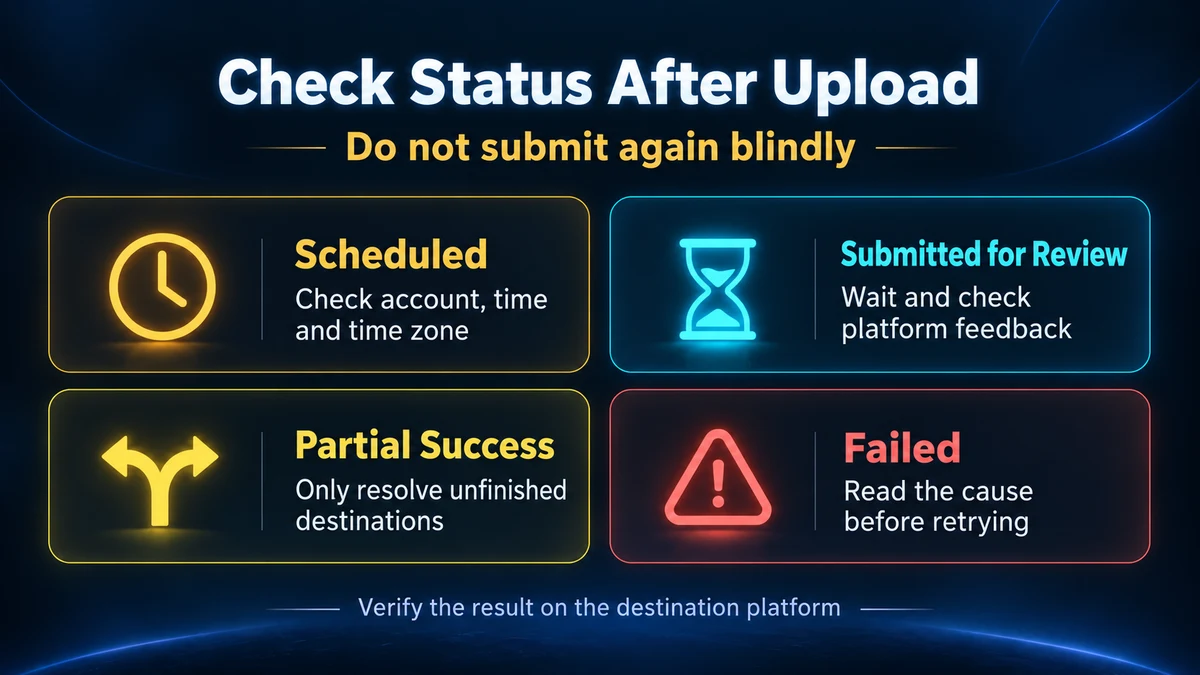
If you receive no clear confirmation for a long time after submission, first inspect the task record and check the target account to see whether the video has already appeared. Repeatedly clicking upload while the status is unclear may create multiple copies of the same final video.
Finally, open the videos actually created on YouTube and TikTok separately and check the account, picture, audio, subtitles, and visibility. If the goal is public publication, also check that viewers can access them as intended. Save the respective platform links so you can later distinguish “this one is complete” from “this one is still processing.”
After publishing, record what is worth keeping from this workflow
After completing the workflow for the first time, keep four kinds of information: the idea's source and timing, your own content angle, the final video version, and each platform's publishing link and result. The next time you make similar content, you will not need to reconstruct the context from bookmarks and download folders.
When reviewing the work, assess production efficiency separately from content performance.
For production efficiency, record the actual time spent, resources consumed during generation or processing, the number of revisions, and the step where you got stuck. For content performance, return to each platform to inspect actual results and audience feedback. Without time records, do not conclude that you “saved half the time.” Making just one video is also not enough to establish that a particular type of trend is a good fit for your account.
If viewers repeatedly ask the same question, you can use it as the idea for your next video. If you keep discovering subtitle errors just before uploading, move the subtitle check earlier. That gives you a concrete basis for improving the next run instead of simply switching to a more popular topic.
Common questions that can interrupt this workflow
Can I start generating a video if I have a trend but no footage?
First, complete the video brief and clarify what content you will use to answer the question. If you need an actual demonstration, someone speaking, or a product's real performance, obtain usable material first. If you use generated visuals to explain a concept, make it clear to viewers that they are illustrative. Do not use visuals to imply that a real-world test or event took place when it did not.
Do I need to make the video twice to post the same final cut on two platforms?
If the aspect ratio, length, audio, and content are suitable for both platforms, you can reuse the reviewed final video and then separately confirm the account, title or description, cover image, and visibility settings. If the viewing experience on one platform calls for a different opening or visual arrangement, create a version for that platform. Decide whether reuse is appropriate based on the actual content and current platform requirements.
If my video is already finished, can I go straight to uploading?
You can begin with the final-video review, then enter the publishing calendar to confirm the account and publishing details. Trend discovery and video creation are the earlier parts of the creative workflow. If you already have a suitable finished video, you do not need to generate it again just to go through every step.
Start with one video: use trend discovery to choose a question relevant to your audience, use your own material to make the answer clear, and then go to the publishing calendar to complete the upload and verify the result. Once that video has a real publishing record, decide which steps are suitable to expand to the next batch.

