
How to Convert MKV to MP4 (Free, No Quality Loss)
Convert MKV to MP4 without losing quality: learn remuxing vs re-encoding and when a free browser workflow is enough.

To convert MKV to MP4 without losing quality, you almost never need to re-encode the video — and that single fact is exactly what most converter pages quietly skip. MKV and MP4 are just containers (wrappers around your existing video and audio streams), so in the large majority of cases you can copy those streams straight into a fresh MP4 in a few seconds, with the picture bit-for-bit identical to the source. This guide shows you how to do that in a browser, explains the remux-versus-re-encode distinction that decides whether quality survives, and covers the small handful of cases where re-encoding genuinely is unavoidable.
Most people land here because a platform rejected their file or a media player refused to open it. The good news: the fix is fast, free, and — done correctly — completely lossless. The bad news is that many one-click "mkv to mp4 converter" pages re-compress your video by default, quietly shaving quality off a file that never needed touching. Understanding the difference takes five minutes and saves you from that trap on every conversion after this one.
Key Takeaways
Why your MKV won't upload (but an MP4 just works)
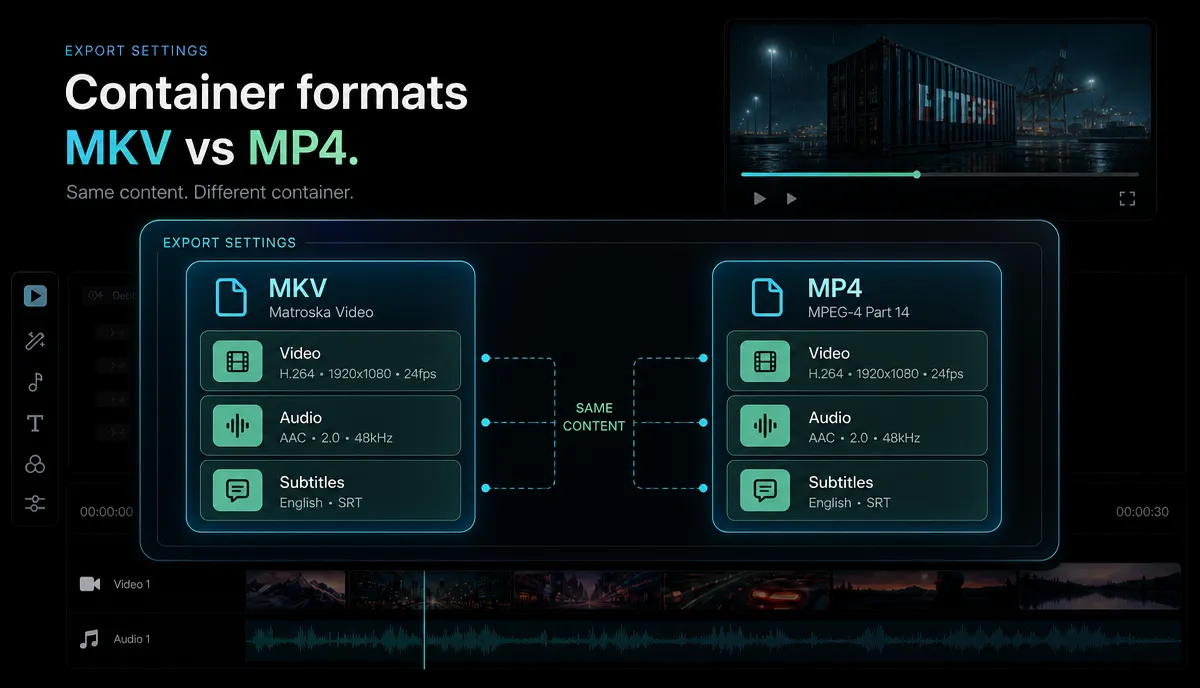
MKV (Matroska) is a fantastic container for storing video. It can hold multiple audio tracks, several subtitle tracks, and almost any codec you throw at it, which is why rips, screen captures, and archives so often arrive as .mkv. The problem is that consumer publishing platforms weren't built around it. MP4 is the container they all expect.
| MKV (Matroska) | MP4 | |
|---|---|---|
| Best at | Archiving, ripping, multi-track storage | Publishing, sharing, universal playback |
| Codec support | Very broad, including newer/experimental | Broad, centered on widely-supported codecs |
| Consumer upload | Not a standard upload container | The format every platform expects |
| Device playback | Needs a capable player (like VLC) | Plays on virtually any phone, browser, or TV |
| Multiple audio/subtitle tracks | Handles many with ease | More limited, but covers common needs |
If you publish to YouTube, TikTok, YouTube Shorts, or Instagram Reels, MP4 is the safe, accepted container everywhere. So when you need to change MKV to MP4, your goal isn't to "improve" the video at all — it's simply to move the same streams into a package the world can open. Keep that goal in mind and you'll avoid paying a quality tax you were never charged.
The secret converter pages bury: MKV and MP4 are just containers
Here's the mental model that changes everything. A video file has two layers:
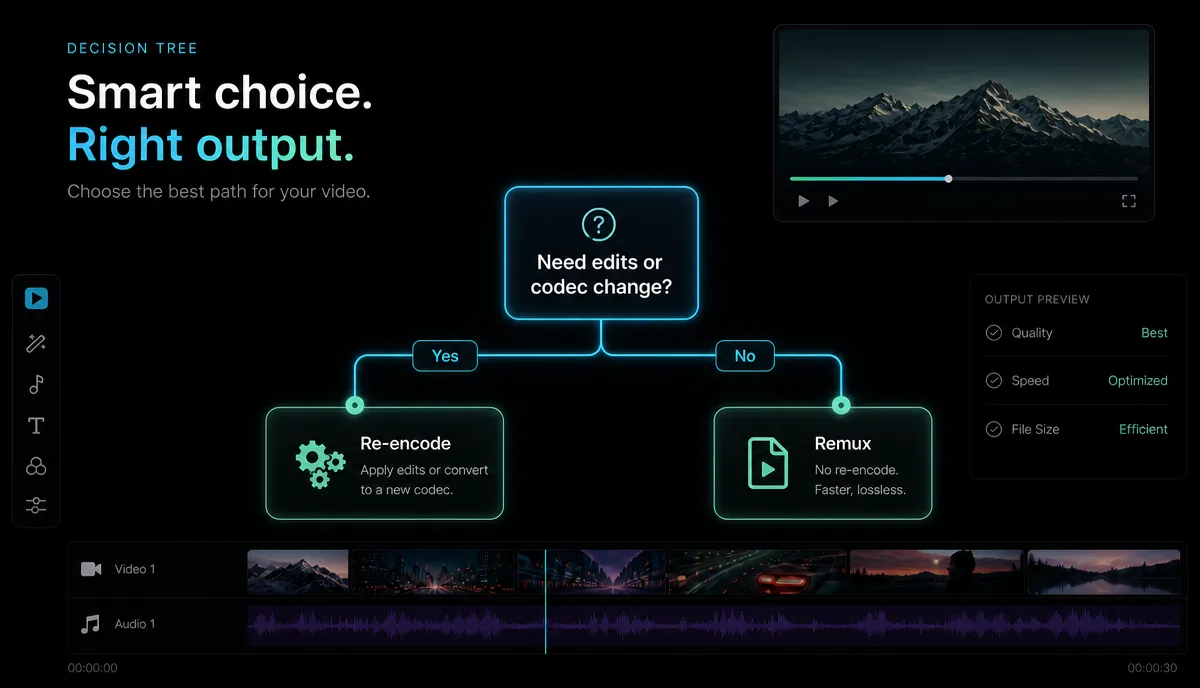
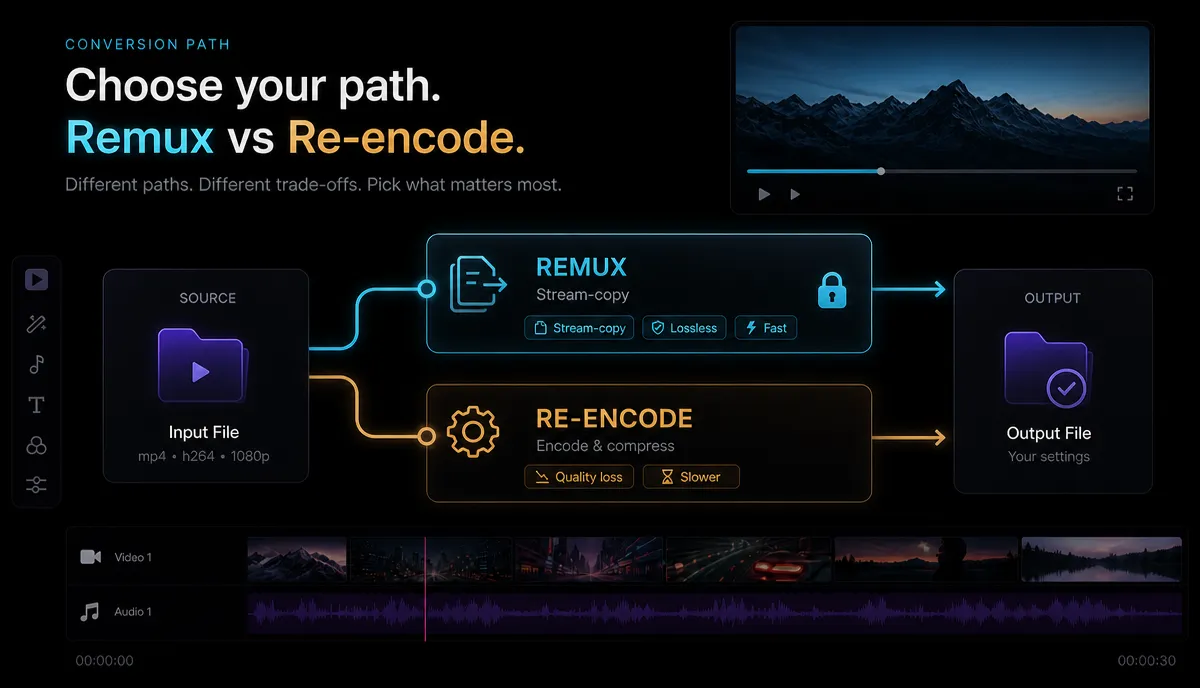
When you "convert" MKV to MP4, you have two very different choices about what to do with those inner streams. You can either repackage them untouched into a new box, or rebuild them from scratch. The first is instant and lossless. The second is slow and always costs a little quality. Converter pages rarely tell you which one they're doing — and by default, many pick the slow, lossy one.
The reason this matters: an MKV that already contains H.264 video and AAC audio (the most common combination) is, stream-for-stream, exactly what belongs inside an MP4. There is nothing to convert except the label on the box. Re-encoding it would be like retyping a whole document just to change the file extension.
Remux vs re-encode: the difference that keeps or kills quality
The technical name for "repackage the streams" is remuxing (short for re-multiplexing). The name for "rebuild the streams" is re-encoding (or transcoding). This is the single most important distinction in the entire topic.
| Remux (stream copy) | Re-encode (transcode) | |
|---|---|---|
| What it does | Copies the same streams into a new container | Decodes and re-compresses the video |
| Quality | Identical to the source — truly lossless | Always some loss (it's generational) |
| Speed | Seconds; barely touches the CPU | Minutes or more; heavy on CPU/GPU |
| File size | Essentially unchanged | Usually smaller — that's the whole point |
| Use it when | The container just needs swapping | The codec is unsupported, or you must change resolution/bitrate |
If you have ffmpeg installed, the lossless remux is a single line:
The -c copy flag is the magic. It tells ffmpeg to copy every stream verbatim instead of re-encoding, so a two-hour movie converts in seconds and the output is a perfect match for the input. That command is the "secret" the converter landing pages don't advertise, because a page that finishes your job in three seconds and asks nothing of you is hard to monetize.
One honest caveat: remuxing only works when the streams inside are ones MP4 can legally hold. H.264 and H.265 video with AAC or AC3 audio remux cleanly. But if the MKV carries something MP4 doesn't support — certain subtitle formats, or an unusual audio codec like Vorbis — that specific stream either has to be converted or dropped. In that narrow case, a partial re-encode is the correct move, which brings us to the next section.
How to Convert MKV to MP4 Without Losing Quality in the Browser
If you don't want to touch a command line, a browser workspace does the same job with a drag-and-drop. Here's the workflow inside Recapo, a browser-based video workspace with no install, so you skip the multi-gigabyte desktop app and the "which build do I download" dance. Each task accepts MKV, MP4, MOV and other common formats up to 6GB.
- Upload the MKV. Open the MKV to MP4 converter and drop your file in. There's nothing to configure before you start — the upload is the hard part, and it's just a drag.
- Run the conversion. Kick off the convert. For a standard H.264/AAC MKV, this is the container swap described above: fast, and there's no reason for the picture to change.
- Verify it's lossless (the 30-second check). Before you trust any converter, glance at two numbers. If the output file size is roughly the same as the input and the conversion finished almost instantly, it remuxed — you kept full quality. If it shrank dramatically and took minutes, it re-encoded, and you'll want to check the picture (more on the self-test below).
- Handle odd inputs with the general converter. If your source isn't strictly MKV — a WebM screen recording, an old AVI, something a player half-opens — route it through the video format converter first to land on a clean MP4 that every platform accepts.
- Go straight into editing. Because you're already in a video workspace, a converted MP4 can flow directly into the next step — captioning, cutting a long recording into short clips, adding an AI voiceover, or reframing to vertical — without a second export or a second app.
That's the whole process. The intelligence is in choosing a remux over a re-encode, not in which button you press.
When you actually need to re-encode (and lose a little on purpose)
Remuxing is the right default, but it isn't always possible. Re-encoding is the correct, deliberate choice in these situations — accept the small quality cost because you're getting something in return:
The rule of thumb: remux first, and only re-encode when a concrete need forces it. Never re-encode "just to be safe" — that's how a perfect file gets quietly degraded.
Your conversion options compared — plus a 60-second self-test
There's more than one way to get an MKV into an MP4, and they don't all behave the same. Rather than trust a checklist, learn what each option is and then test it yourself.
| Method | What it is | Lossless by default? | Trade-off |
|---|---|---|---|
ffmpeg -c copy | A command-line media toolkit | Yes — a literal stream copy | Requires comfort with a terminal |
| VLC | A free cross-platform media player with a convert feature | No — its convert profiles re-encode unless you set a passthrough profile | Familiar, but easy to re-encode by accident |
| HandBrake | A desktop transcoding app | No — it's a transcoder and always rebuilds the video | Excellent for re-encoding, the wrong tool for a pure remux |
| Online converter sites | Browser upload-and-download services | Varies widely; many re-encode | Upload/queue waits; confirm with the self-test |
| Recapo converter | A browser-based video workspace | Run the self-test to confirm on your file | No install; converts, then edits, in one tab |
Notice the honest surprises there: HandBrake, despite being the tool everyone reaches for, cannot do a lossless video remux at all — it's a transcoder by design. VLC can convert, but its default profiles re-encode, so you can lose quality without realizing it. This is exactly why you should never take a converter's word for it. Run this quick test on any tool before you rely on it:
What to upload: a 2–3 minute MKV that includes at least one tricky element — H.265 video, an embedded subtitle track, or two audio tracks. Tricky files expose lazy tools.
What to measure:
- Time. A remux finishes in seconds. If it grinds for minutes, it re-encoded.
- File size. Roughly the same size in and out signals a lossless remux. A big drop means the streams were rebuilt (and quality may have slipped).
- Freeze-frame. Pause the busiest moment — fast motion, fine texture — full-screen in both the source and the output. If they look identical, you're clean.
- Playback. Does the resulting MP4 open on your phone and in a browser? That's the whole reason you converted.
- Extras. Did the second audio track or the subtitles survive, or did the tool silently drop them?
Sixty seconds of testing tells you more than any feature list, and it works on any tool — free, paid, desktop, or browser. That's the honest way to pick a mkv to mp4 free solution you can trust.
Batch-converting a folder of MKV files
Converting one file is trivial. The real chore is a folder of forty rips or screen recordings you've been meaning to clean up. A repeatable approach beats hand-tuning each one:
- Confirm they're remux-friendly first. Convert one representative file and run the self-test. If it remuxes losslessly, the rest of the folder almost certainly will too, since they likely share the same codecs.
- Standardize the container, not the content. Your goal for the batch is one thing: every file leaves as a clean, playable MP4. Don't re-encode the whole folder unless a specific file forces it.
- Sort out the exceptions. Set aside any file that failed the self-test — usually one with an exotic codec or subtitle format — and handle those few with a deliberate re-encode instead of punishing the whole batch.
- Verify a sample, not all forty. Spot-check the two most complex files after conversion. If those play cleanly and match the source, ship the batch.
A browser workspace helps here because there's nothing to install per machine — you can run the same conversion from any computer, then move straight into captioning or clipping the results without exporting to a separate app.
FAQ
Does converting MKV to MP4 reduce quality? It doesn't have to. If the tool remuxes — copies the existing streams into an MP4 without re-encoding — the result is bit-for-bit identical to the source and takes only seconds. Quality only drops when a tool re-encodes the video, which most standard H.264 MKV files never require. Use the file-size-and-time check to confirm which one happened.
What's the fastest way to change MKV to MP4 for free? A stream copy. With ffmpeg it's ffmpeg -i input.mkv -c copy output.mp4; in a browser it's a drag-and-drop into a converter that repackages rather than rebuilds. Both finish in seconds because they aren't re-compressing anything, which also makes them the highest-quality option.
Why won't my MKV upload to YouTube, TikTok, or Reels? MKV isn't a standard consumer-upload container — those platforms are built around MP4. The file itself is usually fine; it's just in the wrong box. Convert it to MP4 (ideally with a lossless remux) and the same video uploads without complaint.
My converted MP4 has no sound or lost its subtitles — what happened? The MKV probably contained an audio or subtitle format that MP4 can't hold as-is, so the tool dropped it during a remux. The fix is a targeted re-encode of just that stream (converting the audio to AAC, for example) or, for subtitles, burning them into the picture so they can't be lost.
Is an online MKV to MP4 converter safe for large files? It depends on the service and the upload. A browser-based workspace can handle large files — up to 6GB per task in Recapo's case — without installing anything. For anything sensitive, prefer a tool that converts without emailing you the result or leaving the file on a public link, and always run the self-test to confirm the output is what you expect.
Ready to convert MKV to MP4 the lossless way?
You now know the one thing the converter pages bury: MKV and MP4 are just containers, so the right move is almost always a lossless remux that finishes in seconds and keeps your video pixel-perfect — not a slow re-encode that quietly costs you quality. Do it without installing anything: create your free Recapo account, drop in an MKV up to 6GB, and get back a clean MP4 that uploads everywhere — then caption it, clip it, or reframe it to vertical in the same browser tab. Convert once, keep every pixel, and stop paying a quality tax you were never actually charged. Pricing details live on the pricing page whenever you're ready to scale up.


