
How to Convert WebM to MP4 Online
Convert WebM to MP4 online, learn why WebM fails on some devices, and minimize quality loss in a browser workflow.

To convert WebM to MP4, you almost always need to re-encode the video — and that is the opposite of what you may have read about other format swaps. WebM is a web-native container built around codecs (VP8, VP9, AV1, plus Opus or Vorbis audio) that iPhones, Adobe Premiere, and most TVs simply won't open, so a real "convert WebM to MP4" isn't a rename — it's a rebuild into the H.264/AAC that plays everywhere. This guide covers where your WebM came from, how to convert it in a browser without uploading to a sketchy site, how to minimize VP9-to-H.264 quality loss, and why a WebM won't play on your iPhone.
Most people land here because a file downloaded as .webm and then refused to open — it wouldn't AirDrop to a phone, drop into an editor, or play in the app they expected. The fix is quick and free, and done right the quality hit is small enough that no viewer will notice. The trap to avoid is the opposite mistake: over-compressing a clean recording, or trusting a converter that stamps a watermark on your export.
Key Takeaways
Where WebM files come from (and why they suddenly won't play)
WebM was designed for one job: streaming video efficiently inside a web browser. It's royalty-free and compresses well, which is why the modern web leans on it heavily. But "great inside a browser" and "great everywhere else" are two different things — and WebM is only reliably the first. You most likely ended up with a .webm file from one of these:
| Source | Why it's WebM | The usual pain point |
|---|---|---|
| Browser-based screen recorders | Tab and screen recorders often export WebM by default | Won't import into a desktop editor |
| "Save video as" from a web page | Many sites serve their video as WebM | Won't play in your phone's native player |
| Screen-capture browser extensions | Chrome/Edge extensions frequently record to WebM | Can't AirDrop it to an iPhone |
| Meeting and whiteboard recordings | Web meeting tools export browser-native formats | Client or platform rejects the upload |
| Web animations replacing GIFs | WebM is a common lightweight GIF alternative | No timeline app will accept it directly |
The common thread: every one of these was created by a browser, for a browser. The moment you take that file somewhere offline — a phone's camera roll, a video editor, a smart TV, a client's inbox — you hit a wall, because those environments are built around MP4, not WebM. So when you need to convert WebM to MP4, you're not fixing a broken file — you're translating a browser-only format into the one the rest of the world speaks.
WebM vs MP4: why this one really is a re-encode, not a rename
Here's the mental model that explains everything. A video file has two layers:
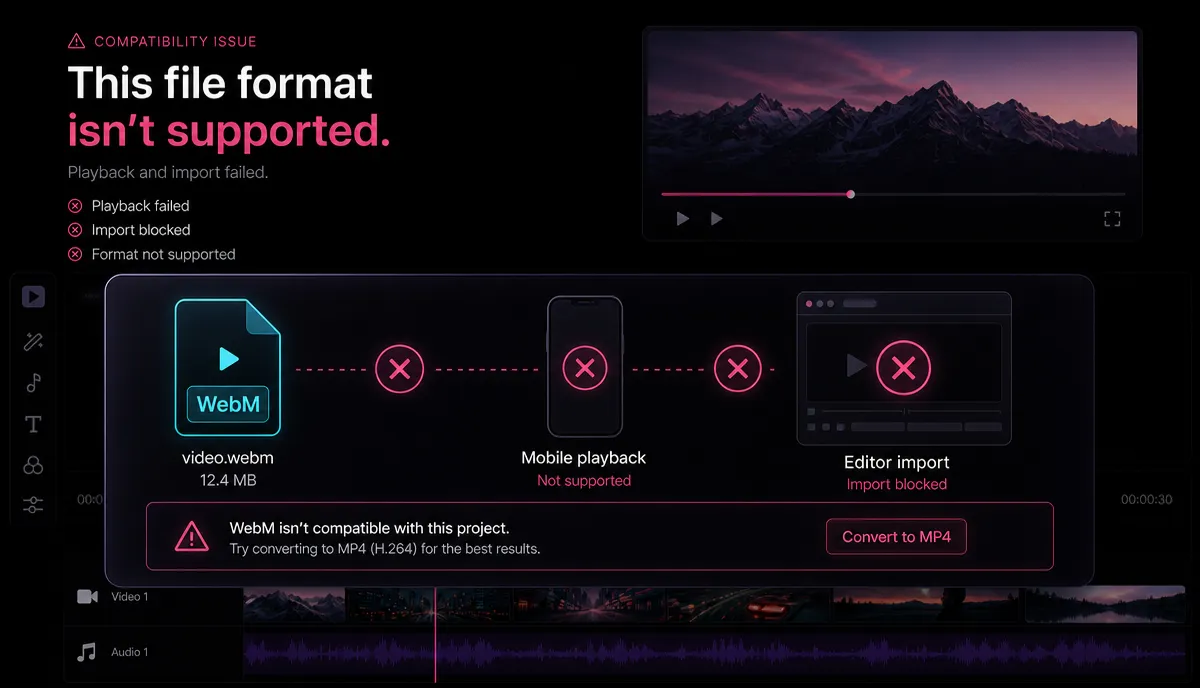
With some format swaps you can keep the inside untouched and just change the box — an instant, lossless "remux." WebM to MP4 is usually not one of those cases, and it's important to be honest about why. WebM's insides are built from codecs that MP4's universal, plays-everywhere profile doesn't carry:
| WebM | MP4 (universal profile) | |
|---|---|---|
| Built for | Efficient browser streaming | Publishing, sharing, playback on any device |
| Typical video codec | VP8, VP9, or AV1 | H.264 (and H.265) |
| Typical audio codec | Opus or Vorbis | AAC |
| Plays on iPhone / Photos app | Unreliable to not at all | Yes |
| Imports into Premiere / most editors | No native support | Yes |
| Consumer upload everywhere | Accepted in some places | The format every platform expects |
Because the codecs are different, making a WebM play like an MP4 means decoding the VP9 (or VP8/AV1) video and re-encoding it as H.264, and doing the same for the audio. That is a transcode, and every transcode costs a little quality — it can't be perfectly lossless. The skill, therefore, isn't finding a magic "no quality loss" button that doesn't exist for this format. It's re-encoding once, at settings high enough that the loss is invisible. The rest of this guide is about exactly that.
(A footnote for the curious: MP4 can technically wrap VP9, but almost no phone, TV, or editor will actually play VP9-inside-MP4 — so chasing a lossless remux here usually gets you an MP4 that still won't open.)
How to Convert WebM to MP4 Online, Step by Step
You don't need a command line or a multi-gigabyte desktop install — a browser workspace does the whole job with a drag-and-drop. Here's the workflow inside Recapo, a browser-based video workspace that runs with no install and accepts WebM, MP4, MOV and other common formats up to 6GB per task, so the same tab that converts your file can also edit it.
- Upload the WebM. Open the WebM to MP4 converter and drop your file in. The upload is the only slow part, and it's just a drag.
- Target H.264 MP4. You want the universal profile — H.264 video with AAC audio — because that's the combination iPhones, editors, and every platform decode without complaint.
- Set the quality before you run it. Keep the native resolution — don't upscale a 720p capture to 1080p, which only adds size, never detail — and choose a bitrate high enough to preserve the source. Our guide on how to compress a video without losing quality walks through the bitrate and CRF settings that keep an H.264 export looking clean.
- Handle odd or half-broken inputs. If your source isn't strictly WebM — an old AVI, an MOV that a player only half-opens, a file with a mangled extension — route it through the video format converter first to land on a clean, standard MP4 that everything accepts.
- Go straight into editing. Because you're already in a video workspace, the converted MP4 can flow directly into the next step — transcribing and captioning it, cutting a long screen recording into short clips, adding an AI voiceover, or reframing to vertical for Shorts and Reels — without a second export or a second app.
The intelligence is in choosing the right target profile and quality, not in which button you press.
VP9 to H.264: keeping quality loss to a minimum
Since WebM-to-MP4 is a genuine re-encode, the honest goal is "loss no viewer will ever see," not "zero loss." Loss from a single, well-set transcode is tiny; problems only show up when a tool re-compresses aggressively. Here's how to control it:
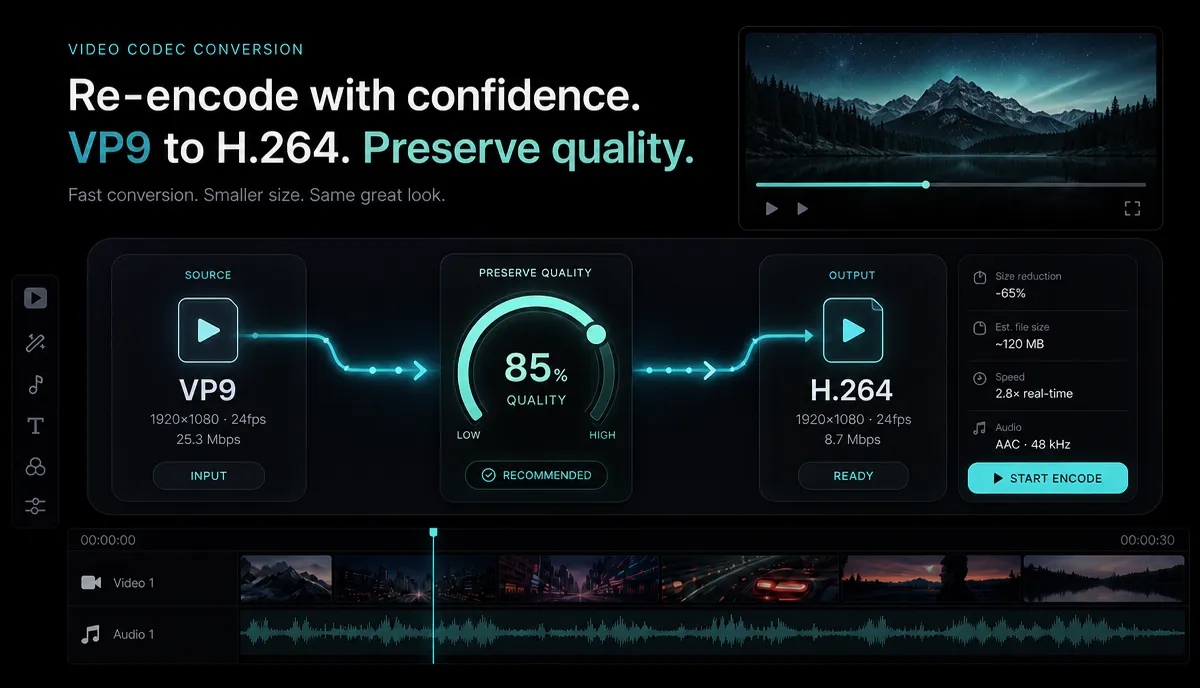
| Setting | What to do | Why it matters |
|---|---|---|
| Resolution | Match the source; never upscale | Upscaling adds file size and zero real detail |
| Bitrate / quality | Set it generously up front | The single biggest lever over how the output looks |
| Passes | One clean pass, not repeated conversions | Every re-encode compounds the loss |
| Frame rate | Keep the original | Changing it can cause stutter or judder |
| Audio | Re-encode Opus/Vorbis to AAC at a healthy bitrate | Prevents thin, muddy sound |
The content matters more than people expect. A 1080p VP9 screen recording — a talking head or a slide deck — has slow motion and flat areas, so re-encoding it to H.264 at a reasonable bitrate is visually indistinguishable from the source. A fast-motion capture — gameplay or sports — is harder to compress and needs a higher bitrate to survive the transcode cleanly. When in doubt, err high: an MP4 that's a little larger than necessary beats one that looks soft, and you can always compress it down afterward. Convert once, at settings you'd be happy to keep — running a file through converter after converter "just to be safe" is how a crisp recording turns to mush.
Why your WebM won't play on iPhone (or import into Premiere)
This is the specific wall most people hit. If your WebM won't play on iPhone, nothing is broken — Apple's native players just don't support the format reliably. iOS doesn't hand .webm files to the Photos app or the built-in player the way it does MP4, which is why a WebM you AirDrop or download to a phone often shows a blank screen or a "cannot play" message. The same happens on the editing side: Adobe Premiere and most desktop editors won't import WebM natively, so a screen recording saved as .webm becomes an unusable brick the moment you try to drop it on a timeline.
The universal fix is to convert it to an MP4 with H.264 video and AAC audio. Here's how the most common destinations behave:
| Where you're sending it | Accepts WebM? | The fix |
|---|---|---|
| iPhone Photos / Messages / AirDrop | No, unreliable | Convert to H.264 MP4 |
| Adobe Premiere / Final Cut | No native import | Convert to H.264 MP4 first |
| Smart TVs / set-top boxes | Rarely | Convert to H.264 MP4 |
| YouTube / TikTok / Shorts / Reels | Some accept it, some don't | MP4 is the safe, always-accepted upload |
| A modern desktop browser | Yes | No conversion needed — but you can't edit it there |
The pattern is clear: the instant your file leaves the browser — onto a phone, into an editor, up to a platform's uploader — MP4 is the format that removes the friction. Convert once, and the file stops being a problem everywhere at the same time.
Comparing your options — plus a 60-second self-test
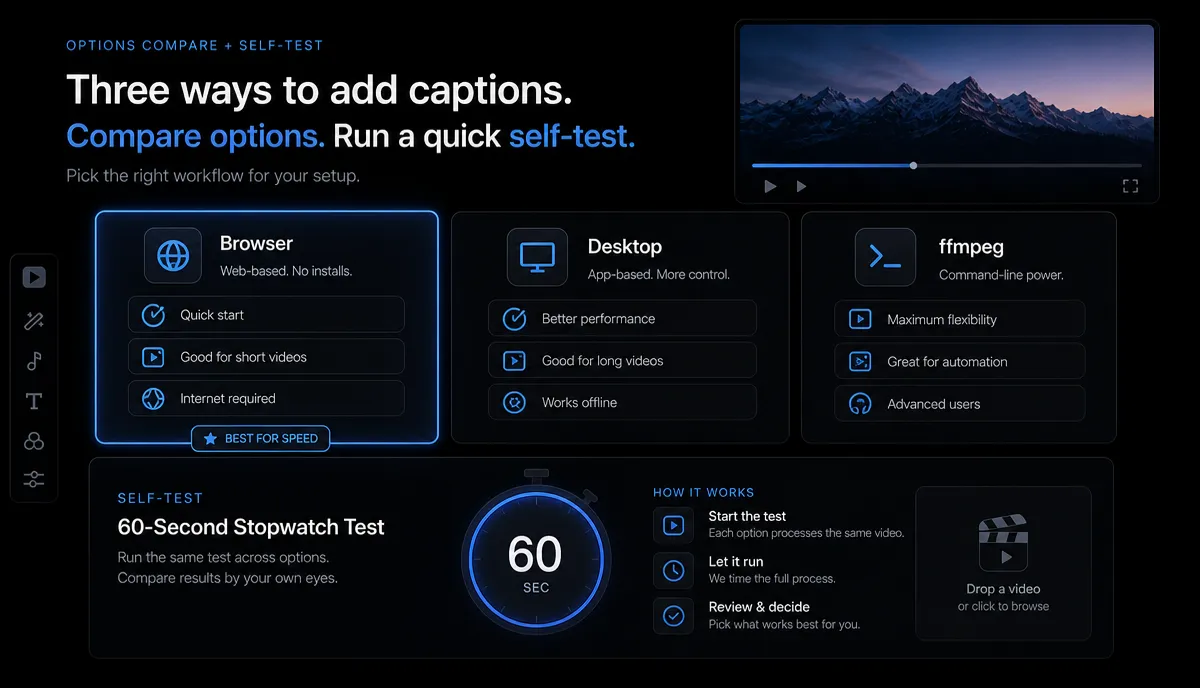
There's more than one way to get a WebM into an MP4. Rather than trust a landing page, learn what each option is, then test it on your own file.
| Method | What it is | Watch out for |
|---|---|---|
ffmpeg | A command-line media toolkit | Powerful and free, but you need to be comfortable in a terminal |
| VLC | A free cross-platform media player with a convert feature | Familiar, but its convert profiles and defaults can vary in quality |
| HandBrake | A desktop transcoding app | Strong at re-encoding; another program to download and learn |
| Online converter sites | Browser upload-and-download services | Upload/queue waits; many fund themselves by watermarking or capping free jobs |
| Recapo converter | A browser-based video workspace | No install; converts, then edits, in one tab — run the self-test to confirm on your file |
The "free" and "no watermark" questions come up constantly here for a reason: some free converters pay for themselves by stamping a logo onto your export or degrading quality on the free tier. So a webm to mp4 no watermark search really asks "will this tool mark up my file?" — and you don't have to take anyone's word for it. Run this quick test before you rely on any converter:
What to upload: a 60-second WebM that includes real motion and audio — a screen recording with a bit of scrolling and voice works well. Simple, static files hide a tool's weaknesses.
What to measure:
- Does it play where you need it? Send the output MP4 to your iPhone and drop it into your editor — if both open it cleanly, the conversion did its job.
- Watermark check. Look at every corner of the export, full-screen. A stamped logo means that tool isn't the free, clean option it appeared to be.
- Quality freeze-frame. Pause the busiest moment — fast scrolling, fine text — full-screen in both the source and the output. If they look the same, your settings were high enough.
- Audio survived and stays in sync. Confirm the sound is there, clear, and lined up with the picture from start to finish.
- File size sanity. A wildly tiny output usually means aggressive re-compression and soft picture; a reasonable size means the quality was respected.
Sixty seconds of testing tells you more than any feature list, and it works on any tool — free, paid, desktop, or browser. That's the honest way to pick a webm to mp4 converter free of nasty surprises.
Batch-converting a folder of WebM recordings
Converting one file is trivial. The real chore is a folder of twenty screen recordings you've been meaning to make usable, and a repeatable approach beats hand-tuning each one:
- Dial in the settings on one file first. Convert a single representative recording, run the self-test, and lock in the resolution and quality that look right. The rest of the folder almost certainly shares the same source characteristics.
- Standardize on H.264 MP4 for the whole batch. One target for everything — H.264 video, AAC audio, native resolution — so every file leaves as something a phone and an editor will both open.
- Sort out the exceptions. Set aside any oddball — a corrupt capture, a wildly different resolution, an unusual frame rate — and handle those few deliberately instead of letting them drag down your defaults.
- Verify a sample, not all twenty. Spot-check the two most complex files after conversion. If those play cleanly on your phone and match the source, ship the batch — and because a browser workspace installs nothing per machine, you can run the same conversion from any computer.
FAQ
Does converting WebM to MP4 reduce quality? A little, and that's unavoidable — WebM's VP9/VP8 video has to be re-encoded to H.264 for MP4 to play everywhere, and any re-encode is generational. But the loss is invisible when you convert once at a high enough bitrate and keep the native resolution. Trouble only appears if a tool over-compresses or you run the file through several converters back to back.
Which free WebM to MP4 converter should I use? The right answer depends on your file, not a ranking. Instead of trusting any tool's marketing, run the 60-second self-test above: convert a real recording, then check that it plays on your iPhone and in your editor, that there's no watermark, and that the picture and audio held up. A tool that passes that on your footage is the one to use — command-line utility, desktop app, or browser workspace.
Why won't my WebM play on iPhone? Because iOS doesn't reliably support the WebM format — its native players and the Photos app are built around MP4/H.264. The file isn't broken; it's just in a format Apple's players won't open. Convert it to an H.264 MP4 and the same video plays in Photos, Messages, and everywhere else on the phone, and AirDrops without complaint.
How do I convert WebM to MP4 without a watermark? Watermarks come from the tool, not the format, so the fix is choosing a converter that doesn't stamp your export — and then confirming it. Convert a short test clip, play it full-screen, and check every corner before you process the file that matters. If a logo appears, that tool's "free" tier isn't actually clean.
Is it safe to convert large WebM files online? It depends on the service and how it handles your upload. A browser-based workspace can process large files — up to 6GB per task in Recapo's case — without installing anything. For anything sensitive, prefer a tool that converts without emailing you the result or leaving it on a public link, and run the self-test to confirm the output.
Ready to convert WebM to MP4 the clean way?
You now know the thing the converter pages skip: WebM to MP4 is a real re-encode, not a rename, because the VP9 codec that makes WebM great in a browser is exactly what stops it from playing on your iPhone or importing into Premiere. Do it right — one clean pass to H.264/AAC at generous settings — and the loss is invisible while the file suddenly works everywhere. Convert without installing anything: create your free Recapo account, drop in a WebM up to 6GB, and get back a clean MP4 you can play on a phone, drop into an editor, or upload anywhere — then caption it, clip it, or reframe it to vertical in the same browser tab. Pricing details live on the pricing page whenever you're ready to scale up.


