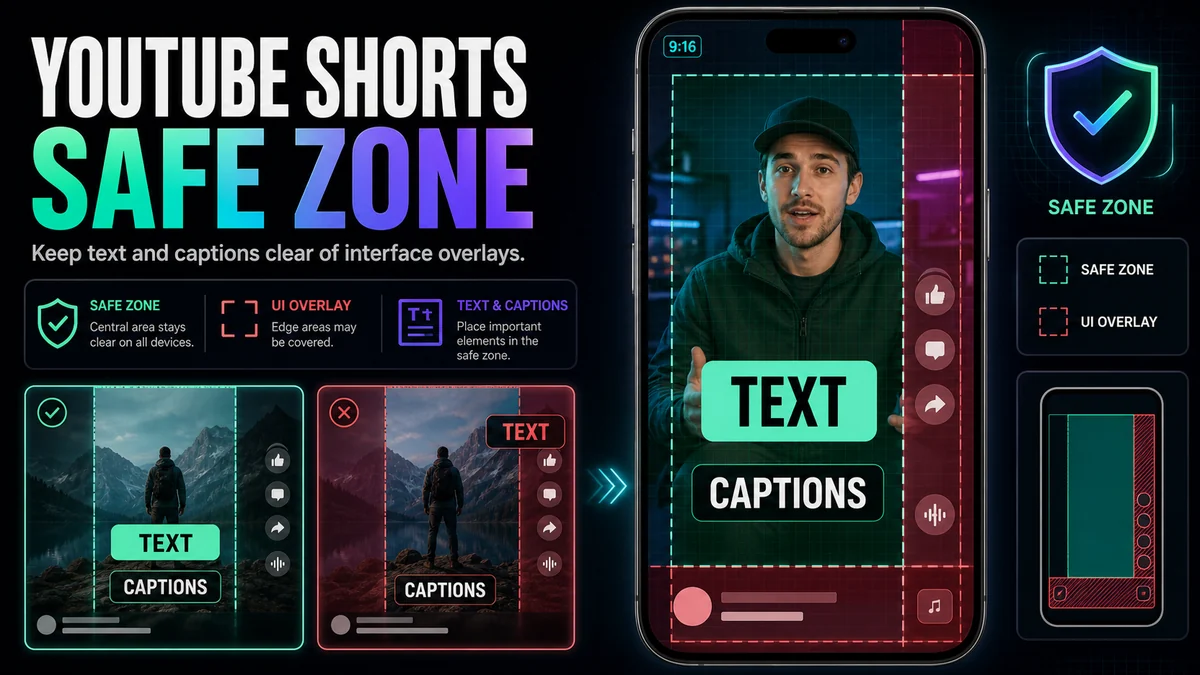
How to Make YouTube Shorts on Desktop Without the Mobile App
Make YouTube Shorts on desktop by selecting a clip, reframing it vertically, adding captions, reviewing the export, and uploading in Studio.
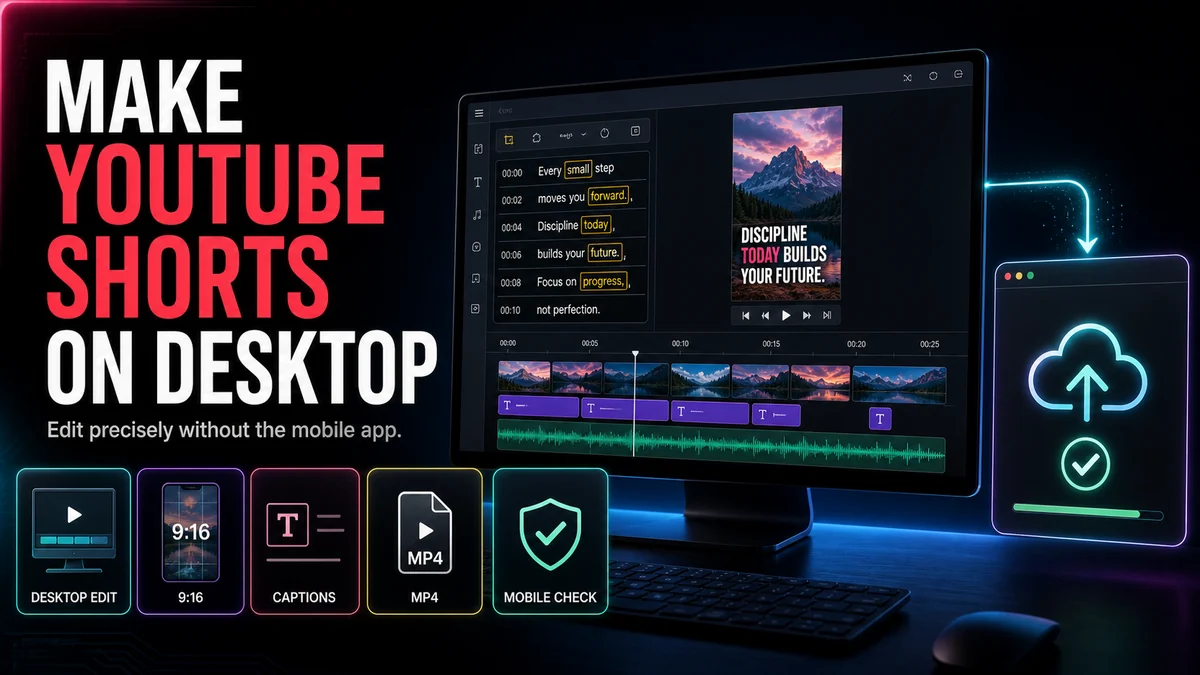
You can make YouTube Shorts on desktop from start to finish: choose a self-contained moment, edit it as a square or vertical video, add readable captions, export the file, and upload it through YouTube Studio. You do not need the mobile app to upload a Short. YouTube’s current desktop guidance accepts qualifying square or vertical files up to three minutes, although the best editorial length is still the shortest version that delivers the idea clearly.
A desktop workflow is especially useful for long interviews, podcasts, tutorials, webinars, and screen recordings because a larger timeline makes precise cuts, transcript review, and vertical reframing easier. The important part is to build for the phone feed even though you are editing on a large monitor.
Key Takeaways
- YouTube Studio supports uploading Shorts from a computer.
- Set a square or vertical canvas before finalizing the edit; 9:16 is a practical full-screen Shorts layout.
- Select one complete idea rather than cutting an arbitrary segment from a long video.
- Review captions and safe areas at phone size, not only in a large desktop preview.
- Upload as a private or unlisted test when you need to inspect classification and overlays before wider release.
What Counts as a Short in the Current Desktop Workflow
YouTube’s official desktop upload instructions say to sign in to YouTube Studio, choose Create, then Upload videos, and select a short file up to three minutes with a square or vertical aspect ratio. YouTube’s three-minute Shorts guidance says qualifying standard-channel uploads made on or after October 15, 2024 are categorized as Shorts when they meet the current square-or-vertical and duration conditions.
That means you do not need a special desktop editing format or a #Shorts label to make the file eligible. The video itself must meet the current classification rules. A wider 16:9 upload is treated as long-form rather than a Short under YouTube’s current guidance.
Platform rules can change, so check the linked YouTube Help pages again before publishing a time-sensitive production guide or large batch.
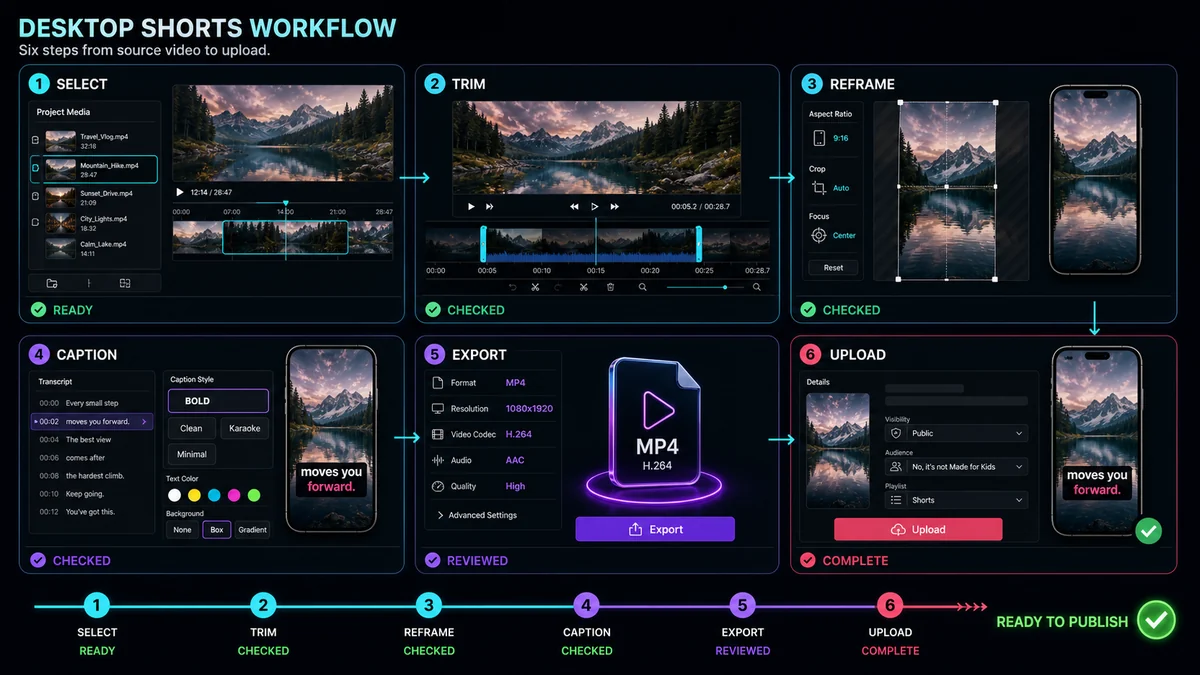
Desktop Workflow at a Glance
| StageMain taskReview question | ||
| Select | Find one complete moment | Does it make sense without the long video? |
| Trim | Remove setup and dead time | Does every remaining second support the promise? |
| Reframe | Build the square or vertical composition | Is the right subject visible in every shot? |
| Caption | Add and correct timed text | Is every line accurate and phone-readable? |
| Export | Create the final file | Does the downloaded version match the project? |
| Upload | Add details in YouTube Studio | Is it classified and displayed as expected? |
Step 1: Define One Viewer Promise
Before opening the editor, write one sentence describing what the viewer will learn, see, or feel. Examples include “See the setting that fixes this error,” “Hear the guest’s clearest answer,” or “Watch the before-and-after result.”
Use the promise to reject weak material. A long-video chapter can contain several useful points, but a Short is easier to follow when it resolves one central question. If a candidate clip needs a minute of context before the key line, find a cleaner moment or add a very brief setup that does not overpromise.
Step 2: Find the Clip in the Long Source
You can scrub the timeline, read a transcript, or use AI to generate a shortlist. Look for a clear start, development, and payoff. A quotable line without context may sound impressive but confuse the viewer; a complete but slow section may need tighter editing.
Mark a little extra material before and after the candidate so you can choose natural cut points. Listen for breaths, sentence endings, room tone, and visual transitions. Cutting exactly at the first and last word can make the result feel clipped.
Recapo’s YouTube Shorts Maker describes importing local footage or a source link and using a transcript to find moments. For a longer source with many possibilities, the AI Clip Generator can rank candidates by a selected clip goal. Use either method to narrow the timeline, then make the final editorial choice yourself.
Step 3: Set the Vertical Canvas
Switch to 9:16 before detailed cropping and caption styling. This shows the actual space available for faces, products, screen controls, and text. Do not stretch a horizontal source to fill the canvas.
Choose the layout that preserves meaning:
- Use a stable crop for a centered speaker.
- Reframe when the subject or visual priority changes.
- Switch crops between interview speakers.
- Stack a face and screen when both must stay visible.
- Use a background fill only when the complete wide frame remains necessary and readable.
Keep crop motion restrained. A stable frame with a purposeful cut is often clearer than a crop that continuously follows small movements.
Step 4: Edit for a Complete Short
Trim greetings, repeated questions, long pauses, and references to missing context. Move the strongest clear line or visual close to the beginning, but do not manufacture a hook that the rest of the clip fails to support.
Check the ending with equal care. The Short should resolve its promise or intentionally create a transition to related content. An abrupt cut after the last word can sound unnatural; preserve enough room for the thought to land while removing empty tail time.
If the video will loop, the ending also needs to connect cleanly to the opening. That may require matching motion, audio ambience, or sentence structure rather than simply duplicating frames.
Step 5: Add Captions and Mobile Graphics
Horizontal lower thirds and desktop screen labels rarely survive a vertical crop unchanged. Rebuild them as shorter lines and stack information vertically. For captions, generate the transcript, correct names and numbers, adjust timing, and place the text away from the bottom and right-side interface areas.
Recapo’s Auto Captions describes language selection, editable synced captions, position and style controls, live preview, and a captioned-video output. Whether you use that workflow or YouTube’s caption tools, automatic text needs a human review.
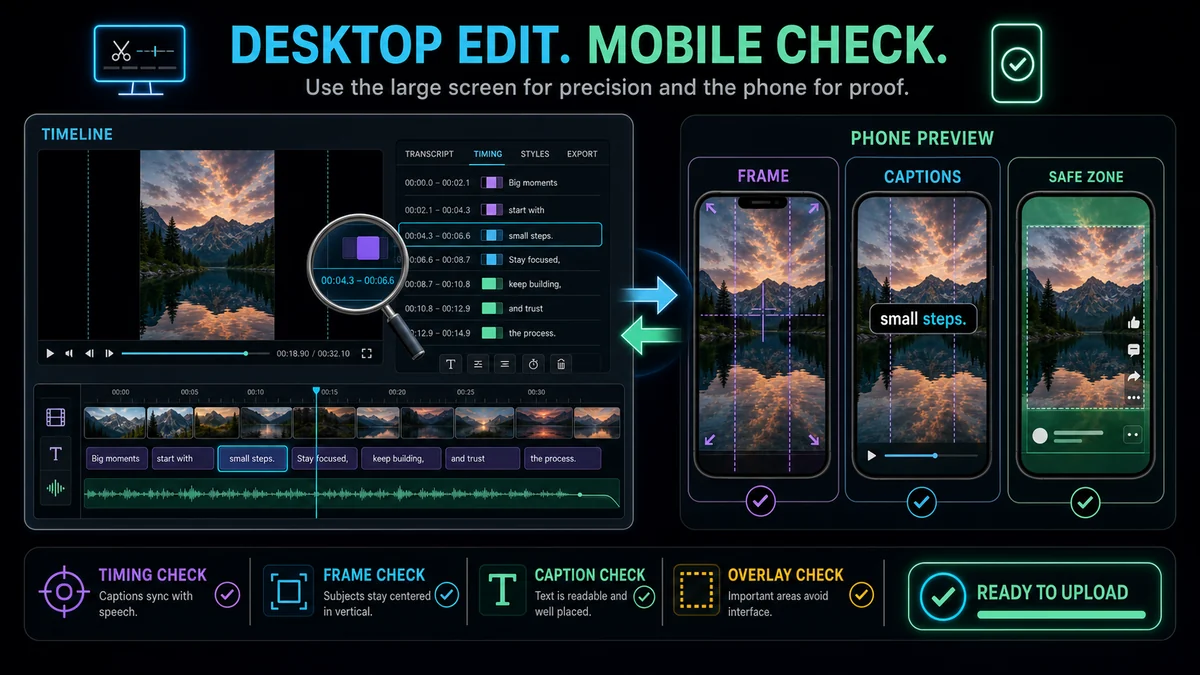
Do not judge readability only at 100% editor zoom on a desktop monitor. Scale the preview down to phone size and inspect the longest line over both bright and dark shots.
Step 6: Run a Pre-Export Review
Watch the project without stopping once with sound and once muted. The sound-on pass catches clipped words, uneven levels, and abrupt transitions. The muted pass reveals whether the visual sequence and on-screen text still communicate the point.
Use this checklist:
- One clear promise is established near the beginning.
- The clip makes sense without the long source.
- The canvas is square or vertical.
- The active face, product, cursor, or action remains visible.
- Captions are accurate, synchronized, and readable at phone size.
- Essential text stays away from likely interface overlays.
- The ending feels deliberate.
- Third-party music, footage, and graphics are cleared for use.
Step 7: Export the Final File
Export one clean master from the completed project. Avoid unnecessary chains of exports because each additional encode can reduce quality. Watch the downloaded file—not just the editor preview—and confirm orientation, crop, sound, captions, and duration.
Keep the editable project and caption source. If a safe-area issue appears after upload, you can adjust the layer and export again without rebuilding the entire Short.
Step 8: Upload Through YouTube Studio
On desktop:
- Sign in to YouTube Studio.
- Select Create and then Upload videos.
- Choose the final square or vertical file.
- Complete the title, description, audience, visibility, and other applicable settings.
- Review checks and processing status shown by Studio.
- Use private or unlisted visibility for a test when you need to inspect the result before broader publication.
YouTube’s desktop Shorts Help page notes that creators can upload more than one short file in a batch, but each draft still needs its details completed. For quality control, confirm the correct title, caption track, and visibility for every file rather than assuming batch settings are identical.
Desktop vs Mobile: Which Workflow Should You Use?
Desktop is a strong fit for long-source editing, precise timing, transcript review, multi-layer captions, and file organization. Mobile is convenient for recording, quick in-app effects, and publishing while away from a workstation.
You do not need to choose one permanently. A creator might cut and caption on desktop, upload in Studio, and use a phone only for the final feed preview. Choose the surface that makes each decision easiest to review.
Common Desktop Mistakes
Editing a Vertical Video as if It Were Landscape
Large monitors hide scale problems. Keep a phone-sized preview visible and check the actual vertical crop often.
Uploading the Original 16:9 File
A wide source does not meet YouTube’s current square-or-vertical Shorts classification. Export the intended Short file rather than the horizontal master.
Letting AI Choose Without Context Review
AI can shorten the search, but a high-ranked moment may begin mid-thought or depend on missing context. Review every candidate as a first-time viewer.
Assuming Captions Are Finished After Transcription
Correct wording, line breaks, timing, and placement. Automatic captions are a draft, not the final editorial layer.
Publishing Before Checking the Real File
The editor timeline is not the deliverable. Watch the exported file and, when appropriate, a test upload.
Frequently Asked Questions
Can I upload a YouTube Short from a computer?
Yes. YouTube’s official instructions support uploading a qualifying Short through YouTube Studio on a computer.
Do I need the YouTube mobile app to make a Short?
No. You can edit the square or vertical video on desktop and upload it through YouTube Studio. Some mobile creation features may differ, but the upload itself does not require the mobile app.
Does a desktop Short have to be 9:16?
YouTube’s current classification allows qualifying square or vertical videos. A 9:16 canvas is a practical choice for full-screen vertical viewing, but it is not the only eligible shape.
How long can a desktop-uploaded Short be?
YouTube’s current Help guidance allows qualifying Shorts up to three minutes. Check the official page before publishing because platform rules can change.
Can I make several Shorts from one long video?
Yes, when the source contains several independent moments. Give each Short its own promise, context, crop, caption review, and ending rather than dividing the timeline at arbitrary intervals.
Build on Desktop, Judge on a Phone
Desktop tools make long-source editing and detailed review efficient, but the viewer still experiences the result in a mobile feed. Use the Recapo YouTube Shorts Maker to select, trim, and reframe the clip, check it at phone size, and upload the verified file through YouTube Studio.
References and Official Sources
- Recapo YouTube Shorts Maker
- Recapo Auto Captions
- YouTube Help: Upload YouTube Shorts from a computer
- YouTube Help: Understand three-minute YouTube Shorts
- YouTube Help: Shorts upload tips
Related Recapo Guides
- How to Make YouTube Shorts from Horizontal Video
- YouTube Shorts Safe Zone Guide
- How to Find the Best Moments in a Long Video with AI