How to Remove Wind Noise from Video Audio
Learn how to remove wind noise from video audio, distinguish rumble from distortion, clean the track cautiously, and prevent wind at capture.
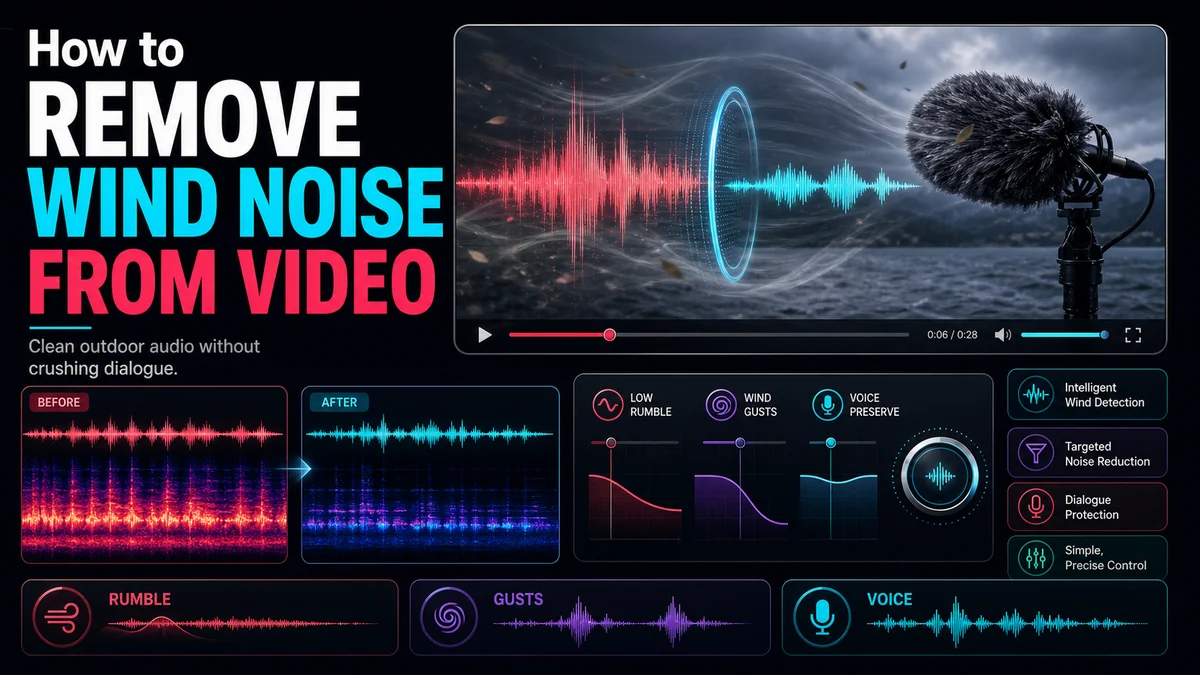
To remove wind noise from video, first identify whether you are hearing steady low-frequency rumble, changing broadband noise, or microphone overload. Apply cautious noise reduction to the whole track only when the wind texture is reasonably consistent. Use local edits for individual gusts, and compare every pass with the original voice. Cleanup can suppress wind, but it cannot fully restore words that were masked or distorted during recording.
Key Takeaways
- Wind noise is not one uniform problem: it can be low rumble, changing broadband bursts, or clipped distortion.
- Roughly steady wind and rumble are better candidates for general denoising than isolated gusts.
- Sudden gusts should usually receive local timeline, level, or spectral treatment.
- Strong processing can make speech thin, bubbly, metallic, or difficult to understand.
- Wind protection, microphone placement, and a short monitored test are more reliable than rescue work later.
Diagnose the Wind Before Choosing a Fix
Wind becomes audible when moving air reaches a microphone and creates pressure changes around the capsule. The result varies with the microphone, device, direction, gust speed, and any windshield used.
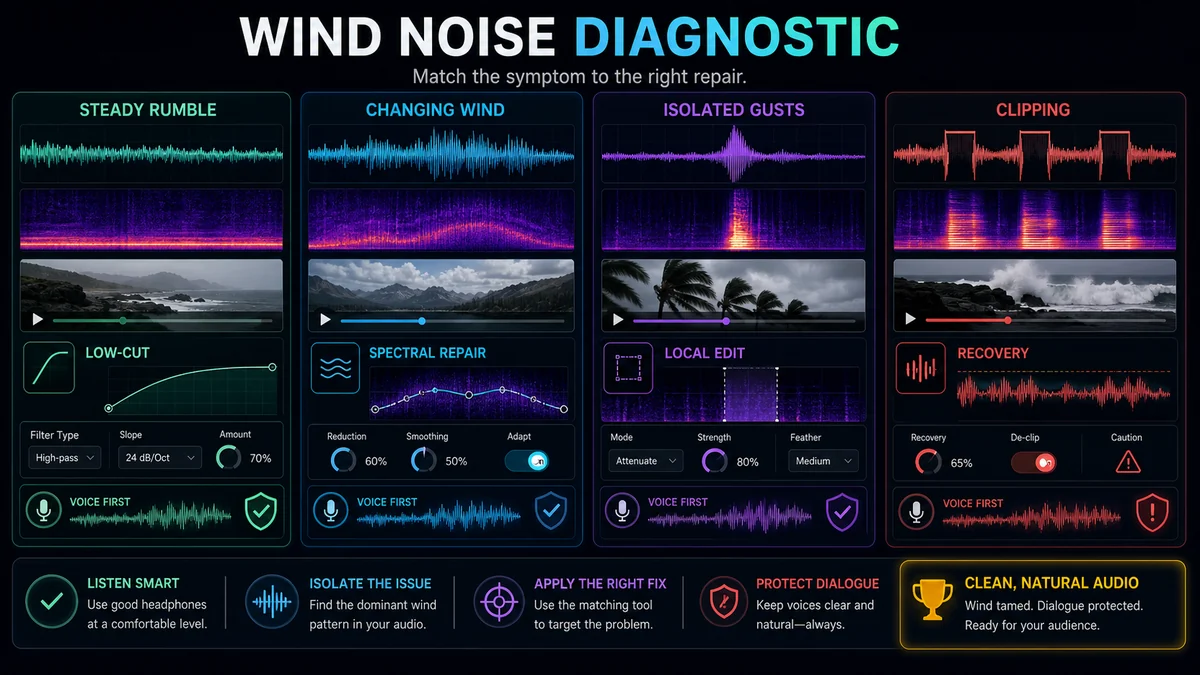
Listen on headphones and inspect the waveform or spectrogram if your editor provides one. Classify the problem before processing:
| What you hearLikely patternBest first responseLimitation to expect | |||
| Continuous low rumble | Mostly low-frequency energy | Cautious denoise or low-frequency cleanup | Voice body can thin if pushed too far |
| Soft, changing “whoosh” | Variable broadband wind | Adaptive or general noise reduction, tested gently | Some texture may remain |
| One or two hard gusts | Transient local event | Clip-level automation or targeted repair | A masked word may not be recoverable |
| Crackling or flattened peaks | Possible overload or clipping | Local repair, alternate audio, or re-record | Lost waveform detail cannot be reconstructed reliably |
| Wind plus music/effects | Mixed-source problem | Consider separation before cleaning dialogue | Separation may leave residue |
The distinction between steady and sudden noise is essential. Recapo’s official Audio Noise Reduction page says the process is most effective on sound that remains roughly constant, while one-off sounds such as a door slam are better handled in the timeline. Audacity’s official manual makes a similar distinction between constant background noise and irregular events.
Step-by-Step Wind Noise Cleanup Workflow
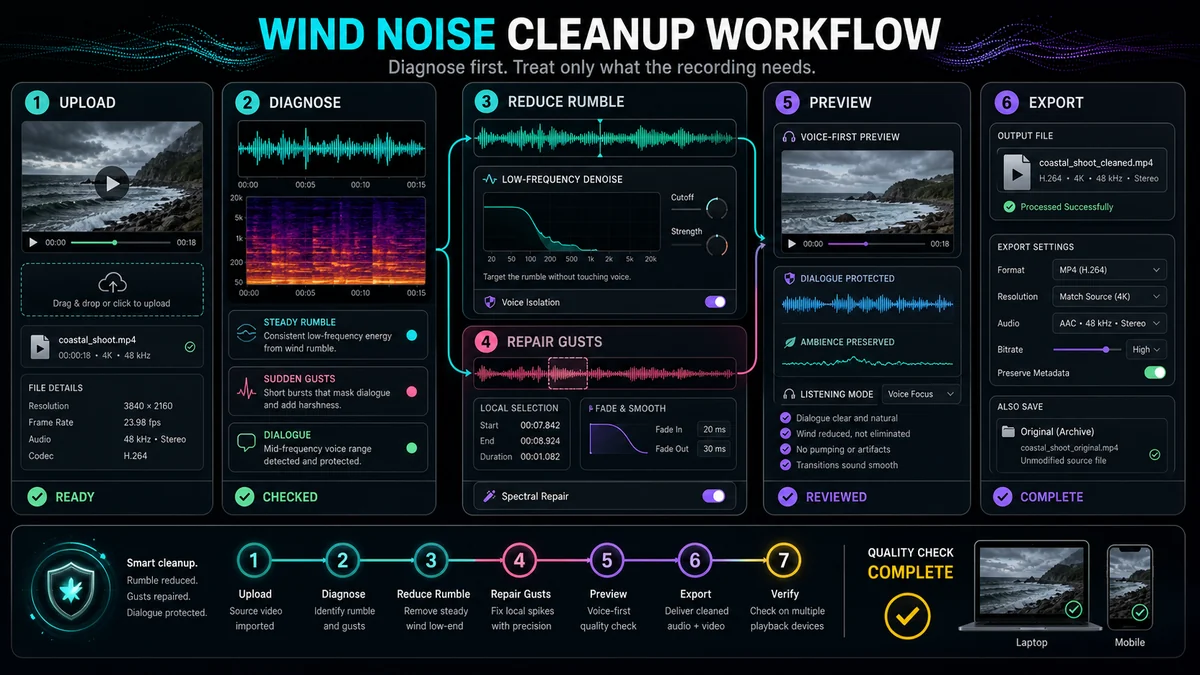
1. Preserve the original and duplicate the track
Keep the untouched video. If you are working in an editor, duplicate the audio track or create a new version before applying cleanup. This gives you a reference and lets you restore a word, breath, or ambient transition that processing damages.
Do not normalize or boost the recording before diagnosing it. Raising the level also raises the wind and can make the problem feel worse without changing the underlying signal-to-noise relationship.
2. Mark every wind event
Play the entire recording once and place markers at:
- long sections of background rumble;
- gradual changes in wind intensity;
- short gusts over speech;
- clipped or crackling moments;
- quiet pauses that expose the noise floor;
- transitions between sheltered and exposed locations.
This map prevents a common mistake: choosing settings from one section and applying them blindly to a recording whose wind changes throughout.
3. Test general noise reduction on a representative section
Open Recapo’s Audio Noise Reduction and use a short, difficult but representative passage. The official product page supports cleaning the soundtrack of a video directly, so a separate extraction step is not required just to denoise the video.
Preview the result for both noise reduction and voice damage. The target is not a perfectly silent background. It is a cleaner track that still sounds human and remains easy to understand. Recapo’s own guidance warns that aggressive denoising can produce robotic or underwater speech.
4. Treat isolated gusts locally
A gust is a time-limited event, not a stable noise floor. If it lands between words, reduce that short region with clip gain or volume automation and add tiny fades to avoid an abrupt boundary. If it overlaps a word, compare several options:
- retain a quieter amount of the gust to preserve intelligibility;
- use a nearby alternate take or second microphone if available;
- patch a short ambience bed around the repair;
- use spectral editing when the gust occupies a visible region that can be reduced without erasing the voice;
- add a caption or re-record the line if the speech is not recoverable.
Audacity’s spectrogram documentation notes that spectral views reveal how energy changes across frequency and time and can help isolate transient artifacts. That makes a spectrogram useful for diagnosis, but it does not guarantee a clean removal when wind and speech overlap.
5. Address low rumble conservatively
Low-frequency cleanup can reduce handling noise and wind rumble, but speech also has useful low-frequency content. Avoid copying a fixed cutoff from a generic tutorial. Voices, microphones, and recordings differ. Increase the cleanup only until rumble becomes less distracting, then compare the natural body of the voice with the original.
If a filter makes the speaker sound small or brittle, reduce its strength. A modest remaining rumble can be less objectionable than a visibly processed voice.
6. Recheck loudness and continuity
Noise reduction can change perceived loudness. Compare at matched listening levels so “louder” is not mistaken for “better.” Listen through every transition between processed and unprocessed regions. Add short crossfades or a controlled ambience bed if the background jumps abruptly.
7. Export and perform a real-world review
Open the exported video rather than trusting the editor preview. Check it on headphones and a typical phone or laptop speaker. Confirm that dialogue remains in sync and that no word has been clipped by local edits. Keep the original until the delivery copy is approved.
What Noise Reduction Can and Cannot Do
It can often help with:
- sustained low rumble;
- a relatively consistent wind texture;
- wind that stays below the voice;
- a dialogue stem that remains intelligible beneath the noise.
It is less reliable for:
- violent gusts that completely mask syllables;
- microphone clipping or crackling caused by overload;
- rapidly changing wind mixed with traffic, crowd noise, or waves;
- wind and speech occupying the same time-frequency region;
- a recording where the speaker is much farther from the microphone than the noise source.
No cleanup process can recover information the microphone failed to capture distinctly. If a word is replaced by a clipped burst, the honest options may be an alternate take, voiceover, caption, or re-recording.
When Source Separation Helps
If the soundtrack also contains background music and effects, consider using Recapo’s Audio Separator before denoising. A dialogue stem lets you clean the voice without processing the score and ambience. However, wind recorded by the dialogue microphone may remain with the voice; separation by source does not automatically classify all wind as a removable background.
Test both orders on a short section when the source is difficult:
- separate first, then denoise the dialogue stem;
- denoise the mix gently, then separate.
Choose the version that preserves more speech and creates fewer artifacts. There is no universal order for every damaged recording.
Wind Cleanup Checklist
- Original video and audio are preserved.
- Wind is classified as steady rumble, variable noise, isolated gusts, or overload.
- Whole-track settings were tested on more than one section.
- Sudden gusts were handled locally where possible.
- Processed voice was compared with the original at matched loudness.
- Consonants, breaths, and quiet words remain intelligible.
- Transitions between repaired regions sound continuous.
- The exported video was checked on at least two playback systems.
Prevent Wind Noise During Recording
Prevention protects information that software cannot recreate. For future shoots:
- use a windscreen designed for the microphone and wind conditions;
- move the microphone closer to the speaker while keeping a safe working distance;
- turn the microphone’s least sensitive direction toward the wind when its pickup pattern allows it;
- use the body, a wall, or another safe structure as a windbreak without blocking the shot;
- avoid placing the microphone directly in moving air from fans or ventilation;
- monitor a test recording through headphones;
- record a backup microphone when the production supports it;
- capture room tone or location ambience for later edits.
Some devices offer built-in wind reduction. For example, Apple documents an automatic Wind Noise Reduction setting for certain iPhone video recording modes. Treat device processing as a helpful layer, not a replacement for physical protection and monitoring.
Frequently Asked Questions
Can wind noise be completely removed from a video?
Sometimes it can be reduced substantially, but complete removal is not guaranteed. If wind masks or clips speech, some information may be unrecoverable.
Should I use a high-pass filter for wind noise?
It can help when the main problem is low rumble, but use it cautiously. A setting that removes too much low-frequency content can make voices sound thin.
Why does denoised speech sound robotic?
The processing may be suppressing parts of the voice along with the wind. Reduce the strength, process only the problem regions, or accept a small amount of noise to preserve natural speech.
Is a sudden gust the same as steady background noise?
No. A gust is a transient event. General noise reduction is better suited to roughly steady textures; isolate and repair a sudden gust locally when possible.
Do I need to extract audio from the video first?
Not for Recapo’s noise-reduction workflow, which accepts a video soundtrack directly. Extract only if your wider editing process needs a standalone audio file.
Clean the Recording Without Erasing the Voice
The best wind-noise repair is the least aggressive pass that makes the dialogue comfortable to hear. Use Recapo’s Audio Noise Reduction for steady wind and rumble, handle hard gusts as local events, and stop when additional cleanup removes more voice than noise.
References and Official Sources
- Recapo Audio Noise Reduction
- Recapo Video Audio Separator
- Audacity Manual: Noise Reduction
- Audacity Manual: Spectrogram View
- Adobe Audition: Noise Reduction and Restoration Effects
- Apple Support: Change Sound Recording Options on iPhone
Related Recapo Guides
- How to Remove Echo from a Video Recording
- How to Remove Background Noise From a Video
- How to Isolate Vocals from a Video Without Losing Quality