
YouTube Shorts Content Repurposing Workflow for Teams
Build a team workflow for repurposing YouTube Shorts with clear intake, rights notes, candidate review, version control, approvals, metadata, and URL checks.

YouTube Shorts Content Repurposing Workflow for Teams
A reliable YouTube Shorts repurposing workflow gives every source, candidate clip, edit, approval, and published URL a traceable handoff. The practical sequence is: document the request and rights, assign a stable source name, shortlist self-contained moments, edit one approved candidate into 9:16, version the exports, collect approval in the team's existing system, hand metadata to the publisher, and verify the final public URL. This prevents a polished Short from becoming detached from its source, permission status, or final destination.
Recapo can support the editing portion by importing rights-cleared footage or a permitted source link, locating passages through a transcript, trimming, adjusting the 9:16 frame, and exporting a vertical MP4. It is not the team's project manager, approval system, collaboration workspace, scheduler, publisher, or public-URL tracker. Keep those operational records in tools your team already controls.
Key Takeaways
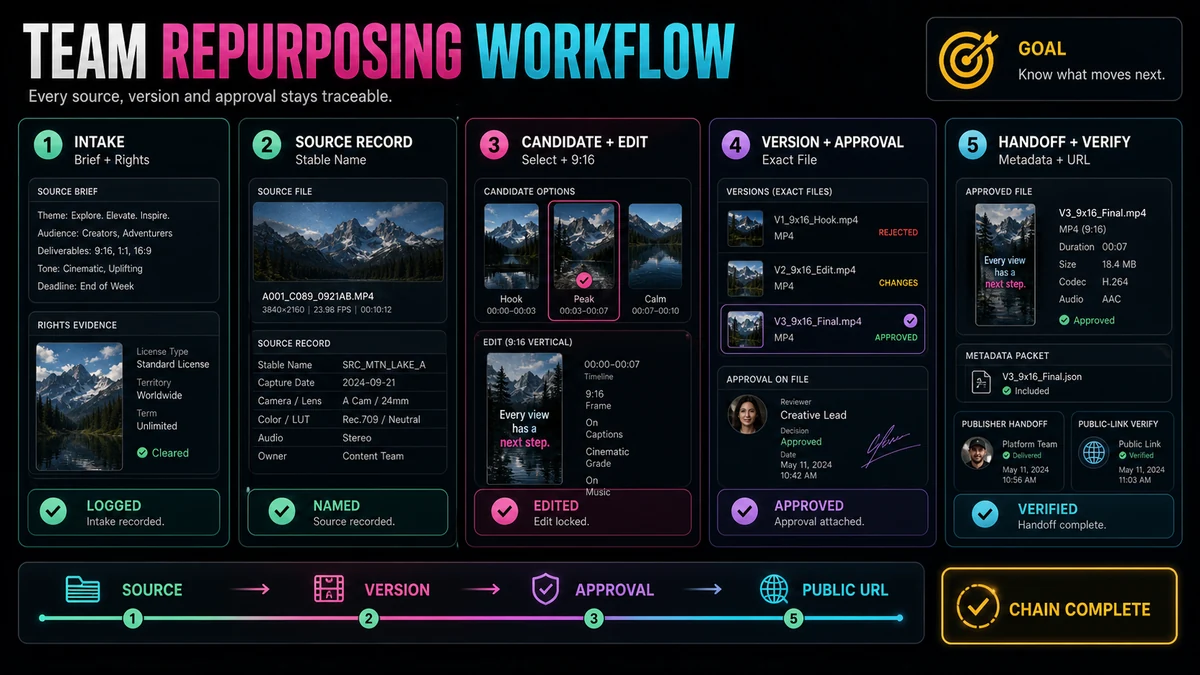
- Give every source, candidate, and export a stable identifier before feedback starts.
- Record rights status as a note with an owner and evidence location; do not treat file access as permission.
- Review candidate moments for context, payoff, accuracy, and vertical viability before investing in a detailed edit.
- Separate editorial versions from approval states so “latest” never substitutes for “approved.”
- Package the approved MP4 and metadata together, but keep publishing credentials with the authorized publisher.
- Verify the public URL after publication from a logged-out or otherwise independent viewing context.
- Use Recapo for the supported editing steps, while managing assignments, approvals, scheduling, publishing, and audit records elsewhere.
Why Team Repurposing Breaks at the Handoffs
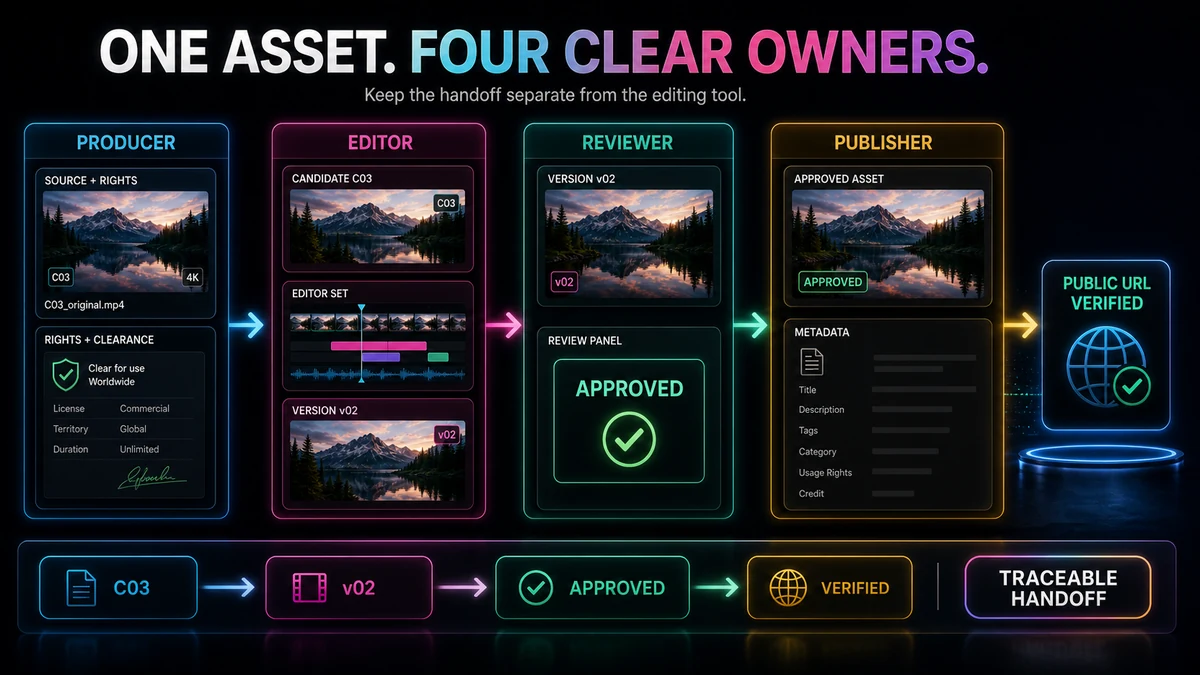
A team cannot safely depend on memory. Producers, editors, reviewers, and publishers may see different files at different times, while a name such as final-v2-new.mp4 reveals neither the source nor the approval state. A reviewer may approve the words but not the crop; a publisher may receive an MP4 without the agreed title; an upload may succeed without an independent public-page check. A lightweight chain of custody makes every handoff answer: What is this item, where did it come from, what was decided, and who acts next?
Define Roles and the System of Record
Assign roles before accepting source footage. One person may hold several roles on a small team, but each decision still needs an owner.
| RoleOwnsDoes not assume | ||
| Request owner or producer | Brief, source record, rights note, due date, destination | That the editor can infer missing permissions |
| Editor | Candidate shortlist, cuts, 9:16 composition, captions, export versions | That “looks good” equals formal approval |
| Reviewer or approver | Accuracy, context, brand, rights escalation, approval state | That the newest file is the reviewed file |
| Publisher | Final metadata, platform upload, visibility choice, publication | That an exported MP4 is already approved |
| Verifier | Public-page playback and URL record | That an upload confirmation proves public availability |
Use a shared tracker, ticket, document, or database as the system of record. Store decisions there even if discussion happens in chat or email. Recapo's current public product description does not establish project management, shared commenting, approval routing, scheduling, publishing, or URL-verification features, so do not assign those responsibilities to the editor tool.
Candidate Selection Criteria for Team Review
Before opening a detailed edit, score each candidate against the same practical criteria.
| CriterionReady for a ShortReturn for clarification | ||
| Rights | Source owner and permitted uses are documented | Ownership, license, music, guest, or logo status is unknown |
| Context | The moment makes sense without the long-form introduction | It begins with an unexplained “that” or depends on an earlier slide |
| Payoff | The answer, result, reveal, or useful conclusion is present | The clip stops before the outcome |
| Accuracy | Trimming preserves qualifications and speaker meaning | A cut makes a narrow claim sound universal |
| Vertical fit | Essential faces, hands, screens, or objects can remain legible | Important details occupy opposite edges of a wide frame |
| Boundaries | There is a clean entry and deliberate ending | The candidate starts mid-word or ends on an interruption |
A high-energy sentence is not enough. A useful candidate must survive removal from the source and remain accurate in a vertical composition. If context cannot be preserved without making the clip confusing, select a different moment.
The Nine-Stage Team Workflow
1. Capture a Complete Intake Brief
Create one intake record before media moves between people. Include the series, audience, purpose, source owner and location, destination, target date, editor, reviewer, publisher, and verifier. Record exclusions such as private data, embargoed statements, or uncleared assets. A due date coordinates the team; it is not a publishing schedule inside Recapo.
2. Add Rights Notes and an Escalation Owner
Write a rights note for the source and its components. Identify the footage owner, speaker or guest permissions, applicable channel limits, and evidence location. Mark unknowns and name the person who must resolve them.
Credit and disclaimers do not automatically create permission. YouTube explains that fair use depends on the facts and is ultimately decided by courts; Content ID can still affect a video. Treat this as general risk guidance, not legal advice. When permission is unclear, pause that candidate or replace the material.
3. Assign Stable Source and Candidate Names
Use names that remain useful outside the editing environment:
[series]-[source-date]-[source-id]-[candidate]-[version]-[state].[ext]
For example, academy-20260801-WB04-C03-v02-review.mp4 identifies the series, source, candidate, version, and state. Keep the original source immutable, map candidate IDs to timestamp ranges in the intake record, and never overwrite exports.
4. Import Only the Cleared Source and Build a Shortlist
Recapo's YouTube Shorts Maker supports importing local footage or a source link you have the right to use. Importing media does not verify ownership or clear third-party assets; the intake and rights record must do that first.
Use the transcript to locate complete ideas and note exact source timecodes. Record the premise, payoff, missing context, visible assets, rights flags, and vertical-framing challenge. The transcript aids navigation; it does not make the decision.
5. Review Candidates Before Fine Editing
Send a labeled shortlist. The reviewer can mark each candidate advance, hold, or reject in the team's system of record and record a reason.
Review words and images together: an accurate quote can accompany confidential visuals, while a strong sequence can lose a qualification that changed its meaning. Advance only candidates with a credible path to approval.
6. Edit, Reframe, and Check Captions
Trim while preserving the setup needed for the payoff. Build the 9:16 composition around the current priority—speaker, demonstration, slide, reaction, or result—and prefer stable reframes or clean cuts to distracting movement.
Check captions against the source audio, especially names, product terms, numbers, and negations. Keep lines readable and away from important visual details and likely interface overlays. Recapo's Auto Captions page describes editable synchronized captions plus timing and position review, but automated transcription still requires human checking.
Export a vertical MP4 and inspect that file from beginning to end; the editor preview cannot prove that text, audio, and crop survived export.
7. Control Versions and Approval States
Increment the version whenever the media changes: v01, v02, and so on. Keep the state separate: review, changes-requested, or approved. Never rename an unreviewed revision to approved simply because it is newer.
The approval record identifies the exact asset, approver, decision, timestamp, and conditions. Metadata-only changes should be noted; changes to footage, captions, crop, audio, or meaning require a new media version and approval.
Approval occurs in the team's designated communication and record-keeping system. Recapo should not be described as routing, collecting, or storing team approvals.
8. Hand Off the Approved Media and Metadata
Give the publisher one package with the approved MP4 and a metadata sheet. At minimum, include:
- approved media filename and version;
- working title and description;
- source and rights record ID;
- caption status and any separate caption-file location;
- thumbnail or cover status, if the team uses one;
- destination channel and intended visibility;
- current platform-rule check date;
- approval record and owner;
- post-publication verifier.
The publisher reviews the final words in context and logs any factual or formatting correction. Recapo exports the edited vertical MP4; it does not schedule or publish the Short.
9. Publish, Then Verify the Public URL
An authorized publisher uploads through YouTube's platform workflow and selects the intended visibility and timing. YouTube currently says eligible square or vertical videos up to three minutes can be categorized as Shorts; for standard channels, the updated rule applies to qualifying uploads made on or after October 15, 2024. YouTube also warns that a Short over one minute with an active Content ID claim may be blocked globally. Check current official guidance before publication.
After publication, a verifier opens the final URL in a logged-out browser or another independent context. Confirm access, channel, title, approved-version playback, crop, captions, description, and required links. Record the canonical URL, time, verifier, and any issue.
Do not treat an upload-success message, scheduled state, Studio preview, or private link as proof of a public URL. If the independent check fails, keep the handoff open until the publisher resolves the issue and the verifier repeats the test.
Illustrative Team Handoff: One Webinar Answer
This example is illustrative, not a reported customer case or a claim about Recapo collaboration features.
A producer receives a 50-minute company webinar and creates source record WB04. It links to the master, notes ownership, identifies the guest-release location, flags a music sting for removal, and assigns the editor and reviewer.
The editor proposes candidate C03, timecode 32:14–33:01. Its first sentence refers to an earlier slide, so the review requires retaining the question. Two alternatives are rejected: one lacks a conclusion, and another displays a private attendee list.
The editor removes the music sting, retains the question, trims the answer, and creates a stable speaker crop. The first export is academy-20260801-WB04-C03-v01-review.mp4. The reviewer corrects a captioned product name and requests two more seconds so the qualification remains.
The editor exports academy-20260801-WB04-C03-v02-review.mp4, and the reviewer approves that exact filename. The producer hands the publisher the file, title, description, rights record, caption status, destination, and verifier. Review and approval happen in the team's tracker, not Recapo.
The publisher uploads through YouTube Studio. A teammate opens the published page while logged out, confirms that v02 plays with the corrected caption and complete ending, and records the public URL and verification time. The source-to-URL chain is now auditable.
Team QA Checklist
- Intake names the source owner, editor, reviewer, publisher, verifier, destination, and target date.
- Rights notes cover footage, speakers, music, logos, slides, and other third-party assets.
- The immutable source and every candidate have stable IDs.
- Candidate timecodes, context, payoff, risks, and review decision are recorded.
- The approved cut preserves the speaker's meaning and necessary qualifications.
- The 9:16 framing keeps essential people, objects, screens, and results visible.
- Captions, names, numbers, timing, and placement were checked by a person.
- Every media change creates a new version instead of overwriting the prior export.
- Approval identifies the exact filename, approver, decision, and timestamp.
- The metadata handoff includes the approved MP4, rights record, destination, and verifier.
- Publishing occurs through an authorized platform account outside Recapo.
- The final public URL was tested independently and recorded with a timestamp.
Limits of a Workflow Document
A checklist cannot decide whether a license covers a use, a trim changes meaning, or a crop exposes confidential information; it cannot guarantee performance. Transcript search may mishear terms or surface a sentence without context, and a first-pass crop may miss a gesture or second speaker. Approval also becomes stale after any unreviewed change. Teams need accountable human review, recorded exceptions, and qualified advice for legal questions.
Use Recapo as the Editing Step
When intake and rights checks are complete, open the Recapo YouTube Shorts Maker to import the permitted source, locate candidate passages through the transcript, trim the approved sequence, adjust the 9:16 composition, and export a vertical MP4. Then return the file to your team's version, approval, metadata, publishing, and URL-verification process.
That boundary is useful: the youtube shorts maker handles the supported media-editing work, while named people and the team's chosen systems remain responsible for project management, collaboration, approval, scheduling, publishing, and public records.
Frequently Asked Questions
What should a YouTube Shorts repurposing workflow track?
Track the intake brief, source and rights record, candidate IDs and timecodes, review decisions, export versions, exact approval state, metadata package, publisher, public URL, and verification timestamp. The record should let a teammate reconstruct how the published Short relates to the approved source.
Should every candidate clip receive a full vertical edit?
No. Review context, payoff, accuracy, rights, and vertical viability first. A shortlist with source timecodes is faster to reject or redirect than several polished but unsuitable edits.
How should a team name Short versions?
Use stable fields such as series, source date, source ID, candidate ID, sequential version, and state. Keep v02 separate from approved: a version describes the asset; approval describes a recorded decision about that exact asset.
Can Recapo manage team approvals or publishing?
The verified product scope used for this guide covers source import, transcript-based passage location, trimming, adjustable 9:16 reframing, and vertical MP4 export. It does not support claims of project management, approval routing, collaboration, scheduling, automatic publishing, or public-URL verification. Use your team's existing systems and YouTube's platform workflow for those tasks.
How do we verify that a Short is actually public?
After the intended publication time, open the final URL outside the publisher's authenticated view. Confirm page access, channel, title, approved video playback, crop, captions, and description, then record the URL, verifier, and timestamp. A successful upload or scheduled entry is not the same as a publicly reachable page.
Is attribution enough when repurposing someone else's footage?
Not necessarily. YouTube's fair-use guidance says credit or a disclaimer does not by itself create permission, and fair use depends on the specific facts. Use material you have the right to reuse and seek qualified advice for a specific legal question.
References and Official Sources
- Recapo YouTube Shorts Maker
- Recapo Auto Captions
- YouTube Help: Understand three-minute YouTube Shorts
- YouTube Help: Upload YouTube Shorts from a computer
- YouTube Help: Get started creating YouTube Shorts
- YouTube Help: Fair use on YouTube
Related Recapo Guides
- How to Make YouTube Shorts From Horizontal Video
- YouTube Shorts Safe Zone Guide
- How to Add Auto Captions to YouTube Shorts
- How to Find the Best Moments in a Long Video with AI