How to Extract Audio from Video
Learn how to extract audio from video and choose MP3, WAV, AAC, or M4A based on editing, listening, quality, size, and compatibility.

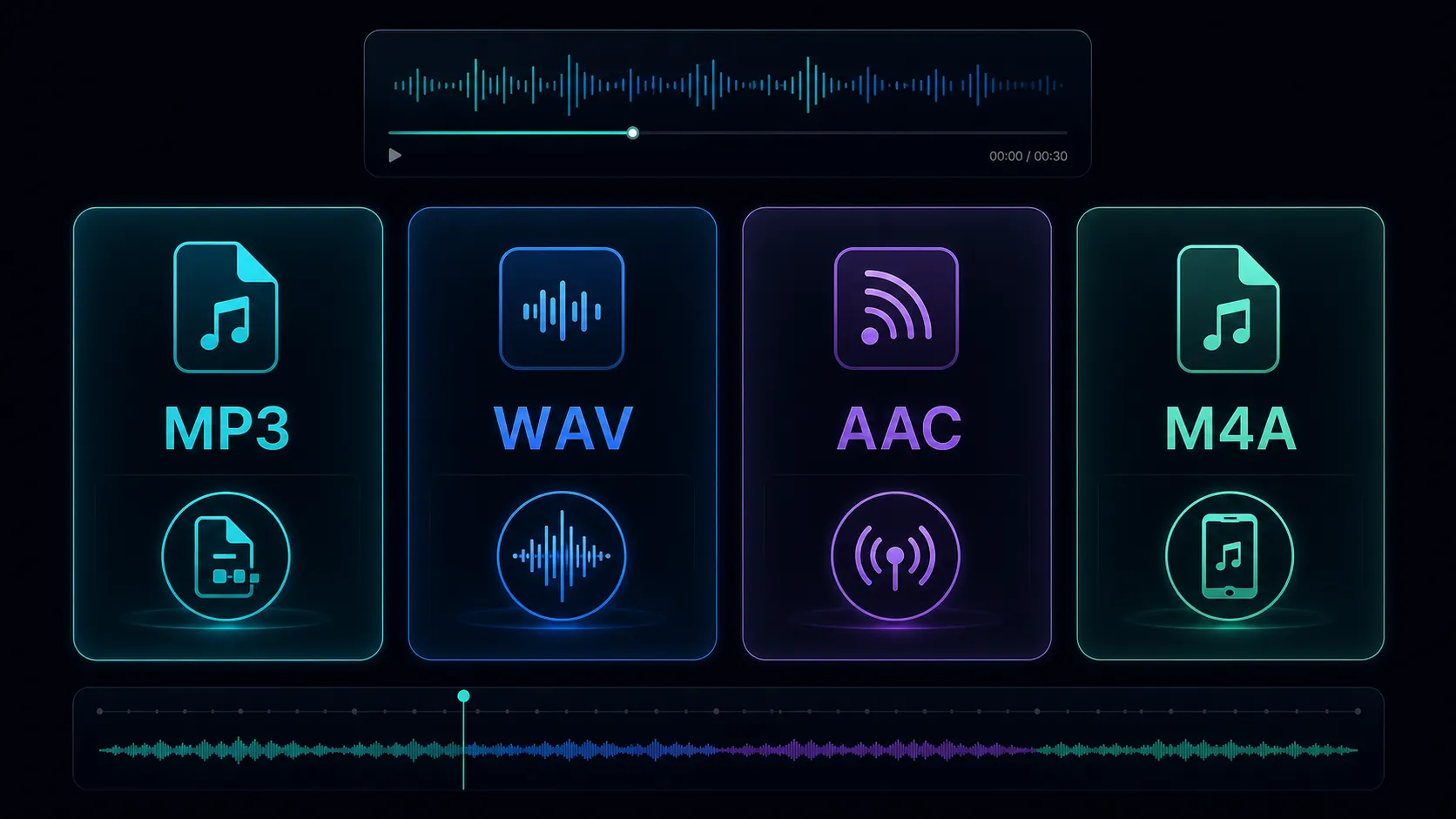
The best audio format depends on what you will do next. Choose MP3 for a widely supported listening copy, a suitable WAV encoding for an editing workflow that requests it, or AAC when your destination supports that codec. M4A is a container name, so check the audio codec inside it as well.
Choose by destination, not by extension alone
- Listening and review: MP3 is a practical choice when your recipient needs a compact file that opens in common players.
- Editing or analysis: WAV commonly carries PCM audio and can avoid another lossy compression step. Check the requested sample rate, bit depth, and channel layout.
- Efficient delivery: AAC can suit compatible devices and publishing workflows. Test with the destination instead of assuming every player supports every variant.
- M4A delivery: check whether the file contains AAC or another supported codec. The filename alone does not establish quality or compatibility.
A container holds media streams; a codec describes how a stream is encoded. Renaming a filename from .m4a to .mp3 changes neither. Use an actual conversion when the destination requires another codec.
A practical interview example
Suppose you recorded an interview and need both an editor's working file and a copy for the guest to review. Keep the video original. Ask the editor for the format they need, then create a separate compact listening copy for the guest. Do not repeatedly convert the guest's compressed copy to make later editing versions.
If the source has two languages or separate microphones on different tracks, confirm which track you need before exporting. A correct format with the wrong conversation is still the wrong deliverable.
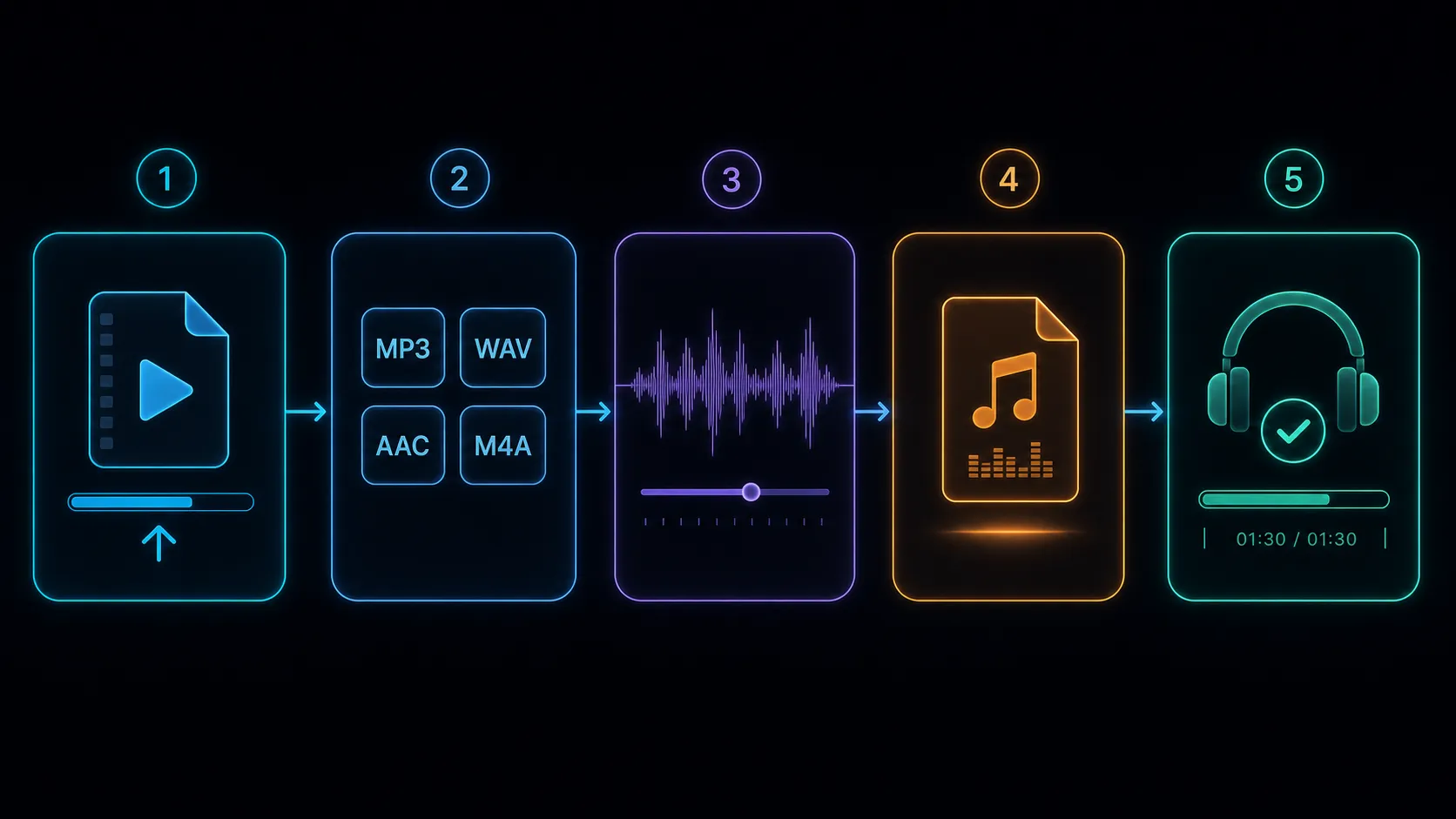
Extract and verify the audio
- Play the original and confirm that it contains the expected audio. Use only material you are allowed to process.
- Open the Recapo audio extractor and check the displayed input limits and output choices.
- Select the format required by the next player or editor. Set quality options only where the workflow offers them.
- Download the result and open it in the actual destination application.
- Compare the start, middle, and end with the source. Check duration, channel balance, missing speech, clipping, and any selected time range.
Understand quality and size
Encoding a lossy source as WAV does not recover detail that was already removed. It can be useful as a working format, but the original recording sets the quality ceiling. Repeated lossy conversions may introduce additional artifacts, so create new versions from the strongest source you have.
File size depends on duration and encoding settings. At a fixed bitrate, doubling the duration roughly doubles the audio data. For uncompressed PCM, sample rate, bit depth, channel count, and duration determine the data rate. Compare real output files when you need to meet a delivery limit.
Common questions
Is WAV always uncompressed?
No. WAV is a container commonly used with PCM. Inspect the actual encoding instead of treating the extension as proof.
Can I extract only one section?
Use a workflow with a time-range control, or trim a copy of the video first. Check the boundaries so you do not cut off a word or remove necessary context.
Why will a file play here but not on another device?
The other device may not support its codec, container, or settings. Check its requirements and create a compatible copy from your original.
References
Related Recapo guides