Convert video to MP3 from uploaded file
Learn how to convert videos to MP3 from a file you own, choose the audio quality, check the results, and protect your privacy.

To turn a local video into an MP3, choose the correct source and audio track, export an MP3 copy, then listen to the downloaded file. The video picture is not included in the MP3. Keep the original video as your reference and working source.
Start with the right file
Use a video you own or are authorized to process. Play it before uploading: confirm that the expected speaker is audible, the recording is complete, and the useful audio is not confined to a different track. A silent video cannot yield a speech recording that was never captured.
This workflow starts from a local file. If your only copy is on another platform, check its download options, terms, and your rights before obtaining a file. For private recordings, review the provider's policy and your organization's upload rules first.
Convert the video step by step
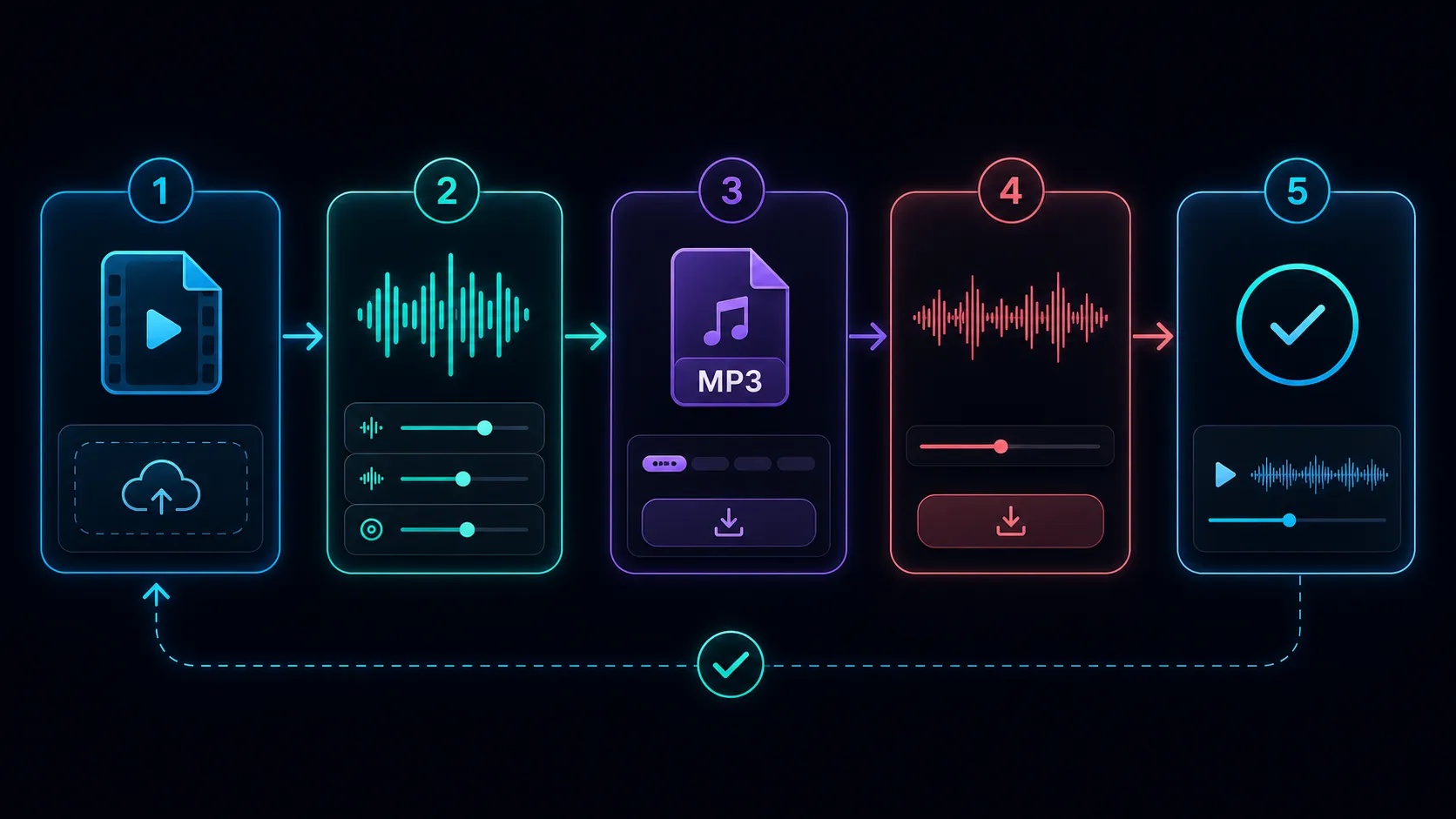
- Prepare the excerpt. If you only need one answer from a long interview, trim a copy to that section using a suitable editor. Leave enough context at both ends.
- Upload the file. Open the Recapo audio extractor. Check the file types and limits shown before starting.
- Select MP3. If quality settings are offered, choose a setting suitable for the listening copy rather than automatically choosing the smallest file.
- Process and download. Keep the source until you have opened the actual downloaded result. A completed processing screen is not a playback check.
- Compare the output. Listen at the beginning, middle, and end, and around any cuts. Check speech clarity, missing passages, channel balance, and duration.
Choose a sensible quality target
Speech notes may tolerate a smaller delivery file than music with dense detail. Start with a clear sample, then reduce the bitrate only if the size matters. Listen on the equipment your recipient will use; artifacts that disappear on a laptop speaker can be obvious in headphones.
For example, a ten-minute file encoded at 128 kilobits per second is roughly 9.6 MB before small container and metadata overheads: 600 seconds multiplied by 128,000 bits, divided by eight. This estimate helps you compare settings; the actual download size remains the final check.
MP3 uses lossy compression. Converting an existing MP3 again can discard more information. Create each delivery version from the best available original, and do not replace an editing master with a small listening copy.
Fix common problems
- No sound: play the source, check its audio track, and confirm that the player is not muted.
- Wrong language or speaker: inspect whether the source contains multiple audio tracks and whether your workflow supports choosing one.
- Output shorter than expected: compare the selected time range and source duration, then check the processing result for errors.
- Distortion or watery speech: compare with the original. If the problem appears only in the export, try a less aggressive setting from the original source.
Common questions
Can MP3 recover poor audio?
No. A format conversion cannot recreate missing words or restore detail that the recording did not capture.
Should I choose WAV instead?
Consider WAV when the next editor requests it or you need a working copy without another lossy encoding step. Converting damaged or compressed audio to WAV does not improve the source itself.
Can I delete the video afterward?
Keep it until the audio has been checked and you know you will not need the picture, another track, or a different export.
References
Related Recapo guides