Filmora Alternatives Worth Trying in 2026
Looking for Filmora alternatives? This 2026 guide splits them into free desktop upgrades and browser-based AI editors, with a self-test to pick the right fit.
If you're searching for Filmora alternatives, you're usually reacting to one of three things: a recurring subscription you'd rather not renew, a watermark on exports from a free tier, or a slow suspicion that a general-purpose desktop editor is more tool than your short-form workflow actually needs. This guide splits the options honestly into two groups — free desktop editors that upgrade what Filmora already does, and browser-based AI editors built for creators who publish to YouTube, TikTok, YouTube Shorts, and Instagram Reels — so you can choose by workflow instead of by feature-list marketing.
The important thing to decide first isn't which app has the longest checklist. It's what you're actually making. Someone editing wedding footage and family movies has very different needs from someone turning a 40-minute podcast into ten vertical clips every week. Those two people should not be shopping from the same list, and most "best Filmora alternatives" articles blur them together. This one keeps them separate.
Key Takeaways
Why creators start looking past Filmora
Filmora is Wondershare's desktop editing suite — a timeline-based editor aimed at hobbyists and general video work. It's capable, and for a lot of people it's perfectly fine. Creators tend to go looking for Wondershare Filmora alternatives for reasons that have little to do with the editor's quality:
None of these mean Filmora is bad. They mean the fit might be wrong — and fit is the only thing that matters.
The two kinds of Filmora alternative
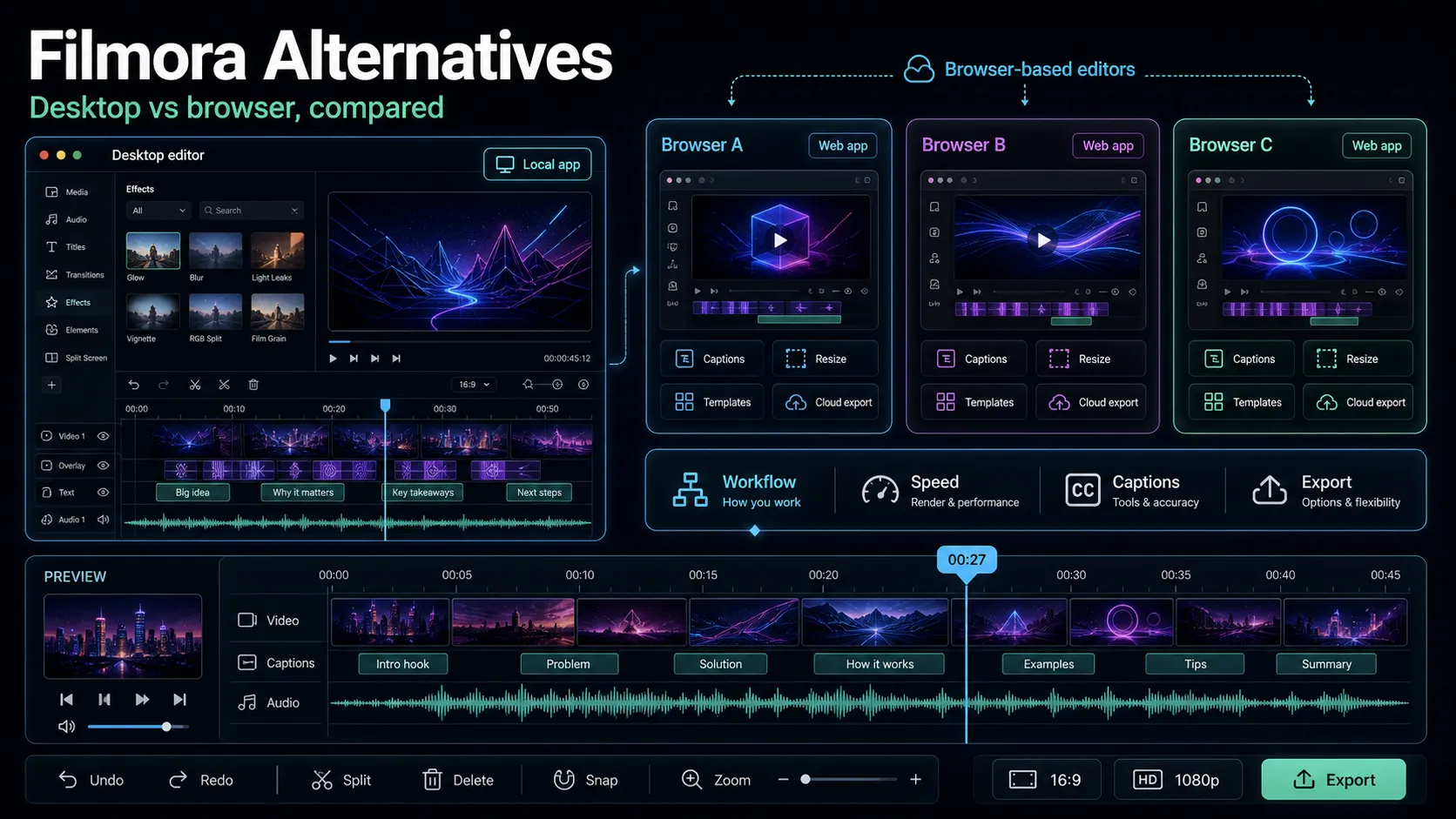
Almost every tool that shows up in this search falls into one of two buckets. Naming the buckets makes the whole decision easier.
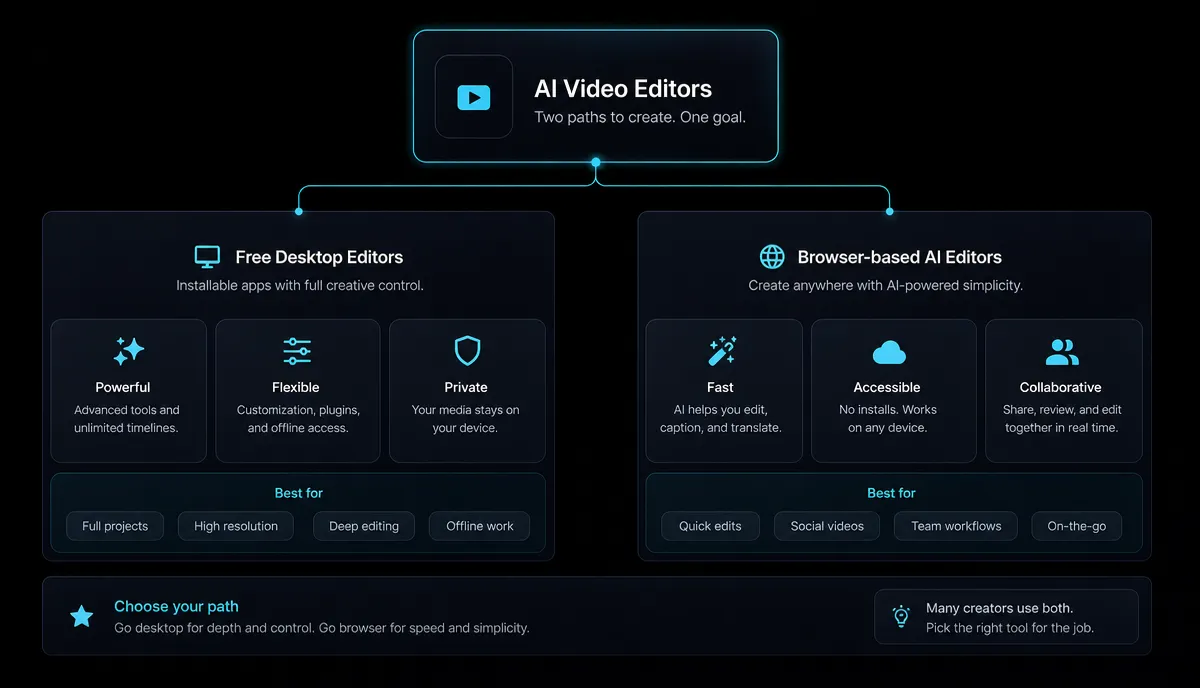
| Free desktop upgrades | Browser-based AI editors | |
|---|---|---|
| Best for | Precise, frame-level editing; longer-form projects | Fast social clips, captions, repurposing |
| Where it runs | Installed on your computer | In a browser tab, nothing to install |
| Learning curve | Steeper; real timelines | Gentle; task-focused |
| Typical output | Full edits, films, YouTube long-form | Shorts, Reels, TikTok, captioned clips |
| Hardware load | Depends on your machine | Runs off your machine |
If your work is closer to the left column — layered timelines, color grading, longer edits — a free desktop editor is your genuine upgrade path, and I'll cover those honestly below even though Recapo isn't one of them. If your work is closer to the right column — high-volume short-form for social — keep reading past the desktop section. Being honest about this split is the whole point: Recapo is a fit for the second group only.
Free desktop Filmora alternatives worth trying
These are the tools people mean when they search for free Filmora alternatives and want to keep editing on a real timeline. I'm describing each only at its stable, well-known positioning — you should confirm current details yourself, because free tiers and export terms change, and that's exactly what the self-test later in this article is for.
| Tool | Positioning | Consider it if |
|---|---|---|
| DaVinci Resolve | A professional desktop suite known for color grading and finishing | You want pro-grade control and will invest in learning it |
| CapCut (desktop) | A free desktop and mobile editor popular for social edits | You want an easy timeline plus templates and effects |
| Shotcut | An open-source desktop editor | You want free and open, and don't mind a plainer interface |
| OpenShot | An open-source desktop editor for simpler timelines | You're doing straightforward cuts and titles |
| Kdenlive | An open-source desktop editor with a fuller feature set | You want more depth than OpenShot, still free and open |
A few honest caveats. "Free" and "no watermark" are separate questions — a tool can be free to install and still watermark exports on a lower tier, or be fully free but demanding on your hardware. Open-source editors are genuinely free and usually watermark-free, but the trade is a rougher interface and less hand-holding. Professional suites are powerful and free to start, but the learning curve is real and the finishing features you're paying attention to may sit behind a paid version. Don't take any of this on faith from an article — test it (below).
Browser-based AI editors for social creators
Now the second column. If you publish short-form video for a living or a side hustle, the bottleneck usually isn't precision editing — it's throughput. You need to caption accurately, find the good 30 seconds inside a long recording, reframe to vertical, and export something clean, repeatedly, without a heavy install cycle. Browser-based AI editors are built around that loop.
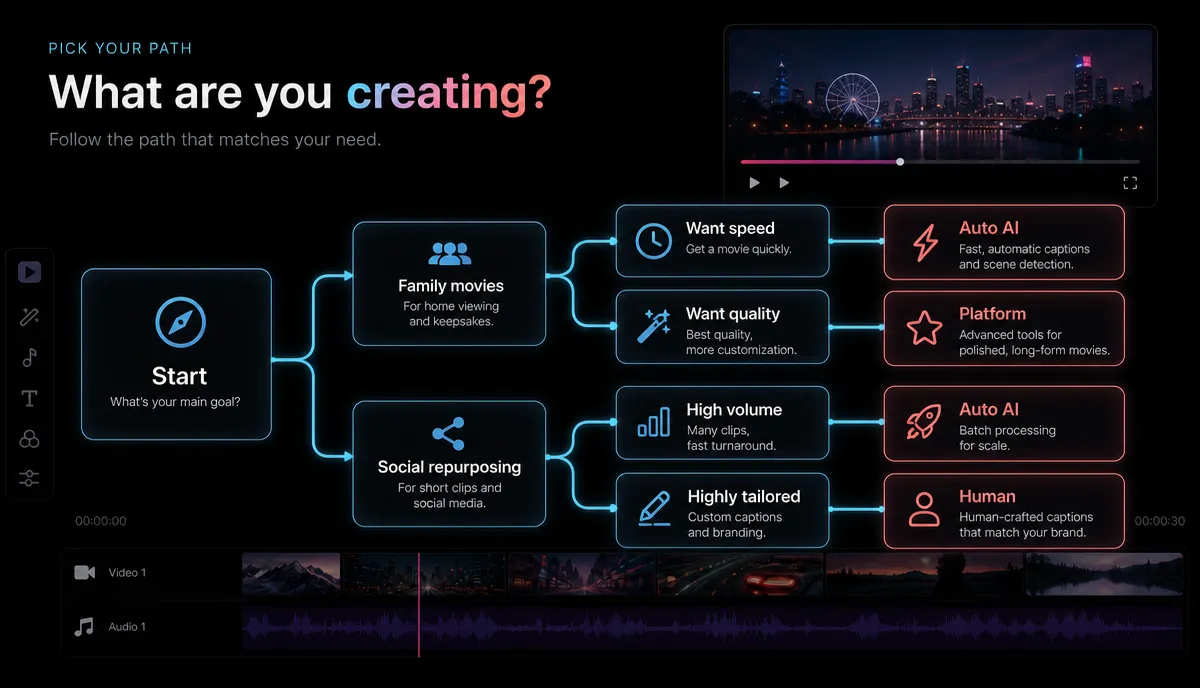
Described at their stable positioning, the tools in this space tend to specialize:
Where Recapo fits: Recapo is a browser-based AI video editing workspace for exactly this second group. It runs in the browser with no install, and it bundles the repetitive short-form tasks in one place: transcribe and caption, turn long videos into short clips, generate summaries and scripts, add AI voiceover, resize and reframe to vertical, and design a cover before export. It accepts MP4, MOV, and other common formats, with up to 6GB per task, and pricing lives on the pricing page. It is honestly not a replacement for a color-grading suite or a frame-level timeline — if that's your work, use the desktop column. If your work is captioned social clips at volume, this is the shape of tool that fits.
If you want the broader landscape here, our roundups of the best AI clip generators and CapCut alternatives go deeper on adjacent options.
How to test any alternative in 20 minutes
The single most useful thing you can do is stop reading feature lists and run a controlled test with your own footage. Marketing pages won't tell you whether a tool handles your accent, your export target, or your watermark question. A short test will. Here's a framework that works for any tool on either list.
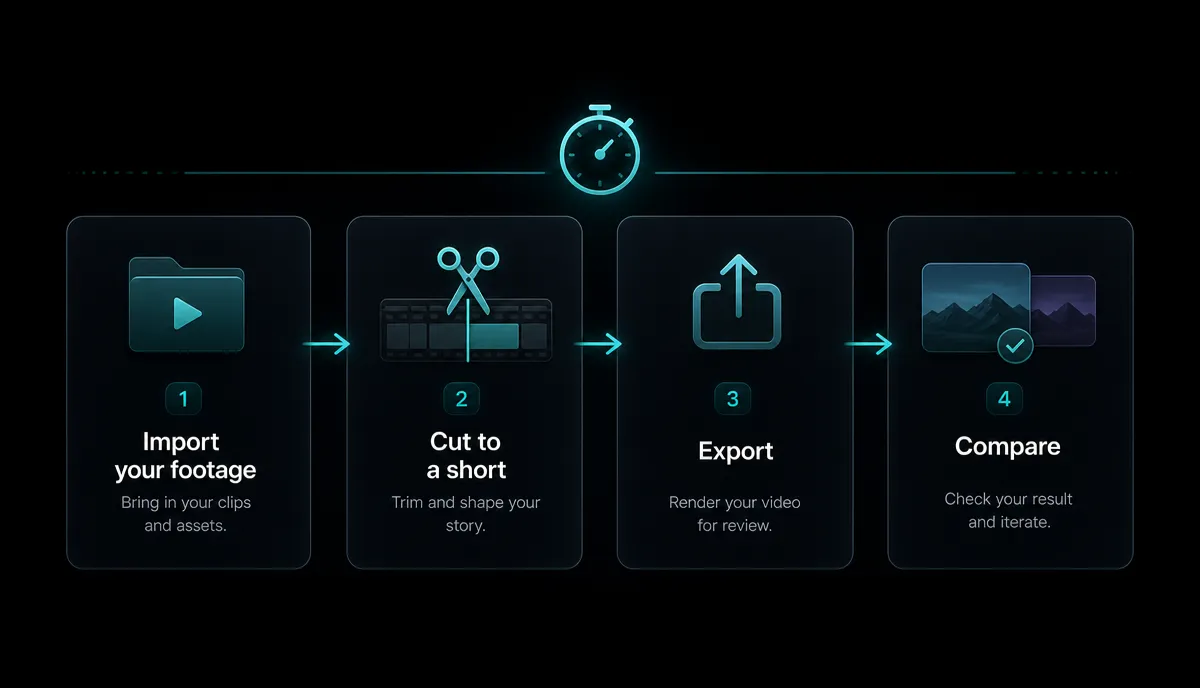
- Pick one real, representative file. Not a clean demo clip — an actual recording you'd publish, ideally 5–10 minutes with some background noise and natural speech.
- Do the same job in each tool. For social creators, that's usually: auto-caption it, cut one 30–45 second highlight, reframe to vertical, and export.
- Measure four things and write them down:
| What to check | How to judge it |
|---|---|
| Caption accuracy | Read the transcript against the audio — count real errors, don't eyeball |
| Time to first export | Start a stopwatch; how long until a finished clip? |
| Watermark on export | Export at the free/entry level and look at the actual file — settles the "no watermark" question directly |
| Format and size support | Try uploading your real file, not a resized sample — confirm it accepts your format and length |
- Compare the finished files side by side, not the editing screens. The output is what your audience sees.
- Kill anything that fails step 2. If you can't finish one clip in 20 minutes on a representative file, it isn't your tool — regardless of how good its landing page looks.
This is deliberately how I've written the whole article: I won't assert a competitor's watermark policy, price, or export limits, because those change and you'd have to verify them anyway. The test above tells you the truth for your workflow today.
Repurpose a long video into shorts without installing anything
Here's the second-column workflow end to end, entirely in the browser, so you can see what "no install" actually buys you. This is the loop most short-form creators run every week.
- Upload your long recording. Open the browser-based AI editor and drop in your MP4 or MOV — a full episode, stream VOD, or talking-head recording, up to 6GB per task.
- Transcribe and caption. Generate the transcript first; captions are both an accessibility win and the raw material for finding your best moments.
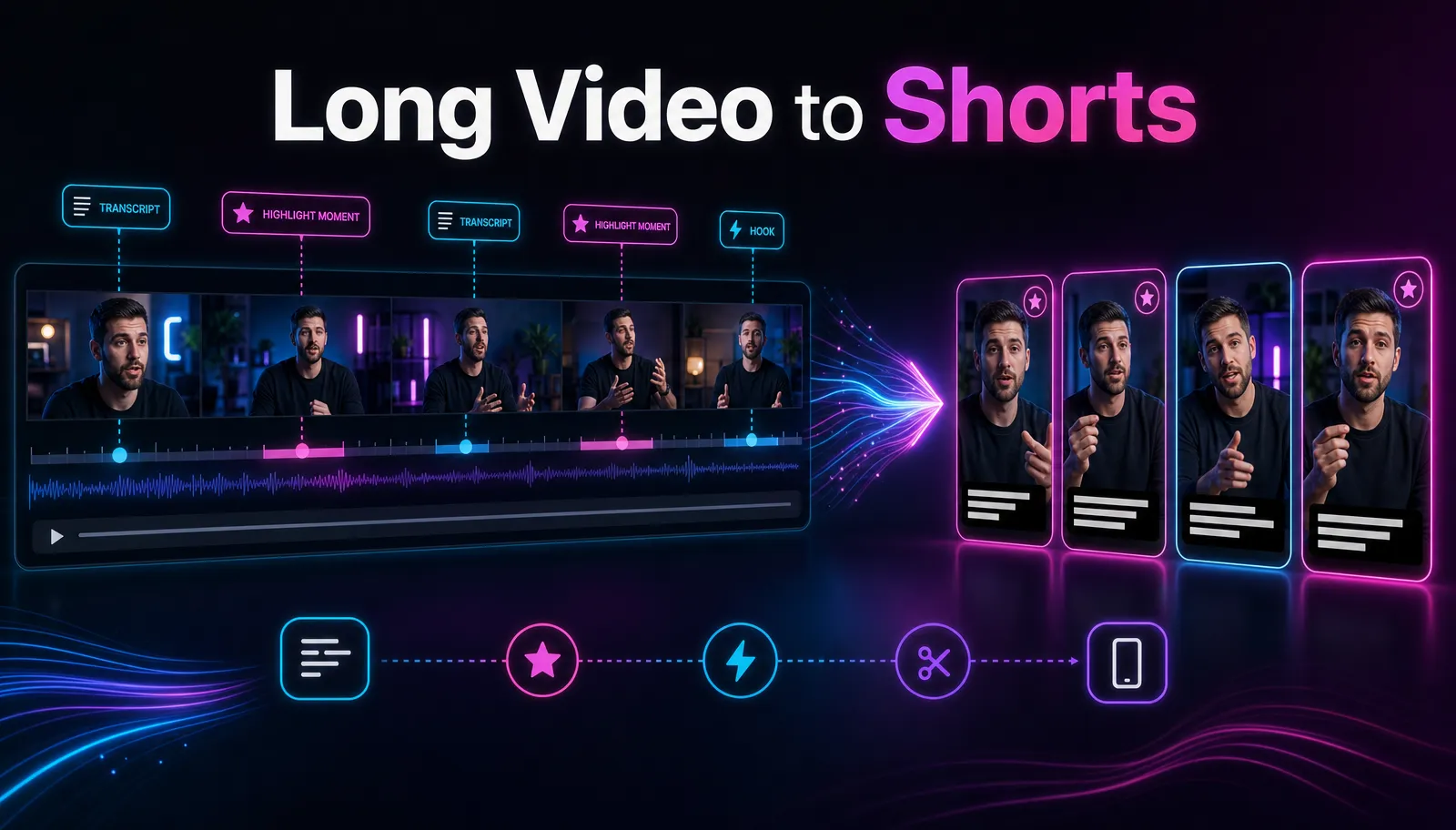
- Cut the long video into clips. Pull the strongest 20–60 second segments into standalone shorts. Our guide on making YouTube Shorts from long videos covers how to spot the moments that actually travel.
- Reframe to vertical. Resize each clip to 9:16 so it fills the frame on TikTok, Shorts, and Reels instead of sitting letterboxed.
- Polish and export. Clean up the captions, optionally add an AI voiceover or a summary, design a cover, and export a clean file ready to post.
Because it all runs in a tab, you can do this from any machine, switch devices mid-project, and skip the download-install-update cycle entirely — the specific friction that sends a lot of people looking for alternatives in the first place.
Which alternative actually fits you?
Match the work to the column and the decision gets simple.
| Your situation | Look at |
|---|---|
| Wedding, family, or long-form YouTube edits | Free desktop upgrades (DaVinci, CapCut desktop, Kdenlive) |
| You want free and open-source, watermark-free | Open-source desktop editors (Shotcut, OpenShot, Kdenlive) |
| High-volume captioned shorts for social | Browser-based AI editors (Recapo and peers) |
| You edit across different or borrowed machines | Browser-based, nothing to install |
| Precise color grading and finishing | A professional desktop suite |
| Turning long recordings into many clips fast | Browser-based AI editor with clipping |
The honest summary: there is no single best Filmora alternative, only a best fit for what you make. If you're a social creator drowning in captioning and repurposing, a browser-based AI workspace removes the most friction. If you're doing precise long-form editing, a free desktop editor is your real upgrade — and this article is happy to send you there.
FAQ
What is the best free alternative to Filmora with no watermark? It depends on what you edit. For frame-level desktop editing, open-source editors like Shotcut, OpenShot, and Kdenlive are free and typically watermark-free, at the cost of a plainer interface. For social short-form, a browser-based AI editor removes the install entirely. Rather than trust any article's claim, run a test export at the entry level and look at the actual file — that answers the watermark question directly for the tool you're considering.
Are there Wondershare Filmora alternatives that run in a browser? Yes. Browser-based AI editors run in a tab with nothing to install, which is the main appeal for creators who switch machines or don't want a heavy download. Recapo is one example, built for captioning, clipping, and reframing social video. It won't replace a desktop color-grading suite, so pick based on whether your work is social short-form or precise long-form.
Is a desktop editor or a browser editor better for YouTube and TikTok? For fast, high-volume short-form — captions, clips, vertical reframing — a browser-based AI editor usually wins on throughput. For layered, precise, longer edits, a desktop timeline gives you more control. Many creators end up using both: a browser tool for the weekly clip grind and a desktop editor for occasional big projects.
Will I lose quality moving away from Filmora? No — quality is mostly determined by your source footage and export settings, not the brand of editor. What changes between tools is the workflow and the interface. Use the 20-minute self-test to compare finished exports side by side; if the output looks clean and matches your target platform's specs, you've lost nothing.
Can a browser editor handle large video files? Within limits, yes. Recapo accepts MP4, MOV, and other common formats at up to 6GB per task, which comfortably covers most single recordings, episodes, and stream segments. For anything larger, split the source before uploading or compress it first.
Try it on your own footage
The fastest way to know whether a browser-based workflow fits you is to run one real clip through it. Upload a long recording, auto-caption it, cut a vertical short, and export — then compare that finished file against whatever you'd get from your current editor. Create a free Recapo account and put it through the 20-minute test on your own video. If your work is social short-form, you'll feel the difference on the first clip; if it isn't, you'll know that too, and you'll have a much clearer sense of which column you belong in.