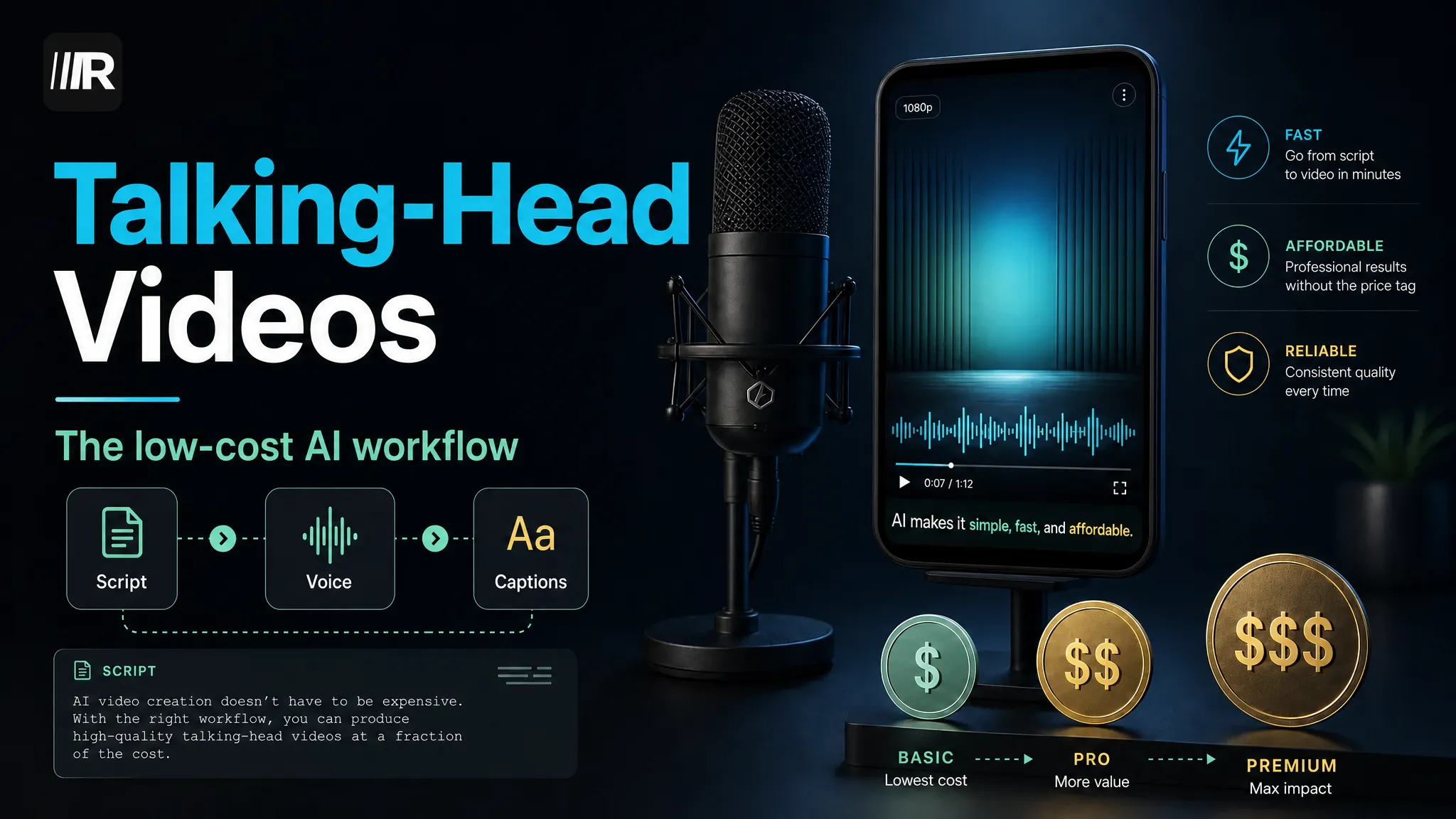
How to Add B-Roll to a Talking-Head Video
Add B-roll to talking-head video with a shot map, permitted footage, purposeful timing, audio continuity, and a repeatable review process.
By the Recapo.ai Editorial Team · Fact-checked July 10, 2026
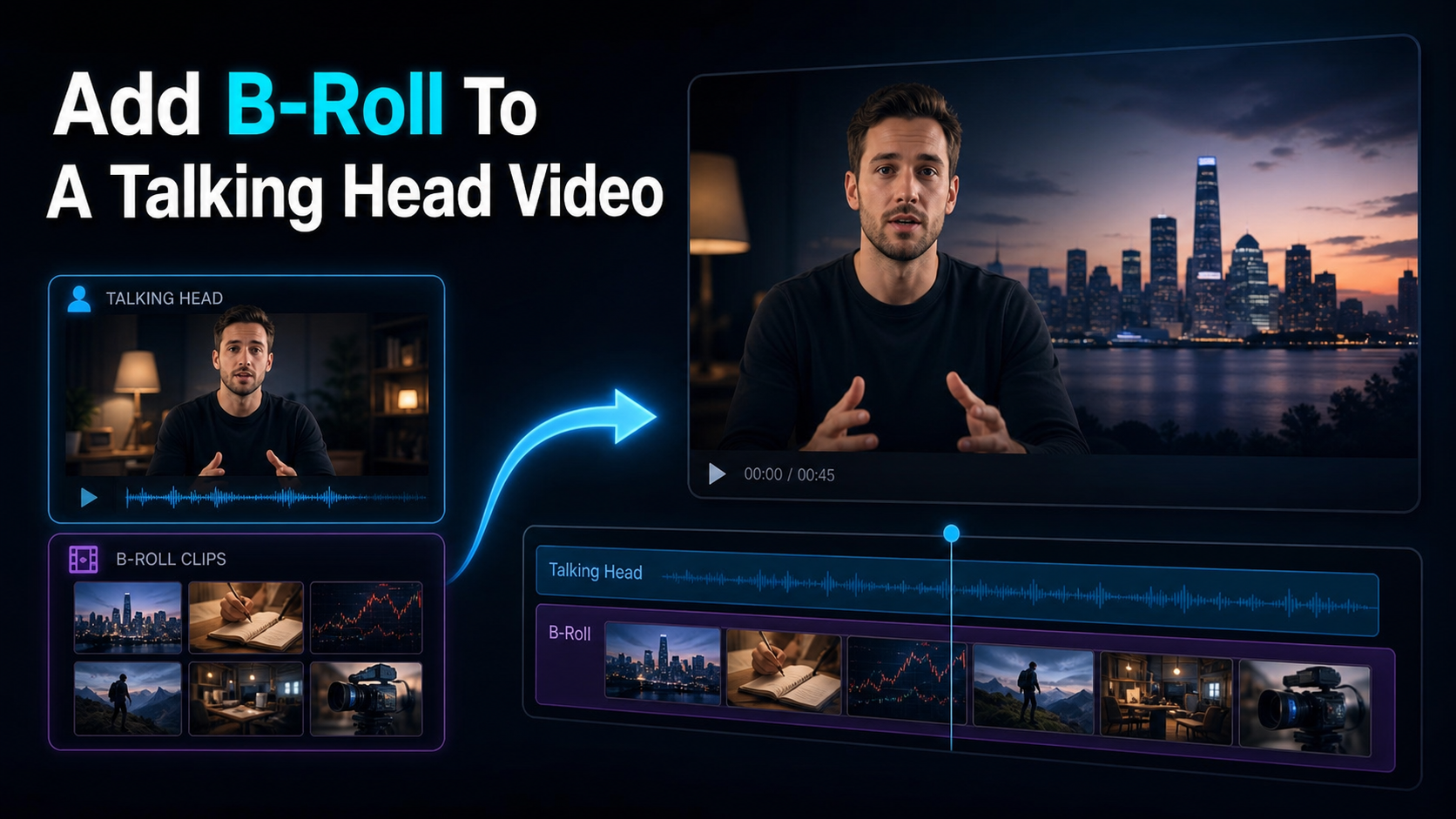
Adding B-roll to a talking-head video means cutting away from your face to supporting footage — screen recordings, product shots, stock clips, or AI-generated visuals — while your voice keeps carrying the point. This guide shows you how to add B-roll to a talking-head video using three honest sources (your own footage, stock libraries, and an AI B-roll generator), plus the two rules that stop it from looking random: the 60/40 B-roll rule and the 2–5 second cut. The angle here is practical, not magical — by the end you'll have a repeatable workflow you can run on every recording, whether you're publishing to YouTube, Shorts, Reels, or TikTok.
Why B-roll earns its place in a talking-head video
A talking-head video is one continuous shot of a person speaking to camera. It's the workhorse format for explainers, tutorials, coaching content, and narration-driven channels. The weakness is attention: an unbroken shot of a face gives the viewer nothing new to look at, and on short-form feeds that flat visual line is exactly where people swipe away.
B-roll is any secondary footage you cut to while the main audio continues, and good B-roll does three jobs at once:
None of that requires expensive gear. It requires intent: knowing which words in your script deserve a picture, and how long to hold each one.
The 60/40 B-roll rule (and the 2–5 second cut)
The 60/40 B-roll rule is a starting ratio, not a law. Aim for roughly 60% of screen time on your talking head (the A-roll) and 40% on B-roll. That keeps your face — and the trust it builds — front and center, while giving the edit enough visual variety to breathe. Adjust to the format:
| Fast short-form (Shorts, Reels, TikTok) | 50 / 50 | Constant motion holds a swipe-happy audience | Standard talking head | 60 / 40 | Balanced default — the 60/40 rule | Calm tutorial where your face is the point | 70 / 30 | Presence matters more than variety |
Pair the ratio with the 2–5 second rule: hold each B-roll shot for two to five seconds. Shorter than two and it reads as a nervous flicker; longer than five and the viewer forgets you're on camera at all. When in doubt, cut on the natural beat of a sentence rather than mid-word.
Where to get B-roll: own footage vs stock vs AI
You have three honest sources, and most strong videos mix all three. Here's how they compare:
| Best for | Products, screens, your real workspace | Generic scenes (cities, nature, offices) | Abstract or hard-to-shoot concepts | Cost | Free if you shoot it | Free and paid tiers exist | Varies by tool — check the tool's page | Effort | Highest (you film it) | Low (search and download) | Low (prompt and generate) | Uniqueness | Highest — nobody else has it | Lowest — everyone uses it | Medium — depends on the prompt | Watch-outs | Time to shoot and organize | Overused clips look generic | Verify licensing and realism yourself |
A quick rule of thumb: shoot your own footage for anything specific to you (your app, your desk, your product), reach for stock when you need a familiar establishing shot, and use an AI B-roll generator for concepts that are awkward or impossible to film. Never rely on a single source — an all-stock video looks like a template, and an all-AI video can drift into the uncanny.
How to add B-roll to a talking-head video, step by step
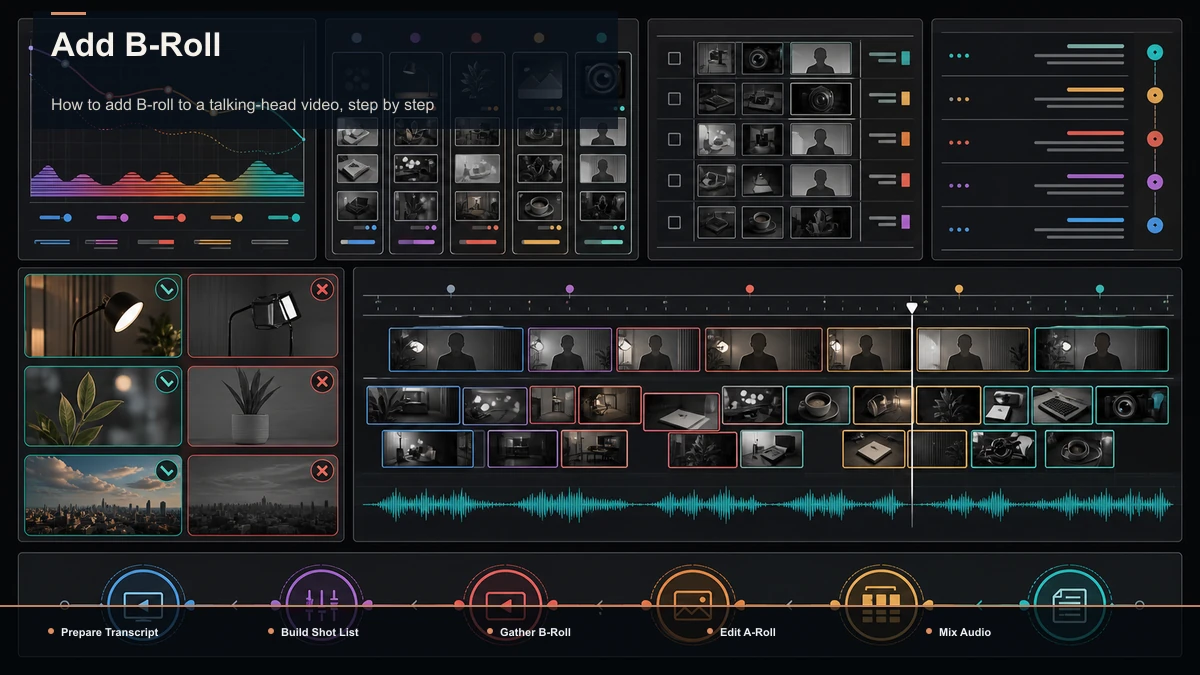
This is the repeatable part. Run the same eight steps on every recording:
- Transcribe or script first. Read through your talking head and mark the nouns and verbs that beg for a picture — "spreadsheet," "sunrise," "handshake." Those marks become your shot list.
- Build a shot list. Turn each marked word into a specific clip you need. Vague ("business") ages badly; specific ("hands typing a budget in a spreadsheet") cuts cleanly.
- Gather the B-roll. Pull from your three sources against the shot list. Aim for slightly more than you think you need — spares save you in the edit.
- Lay down the A-roll. Drop your full talking-head take on the timeline and watch it once, flagging dead spots, filler words, and any jump cuts you want to hide.
- Place B-roll over the marked moments. Cover each flagged moment with a 2–5 second insert, working toward that ~40% coverage. Let the picture lead the word by a fraction of a second so the cut feels motivated.
- Mind the audio. Keep your voice as the constant track. Mute or duck any sound that comes attached to a B-roll clip so it doesn't fight your narration.
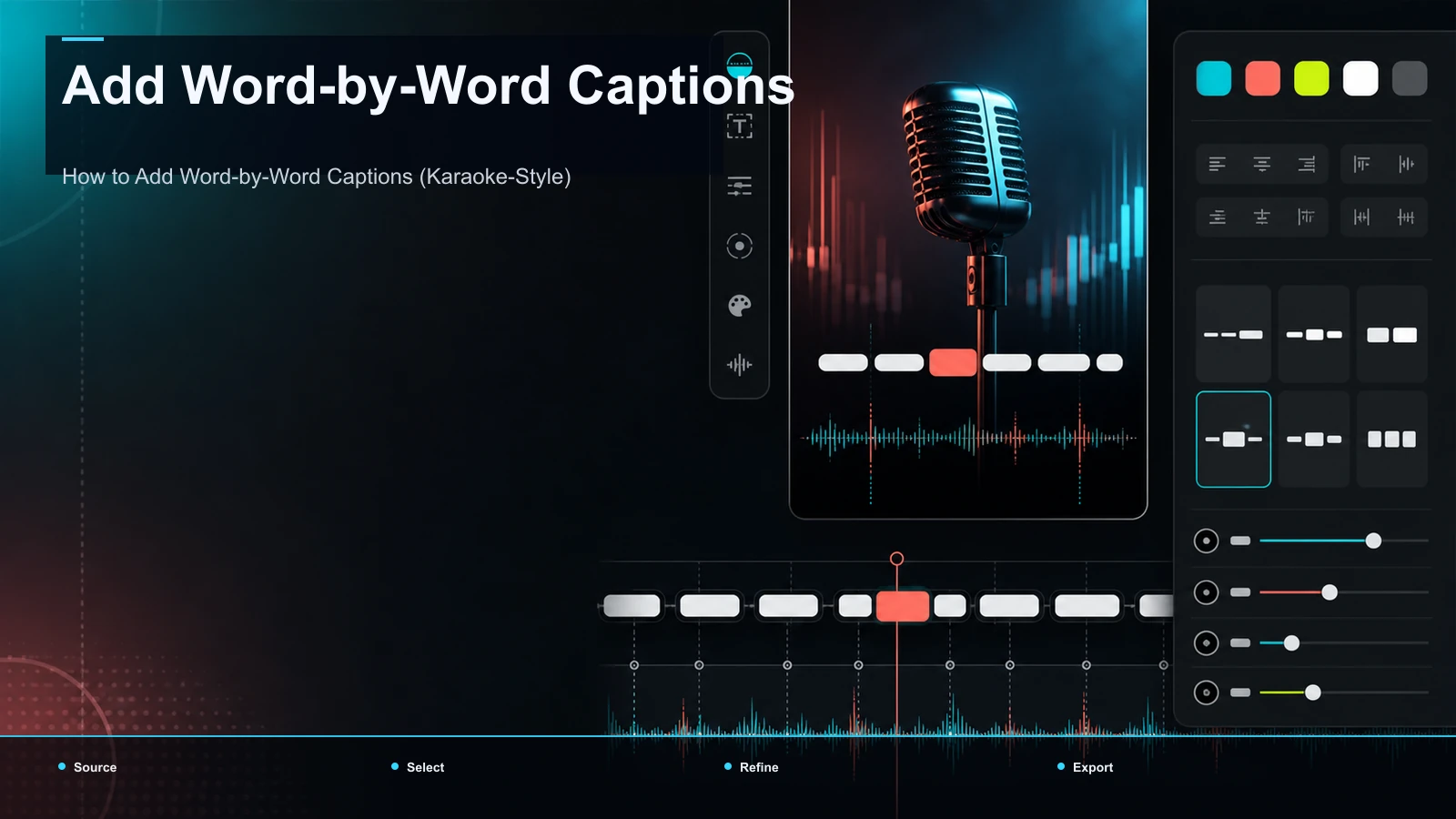
- Add captions. Some short-form video is watched without audio, so burned-in captions improve accessibility and comprehension — they keep the video legible when the visuals cut away from your mouth.
- Export vertical. Reframe to 9:16 for Shorts, Reels, and TikTok, then export.
A browser-based AI video editor is enough for steps 4–8 — you can trim the A-roll, layer inserts, reframe to vertical, and export without installing desktop software.
Here's the flow on a real 90-second clip: you say "I open my analytics every Monday" (cut to a 3-second screen recording of a dashboard), "sales were up" (cut to a chart animating), "so I doubled the ad budget" (cut to a hand clicking a "publish" button). Three inserts, roughly nine seconds of a ninety-second video's B-roll budget spent, and each one motivated by the sentence under it. Repeat that across the whole take and you land near 40% coverage without ever counting.
How to choose an AI B-roll generator (a self-test, not a ranking)
The SERP for this topic is crowded with AI B-roll generators all claiming to be effortless. Instead of trusting a feature list, run a five-minute self-test before you commit to any of them:
Score each tool on those five points with your own footage and your own eyes. That beats any published comparison, because the only quality that matters is how the clips look next to your face and your script.
Common B-roll mistakes to avoid
From talking head to captioned shorts: where Recapo fits
Be clear-eyed about tooling: generating B-roll is a separate job, and Recapo is not an AI B-roll generator — you'll still source that footage yourself. Where Recapo earns its place is the last mile, after your B-roll is in place: turning a finished, long talking-head recording into clean vertical shorts.
In a browser, with no install and files up to the per-task limit on the pricing page, the workflow looks like this:
So the honest division of labor is: source and place your B-roll in an editor, then use Recapo to caption, reframe, clip, and export the result at scale. If the talking-head format itself is new to you, start with how to make talking-head videos; if you want your captions to pop the way top creators' do, see how to add word-by-word captions.
FAQ
How much B-roll should a talking-head video have? Start with the 60/40 B-roll rule — about 40% of screen time on B-roll, 60% on your face — and shift toward 50/50 for fast short-form or 70/30 for calm tutorials. Hold each insert 2–5 seconds.
Do I need an AI B-roll generator, or is stock enough? Stock covers generic establishing shots; an AI B-roll generator helps with concepts that are awkward to film. Most solid videos blend own footage, stock, and AI rather than relying on any one.
How do I add B-roll without losing my voice audio? Keep your narration as the constant track on the timeline, then mute or duck the sound that comes with each B-roll clip so it never competes with your voice.
What length should each B-roll clip be? Two to five seconds. Under two reads as a flicker; over five and the viewer forgets you're on camera. Cut on the natural beat of your sentence.
Can I add B-roll and captions in the browser without installing software? Yes. A browser-based editor handles trimming, layering inserts, and reframing, and a tool like Recapo can auto-caption and export the finished vertical clip with no install.
Once your B-roll is placed, Recapo handles the last mile: upload or import your finished talking-head recording, clip it into shorts, reframe to 9:16, generate captions for muted viewing, and export — all in the browser. Create a free account and turn your next talking-head take into a batch of captioned, ready-to-post verticals.
References and official sources