How to Add Word-by-Word Captions (Karaoke-Style)
How to add word-by-word captions the karaoke way: highlight vs. pop-in modes, the word-level timeline both need, and typography that stays readable at speed.
By the Recapo.ai Editorial Team · Fact-checked July 10, 2026
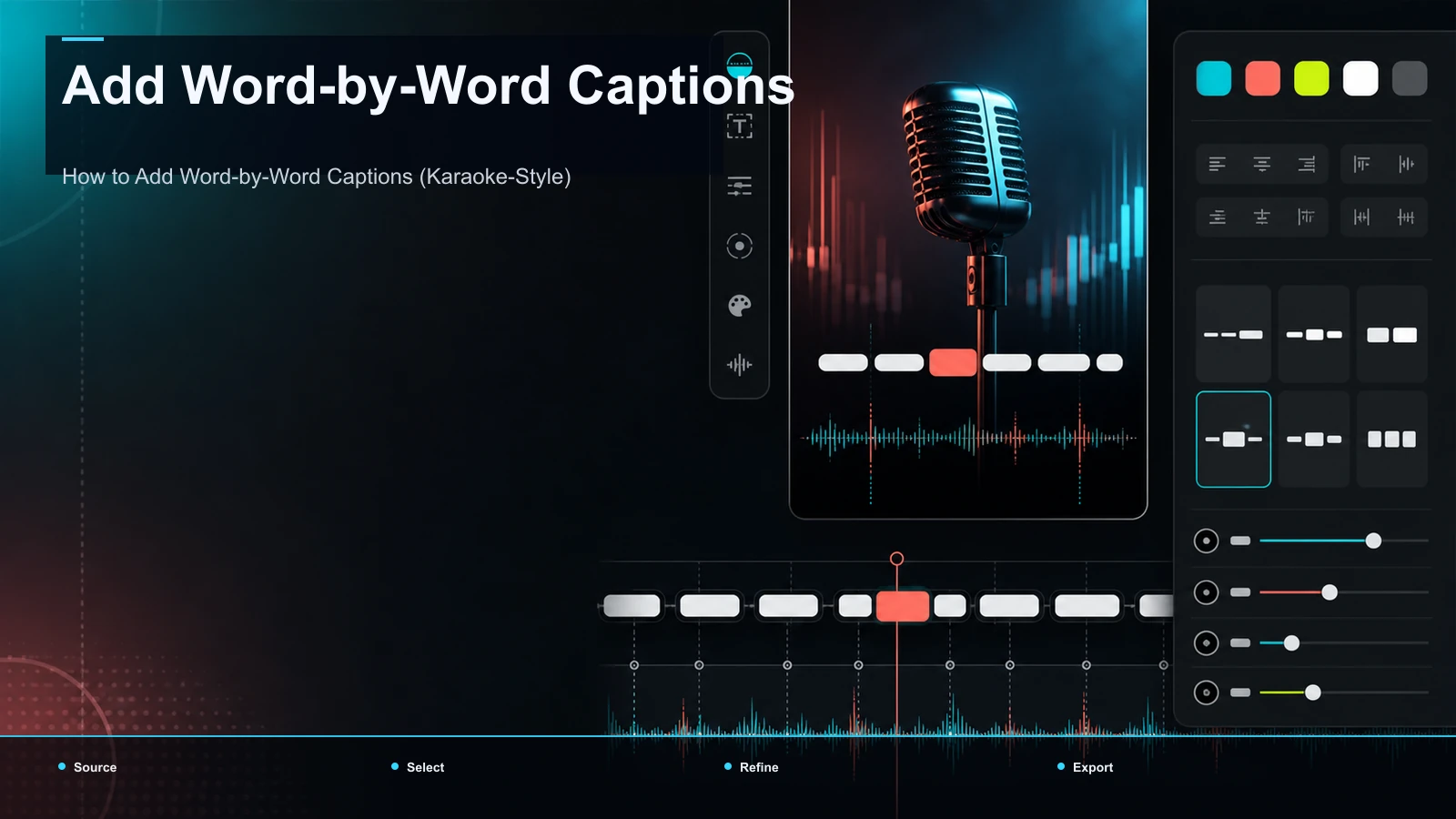
To add word-by-word captions — the TikTok-style effect where each word lights up or pops in exactly as it's spoken — you need three things a publishing app won't hand you: a word-level timeline, a highlight-or-pop-in animation bound to that timeline, and a burn-in on export. That's the short answer to how to add word-by-word captions, and it's why the search almost always ends at a dedicated caption tool, not the editor inside TikTok, Reels, or YouTube. This guide stays tight on the word-by-word look specifically — not animated captions in general — covering the two modes (karaoke highlight vs. word pop-in), the per-word timing both depend on, and the typography that keeps text readable when a highlight races across the screen a word at a time.
What word-by-word captions actually are
Word-by-word captions are on-screen text where the unit of change is a single word, not a whole line. As the audio plays, one word appears or the current word highlights, instead of a full phrase blinking on and off as a block. You'll see the same effect called word by word subtitles, active word captions, or highlight captions, and when the emphasis follows the voice like a lyric, karaoke captions — all the same idea: caption motion at the granularity of one word.
Name the opposite and the intent is clear. A block caption times a full line to a whole phrase and comes and goes as one chunk — fine for a tutorial or talking-head, and any captions beat none, since some viewers encounter short-form video with the sound off, per the platforms' own accessibility guidance. But block captions read as accessibility, while word-by-word captions read as pacing and production value — which is why short-form creators search for this specific effect, not "captions" in general.
Highlight vs. pop-in: the two word-by-word modes
Here's the distinction most guides skip. "Word-by-word" isn't one effect — it's two, and picking the wrong one for your content is the difference between captions that feel premium and captions that feel exhausting.
| Mode | What's on screen | Reads as | Best for |
|---|---|---|---|
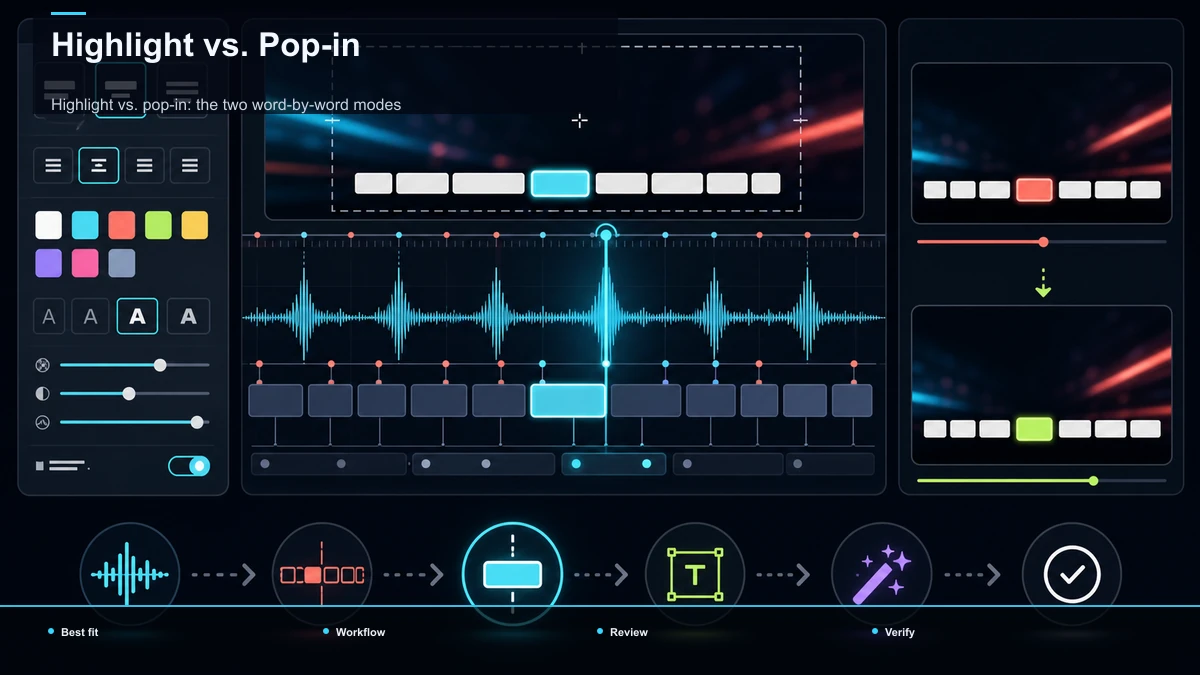
| Karaoke highlight | The full line stays visible; the active word changes color or scales | Rhythmic, guided, context-rich | Music, fast delivery, dense info you want kept on screen |
| Word pop-in (build) | Words appear one (or a few) at a time; only what's been spoken shows | Punchy, minimal, forward-driving | Hooks, high-energy Shorts/Reels/TikTok, sparse narration |
Karaoke highlight keeps the whole phrase on screen and moves a highlight — a color swap, a scale bump, a glow — across it in time with the voice. Its strength is context: the viewer sees where the line is going while the highlight marks the exact beat, which suits music, fast talkers, and info you want held on screen for a second.
Word pop-in shows only what's been said so far, adding one word (or a tight cluster) at a time. Its strength is pace: with almost nothing on screen, each new word lands like a drumbeat, suiting a punchy hook or high-energy edit. The trade-off is lost context — the viewer can't read ahead — so it fits short, deliberate lines, not long sentences.
Match the mode to your delivery. When in doubt, highlight is the safer default: it never leaves a muted viewer staring at a half-empty screen. For caption motion beyond these two modes, our guide to animated captions maps the full range.
The word-level timeline that makes it work
Both modes rest on one technical thing: a word-level timeline, produced by forced alignment. The tool listens to your audio and assigns every word a precise start and end timestamp. That per-word data is what lets a highlight jump to the right word on the right frame, or a pop-in land the instant a word is spoken instead of drifting a beat behind.
This is the line between real word-by-word captions and a cheap imitation. Line-level captions — what native auto-caption features generate — know roughly when a phrase is spoken, so they can fade a whole line in and out but can't drive a per-word highlight. If your attempt highlights a whole line at once, or the words fire late, the timeline isn't truly word-level, and no styling will fix it.
Why TikTok, YouTube, and CapCut leave the effect just out of reach
The caption features inside TikTok, Instagram Reels, and YouTube (including Shorts) auto-generate captions at the line level, in a small set of fixed styles built for accessibility and speed. They don't expose an editable per-word timeline or per-word animation control — so the highlight or pop-in look you're picturing isn't in the app you publish to. You build it upstream and import a finished file.
That's why so many creators search "capcut word by word": they've hit the ceiling of the native editor and want whatever produces the effect. Rather than claim what any one editor's exact feature set is — those change release to release — run a quick self-test on any tool you're considering, CapCut or otherwise:
- Per-word timeline. Can you see and edit each word's start/end time, not just a line's?
- Word-bound animation. Can you assign a highlight or a pop-in that fires on each word, not just a fade on the whole caption?
- Active-word styling. Can you set the highlight color, weight, or scale for the spoken word independently of the base text?
- Burn-in on export. Does the finished video bake the motion into the frames so it survives upload anywhere?
A tool that passes all four can produce the look; one that fails a step can't — a cleaner way to choose than trusting a feature list.
How to add word-by-word captions: a step-by-step workflow
Once the pieces make sense, the process is short and identical every time.
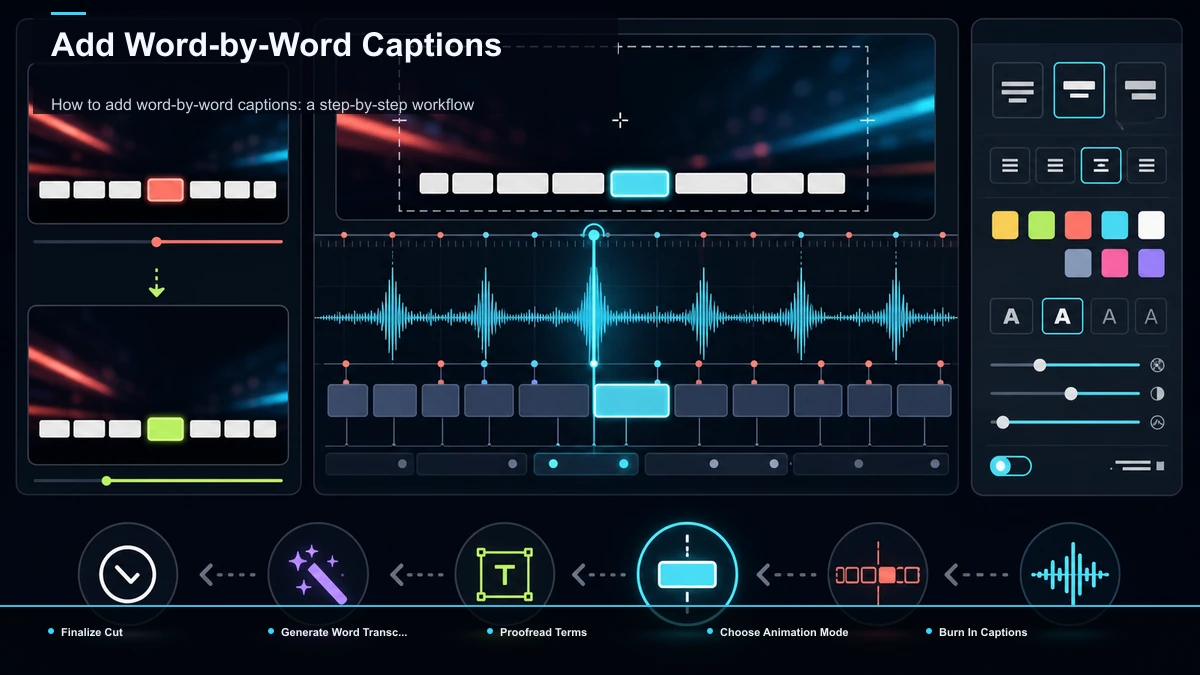
- Start from your finished cut. Caption last, after the edit is locked, so the timing matches your final audio and you never re-caption after a trim.
- Generate a word-level transcript. Run the audio through auto-captions for a timed transcript with per-word timestamps — the raw material both modes depend on.
- Proofread names and homophones. Auto-transcription is strong on ordinary speech, weak on proper nouns and sound-alikes ("their/there"). Because these captions get burned in, a typo is permanent — a video caption generator that shows the transcript beside the timeline makes this fast.
- Pick your mode and style. In the subtitle style editor, choose karaoke highlight or word pop-in, then set the font, weight, base color, highlight color, outline, and position. One mode per video.
- Place captions in the safe zone and reframe. On vertical, keep the caption block clear of the platform's UI overlays (username, caption, button stack). Going 9:16 from a horizontal source? Reframe first, then lock the caption position.
- Burn in and export. Render with the motion baked into the frames, then do a full-screen playback at phone size — legibility at 6 inches is nothing like on your monitor.
Typography for fast highlights: staying readable at speed
This is where word-by-word captions live or die. When a highlight jumps a word at a time, the reader gets a fraction of a second per word — so every typographic choice has to buy back the legibility speed is spending.
- Go heavy. A bold or extra-bold weight survives compression and motion far better than a thin face, which smears the instant it moves.
- One highlight color, high contrast. A single saturated highlight (a warm yellow or bright green is reliable) on a plain base, with enough contrast that the active word is unmistakable at a glance. More colors turn a guide into a distraction.
- Anchor the block; move only the word. Keep the caption's position fixed so the highlight or new word is the only thing moving — otherwise the eye chases the container instead of reading.
- Keep lines short. For pop-in, 1–4 words on screen at once; for highlight, a short line the eye takes in without scanning. Long lines defeat the pacing.
- Add an outline or box. A dark outline or a subtle background plate lets the caption read over any footage — busy backgrounds are where thin, plate-less text vanishes.
- Match motion to cadence. Don't push the highlight past actual speech; captions that outrun the voice feel broken, not fast. The word should light up as it's said, not before.
The through-line: speed is the appeal, so protect readability everywhere else. For a wider library of looks, see our roundup of the best caption styles for Shorts.
Word-by-word caption mistakes to avoid
Most problems come from the same short list. Scan it before you export.
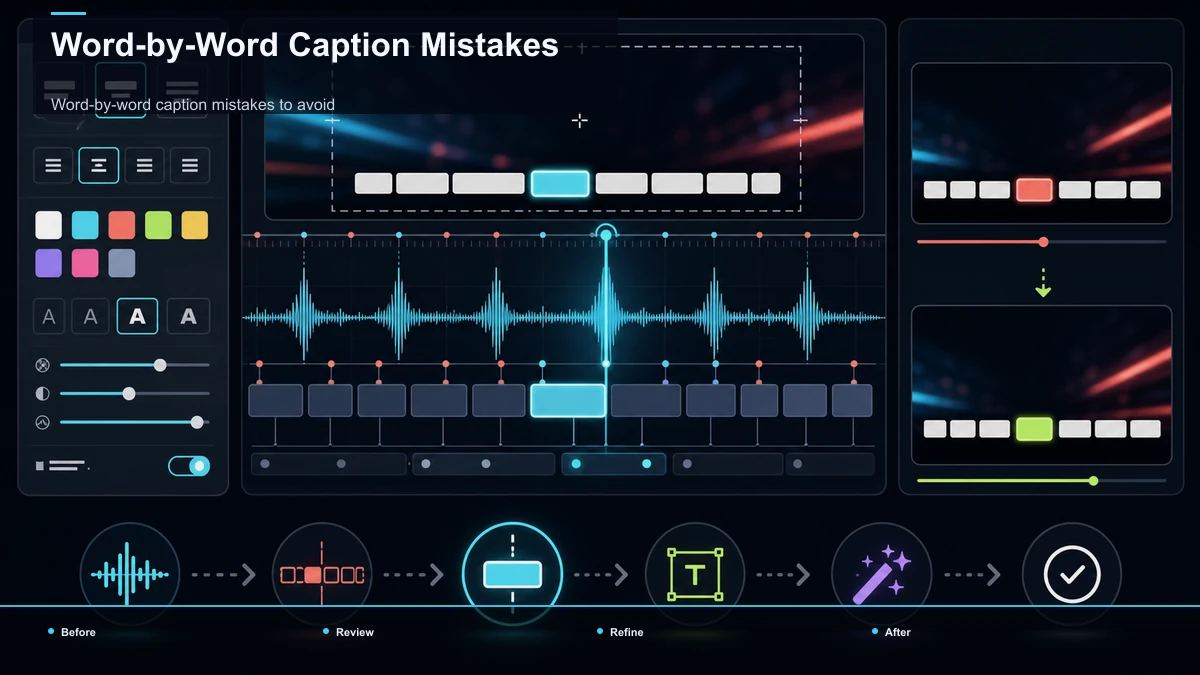
- Highlighting a whole line at once: your timeline isn't word-level; regenerate the transcript instead.
- Words firing late: a corrupted or line-level timeline, not a styling issue. Fix it at the source.
- Two modes in one clip: highlight and pop-in in the same video reads as indecision. Pick one and hold it.
- Thin or same-color text: it vanishes over real footage the moment it moves. Go bold, add an outline.
- Skipping the proofread: burned-in typos are permanent. This pass is never optional.
Where Recapo fits
Recapo is a browser-based AI video workspace — nothing to install — and the word-by-word pipeline in this guide happens to run inside it end to end. You can transcribe and caption to get a word-level transcript, correct names and homophones, choose a highlight or a pop-in and style it, resize to 9:16 for Shorts, Reels, or TikTok, design a cover, and export with the captions burned into the frames — all in one tab, without moving a file between apps. It accepts MP4, MOV, and other common formats, up to 6GB total per task — enough for a long recording you're captioning after the fact.
The practical fit: Recapo handles the production — transcript, mode, styling, and burn-in — but the taste calls stay yours. It won't decide whether your delivery wants a highlight or a pop-in, or where to set your contrast; the typography discipline above is what turns a technically-timed caption into one that holds a muted viewer. If word-by-word captions are a recurring part of your routine rather than a one-off, having the whole loop in a single tab is the job it's built for. Plans live on the pricing page.
FAQ
Can I add word-by-word captions natively in TikTok, Reels, or YouTube?
You can add static, line-level auto-captions natively, and they're worth using for accessibility. But the word-by-word effect — a per-word highlight or a pop-in — isn't exposed in those native editors, because it needs an editable per-word timeline the apps don't give you. That's the technical reason "how to add word-by-word captions" almost always leads to a dedicated tool.
What's the difference between karaoke highlight and word pop-in?
Karaoke highlight keeps the whole line on screen and moves a highlight across the active word, so the viewer keeps context while the eye tracks the beat — good for music and fast delivery. Word pop-in shows only what's been spoken, one word or cluster at a time, trading context for pace and punch — good for hooks and high-energy edits. Pick one per video.
Does CapCut do word-by-word captions?
Rather than rely on any editor's current feature list, run a quick self-test: can you edit a per-word timeline, assign a highlight or pop-in per word, style the active word independently, and burn the result into the frames on export? Any tool — CapCut or otherwise — that passes all four can produce the look; one that fails a step can't.
Why do word-by-word captions have to be burned in?
Because motion, fonts, colors, and per-word timing can't travel in a soft subtitle file. An .srt or .vtt carries plain text and rough timing only, so the highlight or pop-in has to be rendered into the actual video frames — "burned in" — on export. The catch is that burned-in captions are permanent, which is why you proofread the transcript before you render.
How many words should show on screen at once?
For pop-in, 1–4 words at a time keeps the pace sharp without leaving the viewer squinting; for karaoke highlight, use a short line the eye absorbs in a glance, not a long paragraph. Long visible lines defeat the fast, readable rhythm that makes the effect worth adding.
Ready to add word-by-word captions without stitching three apps together? Create a free account, upload your finished cut — MP4 or MOV, up to 6GB total per task — and run the whole loop in one browser tab: transcribe to a word-level transcript, proofread the names, pick karaoke highlight or pop-in, set a heavy font and one high-contrast highlight, reframe to 9:16, and export with the captions burned in. You bring the delivery and the taste; Recapo handles the production so your next Short keeps pace with the voice instead of falling behind it.