How to Add Captions to TikTok Videos (Auto, Manual & Styled)
Add captions to TikTok with native tools or burned-in subtitles, then correct names, timing, readability, and safe-zone placement before publishing.

By the Recapo.ai Editorial Team · Fact-checked July 10, 2026
If you want to know how to add captions to TikTok, there are three routes — TikTok's built-in auto captions, uploading your own subtitle file, and styling captions in a separate tool before you post — and this guide walks all three, then goes past them. The native feature is the right answer for a quick talking-head post, but it quietly falls apart on narration over movie or gameplay audio, on music-heavy clips, and on footage where two people talk over each other — exactly the material that repurposers and faceless creators post most. So we'll cover the fast native path, why it breaks and how to fix accuracy before captions reach TikTok, how to style them so they get read, and how to caption once and reuse the set across TikTok, Reels, and Shorts.
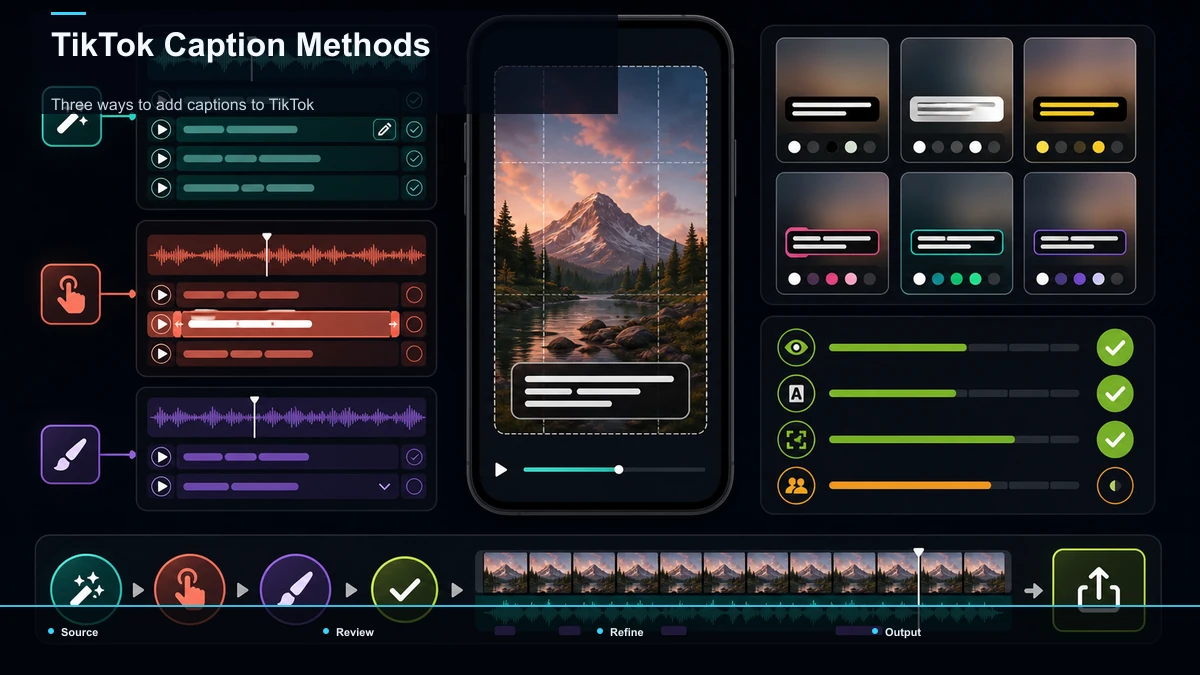
Three ways to add captions to TikTok
Before the steps, know your options — because the right method depends on how much control you need over accuracy and look. There are three practical ways to add subtitles to TikTok, and they trade speed for control in a predictable way.
| TikTok native auto captions | Quick single-speaker talking-head posts | Edit text in-app after auto-transcribe | Basic in-app options | Not portable — stays in the TikTok post | Upload your own subtitles (SRT) | Captions written or corrected elsewhere | Full — you control every word | Depends on the app that renders them | Portable if you keep the source file | Style + burn in with a caption tool | Narration, multi-speaker, branded looks | Full — word-level editable transcript | Full — fonts, highlight, placement | Yes — one master exports everywhere |
The pattern is simple: the faster the method, the less control you get. TikTok's own captions are the quickest, but the words and the look live inside that one post. A styled burn-in takes an extra step, but it hands you an editable transcript, a look you control, and a master you can carry to every platform. Casual posters live in row one; high-volume clippers end up in row three.
How to add TikTok's built-in captions
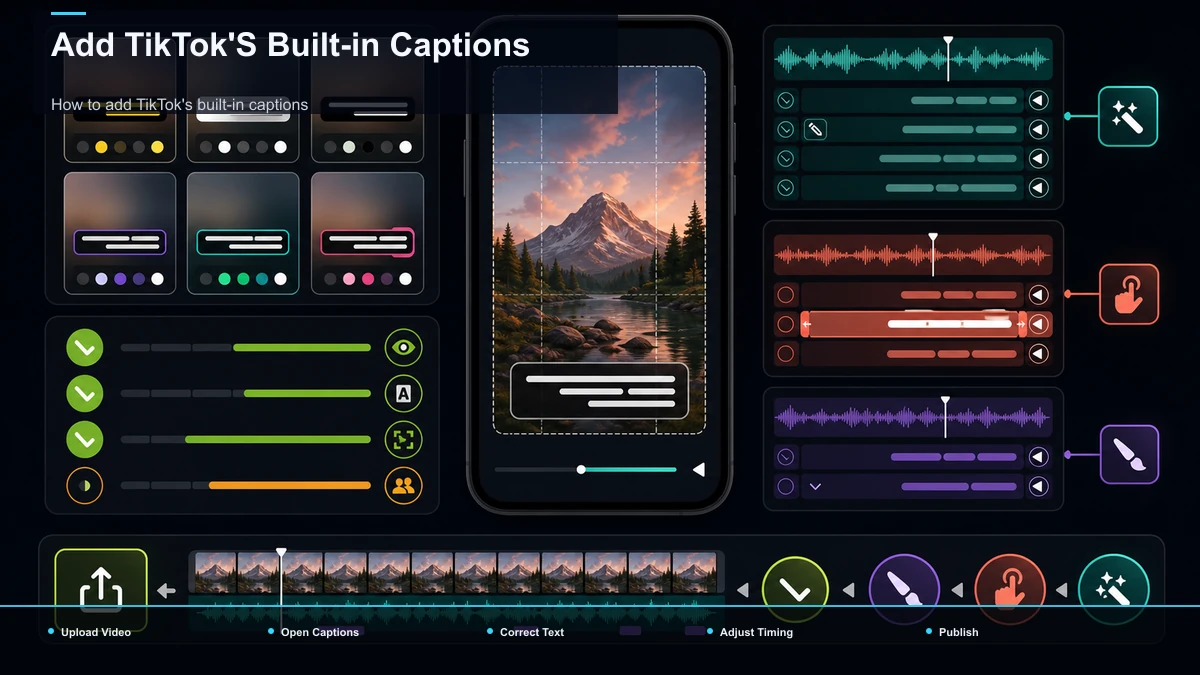
Start here, because for a clean, single-speaker recording the native feature is genuinely good enough. TikTok's own captions feature auto-transcribes the speech in your video and lets viewers turn the captions on or off. Here's the flow.
- Upload or record your video in the TikTok app and move to the editing screen before you post.
- Open the captions option. In the editing tools, choose the captions feature; TikTok auto-transcribes the spoken audio into timed lines.
- Edit the text. Tap into the transcript to fix misheard words, names, and punctuation — do this now, because it's the only accuracy pass native captions give you.
- Adjust timing and position if the tool allows, so lines don't collide with on-screen elements.
- Post. Viewers can toggle the captions, and depending on settings they show by default.
That's the whole native path, and for a face-to-camera clip recorded in a quiet room it works. The trouble starts when your audio isn't a single clear voice — which, for a lot of creators, is most of the time.
Where TikTok auto captions break down
Here's the honest limit, and it's the reason this article exists. TikTok's auto captions transcribe whatever the model hears, and they can't isolate a voice from everything competing with it. Four situations wreck them:
Notice the common thread: these are the exact conditions a repurposer or faceless creator works in every day. If your channel is narration-driven or multi-speaker, native TikTok captions aren't wrong to try — they'll just hand you enough errors that "quick" stops being quick. That's the cue to fix accuracy upstream instead.
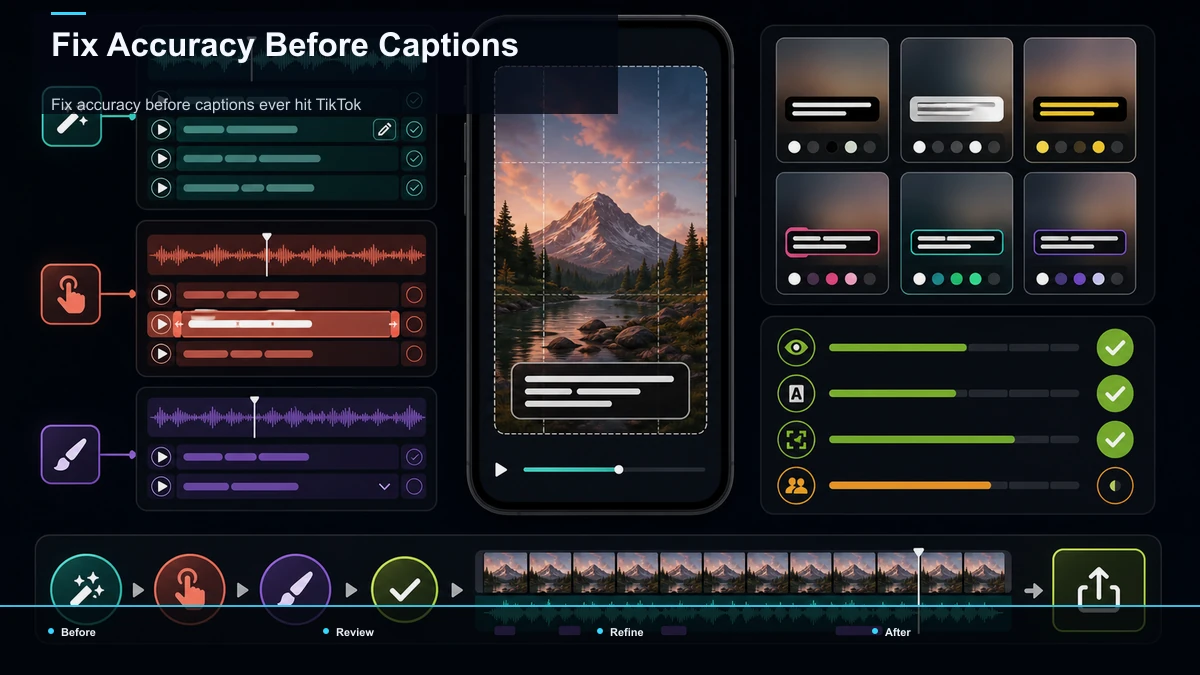
Fix accuracy before captions ever hit TikTok
The move that saves narration and multi-speaker creators isn't a better in-app editor — it's fixing what the transcriber hears, then correcting the words in a place built for it. Do it in this order.
- Clean the audio first. If your voice sits under music or noise, transcribe a dry vocal, not the full mix. A cleaner signal in means fewer errors out — you're improving what the model hears rather than patching the output later.
- Generate a word-level, editable transcript. Run the cleaned audio through auto-captions to get timed captions you can edit, with per-word timing — the draft you'll correct, not the final word. A video-caption-generator that shows the transcript beside the video gives you the most room to fix what's left.
- Proofread the high-risk tokens. Don't reread every word — hunt the four things transcribers miss most: names, homophones ("their/there"), numbers (prices, dates, stats), and jargon. Fix those and you've caught the errors that cost credibility.
- Read it once, muted. Play the clip on mute and read only the captions, to check the no-audio viewing experience, per the platforms' own accessibility guidance. Anything that reads wrong silently gets fixed now.
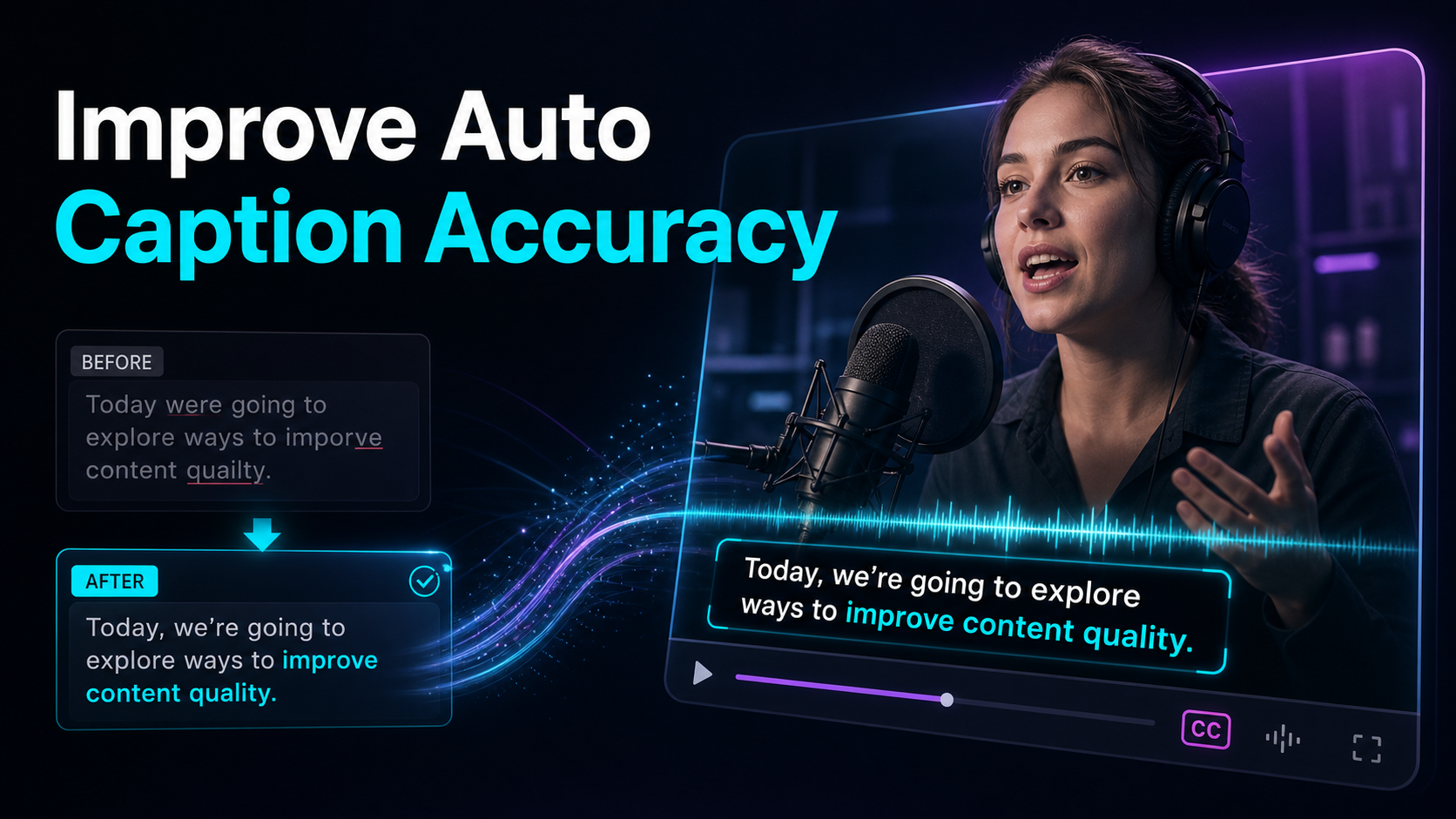
The reason to do accuracy work here rather than in the TikTok post is that you end up with a corrected transcript you own — not captions locked inside one upload. For a deeper checklist on squeezing errors out of any auto-caption pass, see our guide on how to improve auto-caption accuracy. Get the words right once, and every downstream step — styling, reframing, reuse — inherits a clean base.
Styled TikTok captions that actually get read
Accurate captions still fail if nobody can read them. On TikTok, the goal of styled captions isn't decoration — it's legibility at thumb-scrolling speed, on a screen crowded with UI. A few principles separate captions that land from captions that get scrolled past:
For finer control than an in-app editor gives — custom fonts, brand colors, precise placement, and karaoke highlighting bound to the word-level timeline — a dedicated subtitle-style-editor is where you dial the look in. If you're choosing a caption aesthetic for your niche, our breakdown of the best caption styles for shorts covers what reads and what distracts.
Caption once, publish to TikTok + Reels + Shorts
This is the payoff, and it's the reason to do captions upstream rather than inside each app. If you post the same clip to TikTok, Instagram Reels, and YouTube Shorts, native captioning means captioning three separate times, in three editors, with three chances to introduce a different typo. Burned-in captions solve that: they're part of the video frame, so they travel with the file to every platform.
The workflow:
- Build one captioned master: accurate transcript, styled the way you want, on a 9:16 vertical frame.
- Burn the captions into the video so they render identically wherever you upload.
- Mind each platform's safe zone. TikTok, Reels, and Shorts crowd slightly different parts of the frame with their own UI. Keep captions in the shared center-safe band so no platform's buttons cover them, and you can post one export everywhere.
- Reuse the transcript, not just the video. Because you own the corrected transcript, translating or re-styling for a second version is an edit, not a re-transcription.
Two caveats keep this honest. Burned-in captions are permanent — proofread before you render, because you can't fix a typo after burn-in without re-exporting. And they aren't TikTok's toggleable closed captions; burned-in text always shows. For some short-form creators that's a feature — captions appear even when a viewer's sound-off default doesn't trigger them. If Reels is a big channel for you, our walkthrough on how to add captions to Instagram Reels covers its safe-zone quirks.
TikTok captions not working? Quick fixes
When TikTok captions aren't working, the cause is usually one of a handful of things. Run this list before you blame the app:
Most "TikTok caption not working" cases trace back to messy audio or a placement collision — both of which you avoid entirely by cleaning the audio and burning styled captions in before upload.
Where Recapo fits
Recapo is a browser-based AI video workspace — nothing to install — and the whole upstream caption workflow in this guide runs inside it end to end. You can reduce background noise and split a music bed off the vocal so narration transcribes cleanly, auto-caption to a word-level editable transcript, proofread names and numbers beside the video, style the captions with fonts and word-by-word highlighting, reframe to 9:16 for TikTok, Reels, and Shorts, design a cover, and export with the captions burned in — all in one tab, instead of shuttling a file between a denoiser, a transcriber, and an editor. It accepts MP4, MOV, and other common formats, up to 6GB total per task, which is room for a long recording you're clipping and captioning after the fact.
The practical fit: for a quiet single-speaker post, TikTok's native captions may be all you need. Recapo earns its place when your audio is the hard kind — narration over a soundtrack, a music bed, multiple speakers — and when you're posting the same clip to more than one platform and want one accurate, styled master instead of captioning three times. It cleans the input and gives you an editable transcript; the judgment calls — the final proofread, the muted read-through — stay yours. If captioning TikToks is a recurring part of your routine, that's the job it's built for. Plans live on the pricing page.
FAQ
How do I add captions to a TikTok video?
Three ways. Use TikTok's built-in captions feature to auto-transcribe your speech, then edit the text in-app — best for a clean single-speaker clip. Upload your own subtitle file if you wrote or corrected captions elsewhere. Or style and burn captions into the video in a separate tool before posting, which is the move for narration, multi-speaker audio, or when you want a specific branded look. The more control you need over accuracy and style, the more the third route pays off.
Why are my TikTok auto captions so inaccurate?
Usually the audio, not the tool. TikTok's captioner transcribes everything it hears, so narration over a soundtrack, a music bed, or two people talking over each other all force it to guess — and it guesses wrong on hard words. Names and jargon add errors because recognition favors common words. Clean the audio to a dry vocal, transcribe that, and proofread names and numbers, and most of the inaccuracy disappears before you post.
How do I add styled or word-by-word captions on TikTok?
The karaoke look — each word lighting up as it's spoken — needs a word-level timeline and a highlight animation bound to it, then a burn-in on export. TikTok's in-app options give you basic control; for custom fonts, brand colors, precise placement, and word-by-word highlighting, style the captions in a dedicated editor and burn them into the video before uploading. Keep text in the center-safe zone so TikTok's own interface doesn't cover it.
My TikTok captions aren't working — what do I check?
Start with the audio: heavy music, noise, or very quiet speech can stop auto captions from generating cleanly. Confirm the detected language matches what's spoken. If text is out of sync, re-check the timing — and re-check it any time you trim the video, since edits can knock timings loose. If captions are hidden, they're probably sitting under TikTok's caption bar or action icons, so move them into the center of the frame.
Can I use the same captions on TikTok, Reels, and Shorts?
Yes, if you burn them into the video instead of relying on each app's native captions. Burned-in captions are part of the frame, so one 9:16 master travels to every platform without re-captioning. Keep the text in the center-safe band that all three leave clear, proofread before you render because burn-in is permanent, and you can post a single export everywhere while owning the transcript for future edits or translations.
Ready to stop re-captioning the same clip three times? Create a free account, upload your footage — MP4 or MOV, up to 6GB total per task — and run the whole caption workflow in one browser tab: reduce the background noise, split off any music bed so your narration transcribes cleanly, auto-caption to a word-level editable transcript, proofread the names and numbers beside the video, style the text with word-by-word highlighting, reframe to 9:16, and export with the captions burned in. Post that one master to TikTok, then reuse it for Reels and Shorts — you bring the final read-through, Recapo handles the production.
References and official sources