How to Edit an SRT File (Text, Timing & Online)
How to edit an SRT file safely: the format rules that quietly break subtitles, how to fix timing, and when to move from Notepad to an online SRT editor.
By the Recapo.ai Editorial Team · Fact-checked July 10, 2026
Editing an SRT file is easier than it looks: an SRT is plain text, so you can open it in a free text editor, change the words or timecodes, and save. The catch is compatibility. A malformed timecode or missing cue separator may make one cue disappear, cause later cues to parse incorrectly, or make a stricter importer reject the file; behavior varies by player. This guide covers the safest interchange format, how to fix subtitle timing that's out of sync, and the point where a plain text editor stops being enough and an online SRT editor with a live video preview earns its keep.
What's actually inside an SRT file
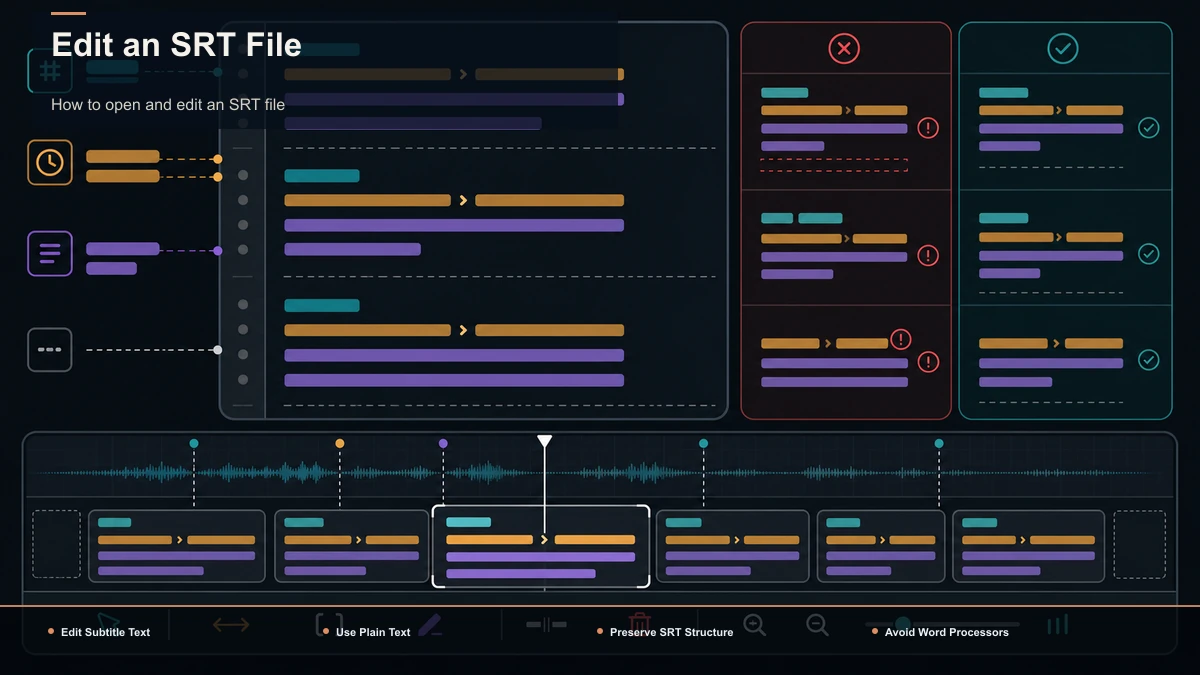
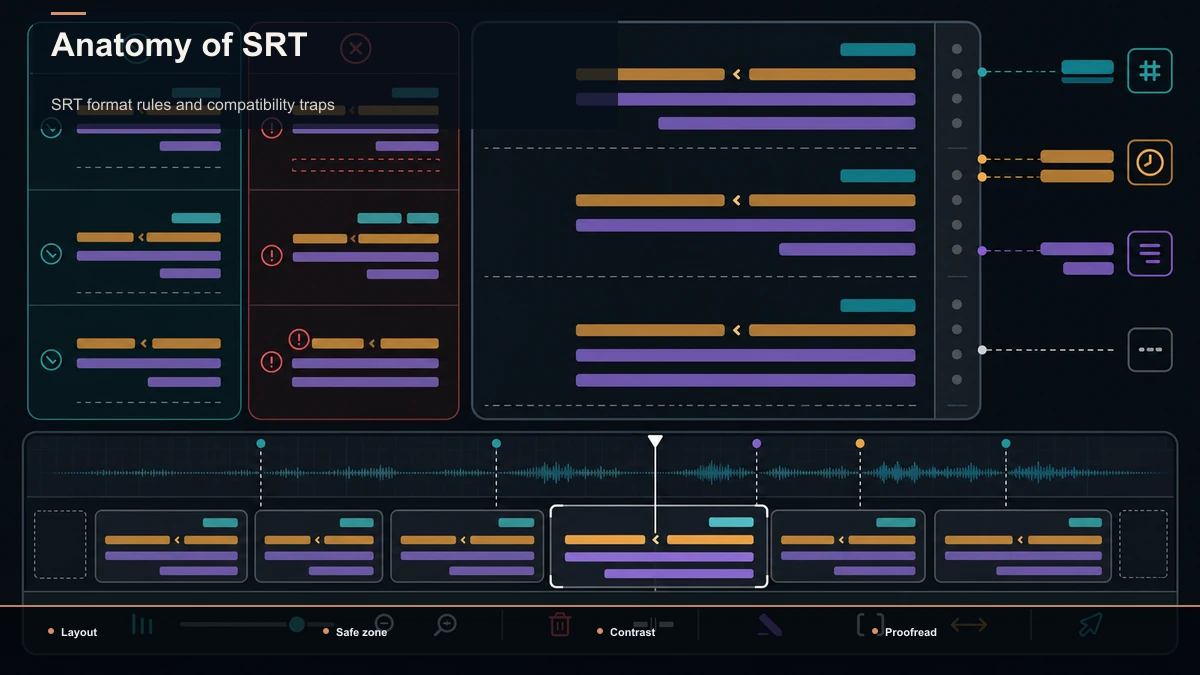
SRT (SubRip Subtitle) is a widely supported caption format, and its appeal is that it is simple and human-readable. Open one and you'll see repeating blocks, each made of four parts:
Each block has:
- A numeric counter:
1,2,3… on its own line. Sequential numbering is the safest choice for interchange. - A timecode line: start time, a space,
-->, a space, end time. The format isHH:MM:SS,mmm— hours, minutes, seconds, then a comma and three-digit milliseconds. - One or two lines of subtitle text: what the viewer reads.
- A blank line: the separator that tells the player one cue has ended and the next begins.
That's the core SRT structure. Some readers support limited HTML-like styling, but support varies, and SRT has little formal standardization. The text file itself will not warn you about a malformed cue, so validate it in the player or platform you plan to use.
How to open and edit an SRT file
Because an SRT is plain text, you don't need special software to edit it. You do need to avoid the wrong software.
The safe, free way:
- Right-click the
.srtfile → Open with → a plain text editor. On Windows use Notepad; on Mac use TextEdit (in plain-text mode); cross-platform, VS Code, Sublime Text, or Notepad++ all work well and show line numbers. - Make your edits. Fix a typo, rewrite a line, nudge a timecode — it's all just text.
- Save with the same
.srtextension and UTF-8 encoding. UTF-8 keeps accented characters, curly quotes, and non-Latin scripts intact.
What to avoid: don't open an SRT in Microsoft Word, Google Docs, or Apple Pages. Rich-text editors love to "help" — they turn straight quotes into curly ones, auto-capitalize, and, worst of all, save the file as .docx or with hidden formatting that no video player can read. If you've only ever tried to open an SRT file by double-clicking it and it launched a media player, that's normal too; just right-click and choose a text editor instead.
SRT format rules and compatibility traps
The Library of Congress format description notes that SRT is widely adopted but not well standardized. The table below therefore separates the safest interchange form from mistakes that stricter importers may reject; tolerant players may still accept some variations.
| Sequence number | Use whole-number counters in ascending order | Gaps or malformed counters may be handled differently by each importer | Timecode separator | Use --> with a space on each side | A different arrow or malformed timing line may make the cue unreadable | Decimal separator | Use a comma before milliseconds (,500) | A period is WebVTT-style and may fail in stricter SRT importers | Milliseconds | Use three digits (,500 not ,5) | Shortened fields reduce portability | Time order | End time after start; cues in order | An end time earlier than the start | Blank line | Leave at least one empty line between cues | No separator can merge blocks or confuse an importer | Overlap | Avoid overlap unless the destination supports it | Overlapping cues render differently across players |
Three checks are especially useful when an import fails:
Get those three right and the fussiness of the format mostly disappears.
Common SRT editing mistakes — and the fix
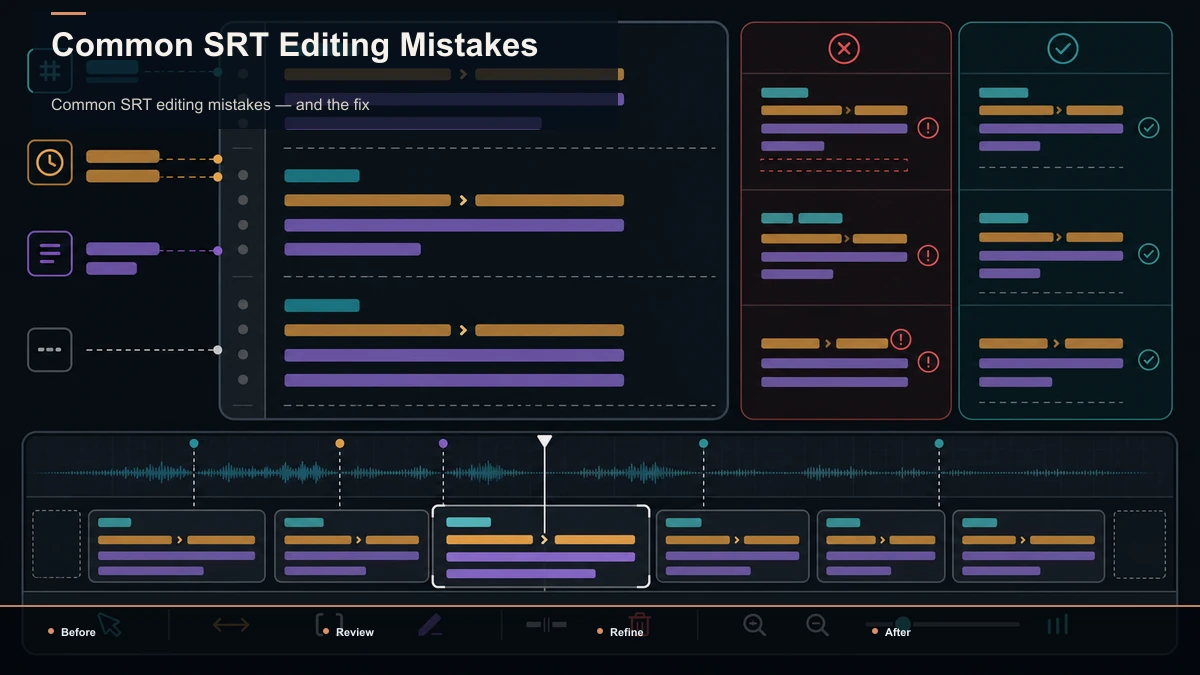
Beyond raw format, a handful of content mistakes show up again and again when people hand-edit captions:
| Whole file won't load | Wrong extension (.srt.txt) or non-UTF-8 encoding | Re-save as .srt, UTF-8 | Garbled accents / symbols | Saved in ANSI/Latin-1 instead of UTF-8 | Re-save as UTF-8 | One cue disappears | Comma swapped for a period, or a broken --> | Repair that timecode line | Two lines merge into one | Missing blank line between cues | Add exactly one blank line | Text runs off the screen | Lines too long | Keep to ~42 characters, max two lines per cue | Captions flash too fast | Cue duration under ~1 second | Extend the end time; aim for readable dwell | Everything after a point is off | A single bad timecode earlier in the file | Find and fix the first broken cue |
The pattern to internalize: SRT errors are often quiet. A malformed cue may affect only that cue or may disrupt later parsing, depending on the importer. When something is wrong, start at the first cue that looks off, repair it, and test again in the destination player.
How to fix subtitle timing that's out of sync
Timing is the number-one reason people open an SRT in the first place, and there are really only two problems to diagnose.
1. A constant offset — everything is early or late by the same amount. The captions are perfectly spaced but the whole track is shifted, usually because a few seconds of intro were added or trimmed. The fix is to add or subtract the same value from every timecode. On three cues that's trivial to do by hand; on three hundred it's a soul-crushing, error-prone slog in Notepad.
2. Progressive drift — the captions start in sync and slide further off as the video plays. A frame-rate mismatch is one possible cause (for example, a track timed for 23.976 fps used with a 25 fps version), but edits or a mismatched cut can also create drift. A single offset will not fix an error that grows over time. Compare the subtitle and video versions first; if they are the same cut, resync by anchoring known points and adjusting the intervening timings.
Here's the honest limit of a plain text editor: it can fix a typo or nudge one cue beautifully, but it can't shift 300 timecodes at once, and it can't show you the video while you work — so you're editing blind, guessing at whether 00:01:12,300 is really where the line should land. That blindness is the exact moment to reach for a different tool.
When to upgrade from Notepad to an online SRT editor
A free text editor is the right tool for small text fixes. You've outgrown it the moment any of these is true:
An online SRT editor solves the first problem the text file can't: a real-time video preview. You scrub the timeline, watch each caption land against the actual footage, drag a cue earlier or later, and see the result instantly. That closes the guesswork loop that makes hand-editing timecodes so miserable.
Rather than name a "best" editor, judge any online SRT editor against a short self-test:
Any tool that clears those five is doing the job. Any tool that hides basic export or timing behind friction isn't worth the upload.
Text editor vs online SRT editor: which to use
| Cost | Free, already installed | Varies by tool | Video preview | None — you edit blind | Yes — caption against footage | Fix a typo | Perfect, instant | Also fine | Shift 200 timecodes | Painful, error-prone | One action | Resync drift | Not practical | Anchor-based, built for it | Restyle captions | Impossible (SRT has no styling) | Usually supported | Best for | Small text and single-cue fixes | Timing, resync, bulk work, styling |
The rule of thumb: edit the words in a text editor; edit the timing in a video-aware editor. If all you're doing is fixing a name or rewriting a clunky line, don't over-tool it — Notepad is genuinely faster. The moment timing enters the picture, move up.
Where Recapo fits
Let's be straight: editing the text of an SRT is a free job you do in Notepad or TextEdit, and you shouldn't pay anything to fix a typo. Recapo doesn't try to sell you a text editor.
Where a browser-based workspace earns its place is the other half of the problem — timing and styling against the actual video. Recapo is an AI video workspace with nothing to install. If your captions are drifting or you're staring at a wall of timecodes you'd have to shift by hand, the pragmatic move is often to skip the surgery and regenerate a clean, correctly-timed track from the audio: Recapo can transcribe and caption the video directly, so the timing comes out synced to the speech instead of hand-nudged. From there its subtitle-style-editor lets you set font, size, and position against a live preview, and export. If you don't have an SRT yet at all, its auto-subtitle-generator and ai-subtitle-generator produce one from the video in the browser — a cleaner starting point than fixing a broken file line by line.
The honest boundary: for a two-line text tweak, Notepad wins and Recapo is overkill. Recapo's value shows up when the fix is really a timing and video job — resyncing, restyling, or regenerating captions for Shorts, Reels, or TikTok — and you'd rather see the words hit the footage than guess at milliseconds. It accepts MP4, MOV, and other common formats, up to 6GB total per task. Plans are on the pricing page.
FAQ
What program do I use to open and edit an SRT file?
Any plain text editor. On Windows, Notepad; on Mac, TextEdit in plain-text mode; cross-platform, VS Code, Notepad++, or Sublime Text all work and add helpful line numbers. Avoid Microsoft Word, Google Docs, and Pages — rich-text editors change quotes, add hidden formatting, and often save the file in a format no video player can read. Right-click the file, choose "Open with," and pick a text editor; then save with the .srt extension and UTF-8 encoding.
Why won't my edited SRT file load anymore?
Almost always a format break. Check, from the top: the timecodes use a comma before milliseconds (00:00:01,000, not .000), every --> has a space on each side, there's exactly one blank line between cues, and the sequence numbers count up without gaps. Also confirm the file is saved as .srt (not .srt.txt) in UTF-8. One broken cue near the top can knock out everything after it, so find and fix the first bad block first.
How do I fix subtitle timing that's out of sync?
Diagnose which problem you have. If the whole track is early or late by a constant amount, it's an offset — add or subtract the same value from every timecode. If it starts in sync and drifts further off as the video plays, it's a frame-rate mismatch that needs resyncing with start and end anchors, not a flat offset. A few cues you can shift by hand in a text editor; for many cues, or for drift, use an editor with a live video preview so you can see each caption land on the footage.
What is the correct SRT timestamp format?
HH:MM:SS,mmm --> HH:MM:SS,mmm. That's two-digit hours, minutes, and seconds, then a comma, then three-digit milliseconds — with a space, -->, and a space between the start and end times. For example: 00:01:23,400 --> 00:01:26,900. The comma is the detail people miss: SRT uses a comma before milliseconds, while the related WebVTT format uses a period. Swapping one for the other breaks the cue.
Can I edit an SRT file online for free?
Yes for the text — many browser tools let you open and edit SRT text without installing anything, and a plain text editor is free either way. The part that varies by tool is the video-aware work: a live preview to check timing, bulk time-shift, resync for drift, and clean export. Judge any online SRT editor by whether it previews captions against the footage, shifts or resyncs timing in one action, and exports clean UTF-8 SRT that you own, watermark-free.
If your only task is fixing a word or a stray timecode, don't overthink it — open the file in Notepad or TextEdit and save. But if the real problem is that your captions are drifting, off by seconds, or a wall of timecodes you'd have to shift by hand, that's a video job, not a text job. Create a free account and upload your footage — MP4 or MOV, up to 6GB total per task — and let Recapo transcribe and caption it into a clean, correctly-timed track synced to the speech, style it against a live preview, and export ready for Shorts, Reels, or TikTok. Fix the words in Notepad; realign them with the video in Recapo.
References and official sources