How to Recap a Movie in 60 Seconds
Build a 60-second movie recap with one editorial angle, 3–4 key beats, reviewed captions, a 9:16 layout, and a separate copyright check.
By the Recapo.ai Editorial Team · Fact-checked July 10, 2026
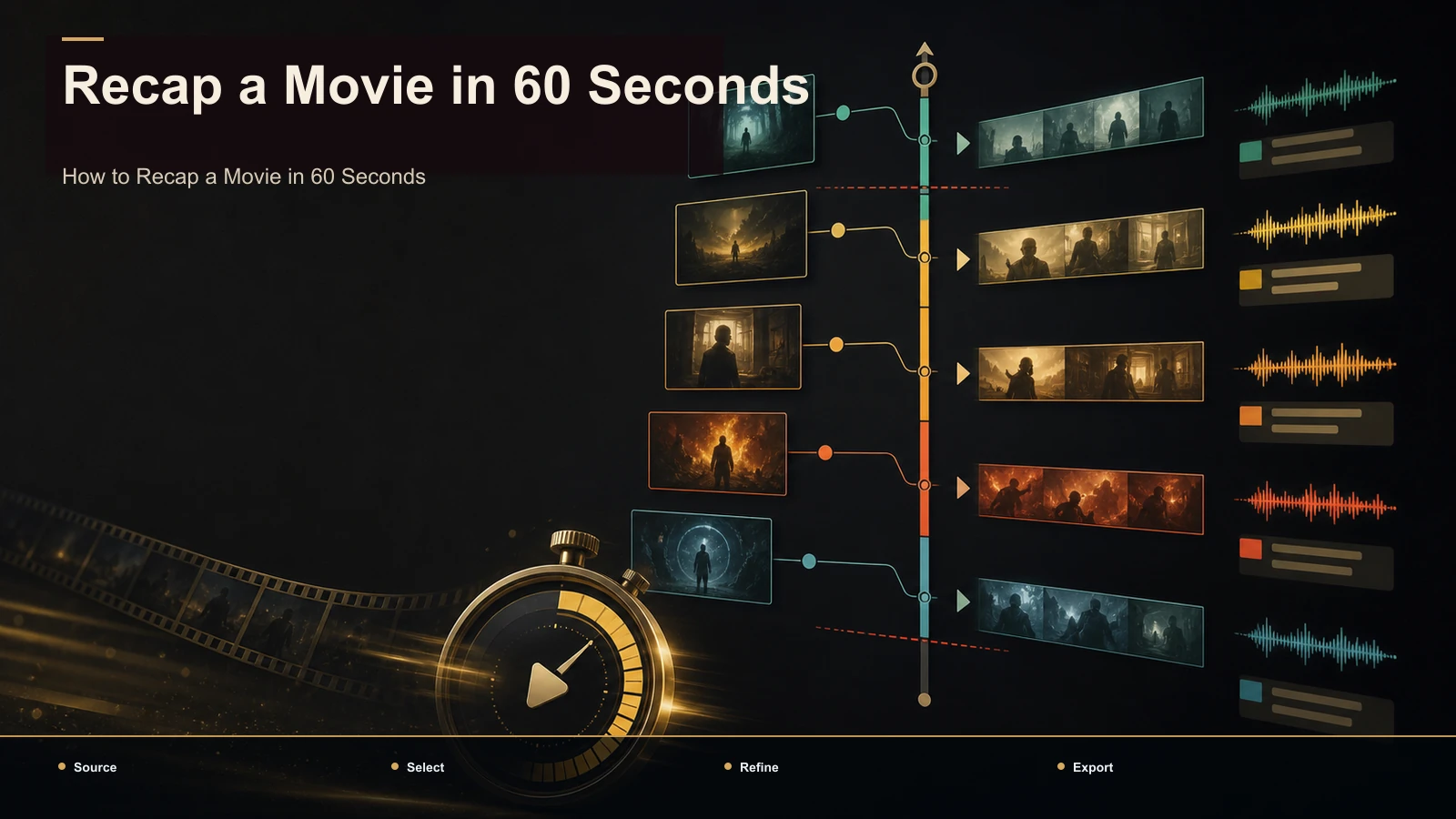
Sixty seconds is an editorial constraint, not a universal platform limit: YouTube's current Shorts guidance allows Shorts longer than one minute. This guide deliberately uses a one-minute format to practice selecting one angle, three or four necessary beats, reviewed captions, and a 9:16 layout.
Long-form narration leaves more room for context. A one-minute edit requires stronger selection and cannot serve as a complete plot retelling. The workflow below separates story compression, production, audience testing, and copyright review rather than treating a short runtime as proof of performance or permission.
Information note: This is general information, not legal advice. Copyright outcomes depend on the facts and jurisdiction; primary sources were checked on July 10, 2026.
Official source map: For the 60-second movie recap exercise, the Shorts format and rights points below are tied to YouTube's current Shorts creation guidance, YouTube's fair-use guidance, Content ID documentation.
What a 60-second constraint changes
A longer recap can carry more plot context. A 60-second version has to select only the details needed for one clear editorial angle, so it should be planned as a different edit rather than a shortened copy of the long version.
Three forces make the vertical minute its own discipline:
- Make the premise clear early. Short-form viewers can move to another item quickly, so the opening frames should establish the subject and promised payoff without a fixed one-second rule.
- Treat 9:16 as the layout for this workflow. Supported ratios and interface overlays vary by platform and placement; preview the actual upload surface before approval.
- Support viewing when audio is unavailable. Accurate captions improve accessibility and comprehension, but they still need human review for names, timing, and line breaks.
These choices make a one-minute story easier to follow. Compare retention, completion, rewatches, comments, and downstream traffic on your own account before standardizing the format.
The 60-second vertical recap template
Here is the pacing map to build every recap on. Treat the timestamps as a starting frame, not a law — slide them to fit the film — but keep the order and the jobs intact.
| Time | Beat | Its job |
|---|---|---|
| 0:00–0:03 | Hook | Stop the scroll: pose a question or tease the turn without spoiling it |
| 0:03–0:12 | Setup | Who, where, and what's at stake — the minimum world and character to make the beats legible |
| 0:12–0:40 | 3–4 key beats | The turning points that carry the story; skip everything in between |
| 0:40–0:52 | Payoff tease | Land the emotional turn; hint at the ending without handing it over |
| 0:52–0:60 | CTA | Convert the watch: ask for the follow, a "part 2," or their take |
Why this shape works: the hook buys attention, the setup spends the bare minimum needed to make the beats land, the beats deliver the tension you promised, and the CTA turns a watch into a follow. Notice how little time the plot itself gets — roughly half the runtime — because the plot is not what keeps people watching. Tension is.
Make the opening clear without a fixed three-second rule
State the central question, conflict, or unusual detail as early as the story allows. YouTube does not publish a universal three-second hook requirement, and an opening does not directly "tell the algorithm" anything by using a particular phrase.
Draft several accurate openings and preview them with the first section of the cut. Remove greetings that add no context, but keep any setup needed to understand the stakes. Compare chosen-to-view and retention evidence across similar uploads rather than calling one formula reliable for every recap.
Choose 3–4 beats, not the whole plot
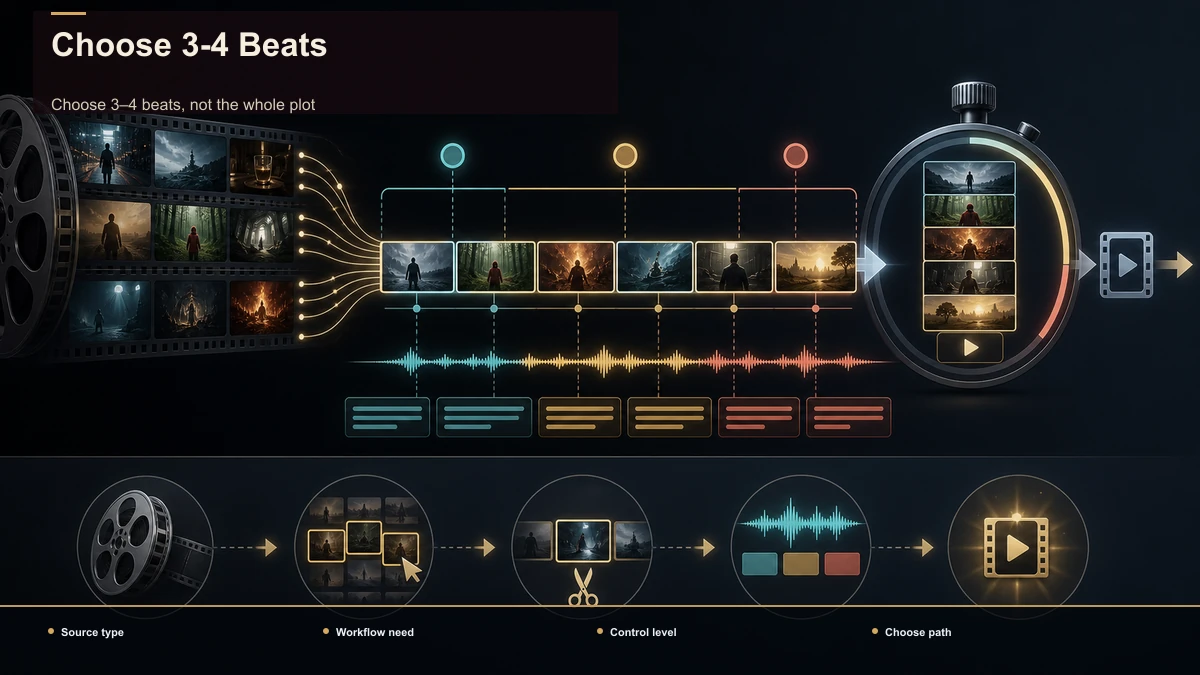
The instinct that ruins short recaps is completeness — and completeness is not why anyone watches anyway. Your job is to pick the three or four beats that make the emotional arc legible and let the viewer's brain fill the gaps.
A simple method for finding them:
- Name the engine. What does the main character want? That single want is the spine every beat hangs on.
- Find the turn. The moment the plan goes wrong or the truth surfaces. This is almost always beat two.
- Find the cost. What the turn forces the character to do or lose. This is the emotional core.
- Withhold the resolution. Tease the ending; do not spool it out. The unanswered question is what earns the follow.
Here is how a two-hour film collapses into four beats without feeling gutted:
| Full film | 60-second recap |
|---|---|
| Twenty minutes of world-building and character intro | One line of setup in the hook and setup slots |
| Multiple subplots and side characters | Cut entirely unless one drives the main turn |
| The slow middle where the plan comes together | Compressed to a single "here's the plan" beat |
| The climax and its full resolution | The turn and the cost shown; the resolution teased, not revealed |
Writing this tight is a craft in itself. If you want a repeatable structure for the words, how to write a movie recap script walks through building a beat sheet you can drop straight into this template.
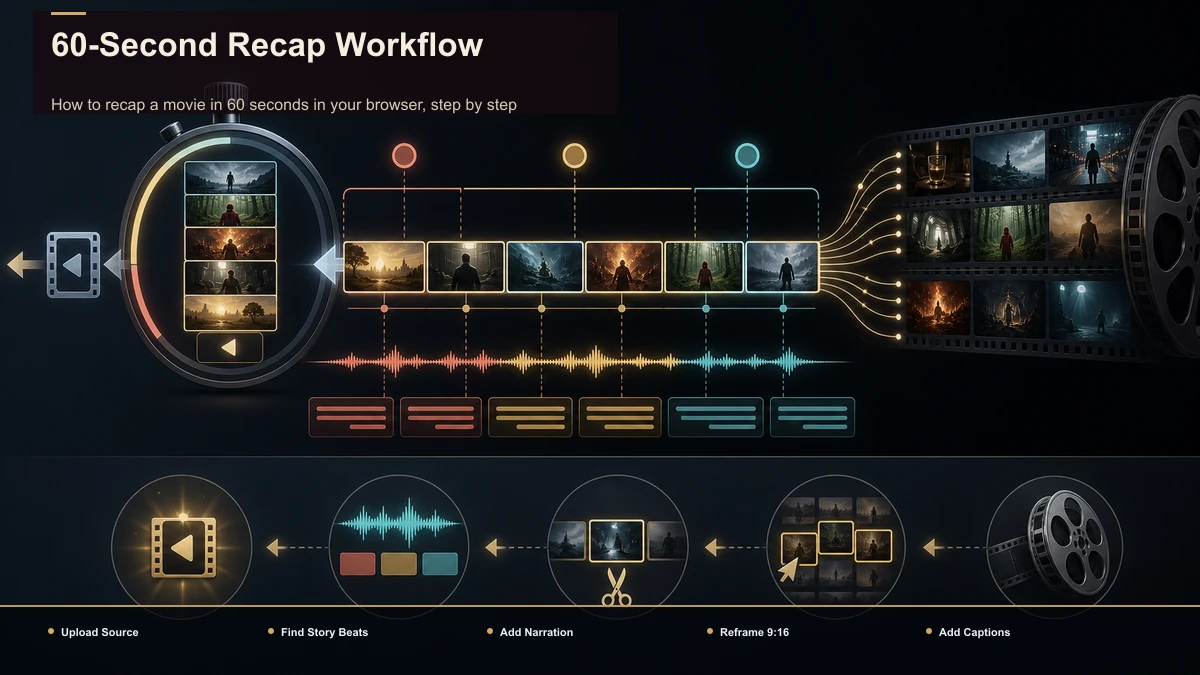
How to recap a movie in 60 seconds in your browser, step by step
You do not need a desktop editor or a render queue for a one-minute vertical. The whole loop runs in a browser, which matters when you are producing recaps on a schedule. Here is the workflow.
- Upload your source once. Browser-based tools accept common formats like MP4 and MOV and handle large files (Recapo allows up to 6GB total per task), so compare the actual source file with the 6GB total-per-task limit before upload.
- Transcribe to find your beats fast. Auto-transcription turns the footage into a searchable script, so you can jump to the exact moments your recap references instead of scrubbing a timeline. A long-video-to-short-video AI does this first pass and surfaces the strongest moments.
- Pull only the beats you scripted. Clip the three or four segments that map to your hook, setup, turn, and cost. Keep each excerpt tied to a documented editorial purpose; pacing and legal analysis remain separate questions.
- Add narration. Record your own voice or generate an AI voiceover to carry the analysis over the footage. For a fuller method on narrated recaps, see AI narration for movie recaps.
- Reframe to 9:16. Convert the horizontal clips to vertical so they fill the screen on Shorts, Reels, and TikTok, keeping the subject centered instead of cropped out of frame.
- Burn in captions. Generate captions from the transcript so the story reads with the sound off. Auto-captions sync to your voiceover and keep the pacing tight.
- Add a cover and export. Make a thumbnail-style cover that accurately describes the angle, then export the finished vertical for your platforms.
If you would rather assemble the hook, captions, and reframe in fewer moves, a Shorts generator packages those steps together so you can focus on the beat selection, which is the part only you can do.
Review captions and the 9:16 reframe
Accurate captions improve accessibility and make narration understandable when audio is unavailable. Generate a draft, correct names and plot terms, check timing, and preview the text against platform interface overlays. Burned-in and platform caption tracks each have different controls; choose based on the actual publishing path.
A wide film frame may require a deliberate 9:16 composition. Keep the relevant face, object, or action visible, check any source text, and compare auto-reframe with a manual crop. A vertical frame is a format choice, not a guarantee of distribution or retention.
Content ID, copyright, and a 60-second recap
This is general information, not legal advice. YouTube Content ID compares uploaded audio and video with reference files supplied by participating rights holders. A match may generate a claim with a monetize, block, or track policy. A copyright strike is different and follows a valid legal removal request. Read the actual notice before responding.
There is no legally safe clip duration, and a 60-second total runtime does not make a video automatically permitted. In the United States, fair use is assessed case by case across four factors; other countries apply different exceptions. Original commentary, amount used, purpose, the nature of the work, and market effect may all matter, but no editing ratio guarantees the result.
Use material you are entitled to use, document each excerpt and its purpose, keep source and license records, and obtain qualified advice when a commercial project depends on an uncertain exception. The companion guide on YouTube's official fair-use guidance explains the framework in more detail.
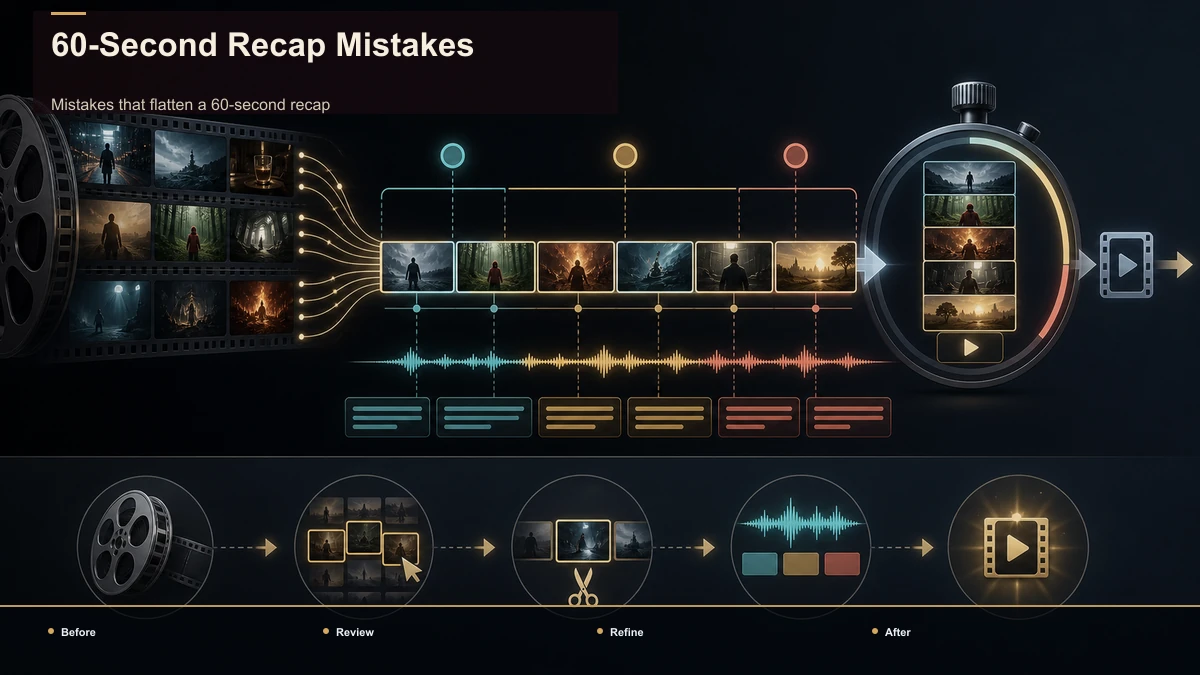
Mistakes that flatten a 60-second recap
- Spending too long on an announcement. "Today I'm recapping…" uses limited setup time without establishing the angle. Test a version that opens on the central question or tension.
- Trying to be complete. Compressing every plot point into 60 seconds can create a difficult-to-follow list. Keep only the beats needed for the chosen angle.
- Revealing more than the editorial purpose requires. Decide whether the ending is necessary to the analysis and whether the result risks substituting for the source work.
- Relying on voiceover alone. Viewers without audio can lose the thread. Add reviewed captions and make key visual context understandable.
- Accepting a blind vertical crop. Automatic framing can center empty space or cut off faces. Review the 9:16 composition shot by shot.
- Using more source footage than the purpose needs. Review every excerpt against the stated editorial purpose. Amount used is only one part of a fact-specific copyright analysis; short clips are not automatically permitted.
FAQ
How do you recap a movie in 60 seconds without leaving out too much? Leave out material that does not support the chosen angle. One workable test is the character's goal, the turn, and the consequence, using three or four beats in total. The result should be a coherent editorial summary or analysis, not a claim that missing detail will automatically drive viewers to the film.
What's a useful structure to test for a short movie recap? Try an early statement of the angle, a one-line setup, three or four key beats, and a clear payoff. Add a CTA only when it helps the viewer take a relevant next step. Treat the timing map above as a test version and revise it from audience data rather than assuming a fixed split converts viewers.
Do I need desktop editing software to make a vertical movie recap? Not necessarily. A browser-based tool can cover upload, transcription, clipping, narration, 9:16 reframing, captions, and export without a desktop install. Confirm that the chosen tool supports the source format, file size, manual review, and export controls your project needs.
Are 60-second movie recaps allowed under copyright? It depends on the facts, rights, purpose, amount used, jurisdiction, and other relevant factors, not on the 60-second label. Commentary and the amount used can be relevant, but no clip length is automatically safe, and Content ID matching is separate from a legal fair-use decision. This is general information, not legal advice; for a specific project, consult a qualified attorney.
How do I keep captions readable with the sound off? Use reviewed burned-in captions when you need the text to travel with the export, keep the text legible and high-contrast, and time it to the narration. Also preview platform-generated captions when you use them; the right approach depends on accessibility needs, localization, editing control, and the publishing surface.
Ready to build your first vertical minute? Create a free Recapo account, upload material you have the right to use, and test the workflow in one browser session: transcribe, select the necessary beats, add narration, reframe to 9:16, review captions, and export. Keeping those steps in one workspace can reduce handoffs for a recurring workflow. Check current plan details on the pricing page.