
Recapo Fine-Editing Tutorial: Subtitles, Narration and Export Checks
Follow the Recapo workflow from a video link to the editor: save a copy, edit subtitles, check narration tracks, adjust text styling and prepare for export.

Recapo combines AI editing with a fine-editing workspace. Generate a first cut, review it, then refine only what needs attention. The useful sequence is: keep a copy, edit the wording, check narration, adjust styling, then review before export. This guide is for creators with source footage who want to refine an existing first cut.
Watch the workflow
This official Recapo walkthrough uses interface screenshots recorded on October 26, 2026. It explains where controls are located; it is not a continuous recording proving a successful import-to-export run. Chinese pages include the Chinese demonstration; other languages include the English demonstration.
1. Import your footage and wait for the first cut
On the home page, select Video Recap, paste a video link you have permission to use, and click the arrow beside the input. Follow the on-screen prompts. For a local file, use Upload a video. Check the task status after submission and wait for a playable first cut.
2. Find the editor in Task List
Open Task List and review the relevant video. Keep the first cut if it already works. To refine it, click that task’s scissors icon. Check the task title before editing. Some older tasks may not have an available fine-editing entry.
3. Save a copy before making changes
Use Save a copy at the top right of the workspace. Give the copy a recognizable name and make your changes there, keeping the first cut for comparison. Confirm that you are actually working in the copy before editing.
4. Select a subtitle, then edit the preview text
Select the subtitle clip on the bottom timeline, then double-click its text in the central preview. Change one sentence, leave text-editing mode and select it again to check persistence. The rewritten sentence in the video is a suggested example: during production it reverted after blur, with a voiceover-association error. If that happens, keep the original, record the error and contact support. Resume narration work only after saving behaves correctly.
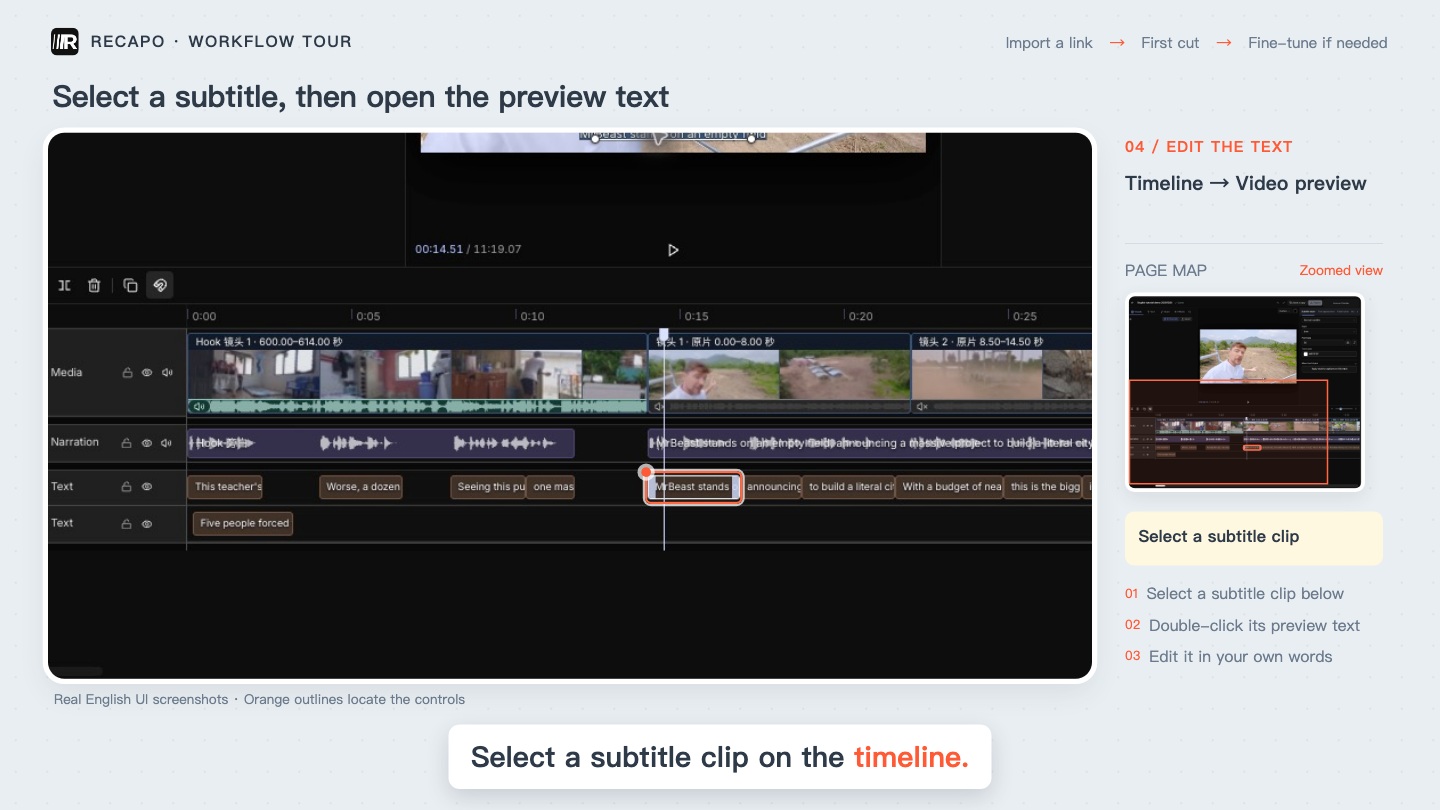
Select the subtitle on the timeline, then locate its text in the central preview. Official walkthrough image.
5. Generate narration, then listen for overlap
After checking the intended text, open Narration on the right, choose a language and voice, and select Generate narration. The demonstration adds a separate audio clip while retaining the original narration; this is not automatic replacement. Listen to what the new clip actually says and play the surrounding section. If voices overlap, identify the old and new tracks, resolve the overlap in your copy and listen again.
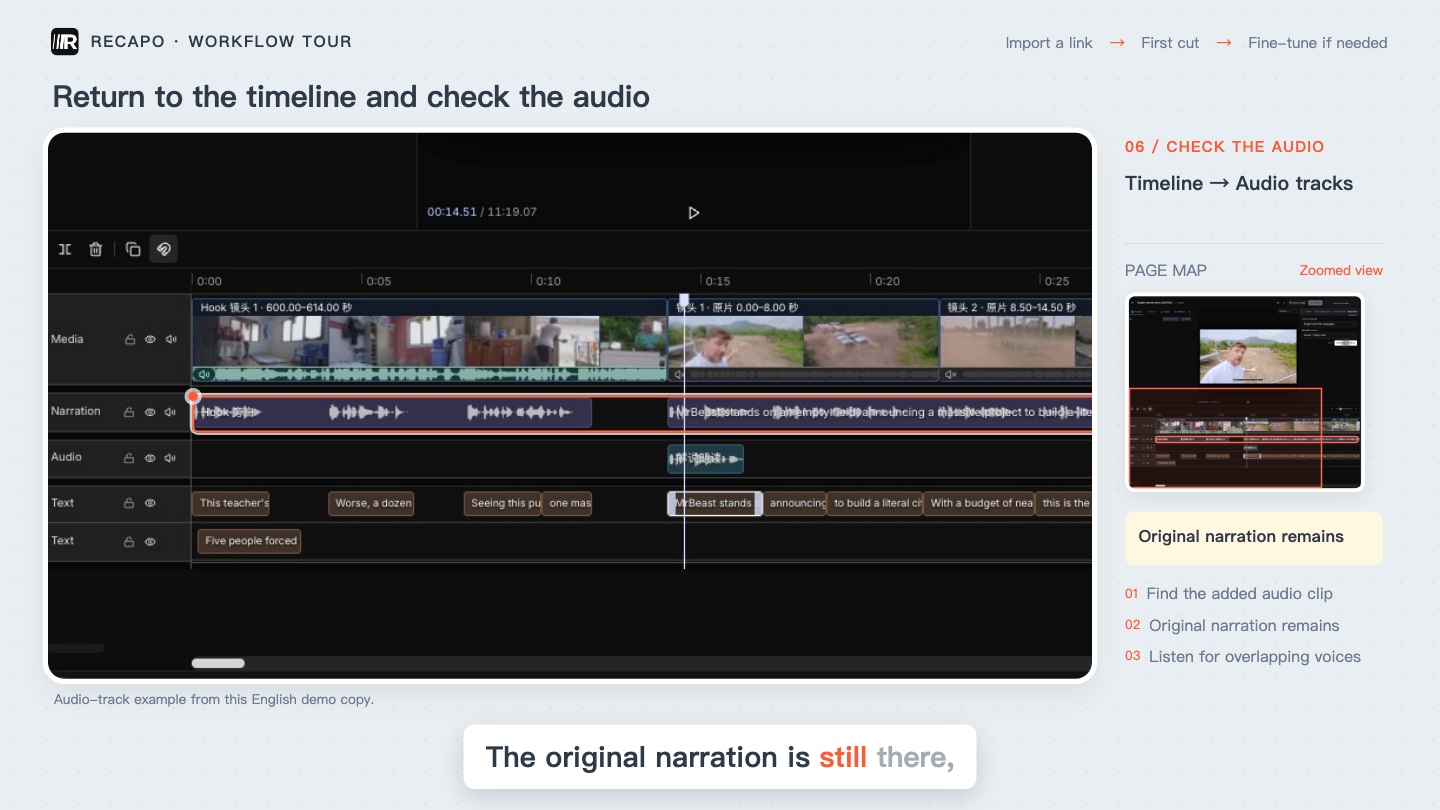
The added narration and original narration coexist on the timeline. Listen before continuing. Official walkthrough image.
6. Make subtitles easier to read
Select the subtitle and use Subtitle style on the right to adjust font, size and color. Change one setting at a time, checking line breaks, contrast and whether text covers important imagery. A font-size value alone does not prove readability at the intended viewing size.
7. Review the changed section before export
Start playback before the edited sentence and continue into the next one. Check wording, audio timing, visuals and overlapping voices. Confirm the save state and reopen the copy to check that changes persist. When the preview is ready, open Export at the top right and choose a file name and save location. This walkthrough shows export settings, not a verified export of the edited copy. After your export finishes, open the file and inspect the same section.
Frequently asked questions
Does editing a subtitle automatically update the voiceover?
Do not assume so. Text editing, narration generation and audio-track management are separate actions. Confirm the saved wording, listen to the generated words, and check for overlap with the original narration.
Why can’t I find fine editing for a completed task?
Check the task and look for an available scissors icon in its row. Some older tasks do not support the current workflow. If the control is missing or an error appears, keep the task details and contact support instead of repeatedly regenerating.
Further reading
Recapo: Find the editor in Task List
Recapo: Import your footage and wait for the first cut
Recapo Team · 2026-10-26

