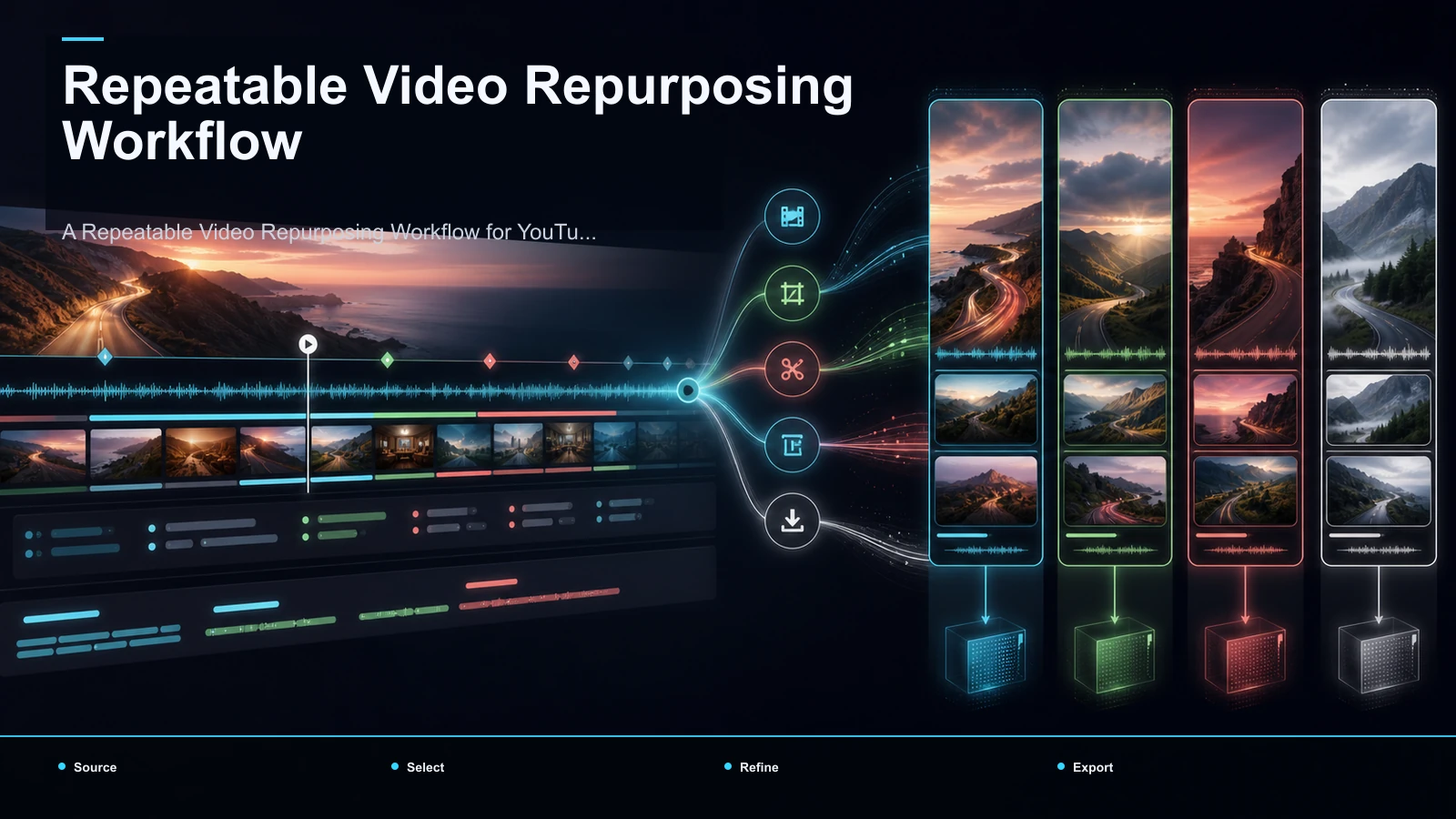
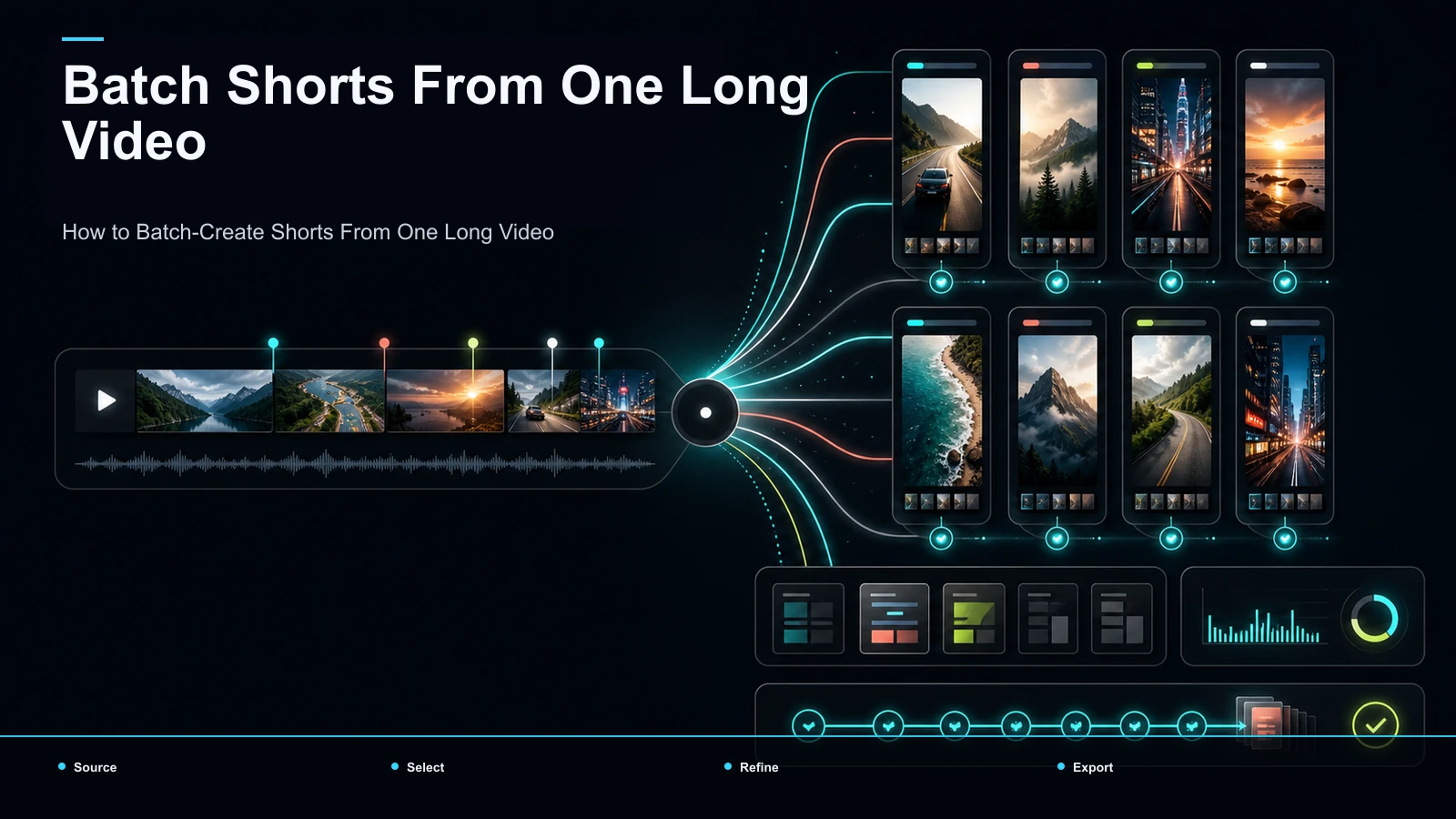
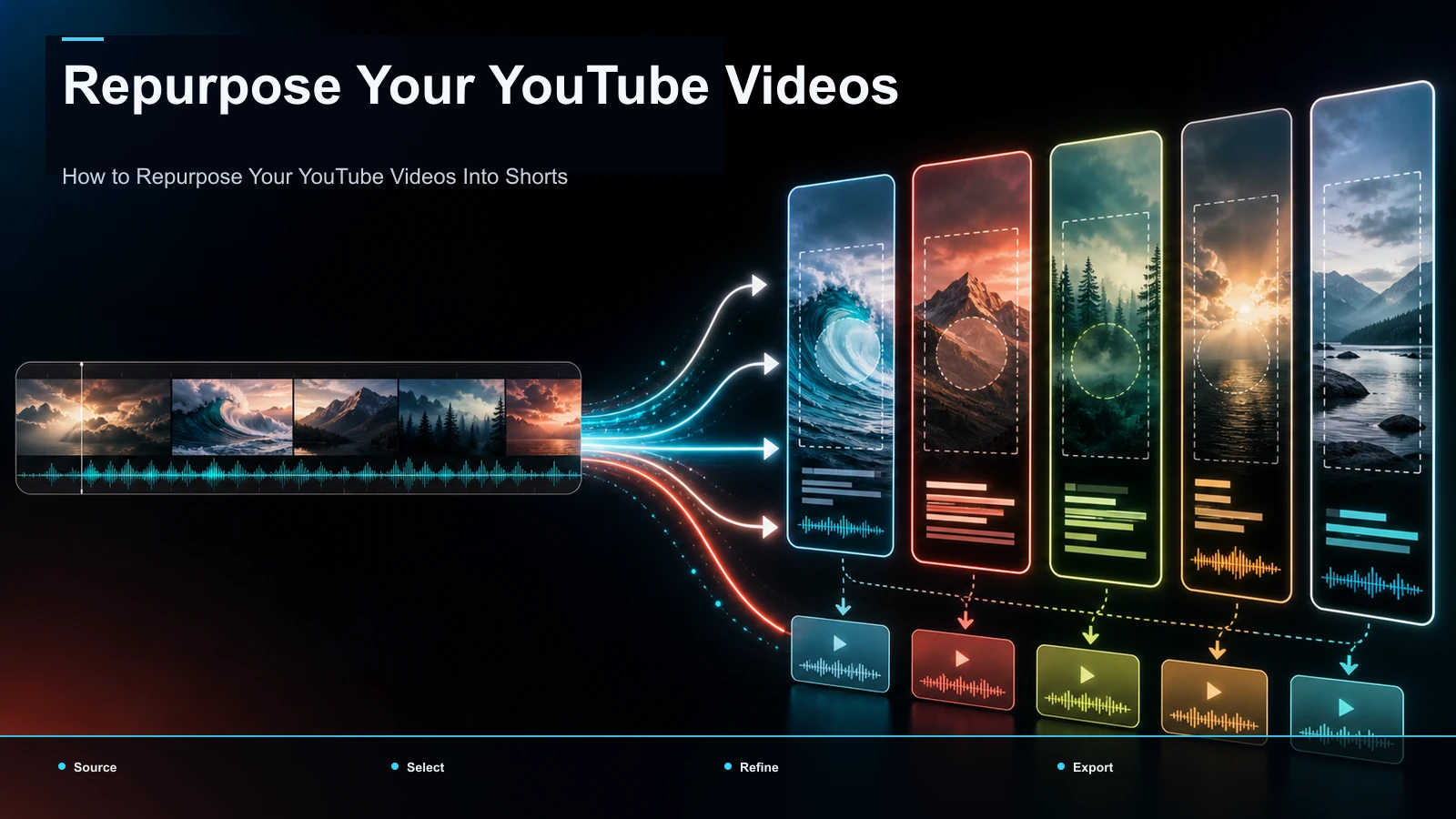
How to Repurpose Your YouTube Videos Into Shorts
How to repurpose a YouTube video into a Short: contrast YouTube's native sampling with AI batch clipping to mine your back catalog and cross-post to TikTok.
By the Recapo.ai Editorial Team · Fact-checked July 10, 2026
You already own the raw material for months of Shorts — it's sitting in your channel's back catalog — so the real question is how to repurpose a YouTube video into a Short without re-shooting anything. There are two honest paths, and this guide is built around the contrast between them: YouTube's native sampling, where you opt in one video at a time and remix a segment into a Short that stays on YouTube, versus AI batch clipping, where you point a tool at your whole library and pull dozens of candidate clips you can also cross-post to TikTok and Reels. Most guides teach you to make one Short from your newest upload; the higher-leverage move — and the angle here — is mining videos you published months ago and distributing them off-platform.
Below: how the two mechanisms differ, why your back catalog is the highest-ROI place to start, the native steps, an AI batch workflow, how to cross-post cleanly, and which old videos to mine first.
How to repurpose a YouTube video into Shorts: native sampling vs AI batch
Before you touch a tool, get clear on the two mechanisms, because they solve different problems.
Native sampling is YouTube's own path. From an eligible video you uploaded, you can edit it into a Short — YouTube pulls a segment into the vertical Shorts creator, where you trim, add text, and publish. The related Clip feature lets you or a viewer grab a short portion that plays in a looped mini-player and links back to the original. Both are opt-in and manual, both keep the content inside YouTube, and a channel can switch remixing off entirely. YouTube's official Help documents the current steps and length limits — which have changed over time — so check it there rather than trusting a number in any blog post.
AI batch clipping works the opposite way. Instead of hand-picking one video, you point a tool at a long upload — or a stack of them — and it reads the transcript, scores the moments, and hands back a shortlist of candidate clips. You reframe and caption the keepers, then export clean files you own, which is exactly what lets the same clip travel to TikTok and Reels.
| YouTube native sampling | AI batch clipping | |
|---|---|---|
| What it does | Remix one segment into a Short in YouTube's editor | Scans full videos, scores moments, returns a shortlist |
| Scope | One video at a time, by hand | A whole back catalog in passes |
| Where the output lives | Stays on YouTube | A clean file you own |
| Cross-post to TikTok/Reels | Not really its job | Yes — that's the point |
| Effort per Short | Manual selection each time | Tool shortlists; you approve |
| Best for | A quick native Short from a fresh upload | Mining a library for multi-platform distribution |
Neither is "better" in the abstract. Native sampling is fine for a one-off Short you'll only run on YouTube. If your goal is to turn YouTube videos into Shorts at volume and cross-post them, batch clipping is the path — and the rest of this guide leans that way.
Why your back catalog is the highest-ROI place to start
New creators clip their latest upload and stop there. The overlooked asset is everything you published six months to three years ago — and it's overlooked precisely because it feels "done."
Two reasons your back catalog beats your next upload as a Shorts source:
- The work is already paid for. You shot, edited, and published it. Repurposing is pure marginal return: no new filming, just selection and reframing.
- The data already told you what works. A fresh upload is a guess; an old video with strong retention is a proven hit. When you repurpose your YouTube back catalog, you can clip the segments your analytics already flagged as replayed or re-watched, which is a far better selection signal than gut feel on brand-new footage.
The mindset shift: stop treating a published video as a finished product and start treating it as a source of a dozen independent clips. A 20-minute upload from last year can quietly become a week of Shorts, and because it's evergreen, nobody minds that the moment first aired months ago.
For a channel-level view of building this into your regular motion, our video repurposing workflow for YouTubers frames the cadence around your existing library.
How to repurpose a video with YouTube's native tools
If you just want one Short that lives on YouTube, the native route is the fastest, and it costs nothing. The general flow, per YouTube's Help:
- Open an eligible video you own. Native sampling only works on uploads that allow it — some content (licensed music, certain claims) is excluded, and you control whether remixing is on for your channel.
- Choose "Edit into a Short." From the video's create options, YouTube loads a portion into the vertical Shorts editor. You pick the segment you want to sample.
- Trim, reframe, and add text. Cut to the moment, adjust the vertical crop, and add on-screen text or a caption inside the editor.
- Publish as a Short. It posts to your channel's Shorts shelf and links back to the source video.
Where native sampling stops: it's one video at a time, it's manual, and — most important for this guide — the output lives on YouTube. It isn't built to hand you a clean, logo-free file to upload to TikTok or Reels. Use it for a quick native Short; reach for AI batch clipping when you want to mine the catalog and distribute everywhere.
The Clip tool is a different thing worth knowing: it turns a short portion into a shareable, looping snippet that links home — great for driving traffic back to a long video, but not a standalone Short you can re-post elsewhere. Don't confuse the two.
How to batch-clip your back catalog with AI (step by step)
This is the workflow that turns a library into a pipeline. The mechanical steps go to tools so your attention stays on selection.
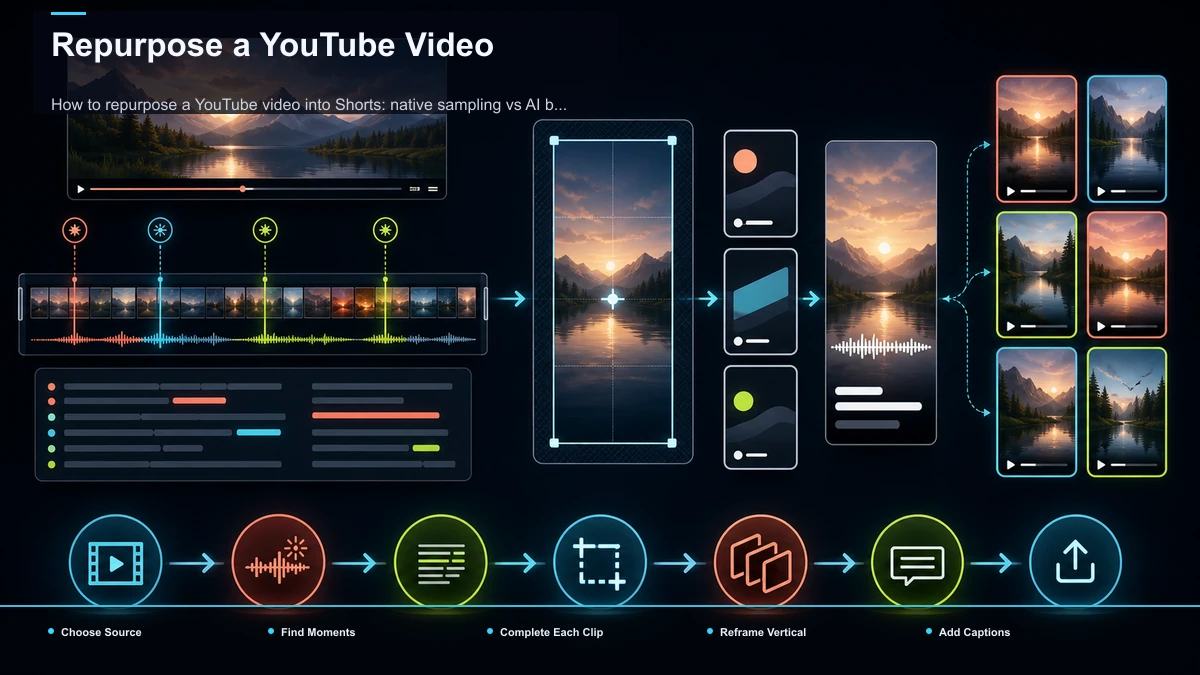
- Get a clean source file. To cross-post off YouTube, work from your original export or master, not a downloaded copy with a platform logo baked in. This one habit is what keeps clips from looking like re-uploads.
- Transcribe the video. A timed transcript is the map the clipping engine reads to score moments — and the map you skim instead of scrubbing. Accuracy on names and jargon matters here.
- Shortlist the moments. Run a video through an AI YouTube Shorts generator so it surfaces candidate segments — hooks, questions, self-contained answers — and review a shortlist instead of the full runtime. This is the step that earns the whole workflow.
- Reframe each keeper to vertical. Feed the keepers through a long video to short video AI that trims and crops to 9:16 while tracking the speaker, so the subject stays in frame. Fix any bad crop by hand.
- Caption for viewers watching without sound. Some short-form views happen on mute, so captions carry the clip. Generate them with auto-captions from the same transcript, then proofread — one error repeated across a batch reads as sloppy.
- Add a cover, then export a clean file. Give each clip a legible cover and a title, render one 9:16 export, and keep it logo-free so it uploads native anywhere.
Run these six on one old upload and you have several Shorts ready to distribute. To scale from one video to a queue, how to batch-create Shorts from one video walks through doing this in bulk.
Cross-post to TikTok and Reels without looking recycled
The reason to own a clean file is distribution. All three destinations take the same vertical frame, so one export travels — but three habits keep a cross-posted clip from reading as a lazy repost.
- Post a logo-free file, not a downloaded Short. Platforms are widely understood to favor content that feels native to the feed; a visible logo from another app is the fastest tell that a clip is recycled. Upload the clean export from the step above.
- Vary the top layer per feed. Keep the same core clip, but change the title, cover, opening beat, and hashtags so each platform sees something made for it.
- Tune the length to the platform. The lengths below are practical starting points, not hard caps; read short-form clip selection and duration testing to dial each channel in.
| Platform | Frame | Sweet-spot length | Caption norm | First-3-seconds job |
|---|---|---|---|---|
| YouTube Shorts | 9:16 vertical | 20–45s | Burned-in, readable at a glance | Tease the answer, then deliver |
| TikTok | 9:16 vertical | 15–34s for reach | Burned-in, word-by-word rhythm | Open on the payoff or a sharp question |
| Instagram Reels | 9:16 vertical | 15–40s | Burned-in, styled to the feed | Motion plus a text hook in frame one |
Two rules cut across all three: the hook lives in the first three seconds, and captions are non-negotiable in a noisy, muted feed.
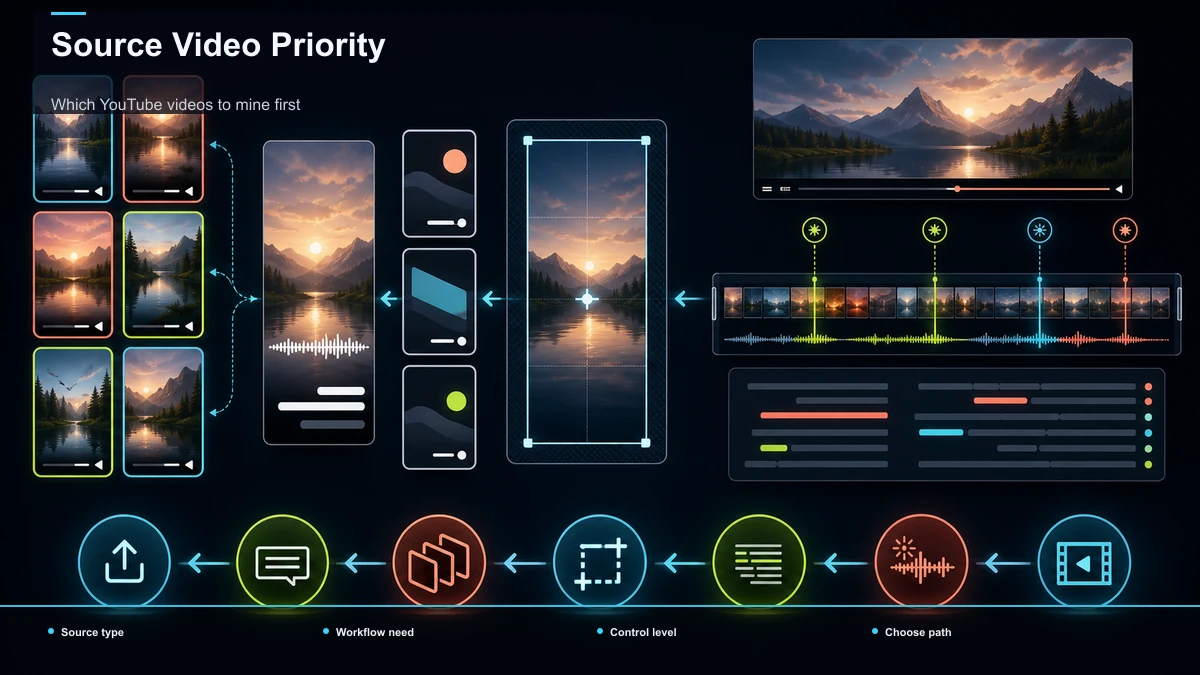
Which YouTube videos to mine first
You can't clip your whole catalog at once, so sequence it by expected return. Sort candidates before you clip a single frame.
| Mine first | Why | Watch out for |
|---|---|---|
| High-retention evergreen uploads | Proven moments; timeless topic means no expiry | Dated references or on-screen years |
| Interviews, Q&As, podcasts | Self-contained answers are already finished clips | Speaker tracking in the 9:16 crop |
| Tutorials with clear steps | Each step is a natural standalone segment | Screen-share framing may need a tighter crop |
| Rambling vlogs or livestreams | A few peaks buried in low-signal footage | Large files; reject junk fast |
Start with the first row: an old video that held attention is your safest bet, because retention data already voted for the moments worth cutting. Work down the list as you build the habit.
Then make it a loop: once a video is transcribed, do all the moment-picking in one sitting, reuse one caption style and cover template, and publish from a queue rather than clipping under deadline. A month of that and each old upload quietly becomes five to ten posts.
One browser pass: clip, caption, reframe with Recapo
The friction in most back-catalog projects is the handoffs — clip in one app, caption in another, reframe in a third, exporting and reimporting between each. Recapo collapses that into a single browser pass: a browser-based AI video workspace with no install, where the clip, caption, and reframe stages above happen in one place.
In practice, that's the batch workflow without the app-switching. Upload one long recording in MP4, MOV, or another common format (up to 6GB total per task); let the AI YouTube Shorts generator propose candidate moments so you review a shortlist instead of the runtime; send the keepers through the long video to short video AI to trim and reframe to 9:16; and burn captions with auto-captions pulled from the same transcript so the words track your edit. When a clip also needs a summary, a scripted AI voiceover, or a redesigned cover, those live in the same workspace — and the export is a clean file you can post to TikTok and Reels.
The practical fit: if clips are your only output and you never leave YouTube, native sampling may be all you need — it's free, so test it first. Recapo earns its place when you're mining a real back catalog for multiple platforms on a recurring basis, where the value is fewer tools in the chain, not beating a specialist at any single stage. Pricing lives on the pricing page; a quick way to decide is to run one old upload through it.
FAQ
How do I repurpose a YouTube video into a Short?
Two ways. Natively, open an eligible video you own, choose "Edit into a Short," trim and reframe the segment, and publish — it stays on YouTube. To also cross-post, work from a clean source file: transcribe it, let an AI clipper shortlist the strong moments, reframe each to 9:16, caption it, and export a logo-free file you can upload to TikTok and Reels too.
Can I turn my old videos into Shorts, or only new uploads?
Your back catalog is often the highest-return source. Old evergreen videos are already made and already validated by retention data, so repurposing them is pure marginal return with a better selection signal than guessing on fresh footage. Clip the segments your analytics flagged as replayed, and nobody minds that the moment first aired months ago.
What's the difference between "Edit into a Short" and Clip on YouTube?
"Edit into a Short" remixes a segment of your video into a standalone Short on your channel. A Clip is a short, looping snippet that plays in a mini-player and links back to the original — it drives traffic to the long video but is not a re-postable Short. Use the first to make a Short, the second to promote a long upload.
Will one clip work for YouTube Shorts, TikTok, and Reels?
Usually, yes — all three take 9:16 vertical with burned-in captions, so a clean export covers them. Post a logo-free file (not a downloaded Short), and vary the title, cover, opening beat, and length per feed so each platform sees something native rather than an obvious repost.
Do I need editing skills to repurpose a YouTube video into Shorts?
Not much. The mechanical stages — trimming, reframing to 9:16, captioning, exporting — are handled by tools in a few clicks. The skill that matters is selection: recognizing which moments stand alone and open on a hook. That's curation, and it improves fastest by tracking which of your clips earn watch time.
Ready to mine your channel instead of your next shoot? Create a free account, upload one older upload — MP4 or MOV, up to 6GB total per task — and run the full pass in the browser: shortlist the moments, reframe to 9:16, burn captions, and export a clean file. Post that clip to YouTube Shorts, TikTok, and Reels, and see how one video from your back catalog performs across all three — that number tells you more about your repurposing workflow than any guide.