How to Turn a Google Meet Recording Into Clips
How to turn a Google Meet recording into clips: download from Drive, transcribe to cut by text, shortlist moments, reframe to 9:16, and caption — no install.
By the Recapo.ai Editorial Team · Fact-checked July 10, 2026
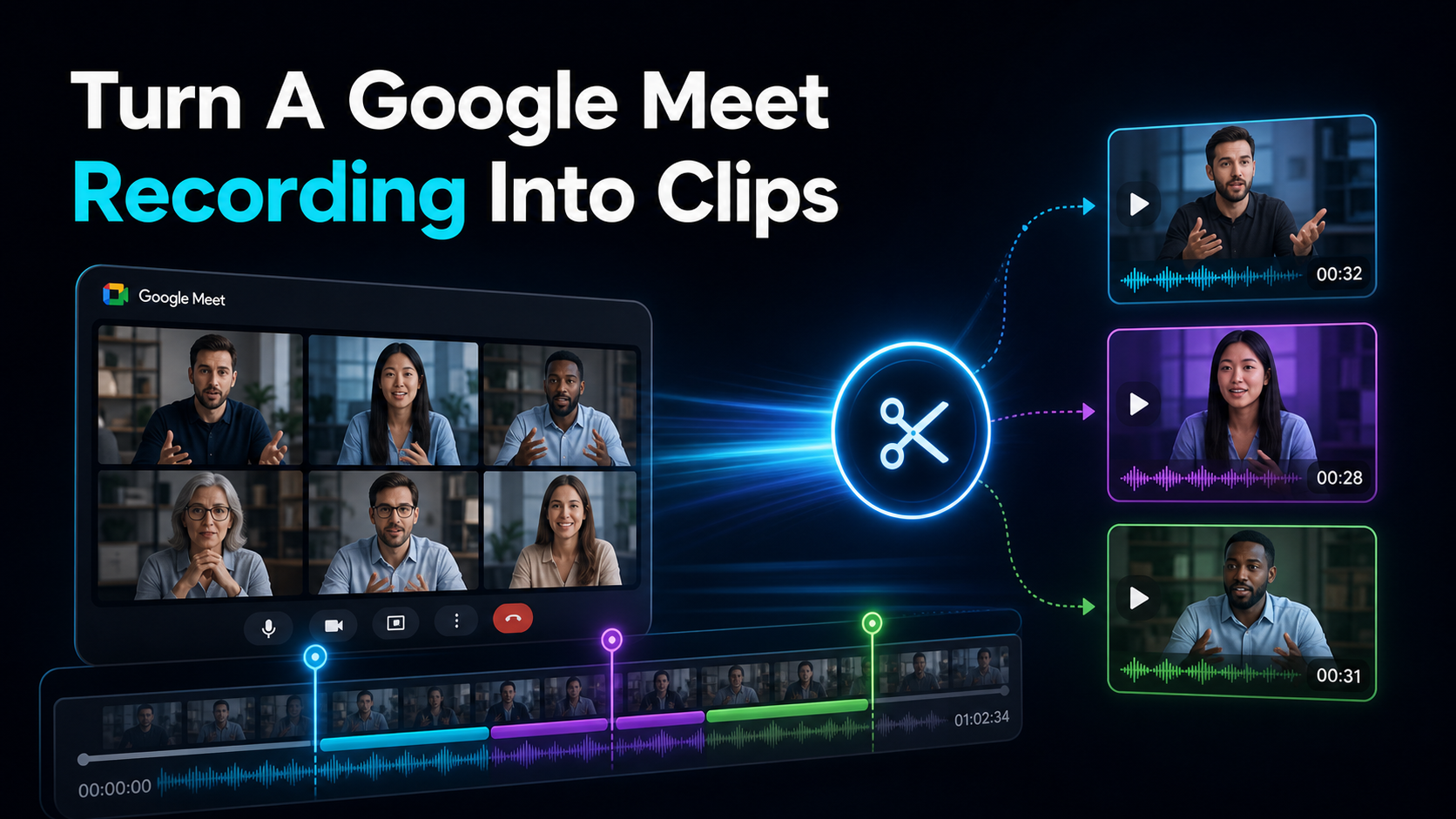
To turn a Google Meet recording into clips, you do four things in order: pull the MP4 out of Google Drive, transcribe it so you can cut by text, shortlist the moments that stand on their own, then reframe each to vertical and add captions. The catch nobody mentions is the very first step — Google Meet ships no editor, and the recording never lands on your desktop; it saves to Drive and emails you a link — so the whole job begins with a download, not an edit. This guide walks the entire path in a browser with nothing to install, and it's honest up front: Meet recordings skew toward internal, B2B meetings, so clipping them is a narrower, often one-off job than turning a podcast or webinar into Shorts. If you do have a Meet recording worth publishing — a customer interview, an expert panel, a recorded talk — here's how to get it from Drive to a finished vertical clip.
Google Meet gives you a file, not an editor
Before any clipping, understand what Google Meet actually hands you, because it shapes every step that follows. Recording is a Google Workspace feature, and when it's available the recording doesn't stay inside Meet — per Google's support docs it saves as an MP4 to Google Drive, in the "Meet Recordings" folder of whoever started recording, and Google emails a link to that person and the meeting organizer once processing finishes. What Meet does not give you is an editor. There's no trim handle, no clip button, no export-a-highlight anywhere in Meet or Drive.
So the flow is always the same: get the file out of Drive first, then do the actual editing somewhere else. That single fact is why turning a Meet recording into clips feels harder than it should. You're not editing in place — you're moving a raw B2B recording, usually 16:9 and usually 30 to 60 minutes of talk, into a tool that can cut it, reshape it, and caption it for a vertical feed.
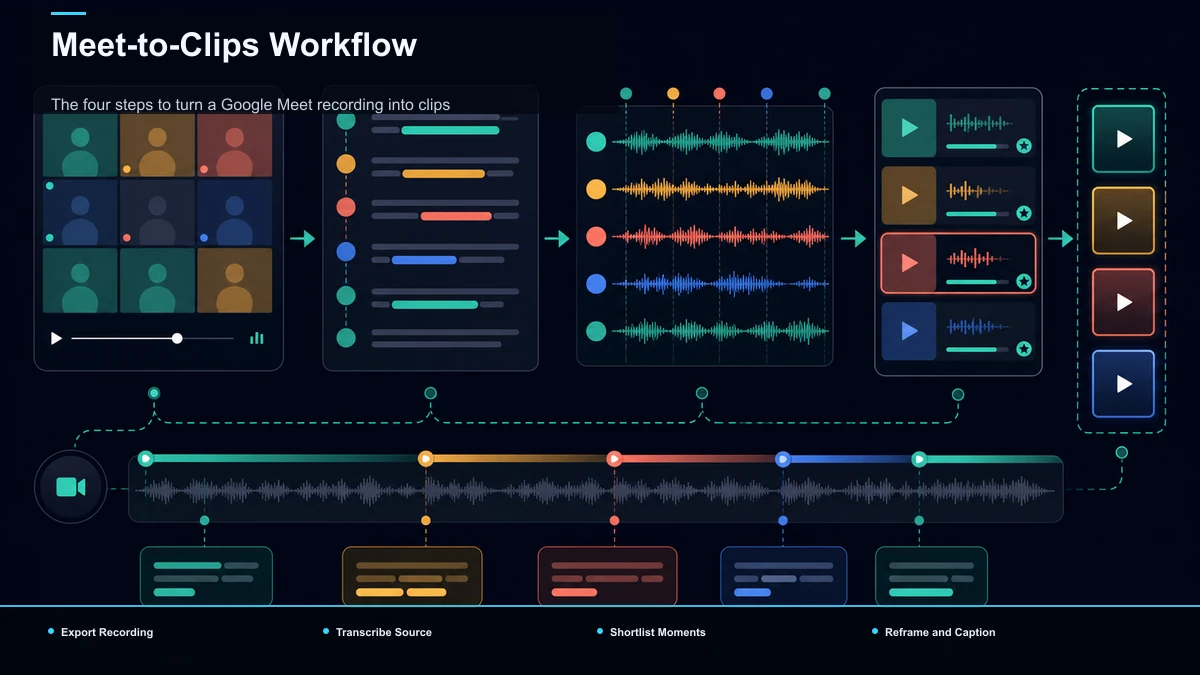
The four steps to turn a Google Meet recording into clips
Strip out the noise and the job is four moves, always in this order:
- Export: download the MP4 from Google Drive.
- Transcribe: turn speech into text so you can cut by reading, not scrubbing.
- Shortlist: keep the few moments that survive out of context.
- Reframe + caption: go 16:9 → 9:16 and burn in text for sound-off feeds.
The reason those four are worth systematizing is that a Meet recording and a publishable Short are near opposites:
| Horizontal 16:9, often a talking-heads grid | Vertical 9:16 with one subject centered | 30 to 60 minutes of meeting talk | 15 to 60 seconds, one self-contained point | Full of scheduling chatter, "can you see my screen?", and dead air | A hook in the first second | Sound-dependent, no on-screen text | Burned-in captions for silent scrolling | Sitting in Drive with no editor attached | A file uploaded into a tool that can cut it |
Close each of those gaps and you have a clip. Because Meet recordings are so talk-heavy, the highest-leverage move is the one the meeting-clip tools all center on — cutting by text — so that's where this workflow leans.
Step 1 — Get the recording out of Google Drive
Where to look, and which file to grab:
One access note: by default only the organizer and the person who started recording get the file. If that wasn't you, ask them to share or download it before you plan any clips — a permissions wall is the single most common reason this workflow stalls on step one.
Step 2 — Transcribe first, so you can cut by text
Here's what makes editing a Meet recording different from clipping a vlog: it's almost all talk and very little visual. That's exactly why the tools ranking for this job — Noota, tl;dv, Bluedot, RepurposeMyWebinar — are built around the transcript. When the content is a conversation, the fastest way to edit a Google Meet recording is to read it, not to scrub a timeline hunting for the good part.
So transcribe the recording first. Run it through speech-to-text to get a full, timestamped transcript, then read that transcript to find where the useful stuff actually happens — the clear answer, the strong explanation, the quotable line. Cutting by text turns a 45-minute scrub into a few minutes of skimming, and it's how you take a wall of google meet recording to clips candidates and narrow them fast.
A meeting-audio caveat worth flagging early: Meet participants join on wildly different mics — a laptop built-in here, a good headset there — and cross-talk plus background noise make any transcriber guess. Expect to fix names, company terms, and jargon. You'll reuse this cleaned-up transcript for captions later, so the effort isn't wasted.
Step 3 — Shortlist the moments worth clipping
A clean transcript tells you where to look; it doesn't decide for you. To speed the search, run the recording through a long video to short video AI that reads the whole thing and surfaces candidate moments automatically. Treat that as a shortlist, not a verdict — you know which point your audience will actually stop for, so review the suggestions and keep the three or four that stand on their own out of context.
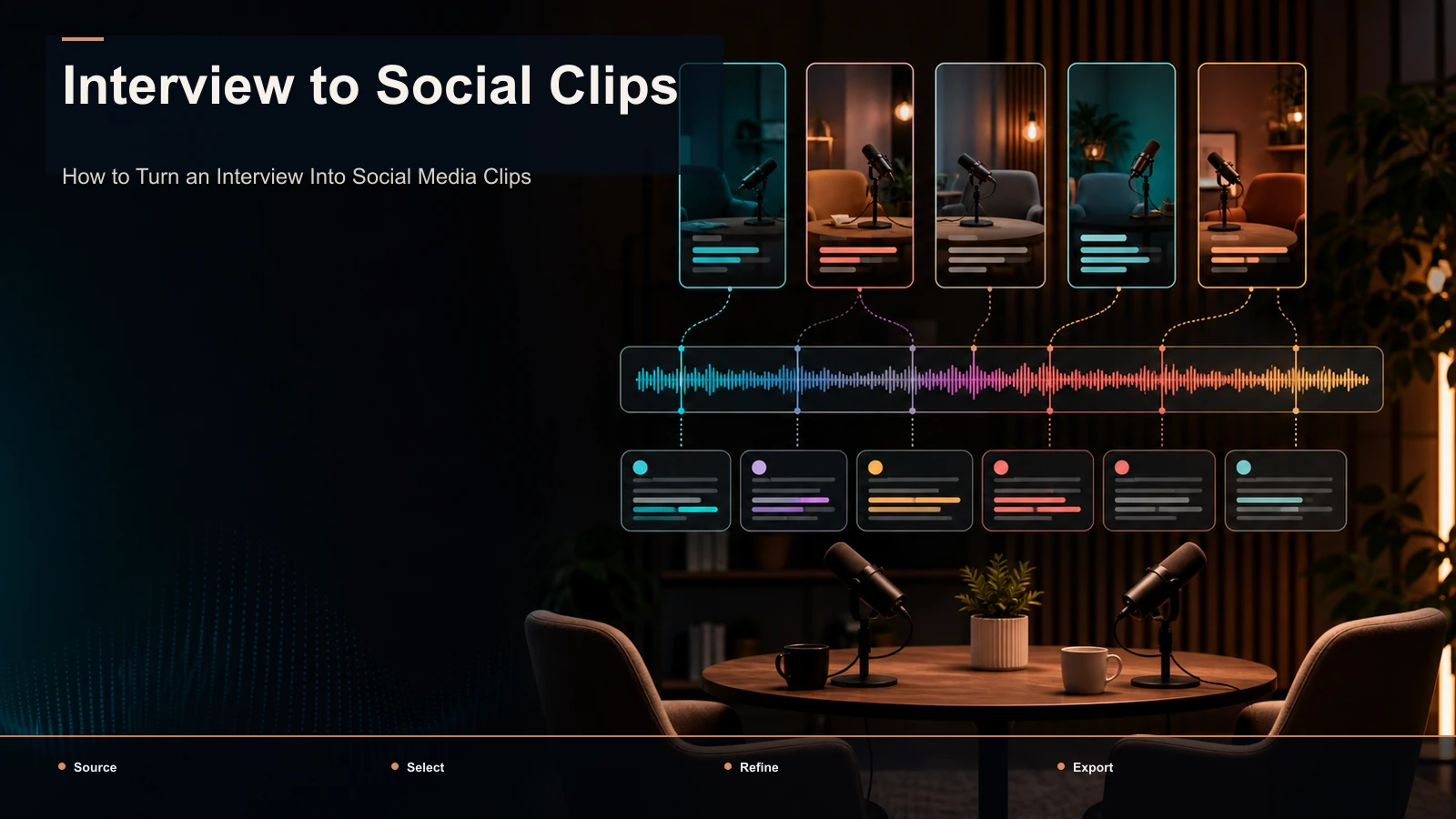
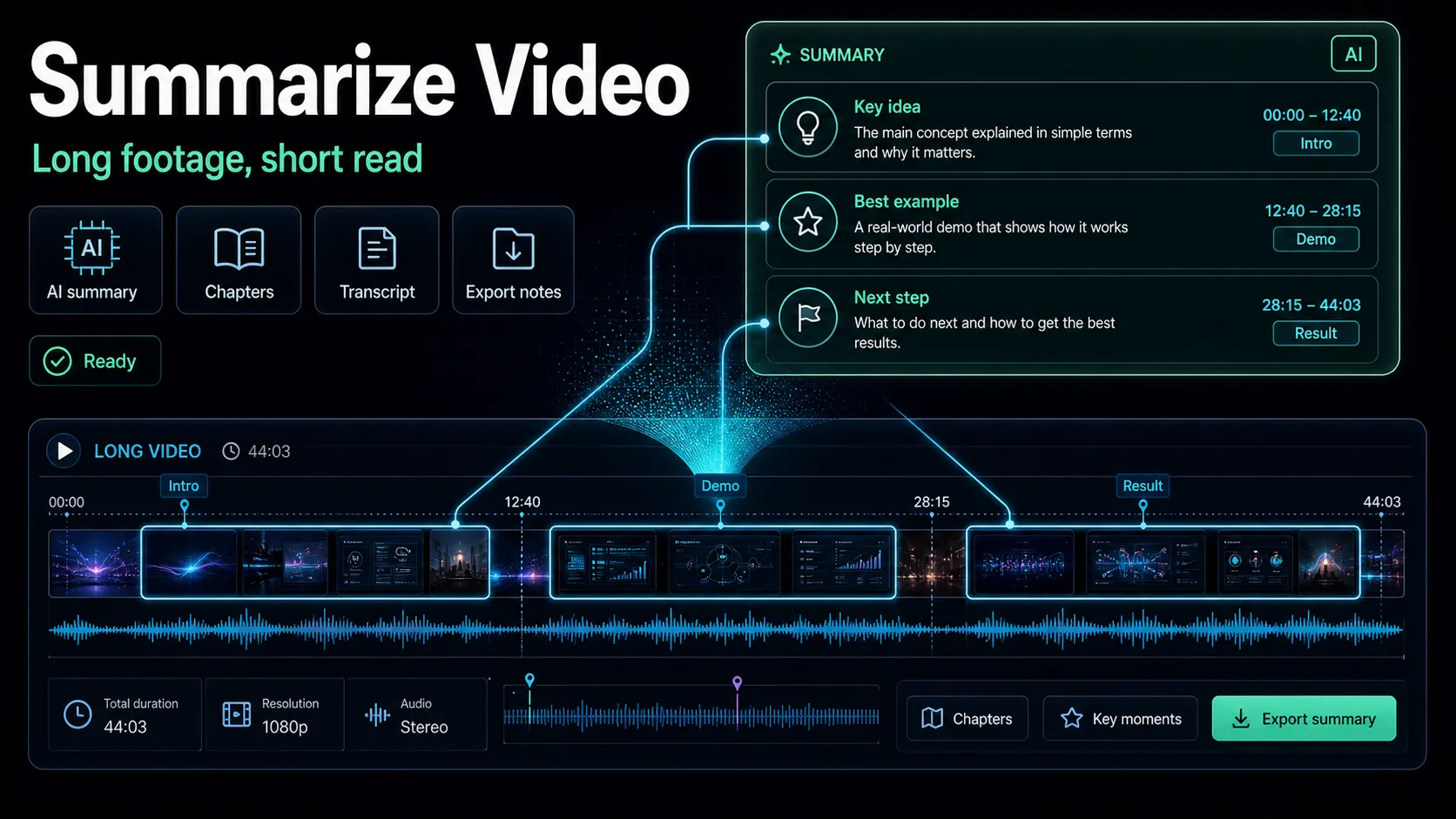
"Out of context" is the whole test for a meeting clip. A moment that only makes sense if you sat through the previous ten minutes won't survive on a feed. When the recording is a two-person conversation — a customer interview, an expert Q&A — turn an interview into social clips covers how to pick self-contained moments. And if you'd rather distill the whole meeting into one explainer than chop it into several clips, how to evaluate AI video summarizers is the other direction you can take it.
Step 4 — Reframe to 9:16 and caption for sound-off
Two mechanical steps stand between a keeper and a publishable clip.
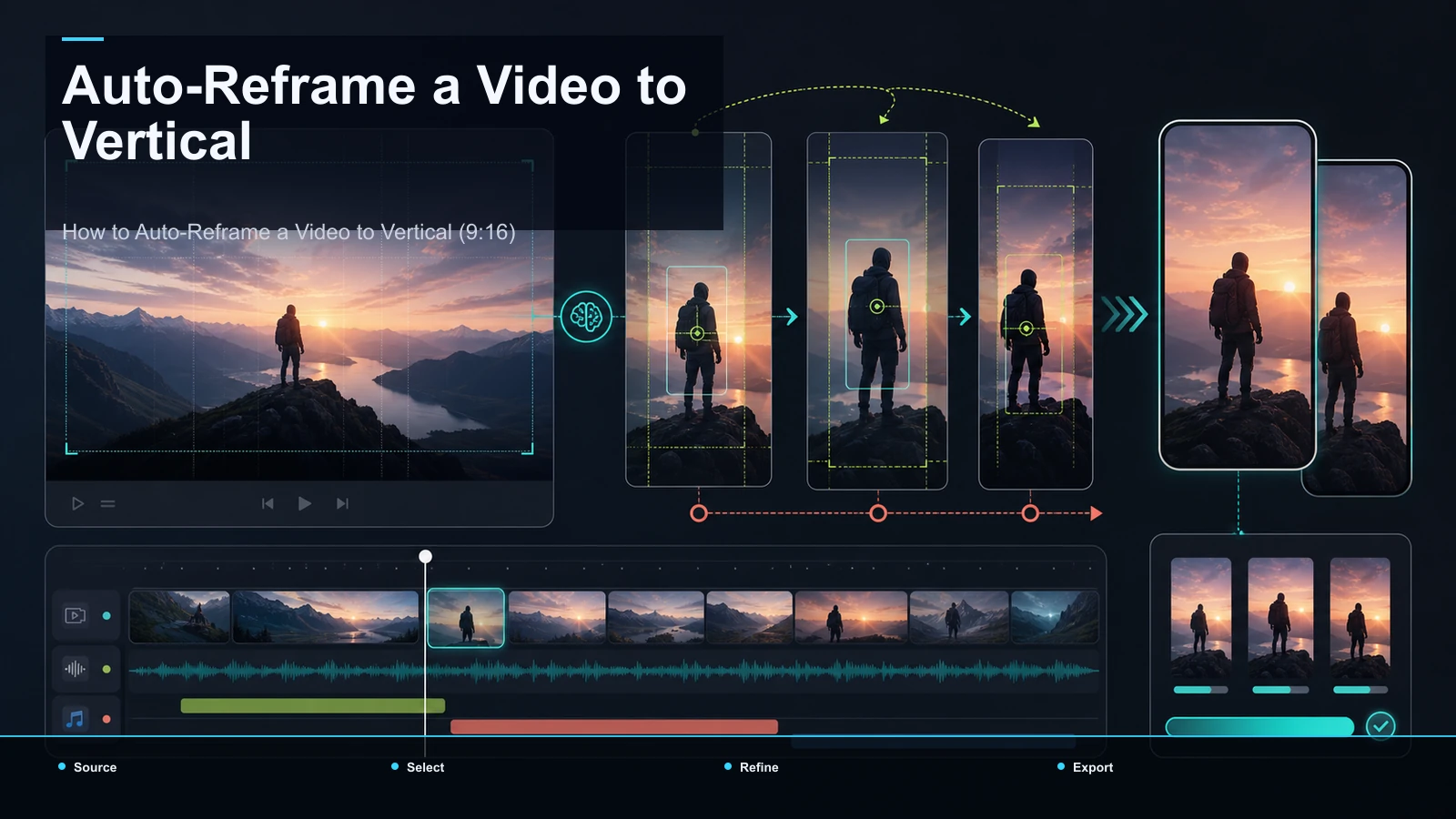
First, reframe. A Meet recording is 16:9, and every vertical feed — Shorts, Reels, TikTok — wants 9:16. Don't letterbox the wide frame into a vertical box with black bars top and bottom; crop into the frame and keep the speaker centered. A single talking head sits mid-frame already, so it reframes cleanly. A grid of participants is the hard case — no vertical crop fits four faces — so clip a stretch where one person clearly dominates, or reframe onto whoever's talking.
Second, caption. Some vertical video is watched muted, so captions are how the clip gets understood mid-scroll. Run the cut through auto-captions to generate and burn in the text — and lean on that cleaned-up transcript from step 2, so you're reviewing instead of starting over. Style it for legibility: high-contrast font, safe margins so nothing hides under the interface buttons. Do this and a google meet to shorts cut reads clearly with the sound off.
Is your Meet recording actually worth clipping?
Now the honest part, because it changes whether this workflow is worth building at all. Most Google Meet recordings are internal — standups, syncs, planning calls — and internal meetings make terrible Shorts. Clipping them is usually a one-off: someone said something worth saving, you cut it once, and you're done. That's a real job, but it isn't a weekly content engine.
The Meet recordings actually worth clipping are the outward-facing ones:
If your recording is one of those, clipping it earns its keep. If it's an internal sync, be honest that you're doing a one-time trim, not launching a channel — and scope the effort accordingly. Trimming a google meet recording down to one shareable moment is a five-minute task; don't turn it into a production.
Where a no-install tool fits — and how to test it
The positioning, plainly. The SERP for turning Meet recordings into clips is full of meeting-first tools — Noota, tl;dv, Bluedot, RepurposeMyWebinar — most built around transcript-based trimming. Recapo isn't the only option and won't claim to be. What it offers for this specific job is that the whole path lives in one browser tab with nothing to install: upload the Meet MP4, transcribe with speech-to-text, shortlist with the long video to short video AI, reframe to vertical, caption with auto-captions, add a cover, and export — without stitching several subscriptions together for one recording.
Because pricing and limits change and every tool sells itself as effortless, don't take any positioning on faith — including this one. Run the same Meet recording through two tools and score what matters:
| Transcript quality | How well does it handle uneven meeting mics, names, and company jargon? | Text-based cutting | Can you cut straight from the transcript, or are you forced to scrub the timeline? | Reframe | Does the speaker stay centered in the 9:16 crop, or drift out? | Caption accuracy | Does it reuse your corrected transcript, or make you fix the same names twice? | Effort | How many clicks from Drive download to a finished, captioned vertical clip? |
Given that Meet clipping is often a one-off, the fairest way to judge fit is a single recording, start to finish. Pricing lives on the pricing page; run one of your own Meet files through the whole pass and see whether it beats opening five tabs.
FAQ
Where does Google Meet save its recordings?
To Google Drive. The recording lands as an MP4 in the "Meet Recordings" folder of the person who started recording, and Google emails a link to them and the meeting organizer once processing finishes. There's no editor in Meet or Drive, so the first step in any clipping workflow is downloading that MP4.
Can I edit a Google Meet recording without special software?
Yes — but not inside Meet, which has no editor. Download the MP4 from Drive and open it in a browser-based video tool. From there you can transcribe it, cut by text, reframe to vertical, and caption it without installing anything.
How do I cut a Google Meet recording by text instead of scrubbing?
Transcribe it first. Once you have a timestamped transcript, you read to find the useful moments and cut from the text, which is far faster than scrubbing a 45-minute timeline. It's why meeting-clip tools are built around the transcript rather than the frame.
What aspect ratio should Google Meet clips be for Shorts, Reels, and TikTok?
9:16 vertical for all three. A Meet recording is 16:9, so reframe into the vertical frame with the speaker centered rather than letterboxing the wide frame with black bars. Reframe once and the same cut works across every vertical feed.
Is it worth turning internal Google Meet calls into clips?
Usually not as recurring content. Internal syncs make weak Shorts; the recordings worth clipping are outward-facing — customer interviews, expert Q&As, recorded talks. For an internal call, treat it as a one-time trim of a single shareable moment, not a content pipeline.
Have a Google Meet recording worth more than one watch? Create a free account, download the MP4 from Drive, and run the whole pass in your browser: transcribe it with speech-to-text, cut the moments that stand on their own, reframe each to 9:16 with the speaker centered, and burn in captions styled for a sound-off feed — MP4 or MOV, up to 6GB total per task. If it's a one-off, you'll have your clip in minutes; if you record client calls or interviews every week, you'll have found a repeatable way to turn them into Shorts. Start with the file already sitting in your Meet Recordings folder.
References and official sources