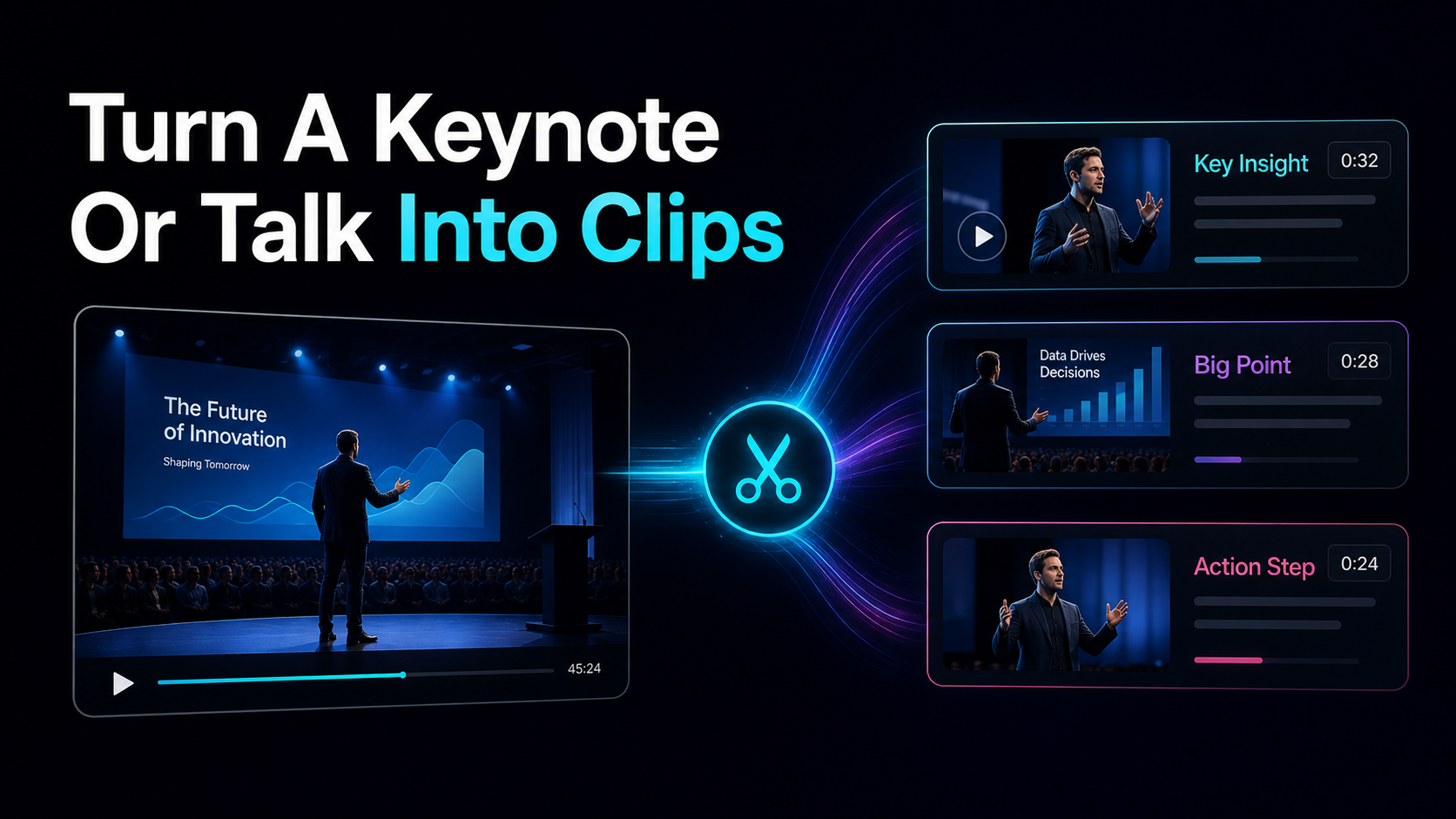
How to Turn a Keynote or Talk Into Short Clips
How to turn a keynote into clips: atomize one 60-min talk into ~12 micro-insights, settle usage rights, then reframe and caption each for Shorts, Reels.
By the Recapo.ai Editorial Team · Fact-checked July 10, 2026
To turn a keynote into clips, stop thinking of the talk as one video and start treating it as raw material to atomize: a single 45-to-60-minute session usually holds around a dozen self-contained micro-insights, each strong enough to stand alone as a Short. The job is three deliberate moves — settle who actually owns and can publish the footage, break the talk into those standalone moments, then reframe and caption each one for the feed it's headed to. This guide is built around that content-atomization angle rather than a generic "repurpose your video" overview, and it's honest about the one step almost every tutorial skips: a conference talk carries usage rights that a podcast or a webinar you recorded yourself simply doesn't.
That rights question is why this workflow is different. A keynote is often recorded by the event, shown alongside sponsor logos, other speakers, and an audience — so before you cut a frame, you need to know whether you're allowed to publish it. Settle that and the rest is a repeatable pipeline: a talk is unusually good source material precisely because a rehearsed speaker already structured it into arguments, stories, and frameworks. Below is how to atomize that structure into a batch of vertical clips without a desktop editor.
Information note: This is general information, not legal advice. Copyright outcomes depend on the facts and jurisdiction; primary sources were checked on July 10, 2026.
A conference talk is built to be atomized
Most long recordings resist being chopped up. A talk doesn't. A good speaker has already done the hard editorial work for you: they opened with a hook, built two or three arguments, told a story or two, dropped a memorable line, and closed with a call to action. Each of those is a natural cut point. That's what makes turning a conference talk to clips less like carving and more like harvesting — the seams are already there.
As a rough planning number, treat a 45-to-60-minute talk as roughly a dozen clip candidates. You won't publish all twelve — the honest yield after culling is usually five to eight that genuinely hold up — but a dozen is the right count to look for on the first pass. This is the core of speaker content atomization: one recording, many single-idea assets, each cut so tightly that a stranger who never saw the talk still gets a complete thought.
| The opening hook or provocative claim | A short teaser that opens a curiosity loop | A named framework or numbered method | A "save this" preview clip that feels like a tool | A story or case study | A self-contained narrative clip with a payoff | The one quotable line everyone repeats | A punchy 15–20s reaction clip | A myth the speaker busts | A contrarian hook that earns comments | A demo, chart, or before/after | A proof clip that shows a concrete result |
The map above is why atomization beats trimming. If you just "cut the good parts," you get three clips. If you deliberately look for each shape on that list, you get the full dozen.
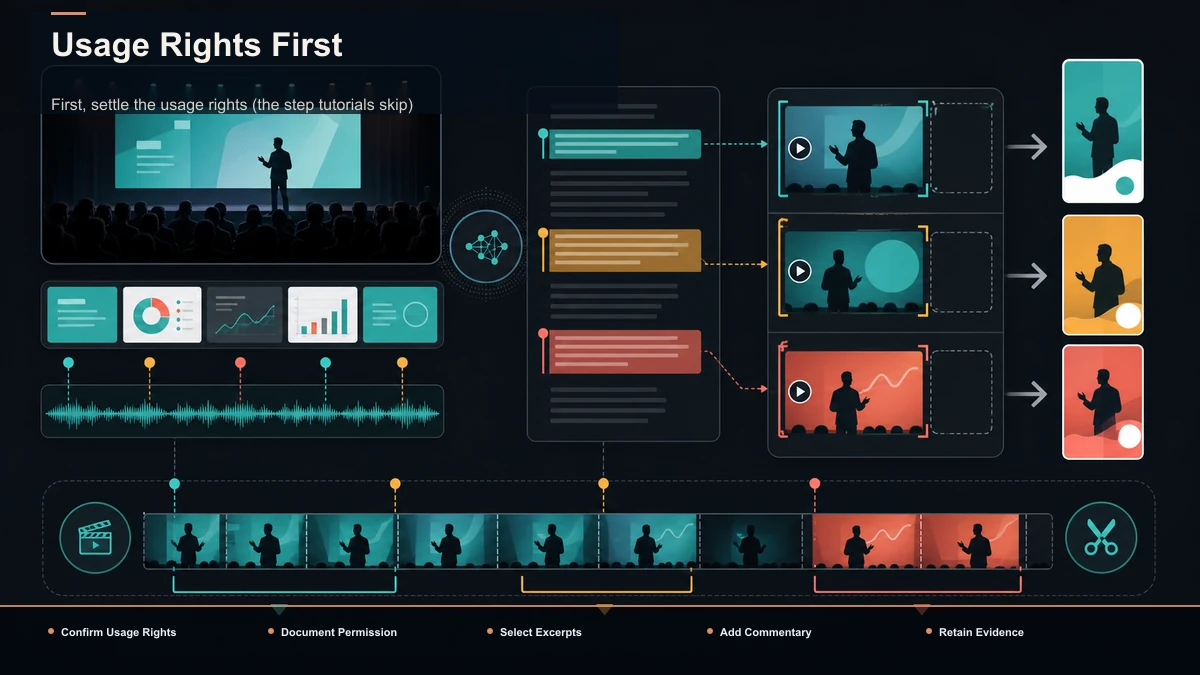
First, settle the usage rights (the step tutorials skip)
Before any editing, answer one question: are you allowed to publish this footage? This is the caveat that separates a talk from a recording you made yourself, and it's not legal advice — it's the practical checklist that keeps a repurposing project from becoming a takedown notice.
Work through these before you cut:
The clean version of this workflow is clipping your own talk, from your copy of the file, with permission to publish. If that's your situation, you're free to atomize away. If you're clipping someone else, get the yes in writing first — it's a five-minute email that protects weeks of work.
How to turn a keynote into clips: the workflow
With rights settled, the production side is a linear pipeline that runs end to end in a browser tab, no install required. It works with any toolkit; the steps below reference a consolidated browser workspace so you can see how the whole chain fits in one place.
- Get the file. Export your talk as a standard MP4 or MOV. Work from the highest-quality copy you have — stage footage is often 1080p or better, and you want that headroom when you crop into a vertical frame.
- Transcribe before you cut. Turn the whole talk into timed, searchable text. Reading a transcript to find your dozen moments is far faster than scrubbing an hour of stage footage, and you'll reuse the text for captions later.
- Atomize with an AI pass. Run the talk through a long video to short video AI so it reads the full session and surfaces candidate moments automatically. Treat the output as your first-draft dozen, not the final cut.
- Confirm and re-cut the candidates. Feed segments through an AI clip generator to tighten the boundaries. Re-cut each so it opens on the hook or the first useful word — never on the speaker's "so, um, the next thing I want to talk about."
- Reframe to vertical. Convert each clip from the stage's 16:9 to 9:16, keeping the speaker (or the slide, when it matters) in the center third.
- Caption for sound-off. Run each cut through auto-captions to burn in text, then proofread names, jargon, and numbers against your transcript.
- Add a cover and export. Pick a clean frame, export one clean 9:16 file, and it uploads natively to YouTube Shorts, TikTok, and Instagram Reels.
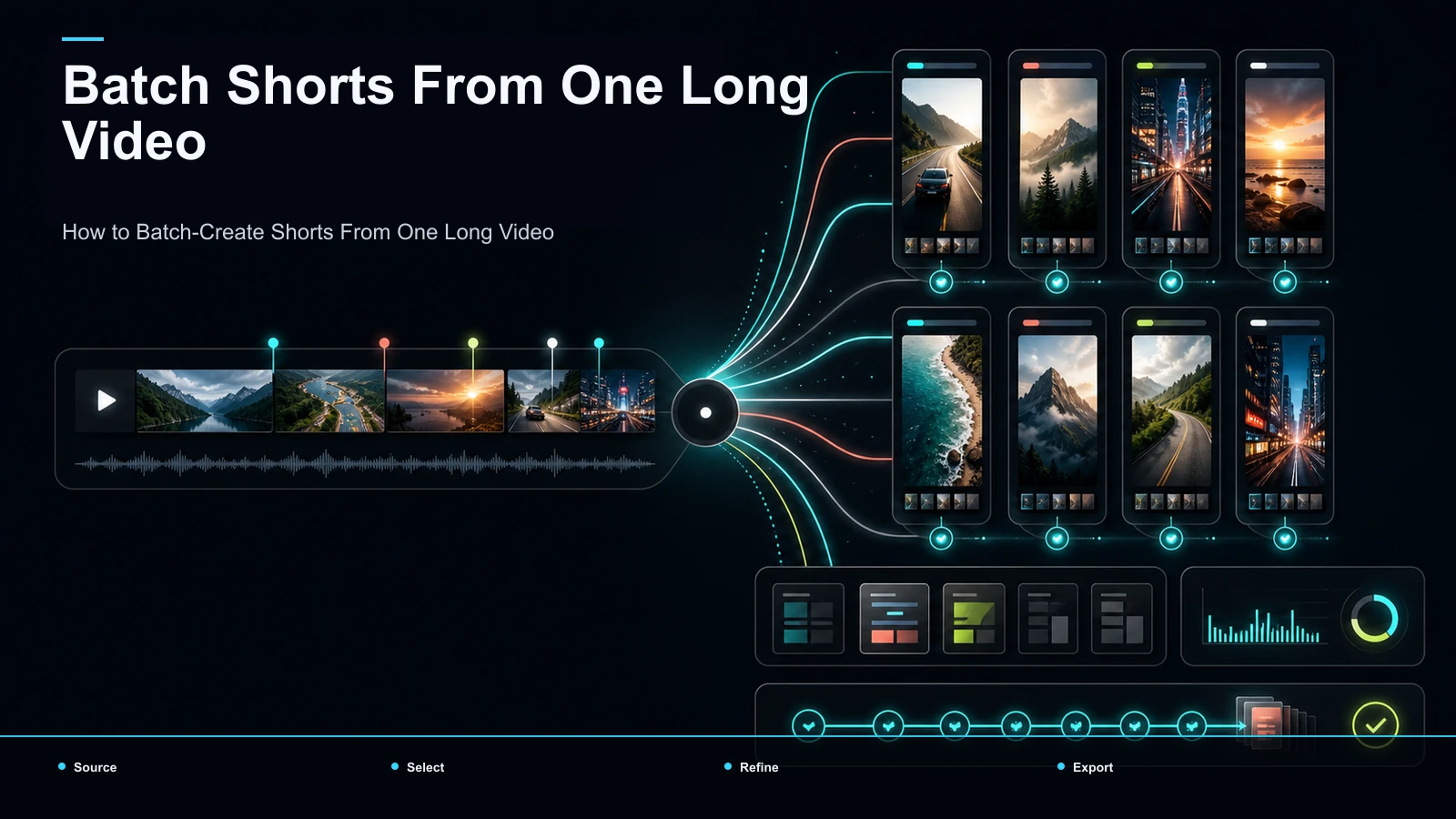
Once this is routine, the only judgment calls are steps 3 and 4 — which moments to keep and where to cut them. Everything downstream is mechanical. For turning a single source into a whole batch this way, how to batch create shorts from one video covers the production rhythm in more depth.
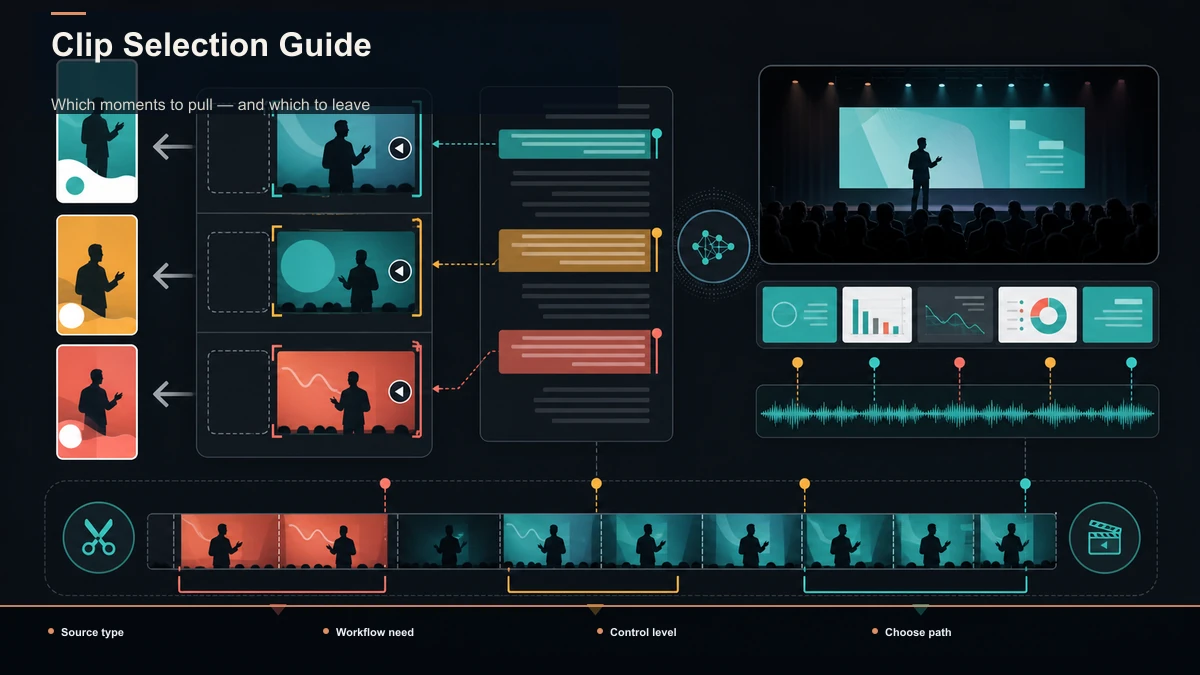
Which moments to pull — and which to leave
A transcript tells you where to look; it doesn't decide for you. Use one test for every candidate: does it deliver a complete idea to someone who never saw the talk? If a moment only lands because the audience sat through the previous ten minutes — an inside joke, a callback, a "as I said earlier" — it dies on a cold feed. Cut it.
Prioritize in this order:
What to leave behind: throat-clearing intros, thank-yous, logistics ("we'll take questions after"), and anything that needs a slide the viewer can't read. Don't force volume — publishing weak clips just trains an audience to scroll past your name. Harvest the peaks and stop.
Reframe and caption for each platform
Two mechanical steps stand between a keeper and a publishable clip, and stage footage makes both slightly harder than a webcam recording.
Reframe with intent. A talk is shot 16:9 and every vertical feed wants 9:16. Stage footage often frames the speaker small against a big screen, so a naive center-crop can leave them tiny or off to one side. Crop into the frame so the speaker fills it, and keep them in the center third away from where platform UI overlays the edges. When the point depends on a slide, cut to a moment where the slide is readable, or reframe onto the slide and let the speaker's audio carry it. Don't letterbox the wide shot with black bars — it screams "reposted" and wastes half the screen. If auto-reframing an hour of stage footage sounds tedious, how to repurpose long-form content into shorts shows how the vertical pass fits a larger pipeline.
Caption for viewers watching without sound. Some short-form video is watched on mute, so burned-in captions are how a talk clip gets understood mid-scroll. Run each cut through auto-captions and proofread — a keynote is dense with names, brands, and technical terms, and one wrong word on the key term undermines the exact authority you're clipping to show. Style captions for legibility: high-contrast font, safe margins, and a size that reads on a phone.
Per platform, the video file is the same clean 9:16 MP4; only the text around it changes — the on-screen hook, the caption copy, and the hashtags. Export once, adapt the words per destination.
Is clipping talks actually worth it for you?
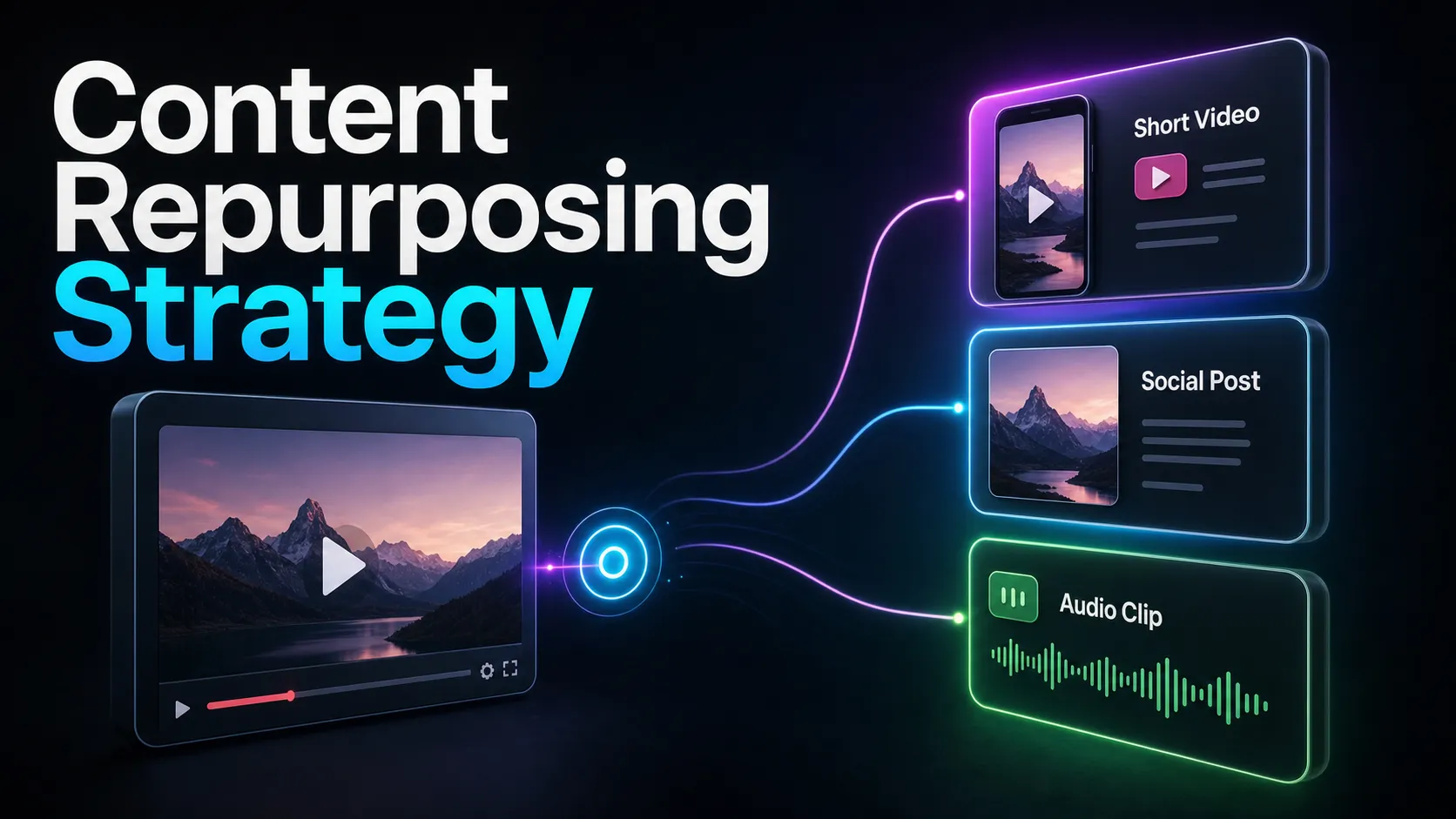
The honest part, because it decides whether to build this at all. Repurposing talks is a real, working practice, but a niche one — it clearly pays for professional speakers building thought-leadership reach, event marketers extracting social proof from a conference, and B2B teams turning a founder's keynote into demand-gen. That's a modest, business-event audience, not a mass creator play. So scope it accordingly: if you speak or run events regularly, atomizing every talk into a dozen clips is a genuine content engine that feeds weeks of posts; if you have exactly one recording in a folder, be honest that it's a one-time harvest, not a channel, and don't over-engineer it. For fitting talk clips into an ongoing plan rather than a one-off, a content repurposing strategy frames where they sit alongside your other sources.
Where a no-install tool fits — and how to test it
The positioning, plainly. Search results for how to repurpose a talk into shorts are led by speaker-and-event sites and general clipping tools; Recapo isn't the only option and won't claim to be. What it offers for this specific job is that the whole chain lives in one browser tab with nothing to install — upload the talk, transcribe it, atomize with the long video to short video AI, tighten cuts with the AI clip generator, reframe to vertical, caption with auto-captions, add a cover, and export — handling common formats like MP4 and MOV and accepting large source files up to 6GB total per task, which matters when your source is a full hour of high-bitrate stage footage.
Because pricing and limits change and every tool markets itself as effortless, don't take any positioning on faith — including this one. Run the same talk through two tools and score what matters:
| Atomization yield | How many of your dozen real moments does the AI actually surface? | Cut precision | Do clips open on the hook, or on filler you have to trim by hand? | Reframe on stage footage | Does the speaker stay centered when they're small in a wide shot? | Caption accuracy | How much do you fix on a talk thick with names and jargon? | Round-trips | How many exports and re-uploads from raw talk to finished vertical clip? |
Pricing lives on the pricing page; run one of your own talks start to finish and let the batch you get — not the marketing — decide whether it fits.
FAQ
How many clips can I get from one keynote?
Plan to find about a dozen candidates in a 45-to-60-minute talk, and expect to publish five to eight after culling. A talk is naturally segmented into hooks, frameworks, stories, and quotable lines, so the moments are already there. Don't force more than the genuine peaks — weak clips train your audience to scroll past you.
Do I need permission to clip a talk I gave at a conference?
Often, yes. Being the speaker doesn't automatically give you rights to the organizer's recording, which the event may own or co-own. The clean path is to clip your own copy of the file with written permission to publish. If sponsor logos, other panelists, or audience faces are in frame, crop them out or pick moments without them. This is practical guidance, not legal advice — when a talk was filmed by someone else, confirm the yes in writing first.
What's the fastest way to cut a talk into clips?
Transcribe it first, then cut by reading. A timed transcript lets you find your dozen moments in minutes instead of scrubbing an hour of footage, and an AI pass can surface candidates automatically for you to confirm. You also reuse that transcript for captions, so nothing you clean up goes to waste.
What aspect ratio should keynote clips be?
9:16 vertical for YouTube Shorts, TikTok, and Instagram Reels. Stage footage is 16:9, so crop into the frame so the speaker fills it and stays in the center third — don't letterbox the wide shot with black bars. Reframe once and the same clean vertical file works across all three feeds.
Are keynote-to-social clips worth the effort?
For professional speakers, event marketers, and B2B thought-leadership, yes — one talk can feed weeks of posts. For a single recorded talk you'll never repeat, treat it as a one-time harvest rather than a channel and keep the effort proportional. The value is highest when you speak or run events on a schedule and can rerun the same atomization pipeline every time.
Have a talk worth more than the room it was given in? First confirm you're clear to publish it, then create a free account and run the whole pass in your browser: transcribe the session, atomize it into a dozen candidate moments, tighten each to a single self-contained idea, reframe to 9:16 with the speaker centered, and burn in captions styled for a sound-off feed — MP4 or MOV, up to 6GB total per task. If it's a one-off, you'll have a batch of clips in an afternoon; if you speak or run events regularly, you'll have a repeatable way to turn every keynote into weeks of Shorts. Start with the recording already sitting in your folder.
References and official sources