
How to Turn Livestream Highlights Into YouTube Shorts
Turn livestream highlights into YouTube Shorts with a practical workflow for context, dead air, 9:16 framing, captions, rights, privacy, and final QA.
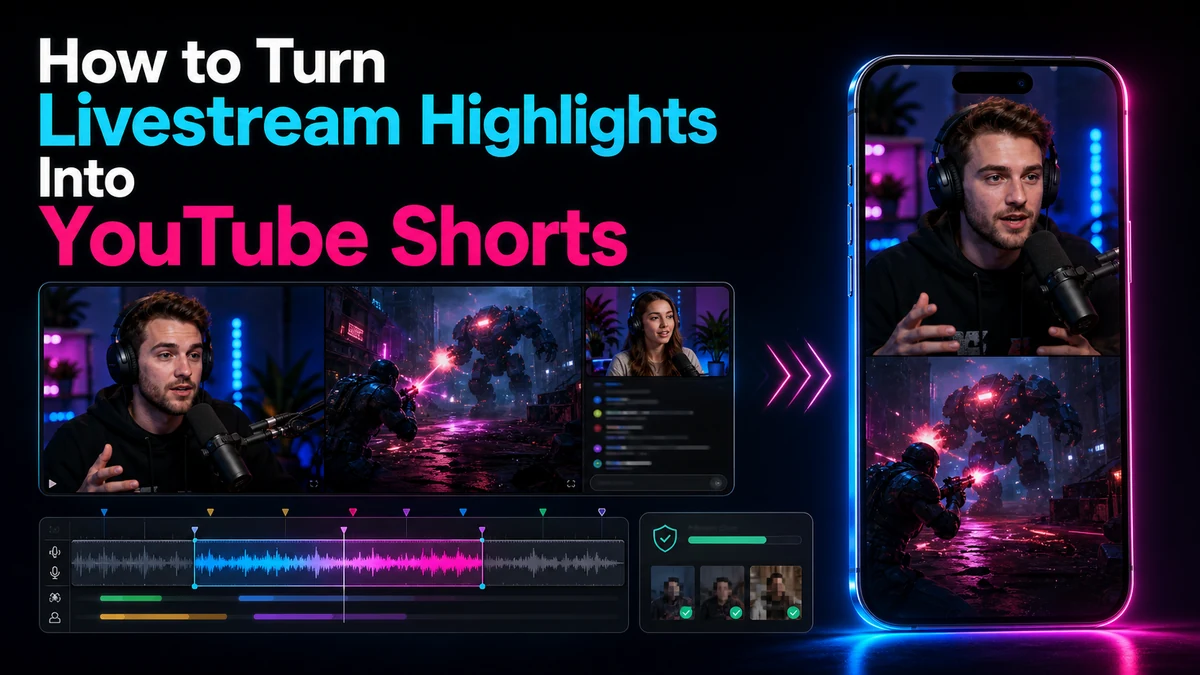
How to Turn Livestream Highlights Into YouTube Shorts
To turn livestream into YouTube Shorts content that makes sense away from the live event, do more than cut out an exciting sentence. Find a complete moment, remove waiting and repetition, preserve the context that gives the payoff meaning, and rebuild the frame for a vertical screen. You also need to inspect chat overlays, guest appearances, background music, and accidental or private moments before anything leaves the editor. The result should feel like a purposeful short video, not an unexplained fragment from a long broadcast.
Key Takeaways
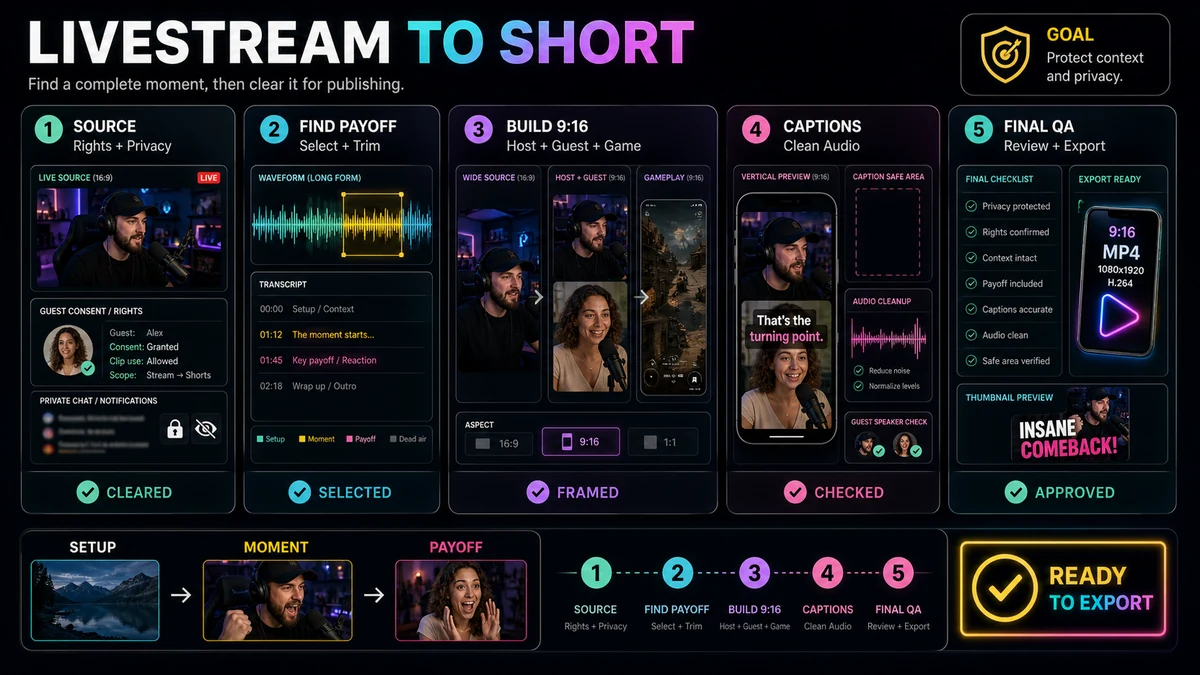
- Choose a highlight with a clear setup, development, and payoff that can stand alone for someone who missed the stream.
- Check rights, guest consent, privacy, and accidental disclosures before importing a clip into the publishing workflow.
- Remove dead air without cutting away the words, reactions, game state, or on-screen evidence that makes the moment understandable.
- Reframe according to the scene: host, guest, gameplay, demonstration, and chat each need different visual priorities.
- Treat transcript search and automated suggestions as ways to create a shortlist, not as a guarantee that a moment is safe or worth publishing.
- Review the exported vertical file from beginning to end before uploading it yourself.
Why Livestream Highlights Need a Different Edit
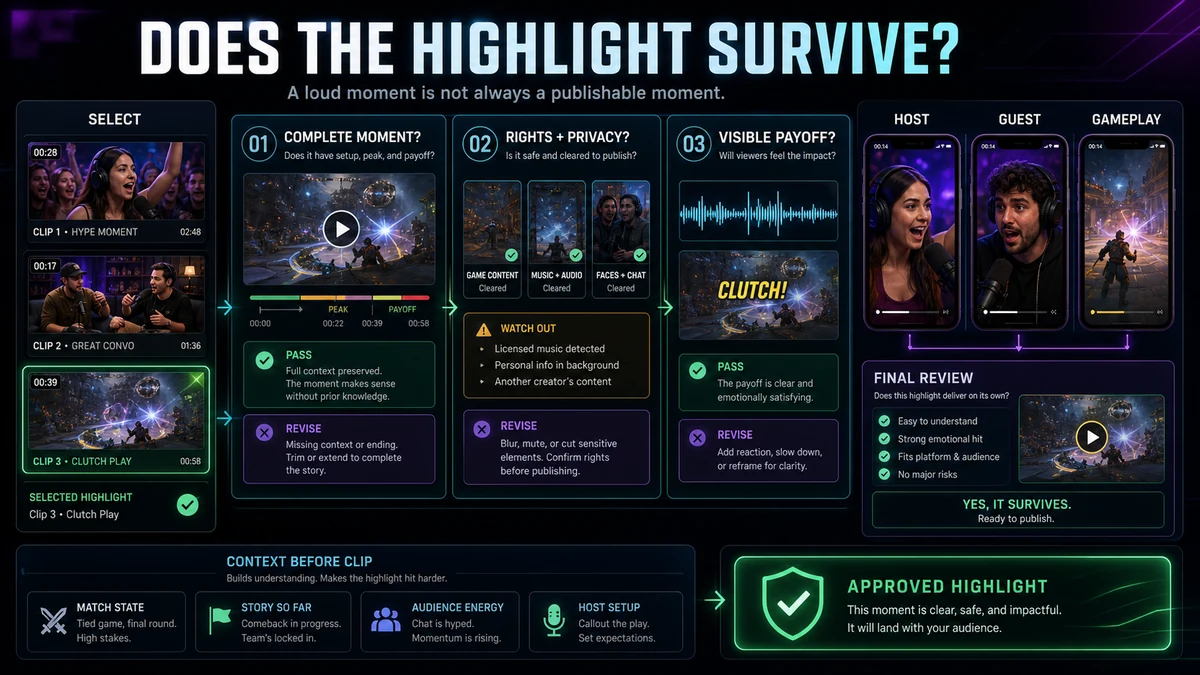
A livestream is made for people who share the event as it unfolds. They may have heard the guest introduction, watched a match develop, or seen a question arrive in chat. A Shorts viewer has none of that history. Live broadcasts also contain countdowns, connection checks, duplicate explanations, alerts, music, offhand guest comments, and desktop notifications. Some should be trimmed for pace; some require rights or privacy review. A dramatic moment is not automatically a publishable one.
YouTube’s current guidance says qualifying square or vertical videos can be categorized as Shorts when they are up to three minutes long. For standard channels, the updated classification applies to qualifying uploads made on or after October 15, 2024. That is a platform limit, not an editorial target. A highlight should be only as long as its idea requires: enough time to establish the situation and deliver the result, without padding it to the maximum.
Choose Highlights That Survive Outside the Livestream
Identify what the viewer receives from the clip: a concise answer, surprising result, gameplay reversal, demonstration, guest insight, or reaction whose cause is visible. Then test whether it remains coherent without the live timeline around it.
Use these selection criteria:
| CriterionStrong candidateCommon failure mode | ||
| Standalone setup | The opening names or shows the situation | It depends on an earlier discussion |
| Recognizable payoff | The answer, result, or change is present | The clip ends before the outcome |
| Visual evidence | The frame shows what the speaker means | The relevant gameplay, object, or guest is off-screen |
| Editability | Dead air can be removed cleanly | Essential context is scattered across distant sections |
| Rights clarity | Music, guest footage, and inserts are cleared | A compelling segment contains uncertain third-party material |
| Privacy and safety | The moment was intended for public viewing | A notification, private message, address, or accidental remark appears |
| Vertical viability | The subject can remain legible in 9:16 | The meaning depends on a wide interface that becomes unreadable |
Volume, laughter, chat activity, or a dramatic expression can help you search, but they cannot reveal whether a remark is private or an action is clear without the prior score. Human review decides whether the candidate has context and is suitable to publish.
A Livestream-to-Shorts Workflow
The order matters. Rights and privacy checks belong before polishing, while the final review belongs after the vertical export reveals the real viewing experience.
1. Check Rights, Consent, and Privacy
Confirm that you may use the broadcast and each retained element, especially music, event feeds, guest recordings, viewer submissions, and screen shares. Credit or a disclaimer does not itself provide permission. Fair use is fact-specific and ultimately decided by courts; this is general risk guidance, not legal advice. Remove private messages, contact details, location clues, account screens, access codes, unannounced information, and accidental background moments. Resolve unclear guest consent before editing for publication.
2. Import the Rights-Cleared Source
Use the cleanest available recording. A local master may provide clearer audio, separate tracks, or a feed without platform chat. If you use a source link, confirm that it points to the intended authorized recording. Recapo’s YouTube Shorts Maker describes importing rights-cleared local material or a source link; it does not replace the rights review.
3. Locate Candidates with the Transcript and Timeline
Search the transcript for the question, topic, or result you remember, then read around the match and watch the video. Transcripts may miss a silent reaction, gameplay action, or visual demonstration. Shortlist several candidates and mark the earliest necessary context and the completed payoff. If those points are too far apart to join naturally, choose another moment.
4. Trim Dead Air Without Removing Meaning
Cut countdowns, repeated greetings, loading time, technical interruptions, and pauses that add no meaning. Keep silence that carries anticipation or a useful reaction. Listen across edits for clipped words and abrupt room tone, and watch for jumps in body position. A clean hard cut, relevant cutaway, or framing change can make the compression intentional.
5. Reframe the Highlight for 9:16
Set the vertical composition before finalizing graphics and captions. An adjustable 9:16 crop is a practical full-screen choice, but the right crop depends on the scene:
- Host commentary: keep the face and expressive gestures visible; avoid drifting after every small movement.
- Host and guest: switch to the active speaker when appropriate, preserve reactions when they carry meaning, or use a stacked layout if both people need to remain visible.
- Gameplay: prioritize the action and the minimum interface elements needed to understand it. A large face camera should not hide the decisive play.
- Screen demonstration: focus on the control, result, or region being discussed rather than shrinking the entire desktop.
- Physical demonstration: keep the hands, object, and outcome together. A face-only crop can erase the evidence.
- Chat-dependent moment: show only the message needed for context, at a readable size, after checking usernames and private content.
Change a fixed center crop when the visual priority changes, but avoid tracking every small movement. Deliberate reframes, speaker cuts, and stacked compositions are easier to follow than restless motion.
6. Rebuild Captions and Manage Chat Overlays
A full scrolling chat is often too small for a vertical frame, competes with captions, and may expose names or comments not selected for reuse. Remove it unless needed. If one message triggers the highlight, isolate it and verify that it is appropriate to show.
Add editable captions and check names, game terms, acronyms, and overlapping speech. Recapo’s Auto Captions page describes language and style choices, editable synchronized captions, timing and position review, and captioned video output—not error-free transcription. Keep text away from outer edges and likely interface overlays, then preview it. See the YouTube Shorts safe zone guide and auto-caption workflow for focused checks.
7. Run Editorial and Technical QA
Watch once for story and once for risk. Check that a first-time viewer understands the setup, sees the action, and receives a complete ending. Freeze on screen shares, chat, notifications, guest shots, and music transitions. At phone size, confirm that captions, subjects, gameplay, demonstrations, and audio edits remain clear.
8. Export the Vertical MP4 and Review It Again
Export the vertical MP4 and watch the file rather than relying on the editor preview. Check its first and last frames, crop changes, captions, audio, and image quality. Upload and publication remain separate actions under your control. If the Short exceeds one minute, YouTube warns that an active Content ID claim can cause a global block; check current guidance before publishing.
Preserve Event Context Without Rebuilding the Whole Stream
Context is not the same as length. You may need one sentence, scoreboard state, question card, or label—not the full introduction. A guest answer may need the host’s question; gameplay may need its objective; a demonstration may need the initial condition. Never invent context or rearrange a reaction so it appears to answer a different event.
Illustrative Example: A Gameplay Livestream Highlight
This example is hypothetical and illustrates editorial decisions; it is not a claim about a real creator, stream, or performance result.
Imagine a rights-cleared stream where a host and guest attempt an in-game challenge. The useful section contains a viewer question, menu navigation, the guest’s strategy, the action, and both reactions. Chat occupies the right side, and music begins before the attempt.
The editor verifies the recording, game footage, guest reuse, and music rights. The question matters but the username does not, so it becomes a simple text card instead of a full chat panel. Menu searching is removed while the strategy and enough game state remain. The 9:16 frame starts with a host/guest stack, switches to gameplay, and returns to both reactions. Captions are corrected for the game term, and the export is checked for readable objectives, complete faces, authorized music, and hidden private content.
The structure is not universal; selection, context, framing, and risk review must respond to the scene.
Common Failure Modes
- Starting at the reaction: A shout or laugh feels arbitrary without its cause. Start earlier, add truthful context, or choose another moment.
- Cutting every pause: Removing all silence flattens tension and can make speech mechanical.
- Letting chat dominate: An always-on panel consumes vertical space and creates privacy and readability problems.
- Showing the host instead of evidence: During gameplay or a demonstration, prioritize the action being described.
- Trusting only the transcript: Important moments can be visual or incorrectly transcribed. Watch every candidate.
- Treating “live” as permission: Public transmission does not settle rights to music, guests, submissions, or third-party feeds.
Limitations and Pre-Publication Checklist
No tool can determine every contextual, consent, copyright, privacy, or editorial issue in a livestream. Automated locating and reframing can reduce manual searching, but they do not guarantee the best moment, a safe publication decision, or audience growth. Before upload, confirm:
- You have the right to use the source recording, music, guest material, and inserted footage.
- Guest consent and the intended public scope of the moment are clear.
- No private message, notification, personal detail, access code, or accidental moment remains.
- The opening supplies enough context for someone who missed the livestream.
- The payoff is complete and has not been rearranged misleadingly.
- Dead air is removed without damaging natural speech, tension, or reactions.
- The 9:16 frame prioritizes the correct host, guest, gameplay, screen region, or object.
- Chat is removed or reduced to a necessary, reviewed message.
- Captions match the audio and remain readable within safe margins.
- The square or vertical file fits YouTube’s current Shorts duration rules.
- The exported file has been watched fully at phone size with sound on and off.
- You will perform the actual upload and final platform review yourself.
Use Recapo as an Editing Workspace, Not a Publishing Promise
Recapo’s YouTube Shorts Maker can help you import authorized footage, locate a candidate through the transcript, trim the selection, adjust a 9:16 reframe, and export a vertical MP4. Those steps can make a long livestream easier to navigate and reshape. They do not replace judgment about consent, context, privacy, music, or which moment deserves to become a Short, and they do not automatically publish it.
Start with a rights-cleared source and one candidate that passes the selection criteria. Use the tool to build the vertical edit, then apply the checklist before you upload.
Frequently Asked Questions
How do I find good highlights in a long livestream?
Search the transcript for questions, topic phrases, decisions, and results, then watch the video around each match. Shortlist moments with a standalone setup, visible payoff, clear rights, and a workable vertical composition. Do not rely on transcript text or activity signals alone.
How much dead air should I remove?
Remove waiting, repeated setup, technical delay, and pauses that add no meaning. Keep silence that supports anticipation, emotion, comprehension, or a natural conversation rhythm. Judge the edited audio and picture together.
Should livestream chat appear in a YouTube Short?
Only when it is necessary to understand the moment and appropriate to preserve. A single reviewed question is usually clearer than a full scrolling chat panel. Check usernames, personal details, moderation content, and consent or privacy concerns before keeping any message.
How should I frame gameplay with a face camera?
Give the decisive action enough space to remain legible, then retain the face camera only if the reaction adds meaning without hiding required interface elements. You can change layouts between setup, action, and reaction rather than forcing one crop throughout.
Can a YouTube Short be three minutes long?
Under YouTube’s current guidance, qualifying square or vertical Shorts can be up to three minutes. For standard channels, the updated classification applies to qualifying uploads made on or after October 15, 2024. Editorial length should still fit the idea, and current rules should be checked before publishing.
Does a copyright disclaimer make livestream music safe to reuse?
No. YouTube’s official guidance says credit or a disclaimer does not itself create permission, and fair use depends on the facts of a case. Verify music and footage rights; this is general risk guidance, not legal advice.
Make the Highlight Feel Complete
The strongest livestream Short gives a new viewer the necessary setup, the important action, and a satisfying endpoint. It removes delay without erasing meaning, uses the vertical frame to show the right evidence, and treats chat, guests, music, and accidental moments as review obligations. When you are ready to edit, open the Recapo YouTube Shorts Maker and build one carefully reviewed highlight at a time.
References and Official Sources
- Recapo YouTube Shorts Maker
- YouTube Help: Understand three-minute YouTube Shorts
- YouTube Help: Upload YouTube Shorts from a computer
- YouTube Help: Learn about Shorts
- YouTube Help: Fair use on YouTube
Related Recapo Guides
- How to Find the Best Moments in a Long Video with AI
- How to Make YouTube Shorts from Horizontal Video
- YouTube Shorts Safe Zone Guide
- How to Add Auto Captions to YouTube Shorts
- How to Make YouTube Shorts on Desktop