
How to Turn a Webinar Into YouTube Shorts
Turn a webinar into YouTube Shorts by choosing focused chapters or Q&A clips, reframing slides, adding captions, and reviewing every claim in context.
How to Turn a Webinar Into YouTube Shorts
To turn webinar into YouTube Shorts content that makes sense outside the original event, extract one complete teaching point rather than one exciting sentence. A strong webinar Short gives the viewer a clear question, enough context to understand the answer, and a useful conclusion. It also removes introductions, sponsor slides, agenda talk, and other housekeeping while keeping qualifications that make the presenter’s claim accurate.
YouTube currently says qualifying square or vertical videos can be categorized as Shorts when they are up to three minutes long. That is a platform limit, not an editorial target. A 28-second answer may be complete; a complex demonstration may need longer. Let the idea determine the length, then make every second earn its place.
Key Takeaways
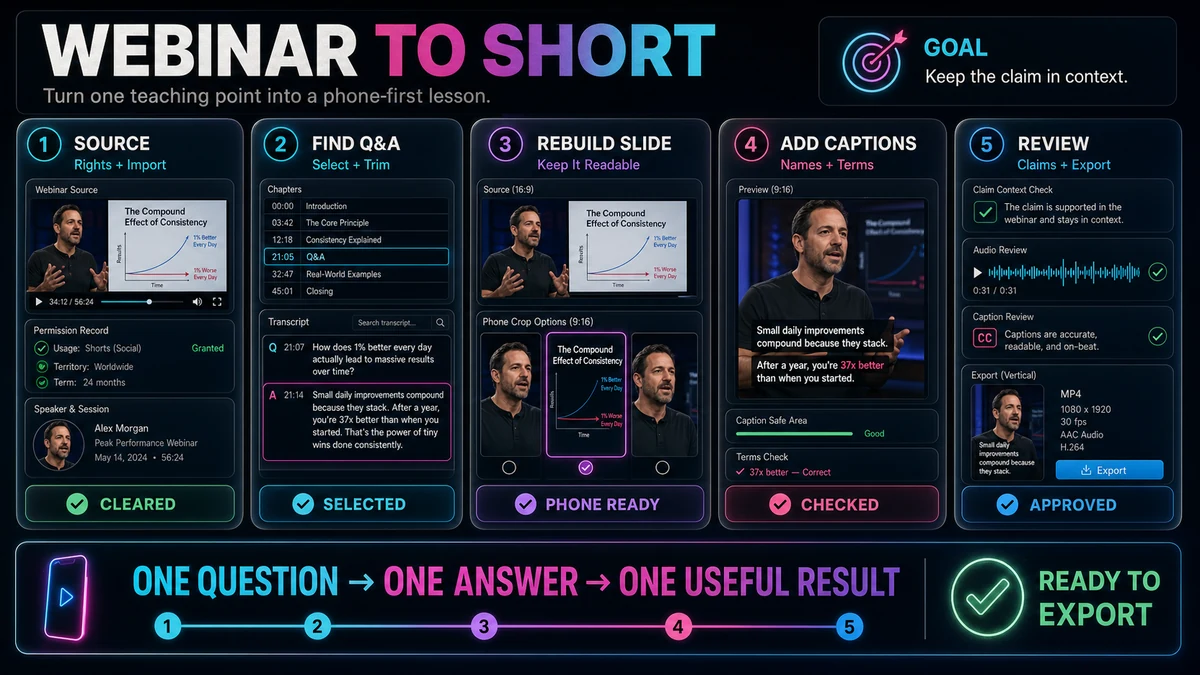
- Choose a chapter, demonstration, or Q&A answer that can stand alone without the full webinar.
- Remove housekeeping, but preserve definitions, conditions, dates, and evidence that keep a claim in context.
- Use a presenter-first, slide-first, or stacked layout according to what the viewer needs at each moment.
- Rebuild dense slides for a phone screen instead of shrinking a 16:9 deck into unreadable space.
- Review captions, framing, audio, claims, and rights before exporting a vertical MP4.
Why Webinar Clips Need a Different Editorial Approach
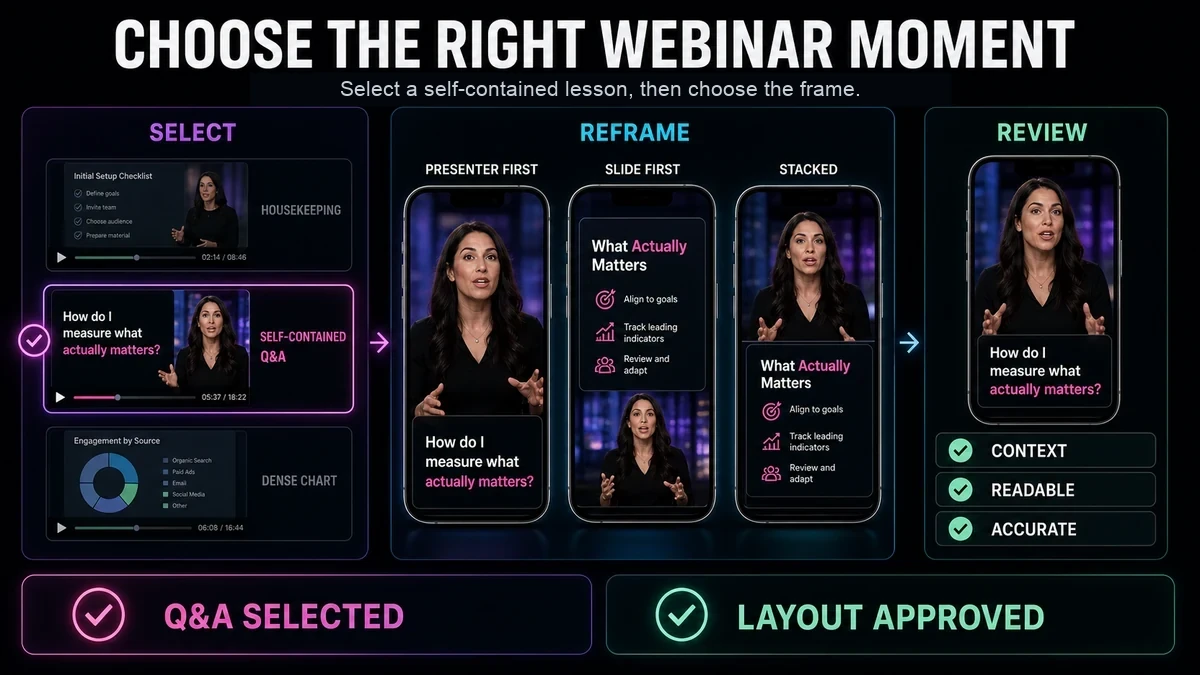
Webinars assume viewers have seen the agenda, speaker introductions, and earlier chapters. Shorts viewers receive none of that setup. One answer may reach the feed without the previous slide or the definition behind “this framework.” A lively quote can therefore fail while a modest Q&A answer succeeds because it names a problem and resolves it directly.
The visuals create a second challenge. A webinar frame may combine a presenter, wide slide, host panel, chat, and platform controls. A center crop can hide both the speaker and the relevant slide detail. The vertical version needs an editorial layout, not merely a narrower canvas.
Choose One Self-Contained Teaching Point
Start with the chapter list, transcript, or Q&A timestamps. Look for a segment with one job: answer a question, define a concept, correct a misconception, explain one step, or show one result. The best candidate is not necessarily the loudest moment. It is the moment a new viewer can understand with minimal repair.
Use these selection criteria:
| CriterionKeep the segment when…Reject or expand it when… | ||
| Clear opening | The first line states or quickly implies the problem | It starts with “as we covered earlier” or an unexplained pronoun |
| Complete value | The clip reaches a usable answer or conclusion | It ends on a teaser, transition, or unresolved setup |
| Visual independence | The essential slide detail can be shown legibly | Understanding depends on a dense table or several earlier slides |
| Claim integrity | Necessary limits and conditions fit in the clip | Trimming would turn a qualified claim into an absolute one |
| Clean edit points | Pauses or sentence boundaries allow natural cuts | Removing context creates abrupt grammar or misleading audio |
| Audience fit | The point addresses one recognizable viewer need | It tries to summarize the entire webinar |
Chapter segments work when the presenter teaches one compact method; Q&A works when the question supplies a natural hook. Keep enough of the question to prevent ambiguity, and never rewrite it into a stronger claim than the attendee made.
A Practical Webinar-to-Short Workflow
1. Check Rights and Source Quality
Use source material you are authorized to repurpose. Confirm rights for the recording, presenters, guests, slides, music, stock media, and examples. A public link is not automatically permission to reuse every element. This is general risk guidance, not legal advice.
Start from the best available master. Cleaner speech and sharper slides tolerate cropping, enlargement, and captions better than a screen recording of a replay.
2. Import and Map the Webinar
Import the rights-cleared local recording or source link. Recapo’s YouTube Shorts Maker describes local or link-based import, transcript navigation, trimming, adjustable 9:16 reframing, and vertical MP4 export.
Use the transcript to mark chapters, explanations, demonstrations, questions, and conclusions. Search helps you navigate; it does not prove a clip works. Watch the surrounding context before selecting.
3. Select One Candidate and Define Its Promise
Write a one-sentence promise that states exactly what the viewer will understand. If it needs several “ands,” the segment is too broad. Check the surrounding footage for a missing definition, exception, or conclusion. Include only what viewers need, but do not remove context for a sharper hook.
4. Trim Housekeeping Without Damaging Meaning
Cut greetings, bios, logistics, agenda narration, sponsor transitions, chat requests, long pauses, and verbal detours when the edit remains natural.
Protect meaning. Keep the basis of a comparison, dates attached to time-sensitive advice, and words such as “may,” “often,” or “in this example.” A stated limitation belongs with its claim. Never splice separate statements into a conclusion the presenter did not make.
5. Reframe the Presenter and Slides for 9:16
Set the vertical canvas before detailed caption styling. Then choose the layout according to the information priority:
| LayoutUse it whenReview risk | ||
| Presenter-first crop | Expression, delivery, or a spoken explanation carries the point | Gestures or referenced slide details may fall outside the crop |
| Slide-first crop | One diagram, phrase, or product action is essential | A full widescreen slide can become too small to read |
| Stacked presenter plus slide | The viewer needs both the explanation and visual evidence | Two equal panels may leave neither element large enough |
| Cut between presenter and slide | Attention shifts at clear sentence boundaries | Late cuts can show the wrong visual during a reference |
| Simplified slide insert | Only one number, label, or process step matters | Redesign must preserve the source’s meaning and attribution |
Do not force a complete slide into the vertical frame. Crop the relevant region, enlarge one diagram, or rebuild a simple card using the original wording. Keep the presenter visible when delivery matters; prioritize the slide when viewers must inspect it. If a chart cannot remain legible with its labels and scale, choose another moment or direct viewers to the full webinar.
6. Add and Review Captions
Webinar speech contains names, acronyms, and technical terms that transcription can mishear. Recapo’s Auto Captions page describes language and style choices, editable synchronized captions, timing and position review, and captioned video output. Treat generated text as a draft.
Correct terminology against the source, use short readable groups, and avoid covering slide labels. Leave room around the bottom and right edges because interface overlays vary. Captions should not compete with a dense slide.
7. Run Editorial and Visual QA
Watch the vertical edit at phone size with sound, then without it. Confirm that the opening identifies the topic, the question matches the answer, slide details are readable, and the ending completes the thought. Check audio cuts, captions, names, figures, dates, quotations, and links against the rights-cleared source; transcripts can contain errors.
8. Export, Inspect, and Upload Separately
Inspect the exported vertical MP4 for orientation, duration, caption timing, audio sync, and the final frame. Recapo’s documented workflow ends with export; upload and platform review are separate.
YouTube allows qualifying square or vertical Shorts up to three minutes, but that is not a target. Preserve the teaching point. Review current music guidance too: YouTube says a Short longer than one minute with an active Content ID claim can be blocked globally.
Illustrative Example: Turning a Webinar Q&A Into One Lesson
The following example is hypothetical and illustrates editorial decisions; it is not a customer case, performance claim, or report of a Recapo test.
Imagine a webinar about onboarding emails. An attendee asks, “Should the first email explain every feature?” The presenter answers: welcome the user, connect the email to their recent action, introduce one next step, and save advanced features for later. A five-bullet slide accompanies the answer, but only the first two points are relevant.
The editor shortens the question, removes a greeting, an earlier-poll reference, and the transition to the next attendee. They preserve the qualifier that the advice applies to the first onboarding email, not every product message.
The opening uses a presenter-first crop with the question as a text hook. The edit then cuts to a rebuilt slide containing the two relevant source points and returns to the presenter for the conclusion. Captions use the correct terminology and avoid the slide labels.
The finished Short contains one lesson: what the first onboarding email should accomplish. It does not claim to summarize the entire webinar, invent a result, or imply that the approach guarantees better activation. That editorial restraint is what makes the clip understandable and trustworthy.
Common Webinar-to-Short Failure Modes
Choosing a Quote Instead of an Answer
A polished sentence may sound impressive but deliver no usable conclusion. Include the question, mechanism, or example that turns the quote into a complete idea.
Removing the Qualifier That Makes a Claim Accurate
Cutting “for early-stage teams” or “in this dataset” can materially change a statement. Treat qualifiers as part of the claim, not disposable filler.
Shrinking the Entire Slide
A 16:9 slide with a title, chart, footnote, and webcam tile rarely survives at phone size. Isolate the relevant element or use a different clip.
Keeping Housekeeping Because It Was in the Original
Welcome messages and event logistics help live attendees but delay value in a Short. Remove them when they add no necessary context.
Letting the Crop Follow Every Movement
Constant reframing can feel unstable. Hold a clear composition, then change it only when the speaker, slide, or referenced detail changes.
Trusting the Transcript Without Watching the Recording
The transcript cannot show whether a slide contradicts the spoken wording, whether a joke changes the tone, or whether a cut hides a demonstration. Use it to locate candidates, then review the audiovisual source.
Final Checklist and Practical Limitations
- You have permission to use the recording and included third-party elements.
- The clip teaches one point and works without the earlier webinar chapters.
- The opening question or statement is understandable on its own.
- Housekeeping is removed, while definitions and qualifiers remain.
- Presenter and slide layouts change according to information priority.
- Every retained slide label, chart element, and cursor action is readable on a phone.
- Captions match the spoken words, names, numbers, and terminology.
- Captions and graphics leave room for variable platform overlays.
- Audio edits sound natural and the ending reaches a complete thought.
- The exported file is square or vertical and within YouTube’s current Shorts duration rules.
- Claims, dates, links, and attributions have been checked against the source.
- The export has been watched from beginning to end before upload.
Some webinar moments should remain long-form. A multi-step demonstration may lose safety instructions when compressed. A chart may require surrounding methodology. A panel exchange may depend on contrasting viewpoints that do not fit one vertical clip. In those cases, choose a narrower point, create a short series with each episode still self-contained, or keep the material in the full webinar.
A YouTube Shorts maker can reduce navigation and formatting work, but it cannot decide whether a claim is fair, a slide is comprehensible, or a guest has granted the necessary rights. Those remain editorial and legal review tasks.
A Responsible Recapo Workflow
Use the Recapo YouTube Shorts Maker to import rights-cleared webinar footage, locate a candidate through its transcript, trim the section, adjust the 9:16 composition, and export a vertical MP4. Then apply the checklist above. Recapo can support the mechanical workflow; you still choose the teaching point, protect context, verify claims, and decide whether the final clip is ready to upload.
Frequently Asked Questions
How long should a webinar YouTube Short be?
Long enough to complete one idea and no longer. YouTube currently allows qualifying square or vertical Shorts up to three minutes, but that limit should not dictate the edit. Preserve the setup, explanation, and conclusion the point genuinely needs.
Is a webinar chapter or Q&A answer better for Shorts?
Either can work. Choose a chapter when it contains a compact teaching sequence. Choose Q&A when the question creates a clear hook and the answer stands alone. Reject either format when it depends heavily on earlier context.
Should the presenter or the slide fill the vertical frame?
Prioritize the element carrying meaning at that moment. Use a presenter-first frame for delivery and explanation, a slide-first frame for essential evidence, or a stacked layout when both remain legible. Cut between layouts when attention changes.
Can I use webinar footage that is publicly available online?
Public availability does not by itself confirm permission to repurpose the recording, slides, music, guest contributions, or examples. Use rights-cleared material and obtain advice for your specific situation when needed. This article is not legal advice.
Do I need to keep the full audience question?
No. You can remove greetings and repetition, but retain enough wording to represent the question accurately. If the answer makes sense by itself, the question can be replaced by a concise, faithful topic card.
Can Recapo publish the Short to YouTube automatically?
The product evidence used for this guide supports import, transcript navigation, trimming, adjustable 9:16 reframing, and vertical MP4 export. It does not support a claim of automatic publishing. Upload and final checks are separate.
References and Official Sources
- Recapo YouTube Shorts Maker
- YouTube Help: Understand three-minute YouTube Shorts
- YouTube Help: Upload YouTube Shorts from a computer
- YouTube Help: Fair use on YouTube
Related Recapo Guides
- How to Make YouTube Shorts from Horizontal Video
- YouTube Shorts Safe Zone Guide
- How to Add Auto Captions to YouTube Shorts
- How to Make YouTube Shorts on Desktop
- How to Find the Best Moments in a Long Video with AI