How to Add Chapters to a YouTube Video
How to add chapters to a YouTube video: the exact timestamp format YouTube requires, a copy-paste template, and fixes for when chapters won't show.
By the Recapo.ai Editorial Team · Fact-checked July 10, 2026
Adding chapters to a YouTube video takes about two minutes and zero editing software: you type a list of timestamps into the description box, starting at 00:00, and YouTube slices your progress bar into named, clickable sections. This guide gives you the exact formatting rules YouTube enforces, a copy-paste template you can fill in, and a troubleshooting block for the moment chapters refuse to show — plus a practical way to find clean chapter breakpoints on a long recap or interview. Learn how to add chapters to a YouTube video once and you'll never fumble the format again.
Fact-check note: Platform rules and product limits were checked against official sources on July 10, 2026. They can change, so verify the linked source before acting on a threshold or specification.
What YouTube chapters actually do
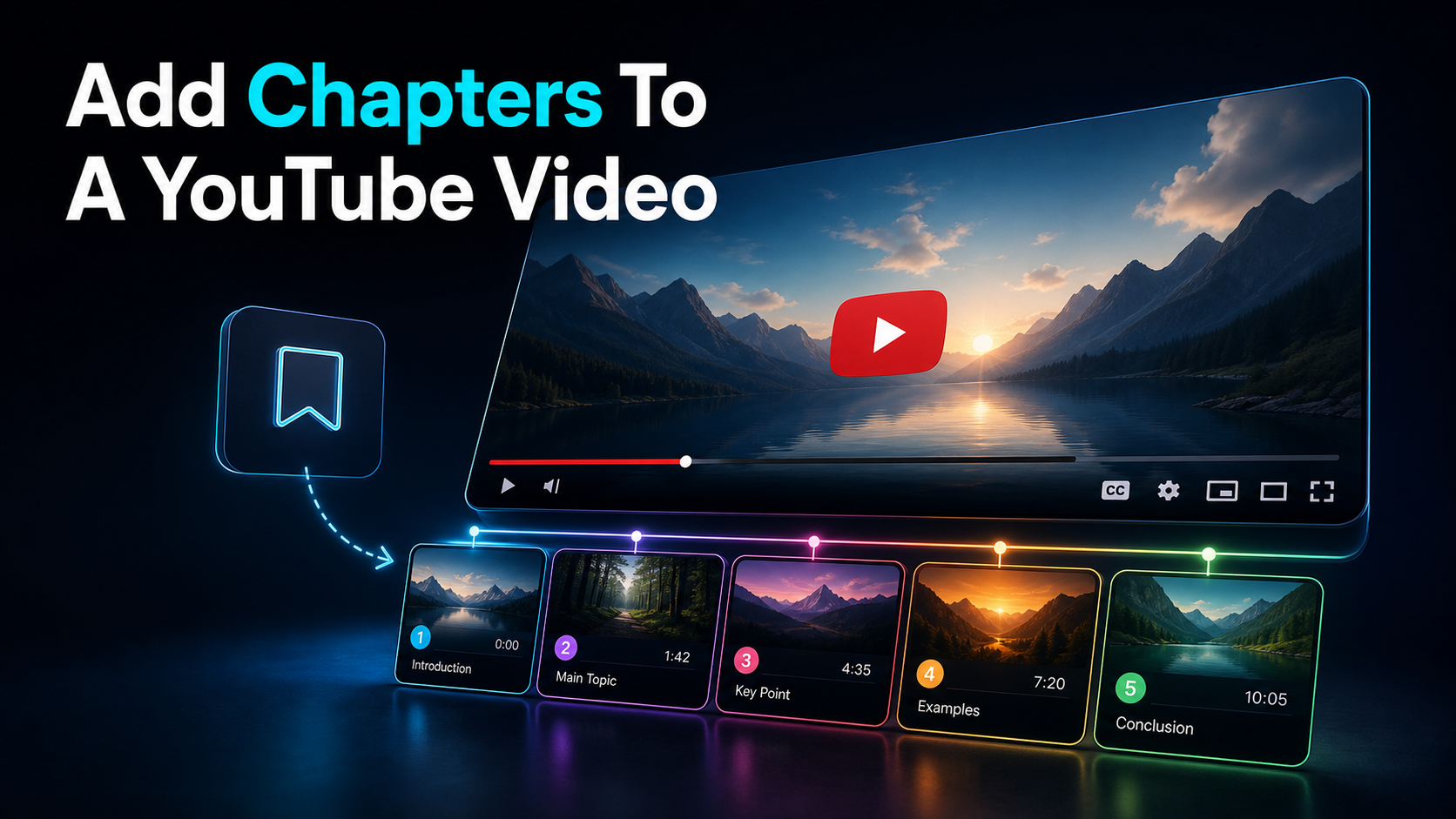
YouTube video chapters split the red progress bar into labeled segments. When a viewer hovers the timeline, they see named sections instead of one long unbroken track; on the watch page, the chapters list becomes a clickable table of contents they can jump around inside. The whole thing is driven by nothing more than a list of timestamps in your description — no special upload, no editing tool, no plugin.
Two things make chapters worth the two minutes:
The mechanics are evergreen. The interface gets restyled every so often, but the underlying rule — timestamps in the description create chapters — has held for years.
The formatting rules YouTube enforces
This is where most "chapters won't show" problems are born. YouTube treats your description timestamps as chapters only when every rule below is satisfied. Miss one and it silently ignores the whole list.
| First timestamp | Must be exactly 00:00 | People start their list at 00:12 or the first real topic | Minimum count | At least 3 timestamps | Two chapters isn't enough; YouTube needs three or more | Minimum length | Each chapter 10 seconds or longer | Two markers 6 seconds apart breaks the list | Order | Ascending (chronological) | A timestamp pasted out of sequence kills it | Format | MM:SS, or HH:MM:SS past one hour | Using a period (1.30) instead of a colon fails | Placement | In the video description, each on its own line | Timestamps buried mid-paragraph don't register |
Those requirements — the 00:00 start, three-chapter minimum, ten-second floor, and ascending order — come straight from YouTube's Help documentation, and they are the exact conditions the platform checks. Treat them as a pre-flight checklist and chapters "just work."
Copy-paste chapter template
Here's the shape YouTube wants. Each line is a timestamp, a space, then the section name:
To use it: replace the titles with your own, keep the first line at 00:00, list them in ascending order, and make sure no two timestamps sit closer than ten seconds. Keep at least three lines. That's the entire spec.
A blank version to fill in as you scrub the video:
Type each timestamp exactly as it reads on the YouTube player (MM:SS), one per line. For a video an hour or longer, the player shows HH:MM:SS, so match that — 1:04:20, not 64:20. Titles can be as plain or as punchy as you like; the format is all YouTube checks.
How to add chapters to a YouTube video, step by step
You can add chapters during upload or to any video you've already published. The description is the same field either way.
On desktop (YouTube Studio):
- Open YouTube Studio → Content, and click the video you want to edit.
- In the Description box, go to a new line and type
00:00followed by your first chapter title. - Add each remaining timestamp on its own line, in ascending order, at least ten seconds apart — three lines minimum.
- Double-check the first line reads exactly
00:00. - Click Save. Within a moment the chapters appear as segments on the progress bar.
On mobile:
- Open the YouTube app, go to your video, and tap Edit (pencil) on the description, or edit it in the YouTube Studio app.
- Type the same timestamp list —
00:00first, one per line, ascending, ten-second minimum. - Save. The same rules apply; the app doesn't have a separate "chapters" toggle.
There is no dedicated "add chapters" button anywhere — chapters are a byproduct of a correctly formatted description. If you know how to add timestamps to YouTube in the description, you already know how to add chapters. The only difference between a timestamp that jumps the playhead and a full chapter is meeting all six formatting rules above.
Manual chapters vs YouTube automatic chapters
If you add nothing, YouTube may generate chapters for you. Understanding the difference tells you when to bother doing it by hand.
| Who writes the titles | You | YouTube's machine learning | Control over breakpoints | Full | None — it guesses | Wording / keywords | Your call | Generic, often literal | Setup effort | ~2 minutes | Zero | Reliability | Shows whenever rules are met | May or may not appear |
YouTube's automatic chapters (and its "key moments") are produced by machine learning that reads your video and, per YouTube, may also draw on timestamps other viewers reference. They're free and hands-off, but the titles are generic and the cut points are a guess — fine for a video you didn't have time to mark up, weak for anything you care about ranking or retaining.
You can turn automatic chapters off if you'd rather control everything: in the video's editing screen, expand Show more and untick Allow automatic chapters and key moments. As soon as you add three valid manual timestamps, your list takes over anyway — manual always wins over auto.
The honest rule of thumb: mark up anything long-form or evergreen by hand, and let auto-chapters cover the low-stakes uploads.
Why your YouTube chapters aren't showing
"YouTube chapters not showing" is almost always a formatting miss, not a bug. Run down this table before you assume anything's broken.
| No chapters at all | First timestamp isn't 00:00 | Make the first line exactly 00:00 | No chapters at all | Fewer than 3 timestamps | Add a third (and beyond) | List ignored | A chapter is under 10 seconds | Space every timestamp ≥10s apart | List ignored | Timestamps out of order | Sort ascending, top to bottom | One marker won't register | Wrong separator (1.30, 1;30) | Use a colon: 1:30 | Nothing registers | Timestamps run mid-paragraph | Put each on its own line | Last chapter missing | Timestamp exceeds video length | Remove or correct it | Still nothing after saving | Cache / propagation delay | Wait a few minutes, hard-refresh, recheck |
A few extra notes from experience. Chapters render on the watch page and progress bar, so check there rather than on the Studio edit view. If you edited on mobile, confirm the save actually went through. And if the whole list vanished after an edit, you almost certainly broke the 00:00 line or dropped below three valid entries — those two account for the large majority of "chapters disappeared" cases.
Finding clean chapter breakpoints on long videos
The formatting is trivial; the real work on a long video is deciding where the chapters go. Scrubbing back and forth through a 40-minute recap or a two-hour interview to find topic changes is the tedious part — and it's where a little prep saves real time.
Two shortcuts help you place markers without watching the whole thing twice:
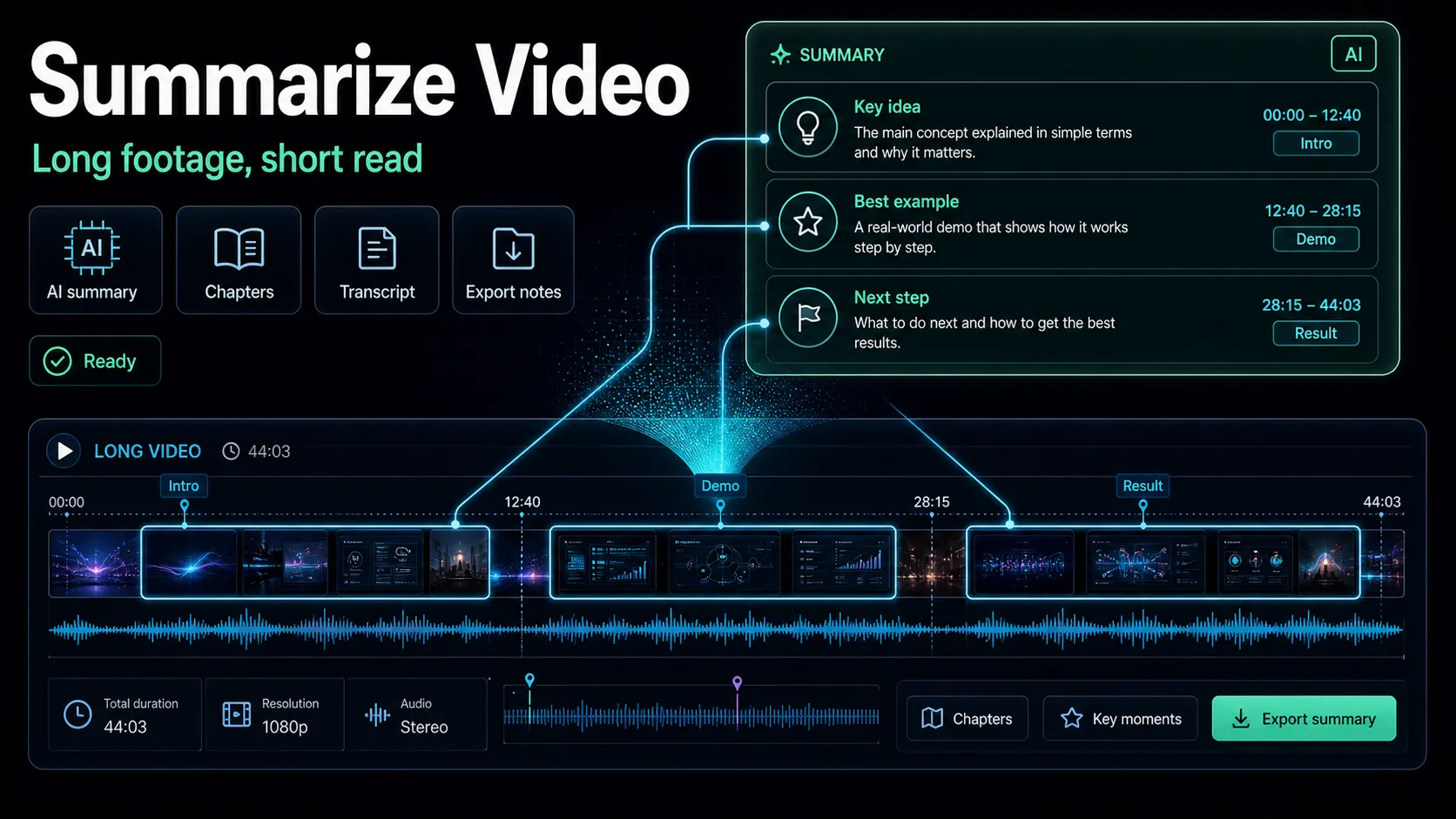
Neither tool adds the chapters to YouTube for you — you still paste the timestamps into the description yourself — but they turn "scrub the whole thing hunting for breakpoints" into "read an outline and copy the times." On a genuinely long upload, that's the difference between five minutes and forty-five.
Naming chapters for search and retention
The timestamp is mechanical; the title is where you get a small SEO and retention edge. A few habits pay off:
Chapter titles are just a structured slice of your description, so the same discipline that makes a good description makes good chapters. If you want a fuller framework for the metadata around your video, our guide to writing YouTube titles and descriptions covers the wider picture. Three to eight well-named chapters is the sweet spot for most videos — enough to navigate by, not so many that the list becomes noise.
Where Recapo fits
Let's be straight about it: adding chapters is a free, manual task you do in YouTube's description box. No editing tool is required, and Recapo doesn't paste timestamps into YouTube for you — nor should you pay anything to do a two-minute copy-paste.
Where a browser-based workspace earns its place is upstream of the timestamps, on long-form content. Recapo is an AI video workspace with nothing to install; for a lengthy recap or interview you're chaptering after the fact, it can summarize the video into an outline and break it into scenes so you can spot where each chapter should start — instead of scrubbing the timeline blind. And if you're repurposing, each chapter you just defined is a natural short: Recapo can clip that segment, reframe it to 9:16 for Shorts, Reels, or TikTok, caption it, add a voiceover, design a cover, and export — all in one tab. It accepts MP4, MOV, and other common formats, up to 6GB total per task, which comfortably covers a long source video.
The honest limit: the chapter list itself stays a YouTube description job that's yours to type. Recapo's value is finding the breakpoints on long footage and turning those same segments into clips you can post elsewhere. Plans live on the pricing page.
FAQ
How many chapters does a YouTube video need?
At least three. YouTube requires a minimum of three timestamps — with the first at 00:00 and each chapter at least ten seconds long — before it will render chapters at all. There's no hard upper limit, but three to eight is the practical sweet spot for most videos: enough to navigate by without turning the list into clutter. If you add fewer than three valid timestamps, no chapters appear.
Why aren't my YouTube chapters showing up?
It's nearly always a formatting miss. Check four things first: the first timestamp is exactly 00:00, you have at least three timestamps, every chapter is ten seconds or longer, and they're listed in ascending order on their own lines. A stray period instead of a colon (1.30 vs 1:30), a timestamp buried mid-paragraph, or a marker past the video's length will also break the list. Fix those, save, wait a moment, and hard-refresh the watch page.
What's the difference between manual and automatic chapters?
Manual chapters are the timestamps you write in the description — you control the exact breakpoints and the wording. YouTube automatic chapters are generated by its machine learning, which guesses both the cut points and generic titles. Auto is free and hands-off but imprecise; manual gives you keyword-worthy titles and breakpoints you chose. If you add three valid manual timestamps, they override the automatic ones. You can also disable auto-chapters in the video's settings under "Show more."
Do I need an editing app to add chapters?
No. Chapters are created purely by typing a correctly formatted timestamp list into the video description — no editing software, plugin, or paid tool is involved. The only "work" beyond typing is deciding where the chapters go, which on a long video is easier if you summarize it or break it into scenes first. But the chaptering step itself happens entirely inside YouTube's description box, for free.
How do I add timestamps to a YouTube video on mobile?
Open the video in the YouTube app (or the YouTube Studio app), edit the description, and type the same timestamp list — 00:00 first, one per line, in ascending order, at least ten seconds apart, three minimum. The mobile app has no separate chapters toggle; the identical formatting rules that work on desktop create the chapters. Save the description and the segments appear on the progress bar just as they do on the web.
Marking up a single video is a two-minute copy-paste — but if the reason you're here is a long recap or interview that's a chore to break down, that's the part worth automating. Create a free account, upload your footage — MP4 or MOV, up to 6GB total per task — and let Recapo summarize the video into an outline and break it into scenes so you can read off exactly where each chapter starts. Then, while you're there, clip those same segments into vertical Shorts, Reels, or TikToks with captions and a cover, and export — one tab, no install. You type the timestamps into YouTube; Recapo does the finding and the repurposing, so a long video earns its keep in more than one place.
References and official sources